
howtosimply.com/guides/google-maps-keeps-stopping-or-won-t-load-on-android-what-to-check/ · Checked October 2026 · build CP3A.261005.005 · Google Pixel 10a, Android 17
In this guide
Force stop Maps in Settings, Apps, See all apps, Maps and open it again. If it still crashes or the map stays blank, tap Storage and cache, then Clear cache (not Clear storage), check that Wi-Fi or mobile data is on, and update Maps in the Play Store.
6 of 6 steps with real screenshots · 2 official sources below
- Device
- Android
- Shown on
- Google Pixel 10a, Android 17 (build CP3A.261005.005)
- App
- Settings
- Path
- Settings › Apps › See all apps › Maps: Force stop
- Real screenshots
- 6 of 6 steps
- Checked
- October 2026
- Sources
- 2 official, linked below
Step by step
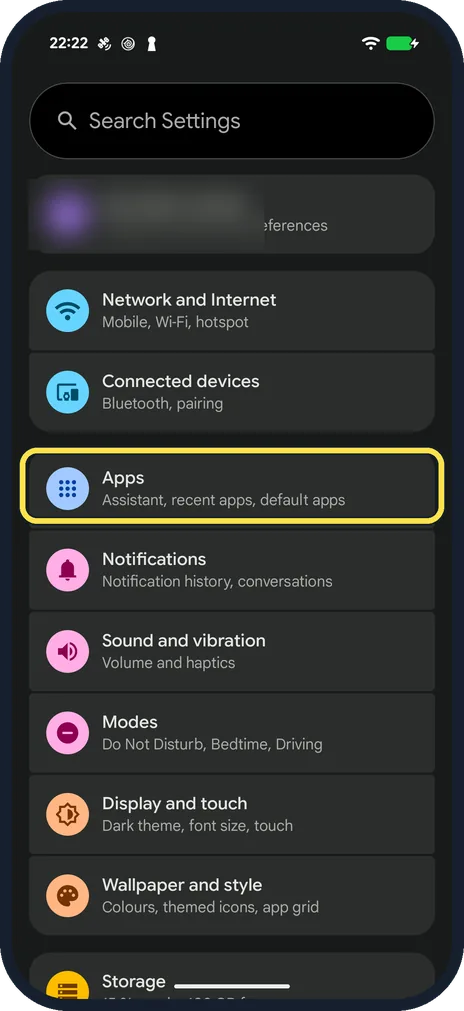
Open Settings and tap Apps
Then tap See all apps and Maps to open its App info page.
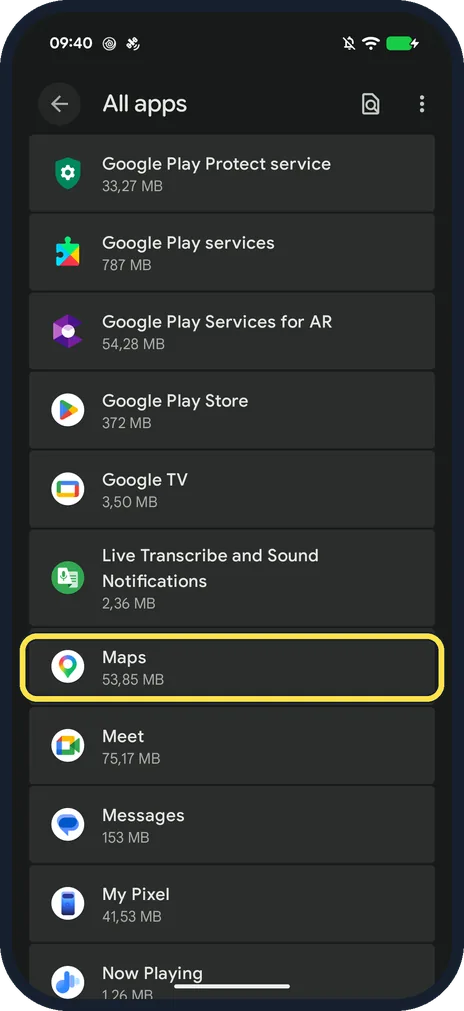
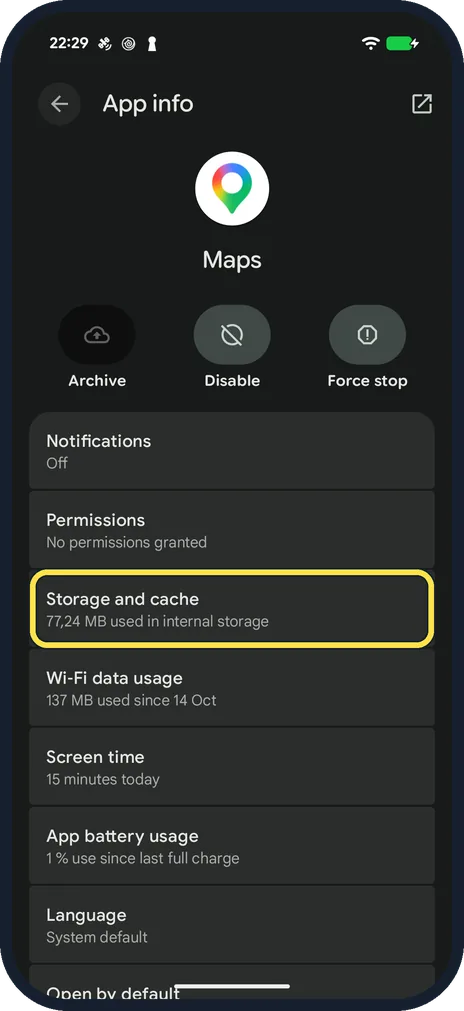
Force stop, then open Storage and cache
On our Pixel, Force stop is at the top of App info, next to Archive and Disable. Tap it and confirm, then open Maps again. If it still fails, come back and tap Storage and cache.
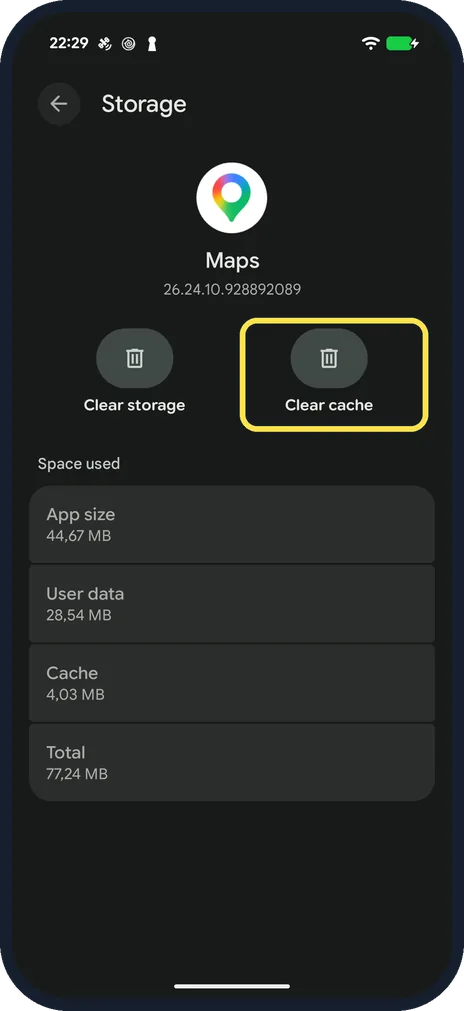
Clear the cache
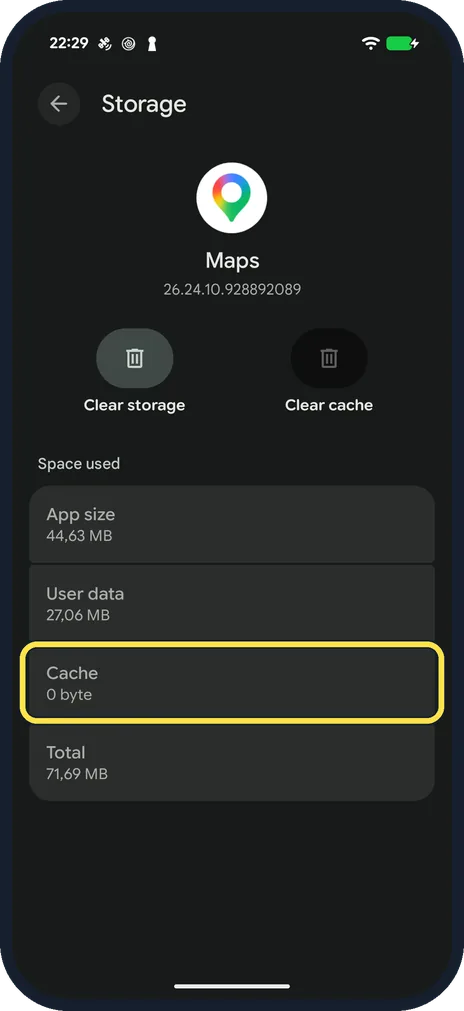
Tap Clear cache, not Clear storage: Clear storage resets Maps and removes downloaded offline maps. Ours had 4.03 MB of cache.
Check the result
Cache drops to 0 byte. Our total went from 77.24 MB to 71.69 MB.
Open Maps again
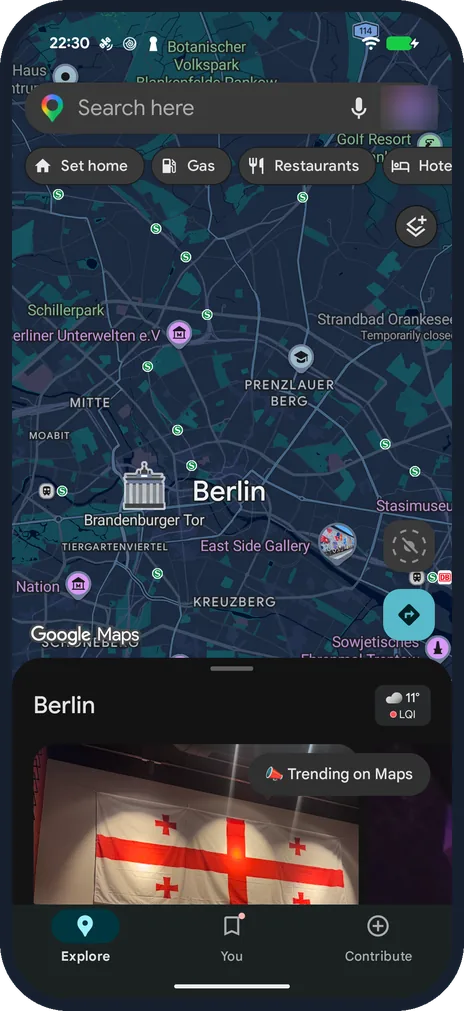
Ours loaded the map of Berlin straight away.
Check your connection
Without Wi-Fi or mobile data, Maps can only show areas you downloaded. Open Settings, Network and Internet: Internet shows the network you are on.
If you do not see this option
- You have a Samsung Galaxy Open Settings, Apps, Maps. On our Galaxy A57 Force stop was at the bottom of App info and the row was called Storage.
- Clear cache is greyed out The cache is already empty: ours was, at 0 byte, right after clearing it.
If this does not work
- Maps still crashes Update Maps in the Play Store and restart the phone, as Google Play Help suggests for apps that stop working. Source: Fix an installed Android app that isn't working
- Offline maps are gone That happens after Clear storage, not Clear cache. Download them again under Offline maps in the profile menu.
About this guide
A blank grey map, a spinning wheel or "Maps keeps stopping" usually comes down to a stuck app, a bad cache or no connection.
The screenshots are from our Google Pixel 10a with Android 17 (build CP3A.261005.005), in dark mode, with Google Maps 26.24.10 (shown on its Storage page).
Good to know
If the map loads but your position is wrong, see Google Maps showing the wrong location.
In short: Settings, Apps, See all apps, Maps: Force stop. Storage and cache: Clear cache, not storage. Check the connection. Update Maps.
- Google Maps Help: How to fix Maps when it crashes (Android)
- Google Play Help: Fix an installed Android app that isn't working
Links checked in October 2026. Menus and features can change after software updates. These steps match the version named at the top.
📷 See real photos from the Pixel 10a in our Camera Lab, next to 10 other phones.
Did this guide work for you?
Sorry about that. What happened?