
howtosimply.com/guides/how-to-turn-on-dark-mode-in-google-maps-on-android/ · Checked October 2026 · Samsung Galaxy A57 5G (SM-A576B), One UI 8.5, Android 16
In this guide
In Google Maps tap your profile picture, Settings, App & display, Theme. Choose Always in dark theme or Same as device theme and tap Save.
4 of 4 steps with real screenshots · 1 official source below
- Device
- Android
- Shown on
- Samsung Galaxy A57 5G (SM-A576B), One UI 8.5, Android 16
- App
- Maps
- Path
- Maps › Settings › App & display › Theme: Always in dark theme › Save
- Real screenshots
- 4 of 4 steps
- Checked
- October 2026
- Sources
- 1 official, linked below
Step by step
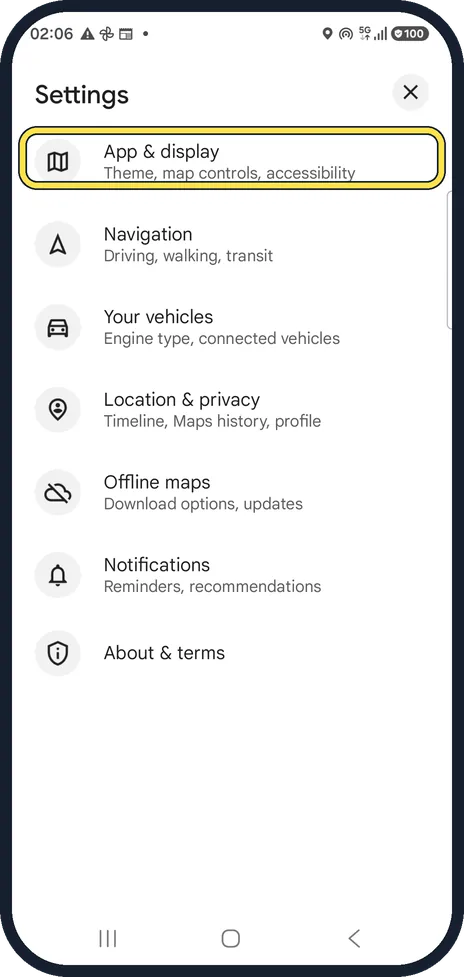
Open App & display
Tap your profile picture, Settings, then App & display.
Watch these steps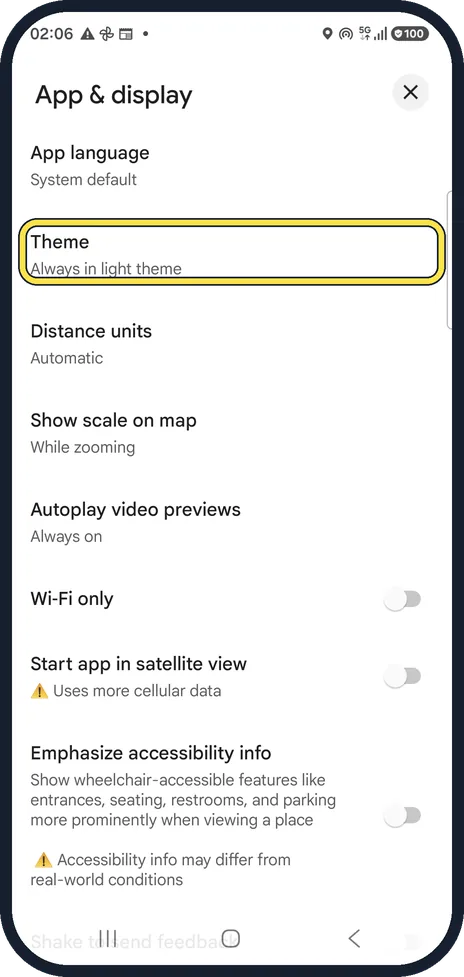
Tap Theme
It shows the current choice.
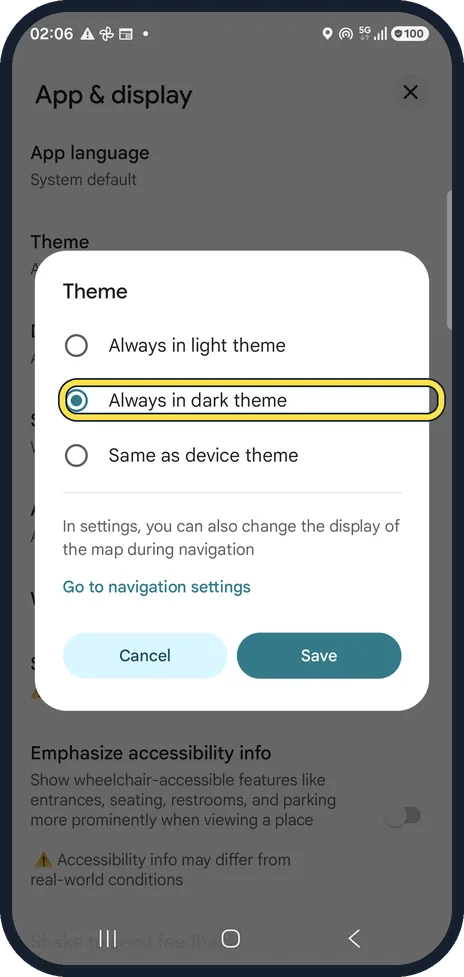
Choose dark and tap Save
Always in dark theme keeps Maps dark. Same as device theme follows the phone's dark mode. The dialog also points to navigation settings, where the map's colours during driving are set separately.
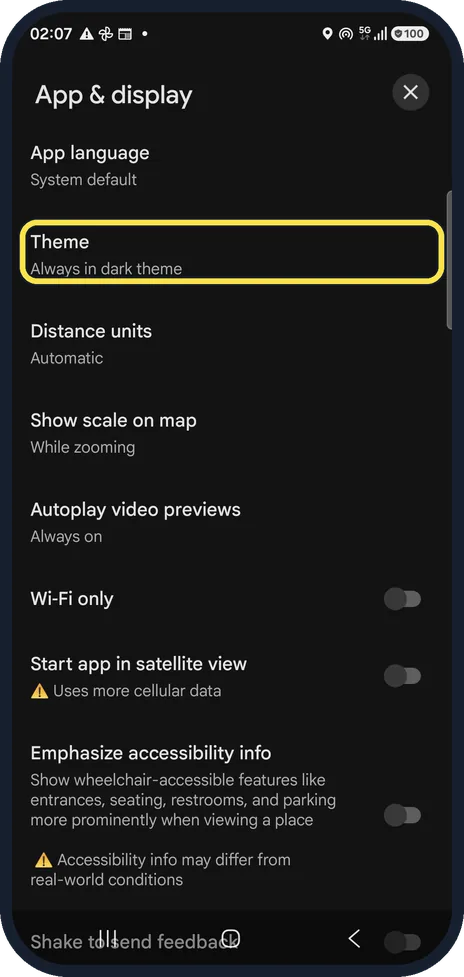
Check the setting
Theme now says Always in dark theme and the screens turn dark straight away.
Watch these steps
If you do not see this option
- There is no Theme setting Google says these steps need Android 10 or later. Source: Use Google Maps in dark theme (Android)
- Maps is still light while you drive Google says navigation has its own setting: Settings, Navigation, Map display, Color scheme. Night keeps it dark and Automatic follows the phone. Source: Use Google Maps in dark theme (Android)
If this does not work
- Same as device theme stays light Google says that option follows the phone's own dark theme, which on Android 10 and later is under Settings, Display. Turn dark mode on there. Source: Use Google Maps in dark theme (Android)
- You want it light again only while driving Google says the navigation Color scheme has Day, Night and Automatic, separate from the Theme you set here. Source: Use Google Maps in dark theme (Android)
About this guide
Maps has its own theme setting, so it can stay light even when the phone is in dark mode. Ours did: the phone was dark, Maps was set to Always in light theme, which is why the first screens below are light.
The screenshots are from Google Maps 26.31.02 on a Samsung Galaxy A57 5G with Android 16 and One UI 8.5. The phone was in dark mode, but Maps stayed light until we changed its theme in step 3. Maps looks the same on other Android phones; only the phone's own Settings screens differ by brand.
Good to know
To go back, choose Always in light theme the same way; the setting changes instantly.
In short: Maps, Settings, App & display, Theme: Always in dark theme, Save.
Links checked in October 2026. Menus and features can change after software updates. These steps match the version named at the top.
📷 See real photos from the Galaxy A57 in our Camera Lab, next to 10 other phones.
Did this guide work for you?
Sorry about that. What happened?