
howtosimply.com/guides/google-maps-showing-the-wrong-location-on-android-how-to-fix-it/ · Checked October 2026 · Samsung Galaxy A57 5G (SM-A576B), One UI 8.5, Android 16
In this guide
Open the phone's Settings, Location and make sure it is on. Then open Location services, Location Accuracy and switch on Improve Location Accuracy. Turn on Wi-Fi as well, even without connecting: Maps uses nearby networks to place the blue dot.
5 of 5 steps with real screenshots · 1 official source below
- Device
- Android
- Shown on
- Samsung Galaxy A57 5G (SM-A576B), One UI 8.5, Android 16
- App
- Google Maps
- Real screenshots
- 5 of 5 steps
- Checked
- October 2026
- Sources
- 1 official, linked below
Step by step
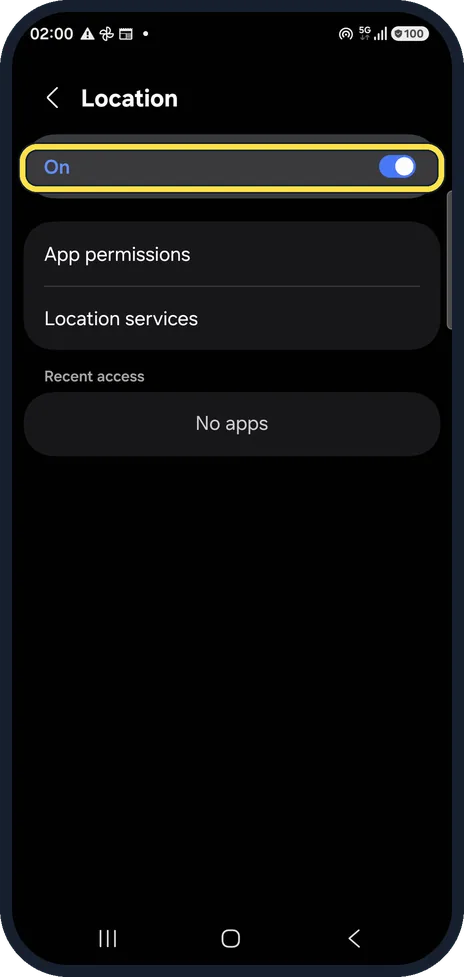
Check that Location is on
Open Settings and tap Location. The switch at the top must be On. App permissions below shows which apps may use it.
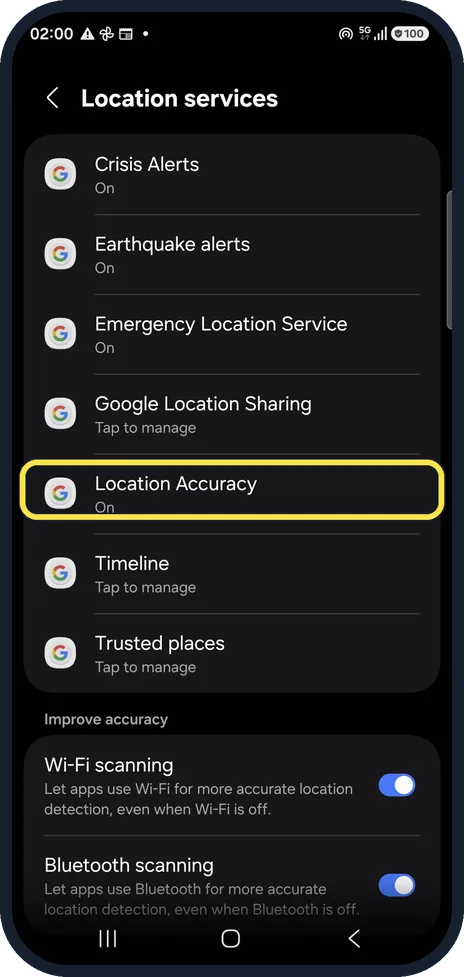
Open Location Accuracy
Tap Location services. Location Accuracy is one of Google's entries; ours said On. The same page has Wi-Fi scanning and Bluetooth scanning, which also help.
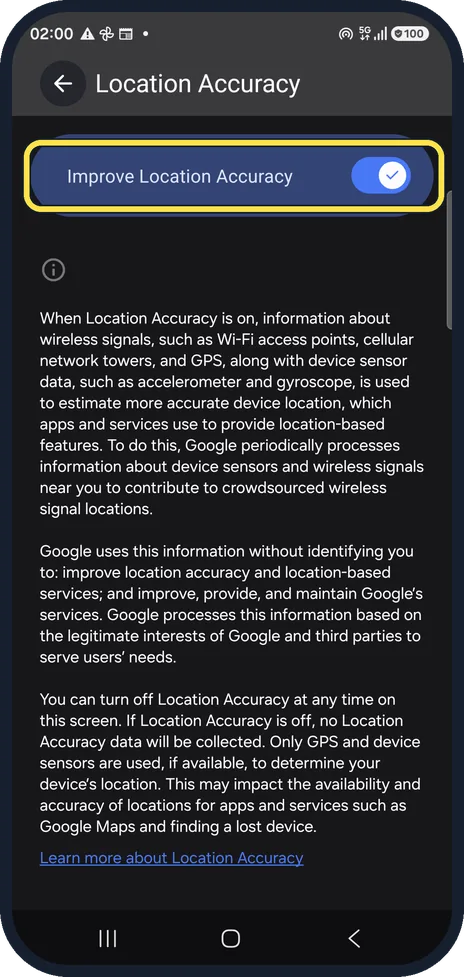
Switch on Improve Location Accuracy
With it off, only GPS and the phone's sensors are used, which is slower and less exact indoors and between tall buildings. The page explains what Google collects when it is on.
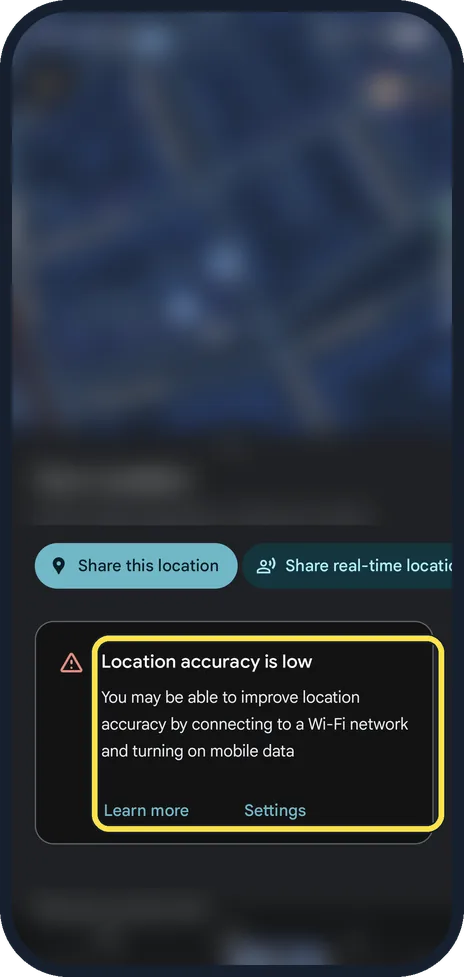
Read the card in Maps
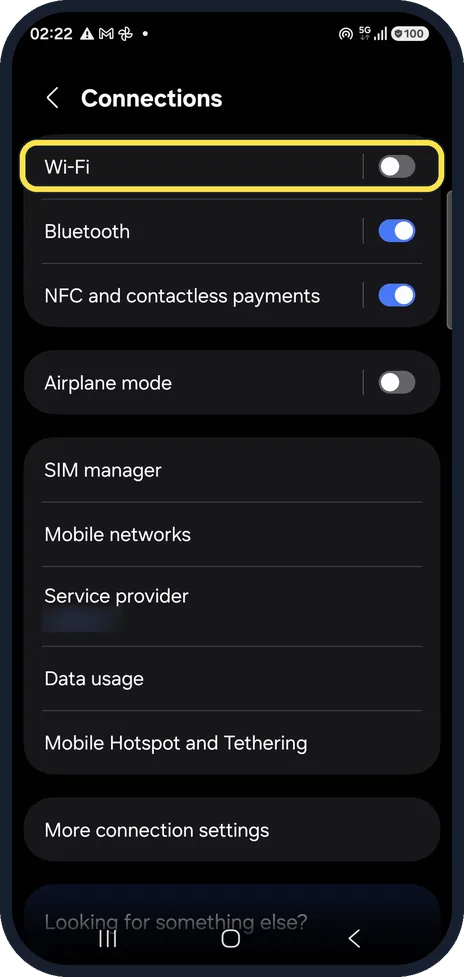
Tap the blue dot in Maps. When the fix is poor, Maps shows Location accuracy is low and suggests connecting to Wi-Fi and turning on mobile data. Its Settings button opens the phone's Connections page.
Turn on Wi-Fi or mobile data
On Connections, switch on Wi-Fi. Our test phone had Wi-Fi off, which is exactly when Maps showed the warning.
If you do not see this option
- You have a Google Pixel or another phone Google's own route to Wi-Fi is Settings, Network and Internet, Internet. Location Accuracy is under Settings, Location, Location services on Pixel phones as well. Source: Find and improve your location's accuracy in Google Maps
- There is no low accuracy card Google says the message appears only with a wide blue circle around the dot. A grey dot, or no dot, means Maps cannot find you and shows the last place you visited. Source: Find and improve your location's accuracy in Google Maps
If this does not work
- The location jumps around Google says to turn off Battery Saver. Source: Find and improve your location's accuracy in Google Maps
- The location is out of date Google says to turn off Aeroplane mode, and to restart the phone if the location is still wrong. Source: Find and improve your location's accuracy in Google Maps
About this guide
The blue dot sits in the wrong street, jumps around or shows a wide blue circle. On Android that usually means the phone is relying on GPS alone.
The screenshots are from Google Maps 26.31.02 on a Samsung Galaxy A57 5G with Android 16 and One UI 8.5, in dark mode. Maps looks the same on other Android phones; only the phone's own Settings screens differ by brand.
Good to know
If the blue beam points the wrong way, Google Maps Help suggests moving the phone in a figure 8 to calibrate the compass. On Maps 26.31.02 our blue dot sheet offered Enter compass mode but no Calibrate button.
Still wrong? Restart the phone and see Google Maps keeps stopping or won't load.
In short: Settings, Location on; Location services, Location Accuracy on; Wi-Fi on.
Links checked in October 2026. Menus and features can change after software updates. These steps match the version named at the top.
📷 See real photos from the Galaxy A57 in our Camera Lab, next to 10 other phones.
Did this guide work for you?
Sorry about that. What happened?