
howtosimply.com/guides/how-to-avoid-tolls-highways-or-ferries-in-google-maps-on-android/ · Checked October 2026 · build CP3A.261005.005 · Google Pixel 10a, Android 17
In this guide
In Google Maps tap your profile picture, Settings, Navigation and switch on Avoid tolls, Avoid highways or Avoid ferries under Route options. With a route open, tap the Options icon above the travel times to get the same switches under Trip options.
6 of 6 steps with real screenshots · 1 official source below
- Device
- Android
- Shown on
- Google Pixel 10a, Android 17 (build CP3A.261005.005)
- App
- Maps
- Path
- Maps › Settings › Navigation › Route options: Avoid tolls
- Real screenshots
- 6 of 6 steps
- What we did
- Performed: we made the change on our device and show the result
- Checked
- October 2026
- Sources
- 1 official, linked below
Step by step
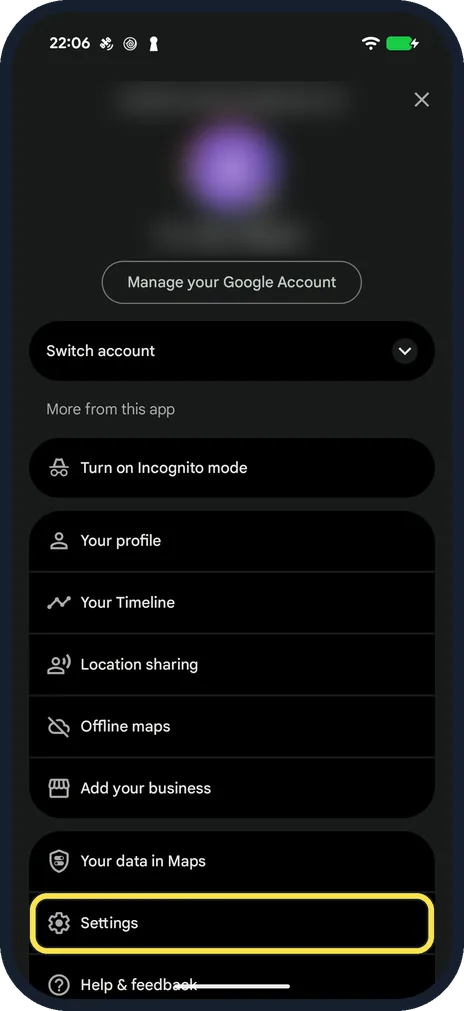
Open Maps settings
Tap your profile picture at the top right, then Settings near the bottom of the menu.
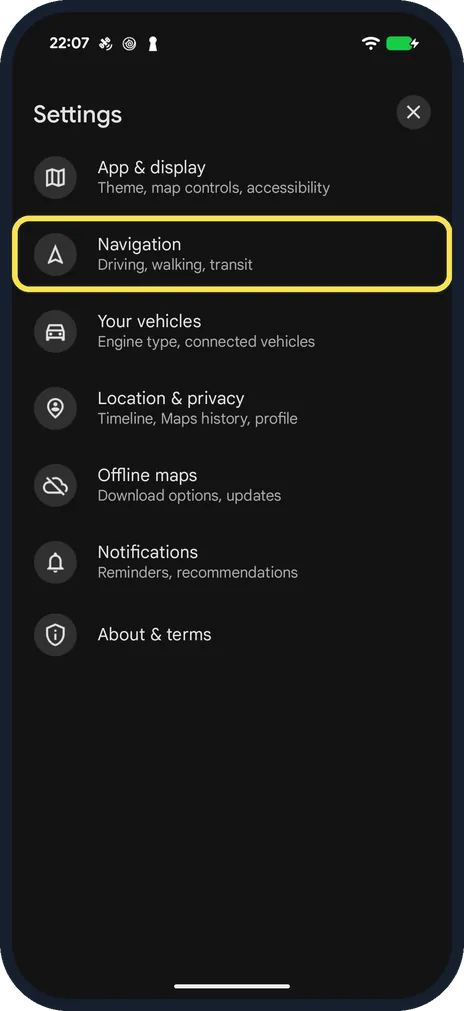
Tap Navigation
On ours it was the second row, below App & display.
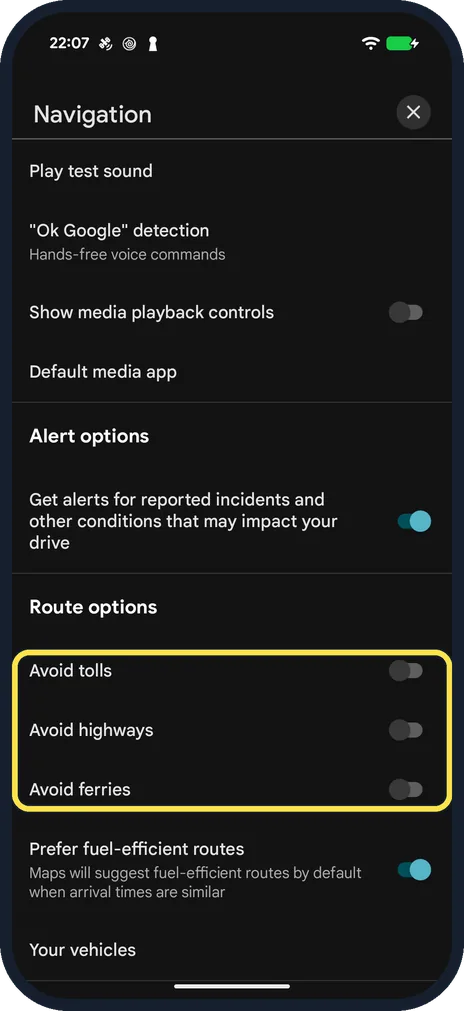
Switch on the Route options you want
Scroll down to Route options: Avoid tolls, Avoid highways and Avoid ferries, then Prefer fuel-efficient routes, which was on on our phone. These switches apply to every drive.
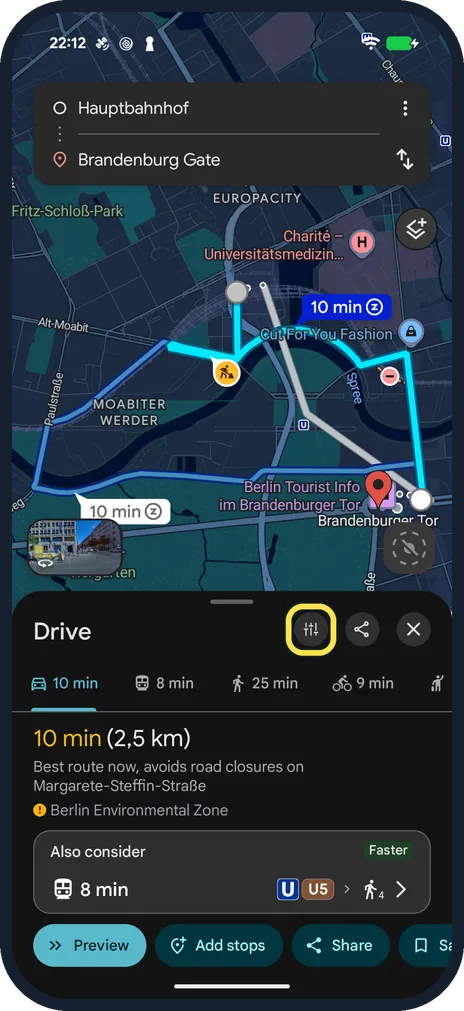
Or change them for one route
With directions open, tap the Options icon (the sliders) on the Drive row, next to the share and close buttons.
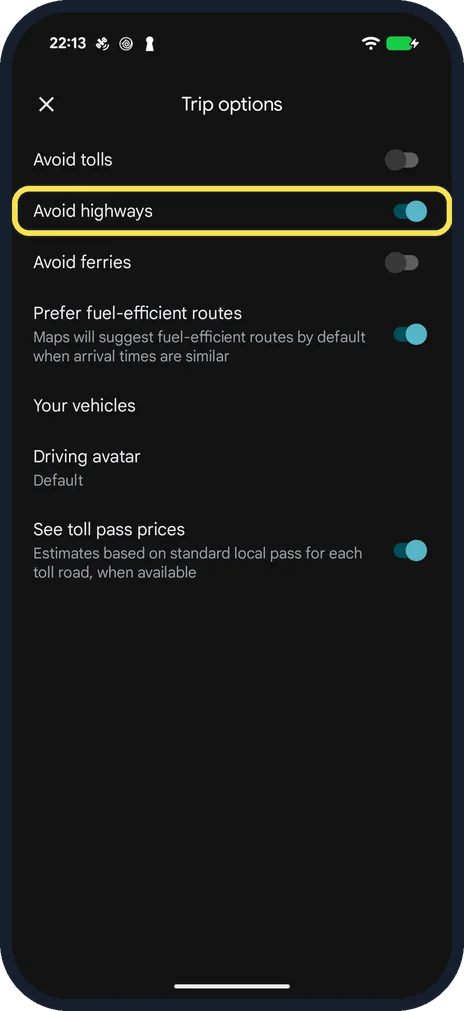
Use Trip options
Trip options has the same three Avoid switches, Prefer fuel-efficient routes, Your vehicles, Driving avatar and See toll pass prices. We switched on Avoid highways.
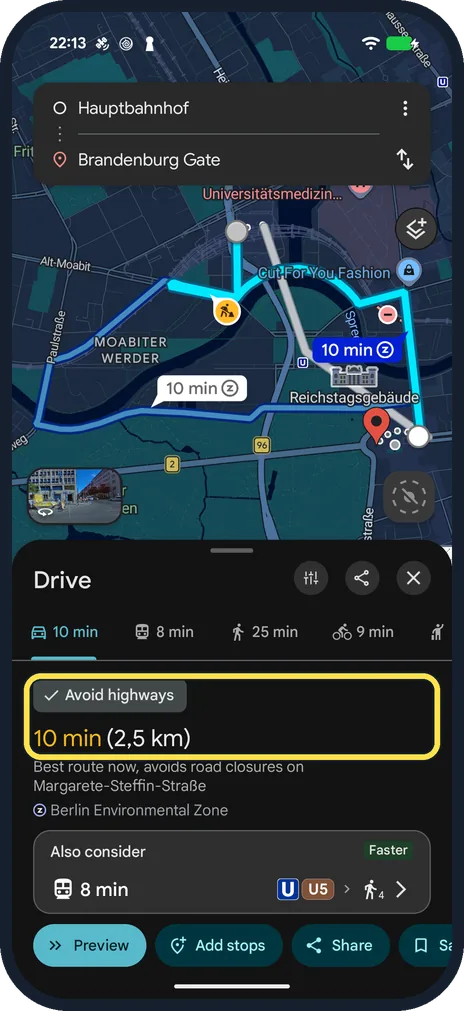
Check the route
The route sheet now shows an Avoid highways label above the time. Our city route, Berlin Hauptbahnhof to the Brandenburg Gate, stayed 10 min (2,5 km), as it used no motorway. We switched Avoid highways off again afterwards.
If you do not see this option
- The route has no Options icon Swipe the route sheet up so the Drive row with the travel times shows; on ours the Options icon sat on that row, left of Share.
- Your vehicles is not a road choice Your vehicles, below the Avoid switches, is about the engine type for fuel-efficient routes; it does not leave out roads.
If this does not work
- The route time does not change If there is no motorway, toll road or ferry on the route, avoiding them changes nothing: our 2,5 km city route stayed 10 min with Avoid highways on.
- A later drive looks slow Check Settings, Navigation, Route options: those switches stay as you set them for every drive until you turn them off.
About this guide
Maps picks the fastest route, which often means a toll road or motorway. You can rule them out for every drive, or only for the route on screen.
The screenshots are from Google Maps on our Google Pixel 10a with Android 17 (build CP3A.261005.005), in dark mode. The account in the profile menu is blurred.
Good to know
Avoid highways can make a long trip much slower; Maps shows the time for the new route before you start.
In short: Maps, Settings, Navigation, Route options: Avoid tolls, highways or ferries. Or on a route: Options, Trip options.
Links checked in October 2026. Menus and features can change after software updates. These steps match the version named at the top.
📷 See real photos from the Pixel 10a in our Camera Lab, next to 10 other phones.
Did this guide work for you?
Sorry about that. What happened?