
howtosimply.com/guides/how-to-add-a-stop-to-a-route-in-google-maps-on-android/ · Checked October 2026 · Samsung Galaxy A57 5G (SM-A576B), One UI 8.5, Android 16
In this guide
Get directions, then tap Add stops below the route. Search along the route or pick a category such as Coffee shops, open a place and tap Add stop. Maps puts the stop in the route and shows the new time.
4 of 4 steps with real screenshots · 1 official source below
- Device
- Android
- Shown on
- Samsung Galaxy A57 5G (SM-A576B), One UI 8.5, Android 16
- App
- Google Maps
- Real screenshots
- 4 of 4 steps
- Checked
- October 2026
- Sources
- 1 official, linked below
Step by step
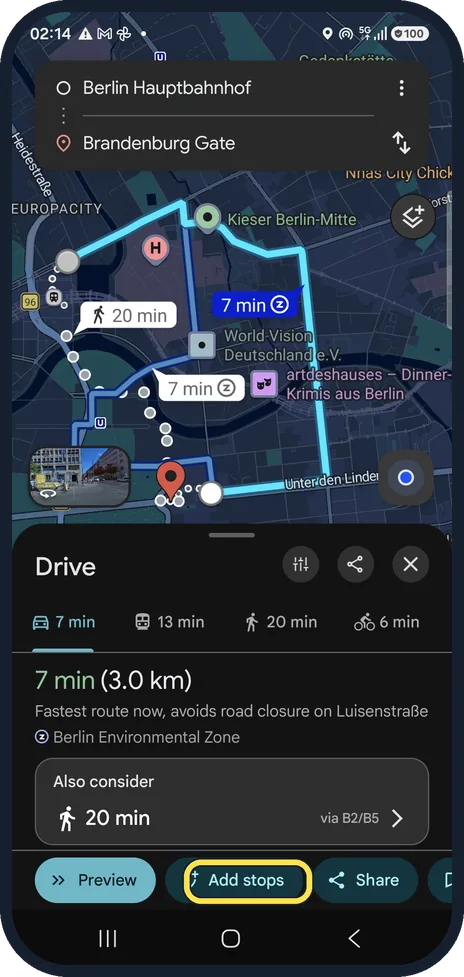
Tap Add stops
Plan the route as usual. Ours went from Berlin Hauptbahnhof to the Brandenburg Gate: 7 min, 3.0 km. Add stops is next to Preview.
Watch these steps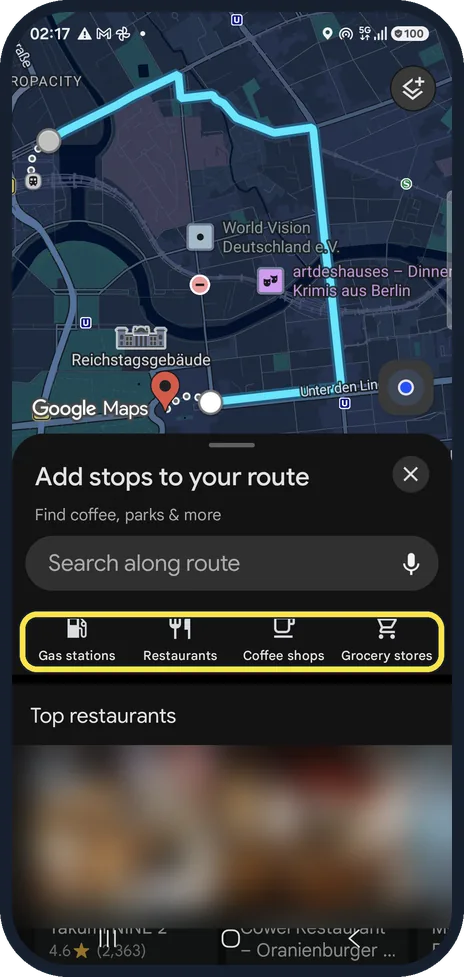
Choose a place on the way
Search along route, or tap Gas stations, Restaurants, Coffee shops or Grocery stores. Each result shows how many minutes it adds.
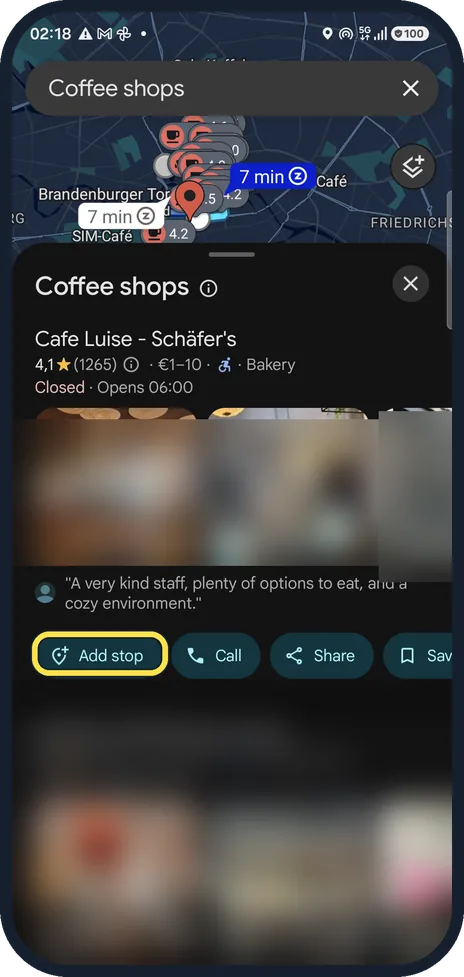
Tap Add stop
Pick a place from the list and tap Add stop.
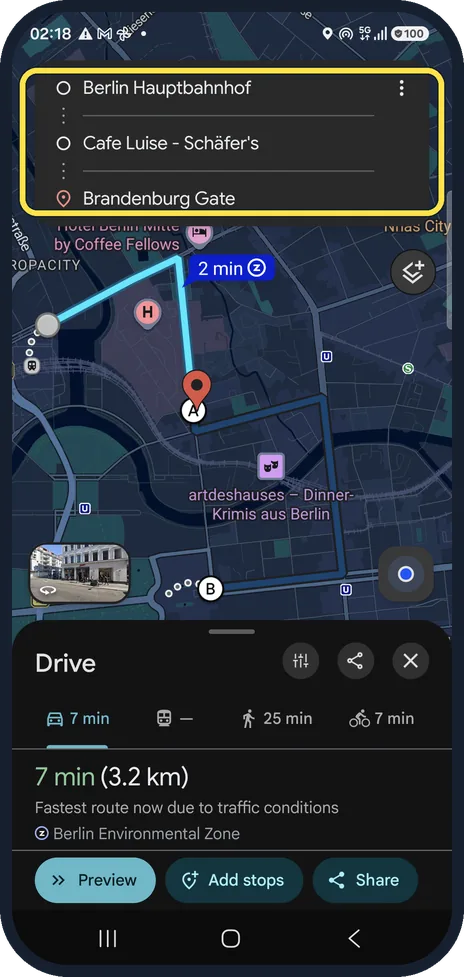
Check the new route
The stop appears between start and destination. Ours became 7 min and 3.2 km.
Watch these steps
About this guide
A coffee, fuel or a pick-up on the way. The Add stops button only appears once you have a route.
The screenshots are from Google Maps 26.31.02 on a Samsung Galaxy A57 5G with Android 16 and One UI 8.5, in dark mode. Maps looks the same on other Android phones; only the phone's own Settings screens differ by brand.
Good to know
Stops are listed at the top between the start and the destination, so you can see the order before you start.
In short: Directions, Add stops, pick a place, Add stop.
Links checked in October 2026. Menus and features can change after software updates. These steps match the version named at the top.
📷 See real photos from the Galaxy A57 in our Camera Lab, next to 10 other phones.
Did this guide work for you?
Sorry about that. What happened?