
What changed: the screenshots are now our own iPhone 17e on iOS 27.0.1, dark mode, and the wording is checked against those screens and Apple's iOS 27 guide.
howtosimply.com/guides/how-to-clear-safari-history-and-website-data-on-iphone/ · Checked October 2026 · iPhone 17e · iOS 27.0.1
In this guide
Open Settings, tap Apps, then Safari, and tap Clear History and Website Data. Choose how far back to clear under Clear Timeframe and tap Clear History. Apple says this also removes cookies, so websites may sign you out. Have your passwords ready.
7 of 7 steps with real screenshots · 4 official sources below
- Device
- iPhone
- Shown on
- iOS 27.0.1 (iPhone 17e)
- App
- Settings
- Path
- Settings › Apps › Safari › Clear History and Website Data
- Real screenshots
- 7 of 7 steps
- Checked
- October 2026
- Sources
- 4 official, linked below
Step by step
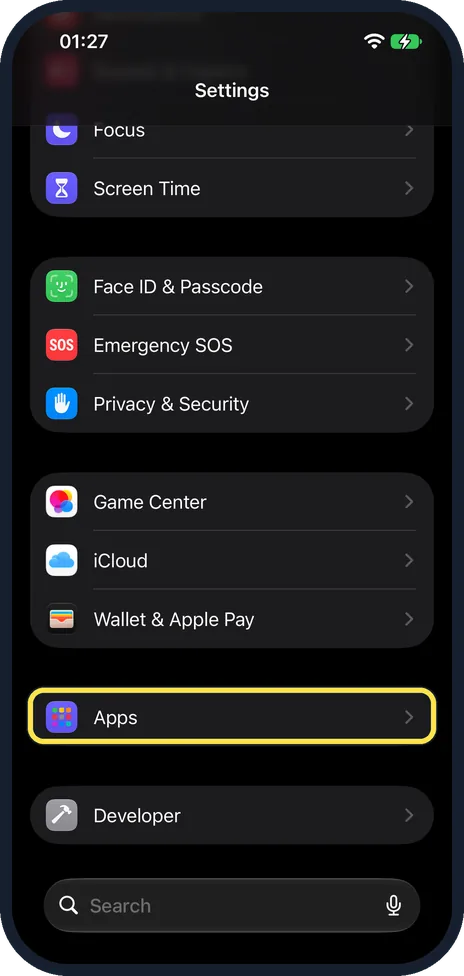
Open Settings and tap Apps
Scroll down the main Settings list and tap Apps. On our iPhone 17e it sits on its own, below Game Center, iCloud and Wallet & Apple Pay, and above Developer.
Watch these steps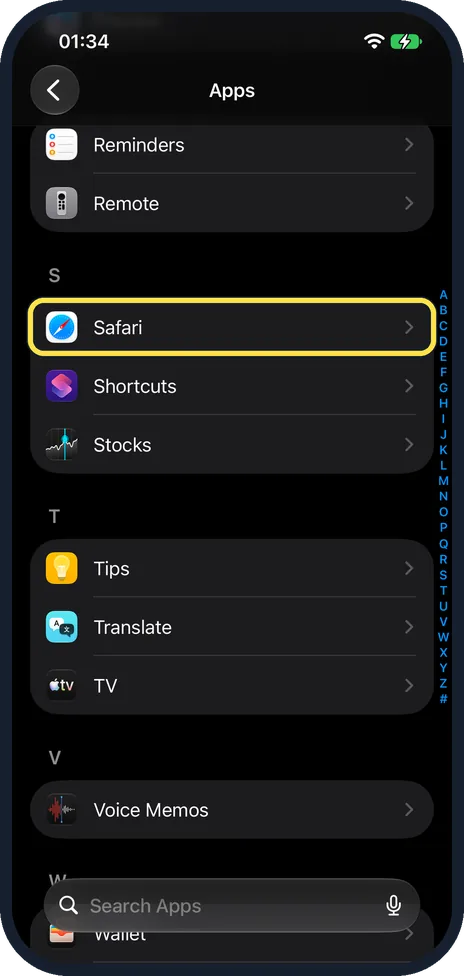
Tap Safari
The apps are in alphabetical order, below Default Apps. On our iPhone 17e Safari was the first app under S, after Reminders and Remote, and above Shortcuts and Stocks. The picture shows Safari boxed under S; the letter index is at the right edge. Scroll down to S, tap S in the letter index at the right edge, or type Safari in the Search Apps field at the bottom.
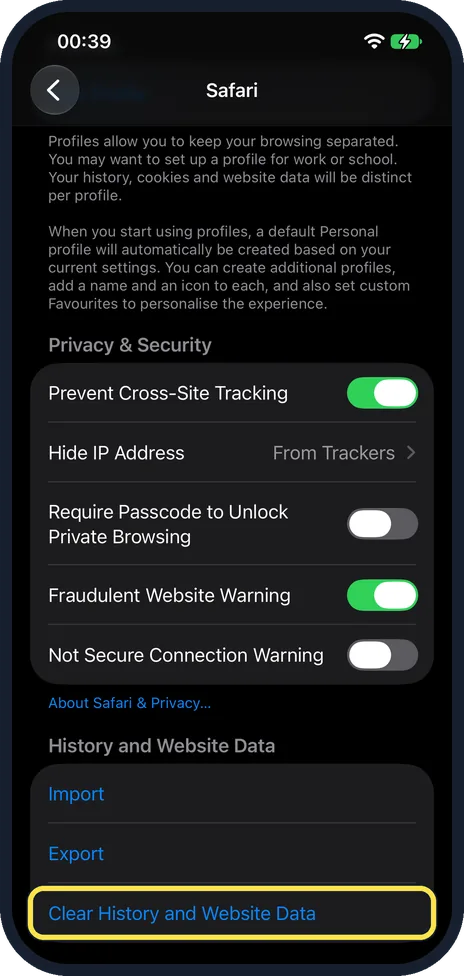
Tap Clear History and Website Data
Scroll down past Privacy & Security to the History and Website Data group. Clear History and Website Data is the blue row below Import and Export.
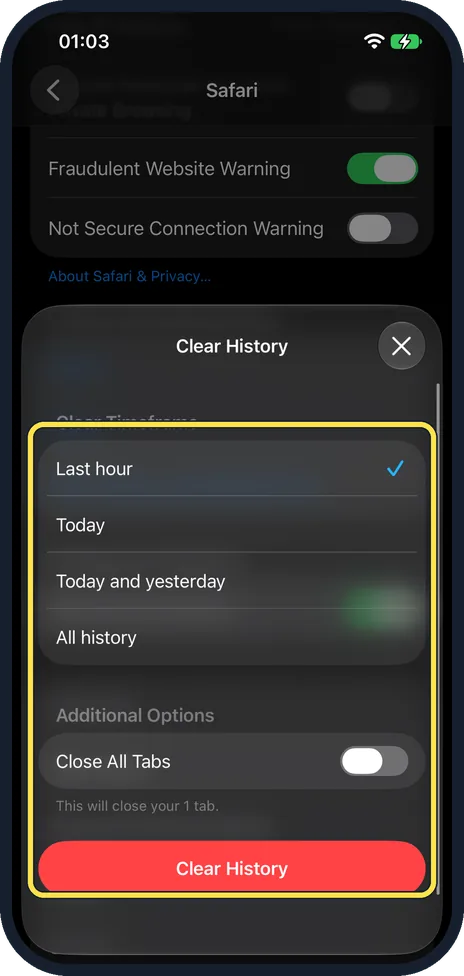
Choose a time range and confirm
A Clear History sheet opens. Under Clear Timeframe, pick Last hour, Today, Today and yesterday or All history. On our iPhone 17e Last hour was ticked. Under Additional Options, switch on Close All Tabs if you also want to close your open tabs. It was off on ours, with the note "This will close your 1 tab." Then tap the red Clear History button. We closed the sheet without clearing.
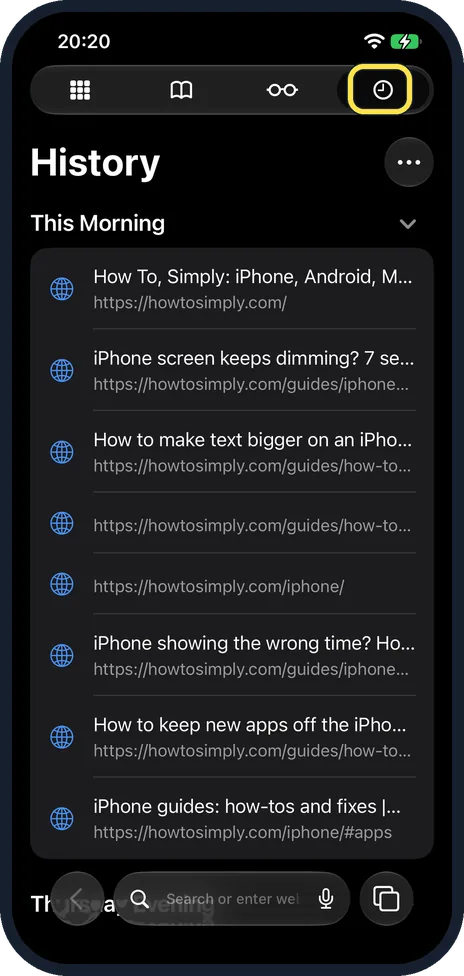
Or from inside Safari: open History
Safari has its own route. Open Safari and go to the start page. On our iPhone 17e History is the clock, the last of the four buttons in the row at the top. It lists the pages you visited, grouped by time, such as This Morning.
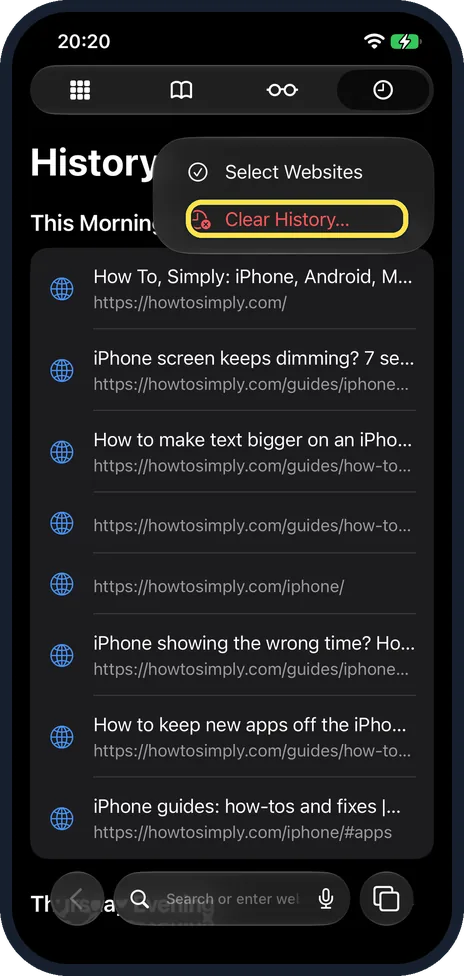
Tap More, then Clear History
Tap the More button (…) next to the History heading. On our iPhone 17e the menu had two items, Select Websites and Clear History… in red. Tap Clear History….
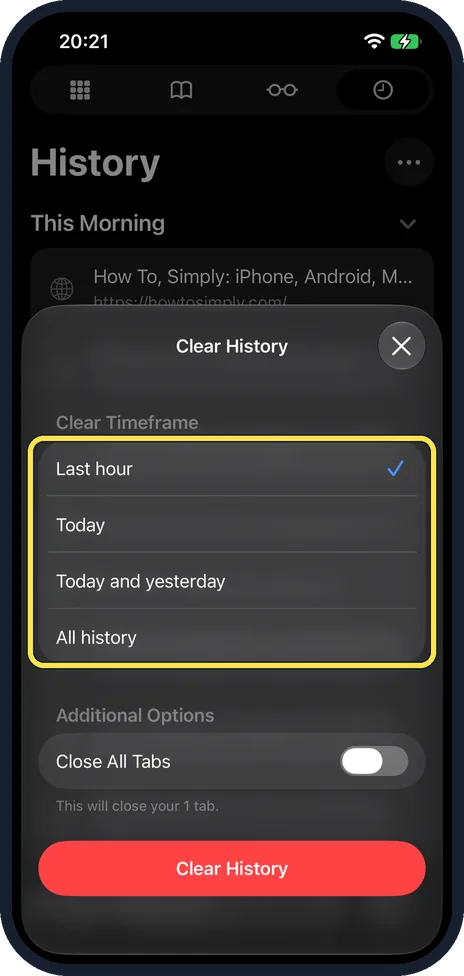
Choose a time range and tap Clear History
On our iPhone 17e the sheet that opened from Safari was the same as in Settings: Last hour (ticked), Today, Today and yesterday and All history, then Close All Tabs and the red Clear History button. Our 17e had no Safari profiles set up, so the sheet offered no profile choice. We closed it without clearing.
What changed: the screenshots are now our own iPhone 17e on iOS 27.0.1, dark mode, and the wording is checked against those screens and Apple's iOS 27 guide.
Watch these steps
What we saw on our device
- Open Settings and tap Apps: On our iPhone 17e it sits on its own, below Game Center, iCloud and Wallet & Apple Pay, and above Developer.
- Tap Safari: On our iPhone 17e Safari was the first app under S, after Reminders and Remote, and above Shortcuts and Stocks.
- Choose a time range and confirm: On our iPhone 17e Last hour was ticked.
- Or from inside Safari: open History: On our iPhone 17e History is the clock, the last of the four buttons in the row at the top.
- Tap More, then Clear History: On our iPhone 17e the menu had two items, Select Websites and Clear History… in red.
If you do not see this option
- No profile choice on the sheet Apple says that with Safari profiles set up, you select a profile to clear only its history, or select All Profiles. Our iPhone 17e had no profiles, so the sheet showed only Clear Timeframe and Additional Options. Source: Clear your cache and cookies on iPhone
- No row of four buttons on the start page Apple's iOS 27 guide says this depends on your Tabs layout. If your Tabs layout is Bottom or Top, Apple says to tap the Show Bookmarks button, then History. Source: Clear your cache and cookies on iPhone
If this does not work
- Clear History and Website Data is grey Apple Support gives two causes: there is no history or website data to clear, or Screen Time web content restrictions are on. Source: Delete your Safari history, cache, and cookies on iPhone
- Older history is still there Apple says that below Clear Timeframe you choose how much of your browsing history to clear. If you picked Last hour, Today or Today and yesterday, clear again and choose All history. Source: Clear your cache and cookies on iPhone
- A website or another app still shows your history Apple says clearing your history in Safari does not clear browsing histories kept independently by the websites you visited, or your browsing history in other apps. Source: Clear your cache and cookies on iPhone
About this guide
Clearing Safari removes the list of pages you visited, cookies and cached files. It can fix websites that load wrongly, free some storage, and tidy up before you lend someone your phone.
Screenshots: iPhone 17e, iOS 27.0.1, dark mode.
Good to know
Apple Support says: "This doesn't change your AutoFill information."
Apple says clearing also removes the permissions you gave websites to use your location or send you notifications. It does not clear histories that websites keep themselves, or your browsing history in other apps.
To browse without leaving history in the first place, open Safari, tap the tabs button, then swipe right on the tab bar at the bottom until Private Browsing opens.
Apple says that signing in to iCloud with the same Apple Account on several devices keeps your browsing history up to date across them. Its clearing page does not say whether clearing here also clears those devices.
To remove one website only, Apple Support describes deleting a website from your history: in Safari, Start Page, History, More, Select Websites, then the Trash button. We opened that menu but did not delete a single site.
In short: Settings, Apps, Safari, Clear History and Website Data.
- Apple Support: Delete your Safari history, cache, and cookies on iPhone
- Apple iPhone User Guide: Clear your cache and cookies on iPhone
- Apple iPhone User Guide: Browse the web privately in Safari on iPhone
- Apple iPhone User Guide: Customize your Safari settings on iPhone
Links checked in October 2026. Menus and features can change after software updates. These steps match the version named at the top.
Did this guide work for you?
Sorry about that. What happened?