
What changed: the screenshots are now our own iPhone 17e on iOS 27.0.1, dark mode, and the wording is checked against those screens.
howtosimply.com/guides/how-to-make-all-websites-larger-in-safari-on-an-iphone/ · Checked October 2026 · iPhone 17e · iOS 27.0.1
In this guide
Open Settings, tap Apps, then Safari, scroll to Settings for Websites and tap Page Zoom. Under Other Websites, tap a value above 100%, for example 125%. Every website then opens at that size. For one website only, use Page Zoom in the Page menu inside Safari.
4 of 4 steps with real screenshots · 1 official source below
- Device
- iPhone
- Shown on
- iOS 27.0.1 (iPhone 17e)
- App
- Settings
- Path
- Settings › Apps › Safari › Page Zoom
- Real screenshots
- 4 of 4 steps
- What we did
- Performed: we made the change on our device and show the result
- Checked
- October 2026
- Sources
- 1 official, linked below
Step by step
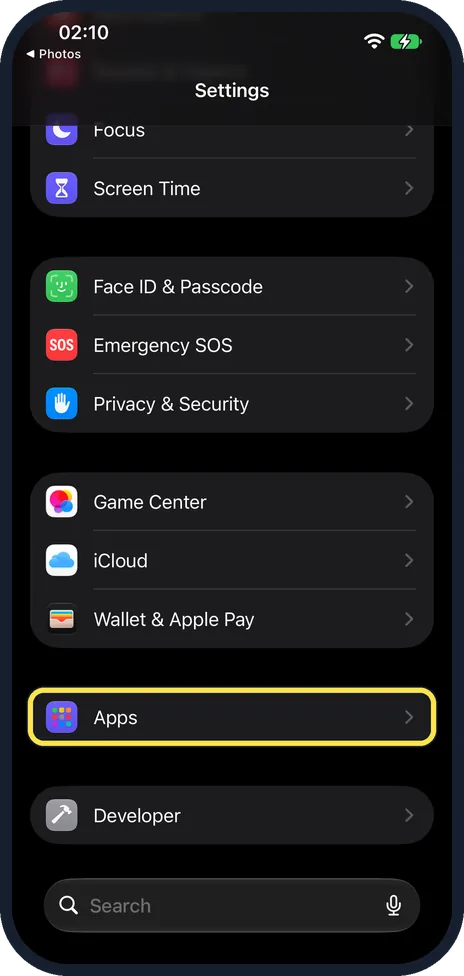
Open Settings and tap Apps
Apps is near the bottom of the main Settings list. On iOS 17 and earlier, Safari is in the main list itself.
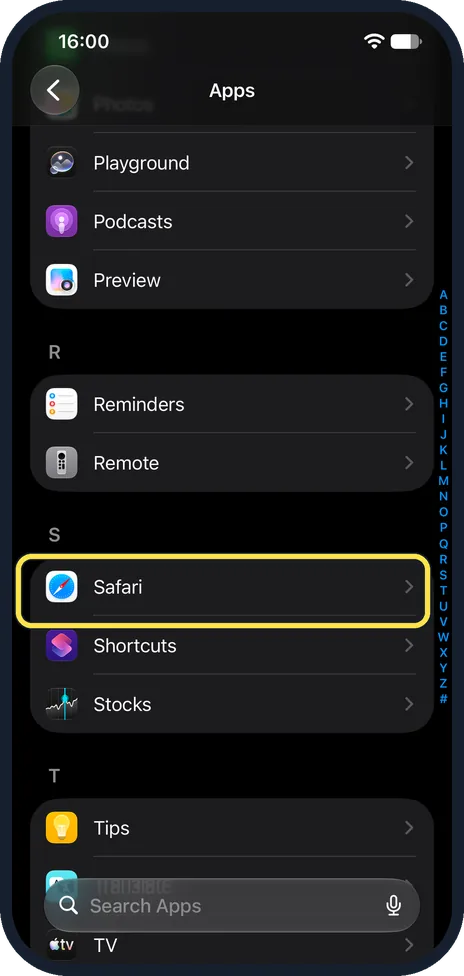
Tap Safari
The apps are in alphabetical order, so Safari is under S.
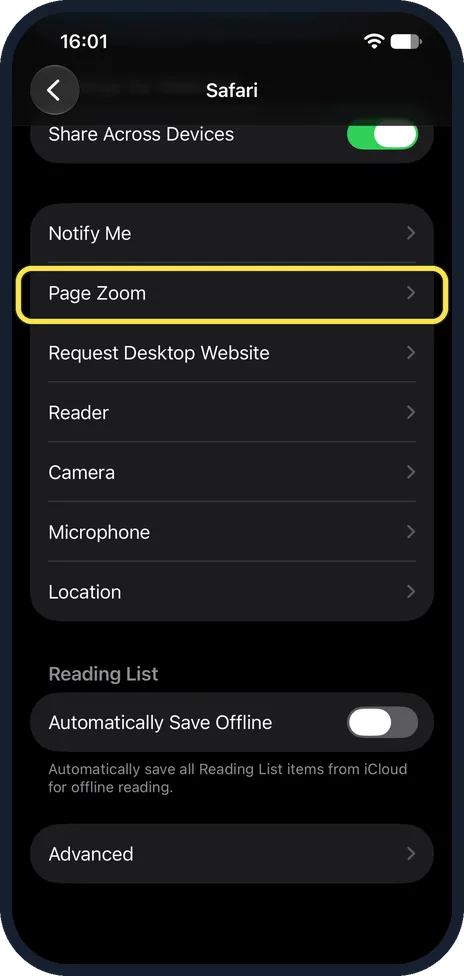
Scroll down to Settings for Websites and tap Page Zoom
The group is near the bottom of the Safari page, with Notify Me and Request Desktop Website.
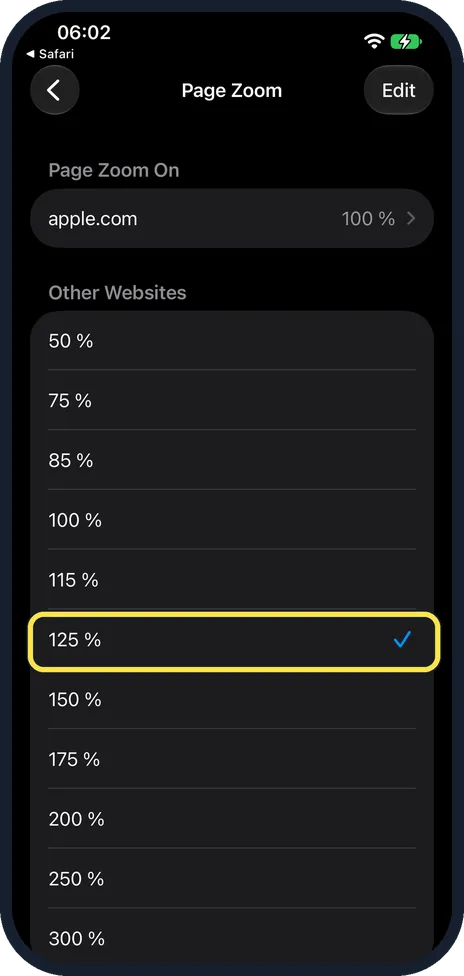
Tap a zoom level
Under Other Websites there are eleven levels: 50, 75, 85, 100, 115, 125, 150, 175, 200, 250 and 300%. The tick is on 100% at first; the picture shows ours after we tapped 125 %. Websites you have zoomed one by one are listed above, under Page Zoom On; ours showed apple.com at 100%.
What changed: the screenshots are now our own iPhone 17e on iOS 27.0.1, dark mode, and the wording is checked against those screens.
If you do not see this option
- Your iPhone runs iOS 17 or earlier. Safari is in the main Settings list itself, not under Apps.
- You want larger text only in Safari. Apple: Settings, Accessibility, Per-App Settings, Safari. If Safari is not listed, tap Add App. Source: Customize your Safari settings on iPhone
If this does not work
- One website keeps its old size. Sites you zoomed one by one are listed under Page Zoom On and keep their own level; ours showed apple.com at 100%. Tap Edit at the top right to remove one.
- A site is still too small. In Safari, tap the Page menu button left of the search field, tap Page Zoom and tap the large A. Source: Customize your Safari settings on iPhone
About this guide
Small text on websites can be enlarged page by page, but that has to be repeated on each site. The Safari settings have one value for all websites, from 50% to 300%.
The screenshots are our own, taken on an iPhone 17e running iOS 27.0.1, in dark mode.
Good to know
For a single website: in Safari, tap the Page menu button on the left side of the search field, then tap Page Zoom. Tap the large A to increase the size or the small A to decrease it.
To enlarge text in all apps, not only in Safari: how to make text bigger on an iPhone.
In short: Settings, Apps, Safari, Page Zoom, tap a level.
Links checked in October 2026. Menus and features can change after software updates. These steps match the version named at the top.
Did this guide work for you?
Sorry about that. What happened?