
howtosimply.com/guides/safari-import-says-no-compatible-web-browsers-on-iphone/ · Checked October 2026 · iPhone 17e · iOS 27.2
In this guide
Safari on iPhone imports from a file you exported from the other browser. In Settings, Apps, Safari, tap Import. If it says No Compatible Web Browsers, tap Import from Files, then Choose File, pick the file, enter your passcode and tap Import to Safari.
8 of 8 steps with real screenshots · 3 official sources below
- Device
- iPhone
- Shown on
- iOS 27.2 (iPhone 17e)
- App
- Settings
- Path
- Settings › Apps › Safari › Import
- Real screenshots
- 8 of 8 steps
- Checked
- October 2026
- Sources
- 3 official, linked below
Step by step
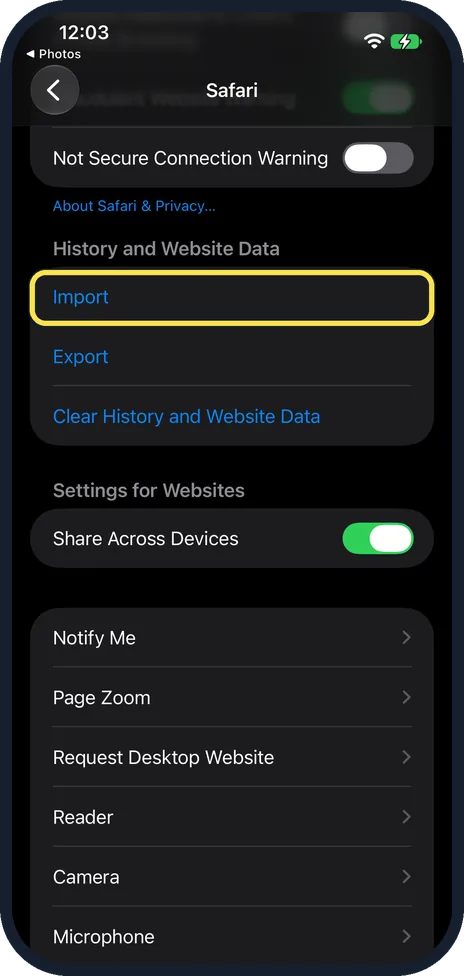
Open Safari settings and tap Import
Open Settings, tap Apps, then Safari. Scroll down to History and Website Data and tap Import. On ours it sits above Export and Clear History and Website Data.
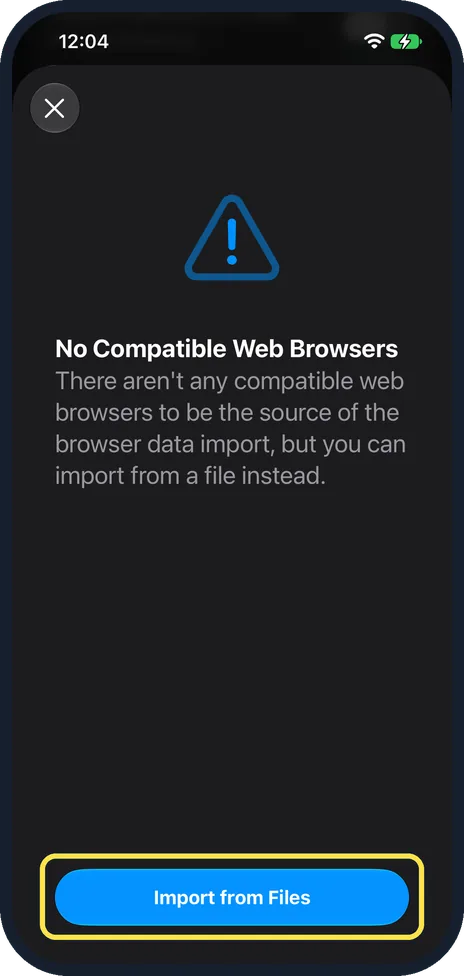
Tap Import from Files
Ours said: No Compatible Web Browsers. There aren't any compatible web browsers to be the source of the browser data import, but you can import from a file instead. Tap Import from Files.
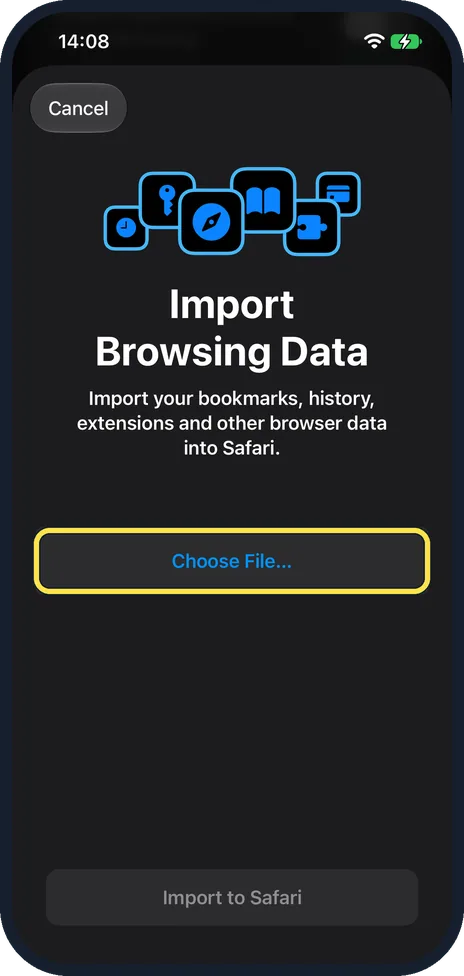
Tap Choose File
The Import Browsing Data page says it imports your bookmarks, history, extensions and other browser data into Safari. Tap Choose File. Import to Safari stays grey until you pick one.
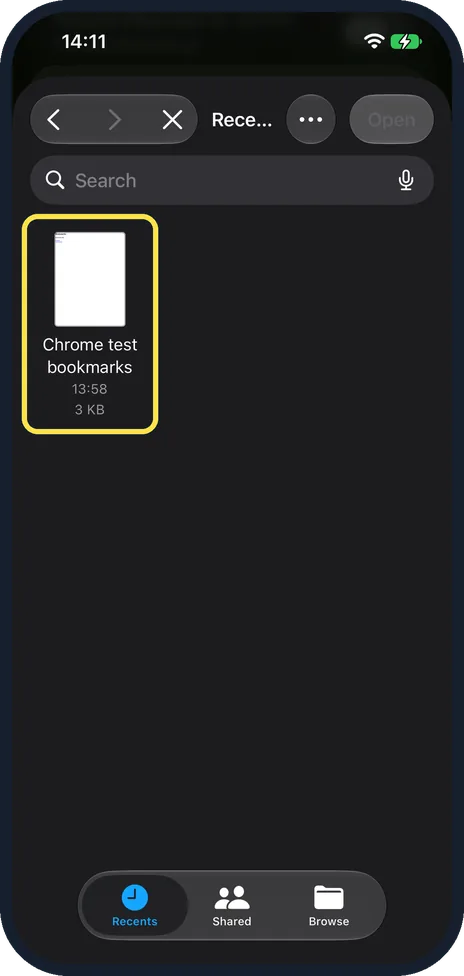
Pick the exported file
The file picker opened on Recents. Ours showed Chrome test bookmarks, 3 KB. Tap your file.
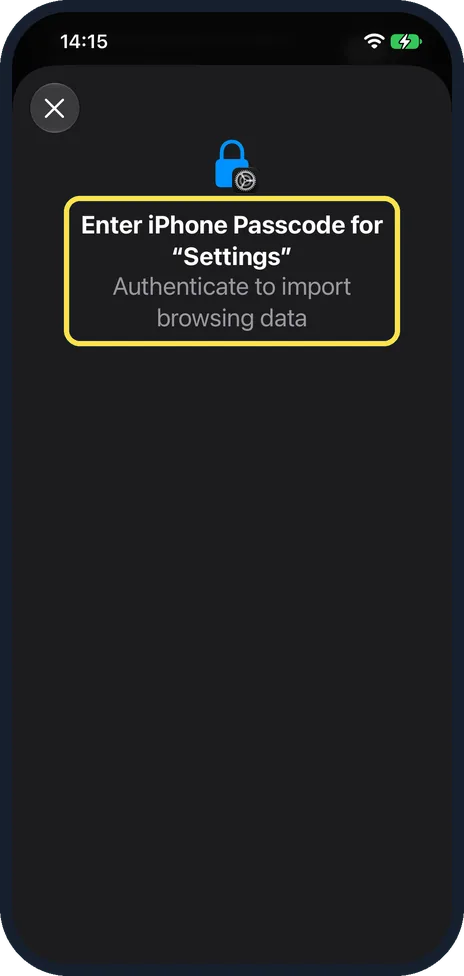
Enter your passcode
Ours asked: Enter iPhone Passcode for "Settings", Authenticate to import browsing data. Enter the passcode you use to unlock your iPhone.
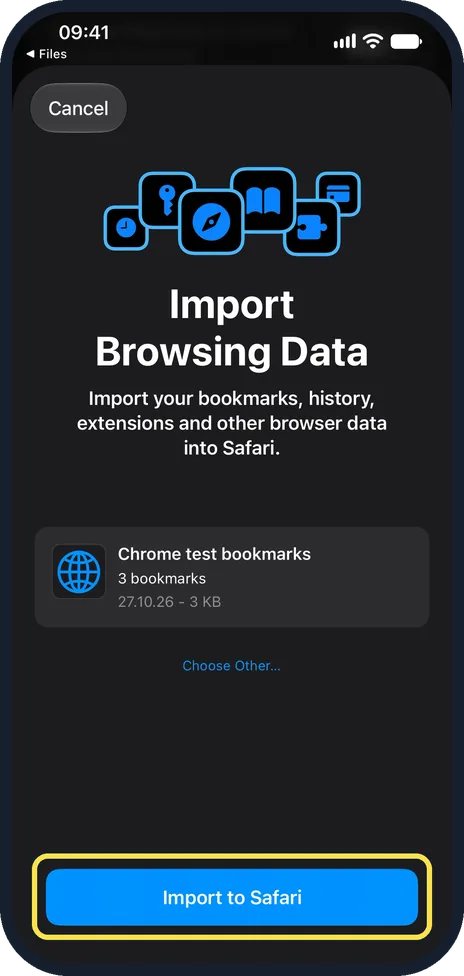
Tap Import to Safari
The page now shows the file with what it holds. Ours read Chrome test bookmarks, 3 bookmarks, 27.10.26, 3 KB, with Choose Other below it. Tap Import to Safari.

Check the result and tap Done
Ours said: Import Successful. Safari has successfully imported 3 bookmarks. Our file held 2 links, so the count is not the number of links. Tap Done.
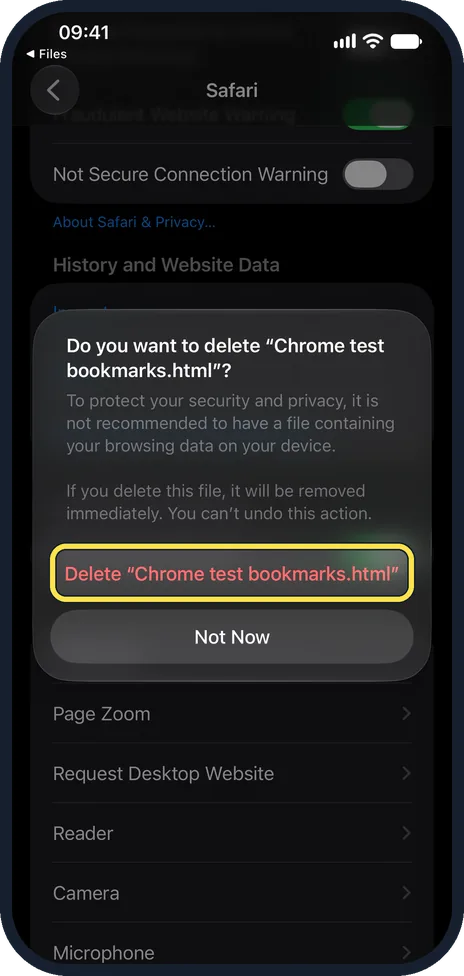
Delete the export file
Safari then asked: Do you want to delete "Chrome test bookmarks.html"? It says it is not recommended to have a file containing your browsing data on your device, and that you can't undo the delete. Tap Delete "Chrome test bookmarks.html" (your file's name), or Not Now to keep it.
If you do not see this option
- No Import row? Apple puts it below History and Website Data in Settings, Apps, Safari. On ours it was the first row of that group, above Export. Source: Import data from another browser into Safari on iPhone
- On iOS 17 or earlier? Apple's iPhone User Guide has this import page for iOS 18 and later; its iOS 17 guide has no such page. With no Import row, update the iPhone in Settings, General, Software Update. Sources: Import data from another browser into Safari on iPhone, Import data from another browser into Safari on iPhone
- Your export is several files or a ZIP? Apple says you can choose a file, or a ZIP file of files, and that individual files might be available for each piece of browsing data, such as bookmarks or history. Source: Import data from another browser into Safari on iPhone
If this does not work
- Your other browser is not offered? Apple's iPhone guide only describes importing a file that you exported from the other browser. Ours said No Compatible Web Browsers and offered only Import from Files. Source: Import data from another browser into Safari on iPhone
- It says 3 bookmarks, but your file has 2? Ours did the same: Import Successful said 3 bookmarks for a file with 2 links. Check your bookmarks in Safari rather than going by the number.
- Passwords not in Safari after the import? Apple says imported passwords go into the Passwords app. Source: Import data from another browser into Safari on iPhone
- Worried about the export file? Apple warns that the file may include unencrypted data that anyone who can access it could see, so delete it after the import. Ours offered to delete it straight after the import. Source: Import data from another browser into Safari on iPhone
About this guide
Before you start, you need a file exported from the other browser. In Chrome, Bookmark Manager has Export bookmarks, which saves an HTML file. Safari on a Mac can export with File, Export Browsing Data to File, and asks for Touch ID or your password first. Put the file on your iPhone, for example in Files or iCloud Drive.
The screenshots are from our iPhone 17e with iOS 27.2, in Dark mode, taken on 27 October 2026. Our test file was exported from Chrome and held two test bookmarks. We deleted them again after the import.
Good to know
To remove what you no longer need afterwards, see how to clear Safari history and website data on iPhone.
On a Mac, Apple says Safari can import straight from Chrome with File, Import From Browser, Google Chrome, if Chrome is installed on the Mac.
In short: Export a file from the other browser first. Then Settings, Apps, Safari, Import, Import from Files, Choose File, your passcode, Import to Safari, and delete the file.
- Apple iPhone User Guide: Import data from another browser into Safari on iPhone
- Apple Safari User Guide: Import bookmarks and history directly from another browser in Safari on Mac
- Apple iPhone User Guide (iOS 18): Import data from another browser into Safari on iPhone
Links checked in October 2026. Menus and features can change after software updates. These steps match the version named at the top.
📷 See real photos from the iPhone 17e in our Camera Lab, next to 10 other phones.
Did this guide work for you?
Sorry about that. What happened?