
howtosimply.com/guides/how-to-see-how-much-space-safari-website-data-uses-on-iphone/ · Checked October 2026 · iPhone 17e · iOS 27.2
In this guide
Open Settings, tap General, then iPhone Storage. Tap Safari in the list of apps, then Website Data. The total is at the top and each website is listed with its size, largest first. To remove it all, Apple says to use Settings, Apps, Safari, Advanced, Website Data, Remove All Website Data.
4 of 4 steps with real screenshots · 2 official sources below
- Device
- iPhone
- Shown on
- iOS 27.2 (iPhone 17e)
- App
- Settings
- Path
- Settings › General › iPhone Storage › Safari › Website Data
- Real screenshots
- 4 of 4 steps
- Checked
- October 2026
- Sources
- 2 official, linked below
Step by step
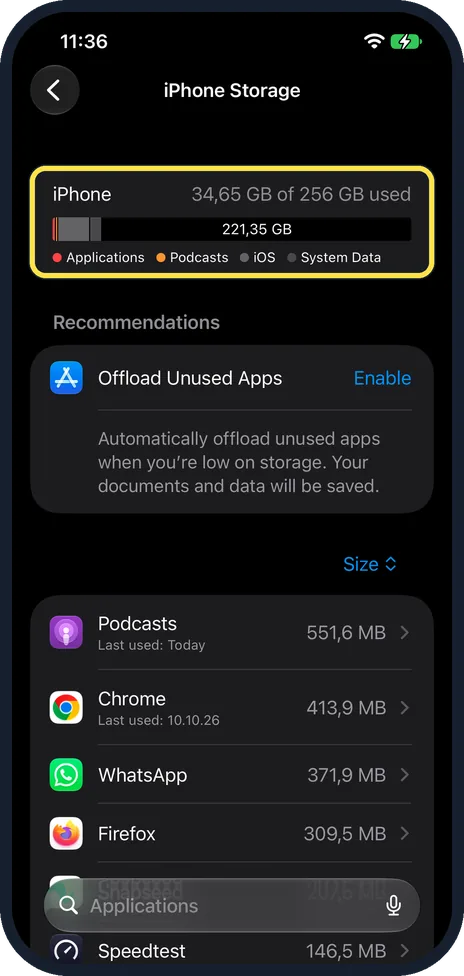
Open iPhone Storage
Open Settings, tap General, then iPhone Storage, and wait for the bar to load. Ours showed 34.65 GB of 256 GB used, split into Applications, Podcasts, iOS and System Data.
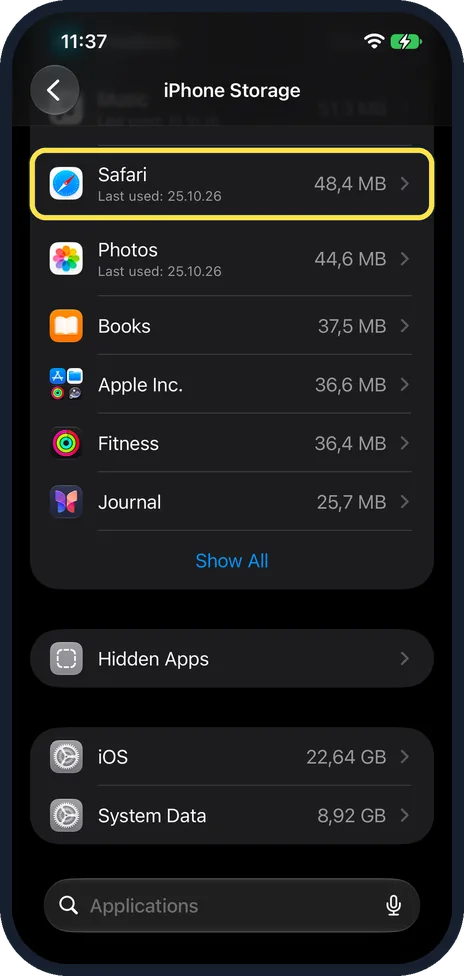
Scroll down and tap Safari
Apps are listed by size, largest first. On ours Safari read 48.4 MB, just above Photos. If you cannot find it, tap Show All or type Safari in the search field at the bottom.
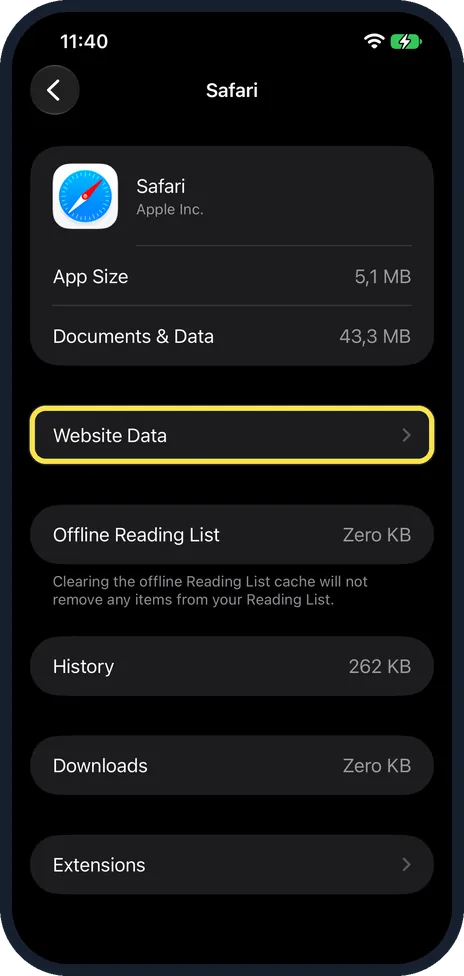
Tap Website Data
Safari's page shows App Size and Documents & Data at the top. Ours read 5.1 MB and 43.3 MB. Website Data is the row below, with an arrow.
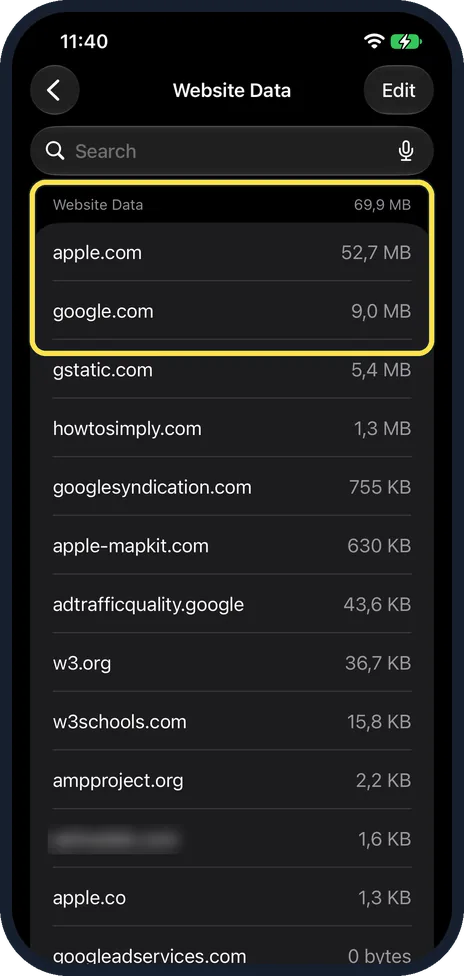
See which websites use the most
The total is at the top of the list: 69.9 MB on ours. Each site has its own size, largest first. apple.com used 52.7 MB, google.com 9.0 MB and gstatic.com 5.4 MB. Below them the sizes went from 1.3 MB for howtosimply.com down to a few KB, and one site showed 0 bytes. There is a search field at the top and Edit at the top right.
If you do not see this option
- You cannot find Safari in the list The list is sorted by Size, so Safari can be far down. On our iPhone 17e it was 48.4 MB, below apps such as Podcasts at 551.6 MB and Chrome at 413.9 MB. Tap Show All at the end of the list, or type in the search field at the bottom of the page.
- No Website Data row on Safari's storage page Apple's support page reaches the same kind of list another way: Settings, Apps, Safari, Advanced, Website Data. Source: Delete your Safari history, cache, and cookies on iPhone
- Remove All Website Data is grey Apple says that if this button is grey, there is either no data to clear, or web content restrictions are set in Screen Time. Source: Delete your Safari history, cache, and cookies on iPhone
If this does not work
- Website Data is bigger than Safari's own size On ours, Website Data added up to 69.9 MB while the Safari row read 48.4 MB and Documents & Data 43.3 MB. Apple says cached data and temporary data might not count as usage on the storage page, so the figures do not always match. Source: How to check the storage on your iPhone
- Websites ask you to sign in again Apple says website data includes what websites use to save login information for faster browsing. After removing it, you may have to sign in to sites again, so have your passwords ready. Source: Delete your Safari history, cache, and cookies on iPhone
About this guide
Websites save data on your iPhone as you browse. It does not show as its own colour in the storage bar, but you can see it, site by site, inside Safari's storage page.
Screenshots: our iPhone 17e with iOS 27.2, dark mode, 27 October 2026.
Good to know
To remove website data, Apple's route is Settings, Apps, Safari, Advanced, Website Data: tap Remove All Website Data, then Remove Now. Apple says this clears data used for tracking and by websites to save login information. We did not remove ours, so we have no picture of that page.
Safari's storage page also lists Offline Reading List, History and Downloads with their sizes. On ours they read Zero KB, 262 KB and Zero KB. The note under Offline Reading List says: Clearing the offline Reading List cache will not remove any items from your Reading List.
To clear history and website data together: how to clear Safari history and website data on iPhone.
For bigger savings, such as photos, videos and apps: iPhone storage full? 7 ways to free up space fast.
In short: Settings, General, iPhone Storage, Safari, Website Data: total at the top, each site below. Remove it under Settings, Apps, Safari, Advanced.
- Apple Support: Delete your Safari history, cache, and cookies on iPhone
- Apple Support: How to check the storage on your iPhone
Links checked in October 2026. Menus and features can change after software updates. These steps match the version named at the top.
📷 See real photos from the iPhone 17e in our Camera Lab, next to 10 other phones.
Did this guide work for you?
Sorry about that. What happened?