
What changed: the screenshots are now our own iPhone 17e on iOS 27.0.1, dark mode, and the wording is checked against those screens.
howtosimply.com/guides/how-to-make-safari-close-old-tabs-automatically-on-an-iphone/ · Checked October 2026 · iPhone 17e · iOS 27.0.1
In this guide
Open Settings, tap Apps, then Safari, scroll to Tabs and tap Close Tabs. Choose After One Day, After One Week or After One Month. Safari then closes tabs that have not been viewed recently by itself. Ours was set to Manually, which keeps every tab until you close it.
4 of 4 steps with real screenshots · 1 official source below
- Device
- iPhone
- Shown on
- iOS 27.0.1 (iPhone 17e)
- App
- Settings
- Path
- Settings › Apps › Safari › Close Tabs
- Real screenshots
- 4 of 4 steps
- What we did
- Performed: we made the change on our device and show the result
- Checked
- October 2026
- Sources
- 1 official, linked below
Step by step
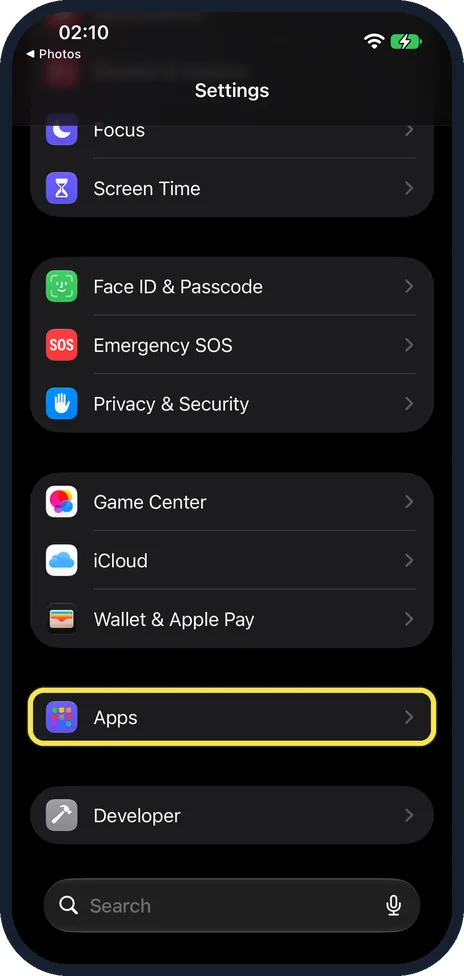
Open Settings and tap Apps
Apps is near the bottom of the main Settings list. On iOS 17 and earlier, Safari is in the main list itself.
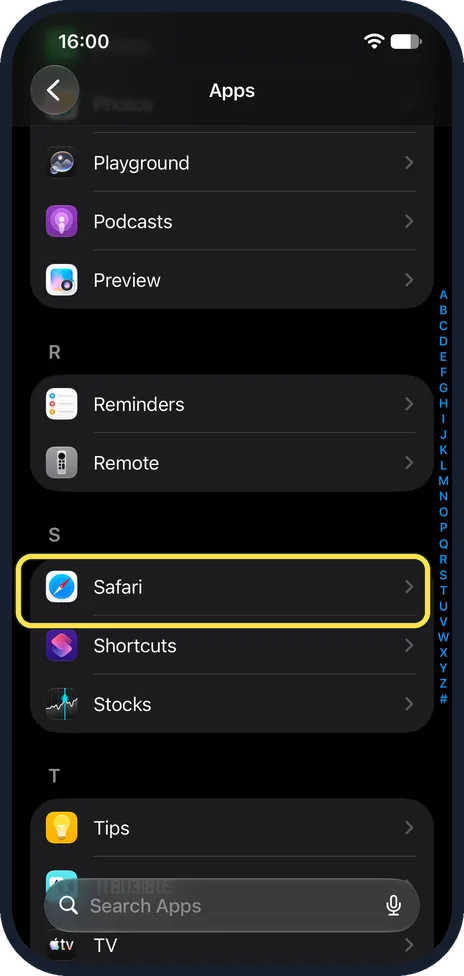
Tap Safari
The apps are in alphabetical order, so Safari is under S.
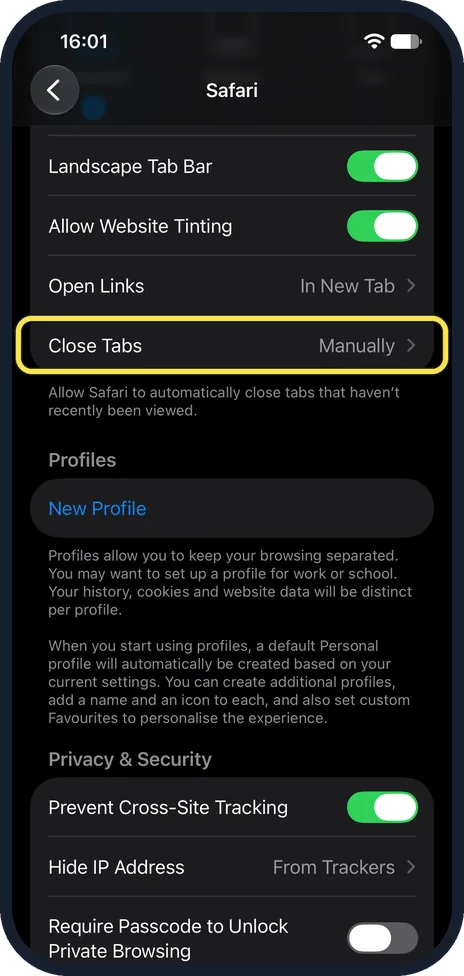
Scroll to Tabs and tap Close Tabs
It is just below Open Links, the last row before the Profiles heading. Ours was set to Manually. The note below says: allow Safari to automatically close tabs that haven't recently been viewed.
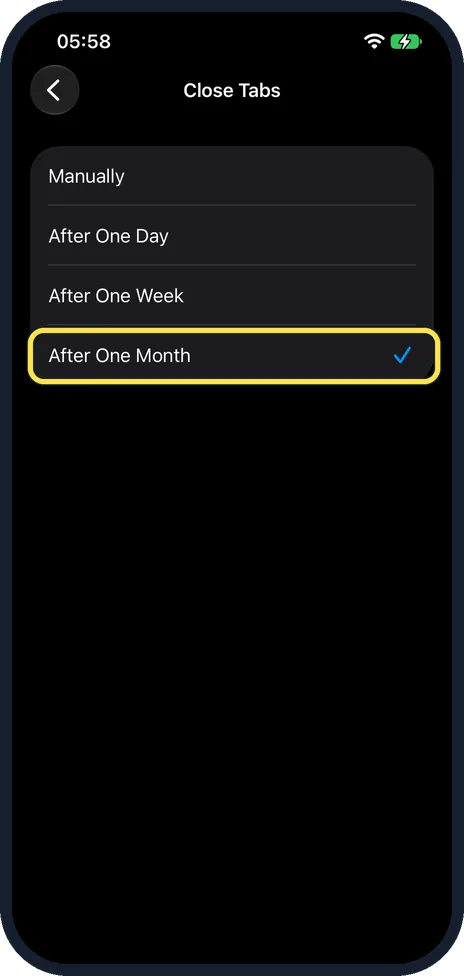
Choose a time
There are four choices: Manually, After One Day, After One Week and After One Month. The tick shows the active one; the picture shows ours after we tapped After One Month.
What changed: the screenshots are now our own iPhone 17e on iOS 27.0.1, dark mode, and the wording is checked against those screens.
If you do not see this option
- Your iPhone runs iOS 17 or earlier. Safari is in the main Settings list itself, not under Apps.
- You want to close all tabs now. In Safari, touch and hold the tabs button, then tap Close All Tabs. Source: Open and close tabs in Safari on iPhone
If this does not work
- A tab you needed was closed. In Safari, tap the tabs button, then touch and hold the plus button and choose from the recently closed tabs. Source: Open and close tabs in Safari on iPhone
- Some old tabs stay open. The note says Safari closes tabs that have not recently been viewed. A tab you looked at within the chosen time stays.
About this guide
Safari keeps every tab you open until you close it, and after a few months there can be hundreds. One setting lets Safari tidy up for you.
The screenshots are our own, taken on an iPhone 17e running iOS 27.0.1, in dark mode.
Good to know
Safari can also close all tabs of a Tab Group at once, and reopen a recently closed tab. Apple describes both in the user guide page named below.
In short: Settings, Apps, Safari, Close Tabs, choose a time.
Links checked in October 2026. Menus and features can change after software updates. These steps match the version named at the top.
Did this guide work for you?
Sorry about that. What happened?