
What changed: the screenshots are now our own iPhone 17e on iOS 27.0.1, dark mode, and the wording is checked against those screens and Apple's iOS 27 guide.
howtosimply.com/guides/how-to-use-private-browsing-in-safari-on-an-iphone/ · Checked October 2026 · iPhone 17e · iOS 27.0.1
In this guide
Open Safari, touch and hold the Tabs button in the bottom right corner and tap New Private Tab. A Private Browsing page opens. To go back, touch and hold the Tabs button again and tap New Tab. On iOS 17 and earlier, tap the Tabs button and swipe to Private.
4 of 5 steps with real screenshots · 4 official sources below
- Device
- iPhone
- Shown on
- iOS 27.0.1 (iPhone 17e)
- App
- Safari
- Path
- Safari › Touch and hold Tabs › New Private Tab
- Real screenshots
- 4 of 5 steps
- Checked
- October 2026
- Sources
- 4 official, linked below
Step by step
Open Safari
Any page will do.
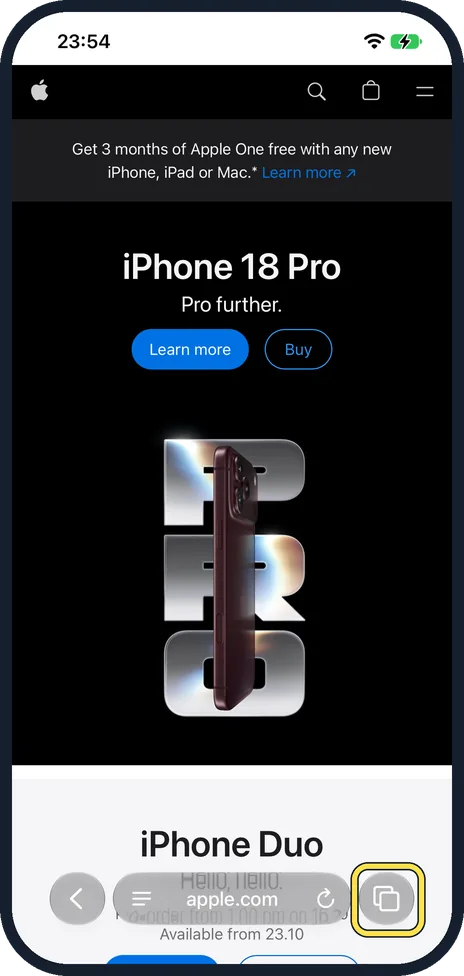
Touch and hold the Tabs button
It shows two squares and sits in the bottom right corner. A menu opens. On iOS 17 and earlier, tap the Tabs button.
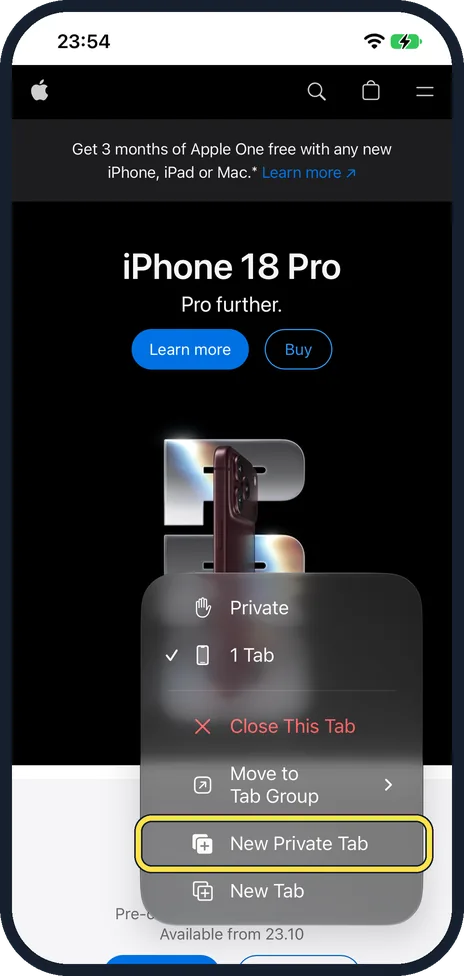
Tap New Private Tab
A private tab opens. Apple says Safari offers Locked Private Browsing when you use Private Browsing for the first time after updating to supported software. It hides your private tabs behind Face ID or your passcode. On our iPhone 17e it did not ask. On iOS 17 and earlier, swipe to the Private tab group and tap the tab.
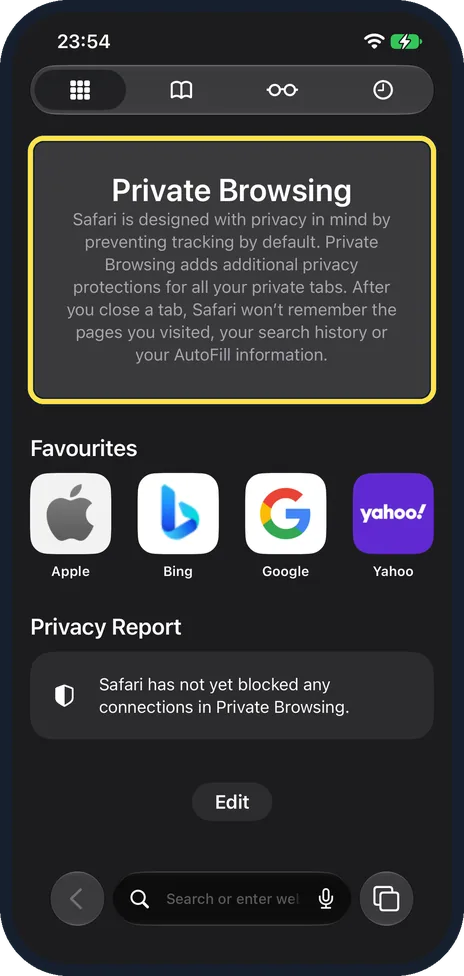
Check that you are browsing privately
A new private tab says Private Browsing at the top. Below it, Safari explains that after you close a tab, it won't remember the pages you visited, your search history or your AutoFill information. Touch and hold the Tabs button: Private has a tick. In light mode the address bar also turns dark; in dark mode both kinds of tab look dark, so use the tick.
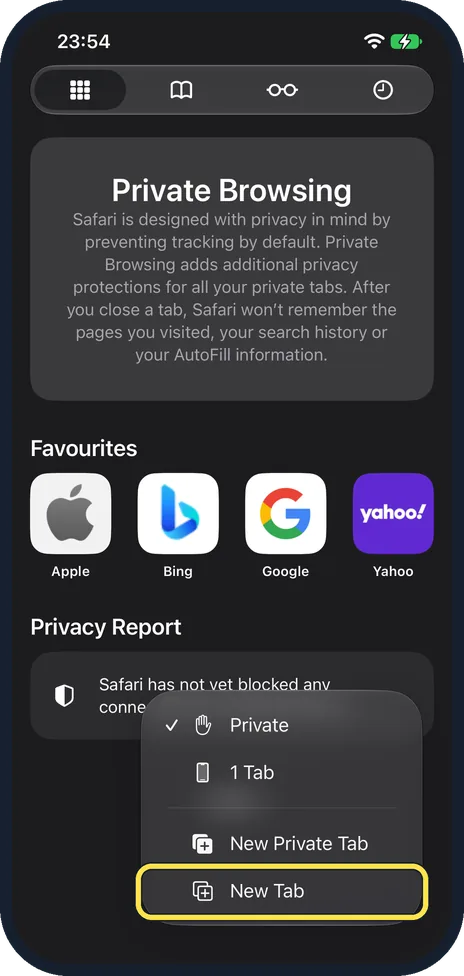
Return to normal tabs
Touch and hold the Tabs button and tap New Tab. Your private tabs stay open in the background until you close them.
What changed: the screenshots are now our own iPhone 17e on iOS 27.0.1, dark mode, and the wording is checked against those screens and Apple's iOS 27 guide.
If you do not see this option
- New Private Tab is not in the menu. Apple's iOS 27 guide gives another way: tap the Tabs button, then swipe right on the tab bar at the bottom until Private Browsing opens. Source: Browse the web privately in Safari on iPhone
- Your iPhone runs iOS 26. Apple's iOS 26 guide says to open All Tabs (with the Bottom or Top tab layout, tap the Tabs button), then swipe right on the tab bar until Private Browsing opens. Source: Browse the web privately in Safari on iPhone (iOS 26)
If this does not work
- Private Browsing asks you to unlock. Apple says that with a passcode set, Private Browsing locks when it is not in use. Tap Unlock and use Face ID, Touch ID or your passcode. Source: Browse the web privately in Safari on iPhone
- Private searches use a different search engine. Private Browsing can have its own. Go to Settings, Apps, Safari. Turn off Also Use in Private Browsing, tap Private Search Engine and choose a search engine. Source: Browse the web privately in Safari on iPhone
- An extension stopped working. Apple says extensions with access to browsing data are turned off in Private Browsing. You can turn one back on in Safari's extension settings. Source: Browse the web privately in Safari on iPhone
About this guide
In Private Browsing, Safari does not remember the pages you visit, your searches or what you type into forms. Apple says it also removes tracking used to identify individual users from URLs. It is useful on a shared phone or when buying a present.
The screenshots are our own, taken on an iPhone 17e running iOS 27.0.1, in dark mode.
Good to know
Private tabs can lock when you are not using them and open only with Face ID, Touch ID or your passcode. Apple says they lock when not in use if the iPhone has a passcode. The switch is under Settings, Apps, Safari: Require Passcode, Require Face ID or Require Touch ID to Unlock Private Browsing, depending on the phone.
Private Browsing does not make you invisible. Your internet provider, your employer's network and the websites themselves still see the visit.
Private tabs do not appear in History or in the list of tabs on your other Apple devices, even with the same Apple Account.
To remove what normal browsing has stored: how to clear Safari history on an iPhone.
In short: Safari, touch and hold the Tabs button, New Private Tab.
- Apple Support: Turn Private Browsing on or off on your iPhone
- Apple Support: How to use Locked Private Browsing in Safari
- Apple iPhone User Guide: Browse the web privately in Safari on iPhone
- Apple iPhone User Guide: Browse the web privately in Safari on iPhone (iOS 26)
Links checked in October 2026. Menus and features can change after software updates. These steps match the version named at the top.
Did this guide work for you?
Sorry about that. What happened?