
What changed: steps that look different now show our own iPhone 14 Pro on iOS 27.0.1, with the wording checked against that screen.
howtosimply.com/guides/how-to-use-safety-check-on-an-iphone/ · Checked October 2026 · iPhone 14 Pro · iOS 27.0.1
In this guide
Open Settings, tap Privacy & Security and tap Safety Check. Emergency Reset stops all sharing with people and apps at once and lets you change your password. Manage Sharing & Access lets you go through people, apps and devices one by one and remove only what you choose.
3 of 6 steps with real screenshots · 1 official source below
- Device
- iPhone
- Shown on
- iOS 27.0.1 (iPhone 14 Pro)
- App
- Settings
- Path
- Settings › Privacy & Security › Safety Check
- Real screenshots
- 3 of 6 steps
- Checked
- October 2026
- Sources
- 1 official, linked below
Step by step
Check the requirements
Safety Check needs iOS 16 or later and an Apple Account with two-factor authentication, signed in on the iPhone.
Open Settings, Privacy & Security, Safety Check
Scroll down in Privacy & Security to find it.
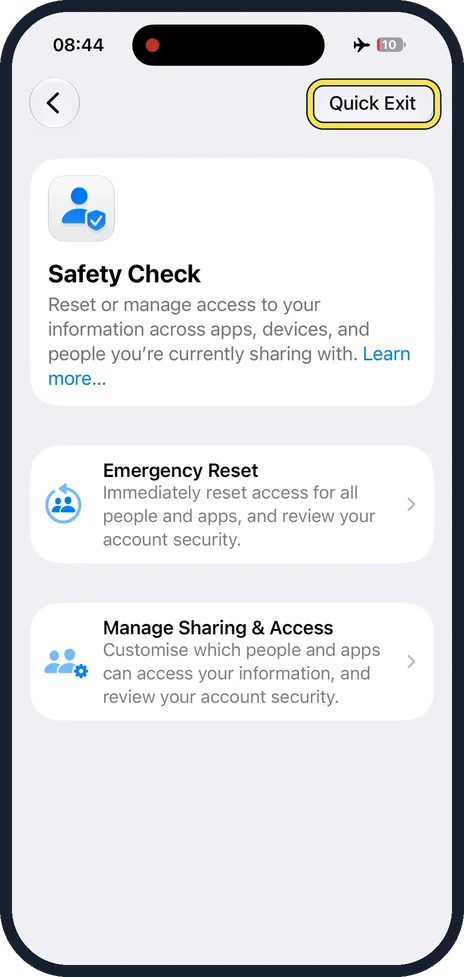
Know the Quick Exit button
Quick Exit at the top right closes Settings at once and returns to the Home Screen. Changes you have made up to that point are kept.
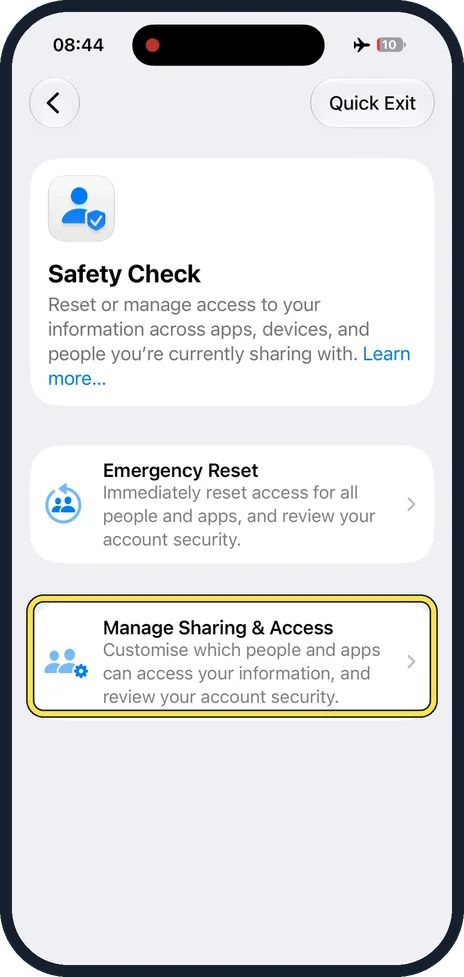
Use Manage Sharing & Access for a careful review
First you see the people you share with and what each can see, such as your location. Then the apps and what data each may use. Then the devices signed in to your Apple Account, the trusted phone numbers, your emergency contacts and your passcode. Remove or change what you no longer want.
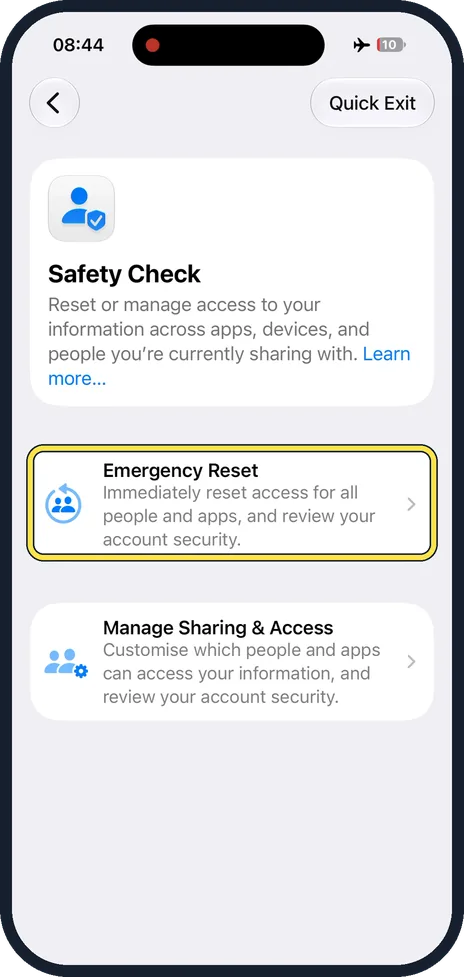
Use Emergency Reset when it has to be fast
It stops sharing with all people and all apps in one step. Then it takes you through your emergency contacts, the devices signed in to your account, the phone numbers used for verification, and a change of the Apple Account password.
Check the result
Go through Manage Sharing & Access once more afterwards to confirm that everything was applied as you intended.
What changed: steps that look different now show our own iPhone 14 Pro on iOS 27.0.1, with the wording checked against that screen.
About this guide
Safety Check gathers in one place everything that gives other people access to you: shared location, shared albums and calendars, app permissions, devices signed in to your account, and your passcode. It was built for people leaving a controlling relationship, and it is useful for anyone after a break-up or when a device has been in someone else's hands.
Menu names are from recent versions of iOS.
Good to know
People may notice when you stop sharing with them, for example because your location disappears from their Find My app. If that could put you in danger, speak to a support organisation or the police first and make a plan.
Safety Check covers Apple's own sharing. Accounts at other services, such as Google, WhatsApp or your bank, have their own lists of devices and sessions. Check them too, and change those passwords.
If you suspect a tracker: AirTag Found Moving With You: what the alert means and what to do.
App permissions in detail: how to see which apps can access your contacts and location on iPhone.
In short: Settings, Privacy & Security, Safety Check. Manage Sharing & Access to review step by step, Emergency Reset to stop everything at once. Quick Exit closes it.
Links checked in October 2026. Menus and features can change after software updates. These steps match the version named at the top.
Did this guide work for you?
Sorry about that. What happened?