GOOGLE PIXEL
How to see battery use by app and limit background use on a Google Pixel (Android 17)

In short
Open Settings, Battery, Battery usage and look under View by apps. To limit an app, open its App battery usage page (Settings, Apps, the app), tap Allow background usage and pick Optimised or Unrestricted, or turn the switch off. Ours were left as they were.
7 of 7 steps show a real screenshot from our Pixel 10a. Each step was checked against the maker's own instructions, linked at the end.
Steps
- 1
Open Battery usage
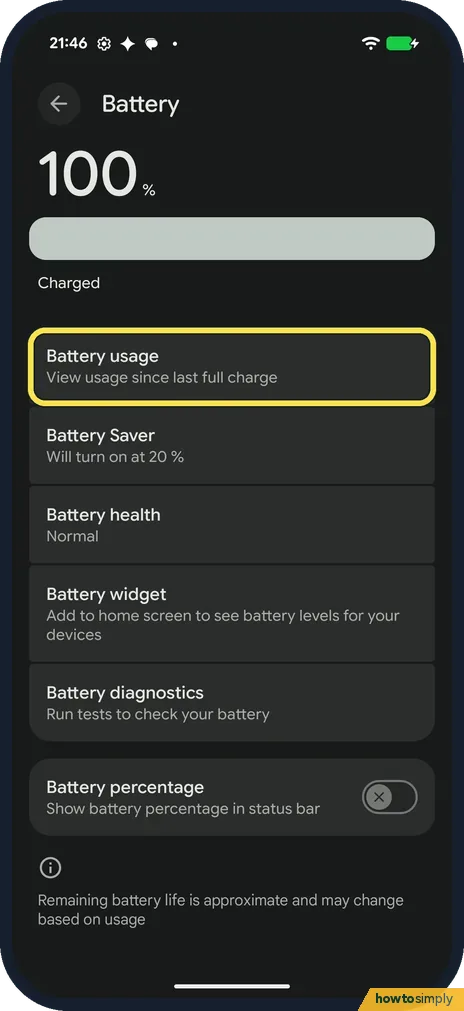
Open Settings and tap Battery. Battery usage, View usage since last full charge, is the first row. Tap it.
- 2
Check screen time
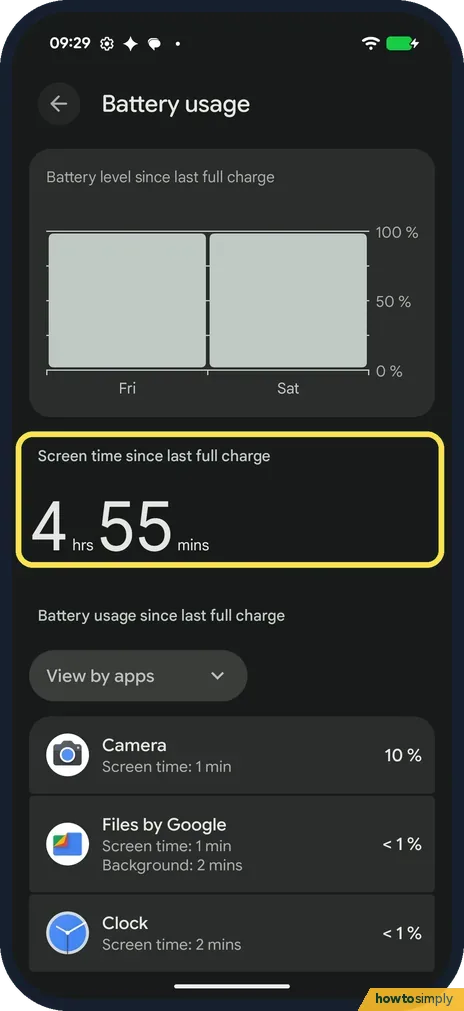
A chart shows the battery level since the last full charge. Below it, ours said 4 hrs 55 mins of screen time.
- 3
See which apps used it
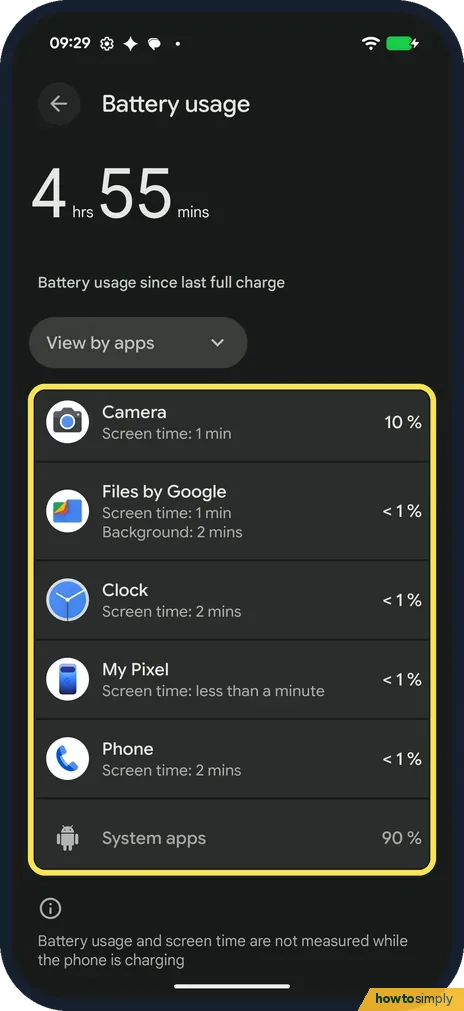
Under View by apps, ours listed Camera at 10 %, then Files by Google, Clock, My Pixel and Phone at under 1 %, and System apps at 90 %. Each row shows the app's screen time; Files by Google also showed Background: 2 mins.
- 4
Some apps can't be limited
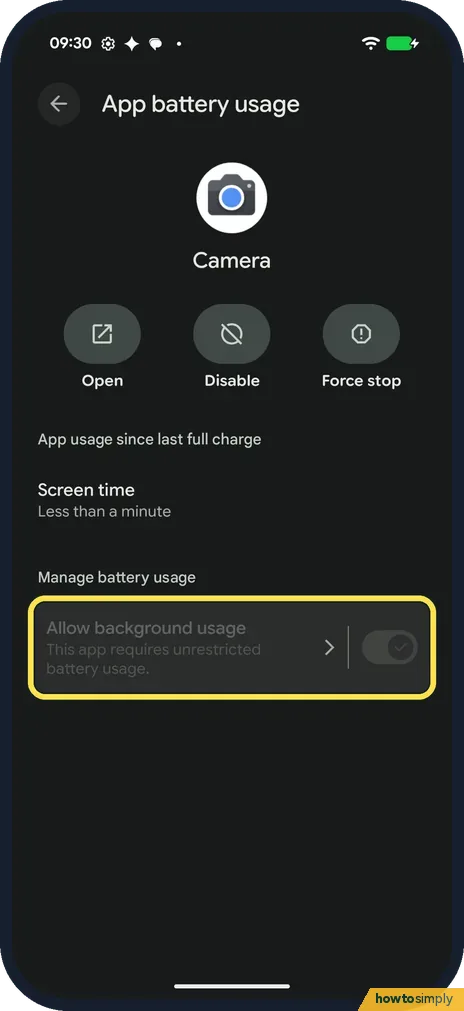
Tap an app to open its App battery usage page. Camera's Allow background usage row was greyed out and on: This app requires unrestricted battery usage.
- 5
Open an app from App info
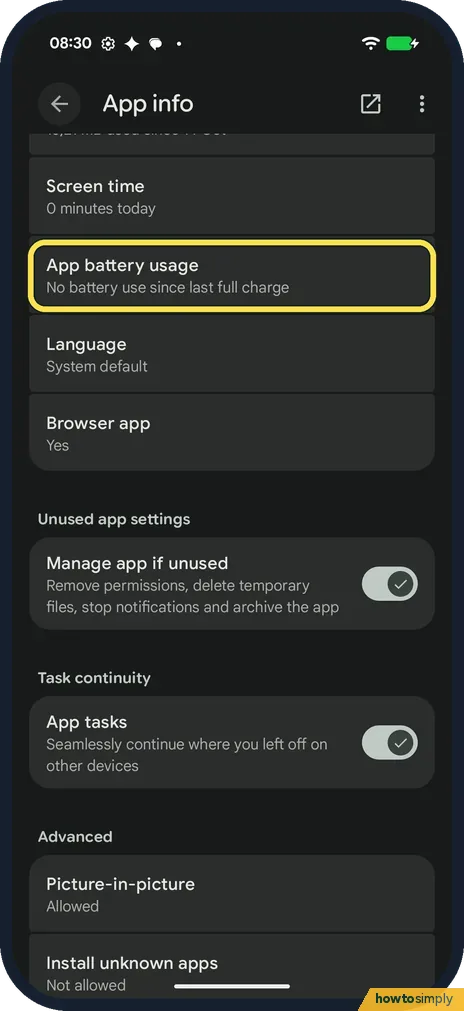
Apps that used no battery are not in the list. Chrome wasn't; its App info page said No battery use since last full charge. Open Settings, Apps, the app, then tap App battery usage.
- 6
Allow background usage
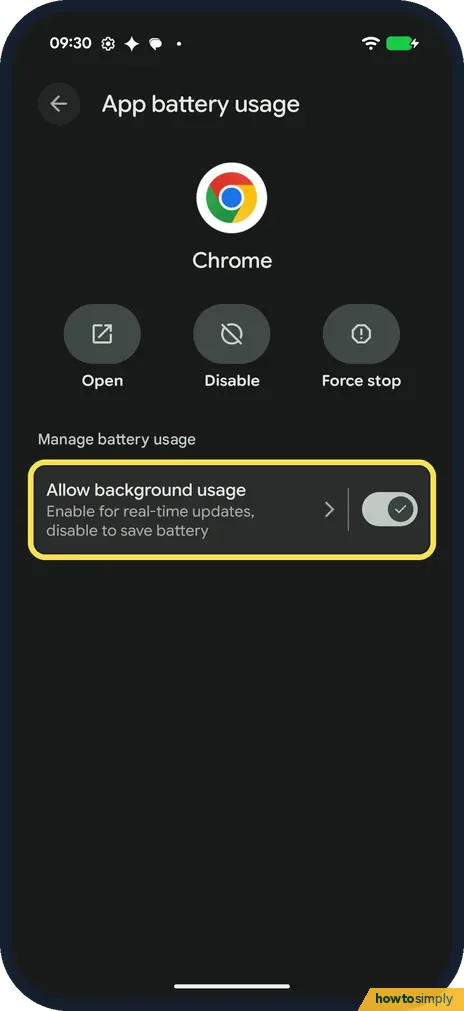
Under Manage battery usage, Allow background usage has a switch: Enable for real-time updates, disable to save battery. It was on for Chrome. Tap the words to see the choices.
- 7
Optimised or Unrestricted
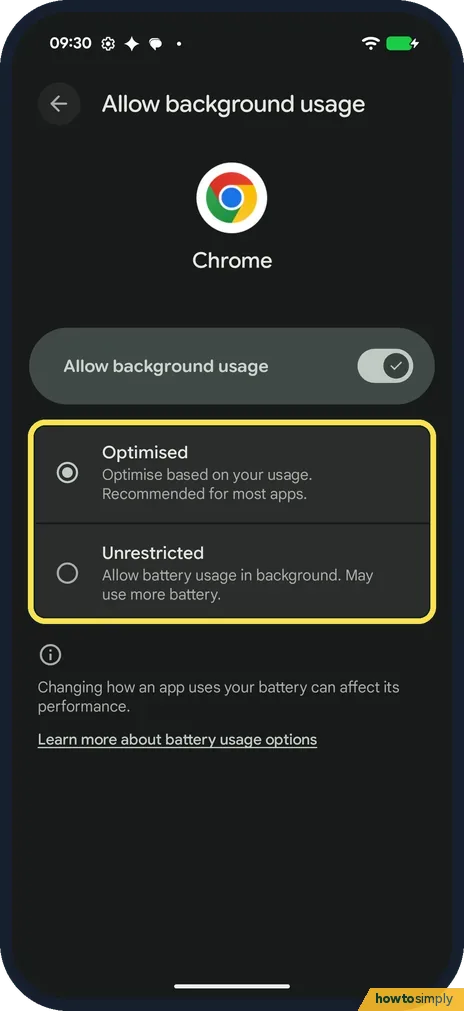
Optimised (Optimise based on your usage. Recommended for most apps.) was ticked on ours. Unrestricted allows battery usage in the background and may use more battery. The page warns that changing how an app uses your battery can affect its performance.
If you do not see this option
- Chrome or another app not in Battery usage? The list only shows apps that used the battery since the last full charge. Our Chrome had used none, so we opened its page from Settings, Apps instead.
- Option greyed out? Google says battery optimisation isn't available for some essential services. On ours Camera said it requires unrestricted battery usage; in our earlier notifications test, Clock said it requires optimised battery usage. Source: Keep Adaptive Battery & battery optimization on
- No figures at all? Our Battery usage page notes that battery usage and screen time are not measured while the phone is charging.
- Steps look different? Google says some of these steps only work on Android 14 and up, and spells it Optimized. Source: Keep Adaptive Battery & battery optimization on
If this does not work
- An app's alerts arrive late? Check Allow background usage is on for it. Google says that with optimisation off, an app can run more while you're not using it, so try Unrestricted only for apps that need it. See Pixel not getting notifications.
- Battery drains fast? Keep apps on Optimised. Google says Adaptive Battery and optimisation are on by default, and that you get a notification if an app causes abnormal drain. More: Pixel battery draining fast.
- Apps stop in the background with Battery Saver on? Google says that with Battery Saver on, apps don't run in the background unless you turn off battery optimisation for them. See how to use Battery Saver on a Google Pixel.
Good to know
Each App battery usage page also has Open, Disable and Force stop at the top. To close a misbehaving app, see how to force stop an app on a Google Pixel.
About this guide
- Device
- Android
- Shown on
- Google Pixel 10a, Android 17 (build CP3A.261005.005)
- App
- Settings
- Path
- Settings › Battery › Battery usage › View by apps
- Real screenshots
- 7 of 7 steps
- What we did
- Observed: looked at each screen, changed nothing
- Checked
- October 2026
- Sources
- 2 official, linked below
Sources
Links checked October 2026. Menus and features can change with updates.Spotted a mistake? Menus change with updates, and we want every step to match your screen. Email us about this page or use the contact form. We read every report, and fixes are listed on What changed.
Liked this guide?
Follow us for new guides and short how-to videos.
Did this guide work for you?
Sorry about that. What happened?