
howtosimply.com/guides/how-to-change-app-permissions-on-an-oppo-phone/ · Checked October 2026 · CPH2689, EEA), ColorOS 16.0.5, Android 16 (build CPH2689_16.0.5.1001(EX01) · OPPO Reno13 5G
In this guide
Open Settings, Security and privacy, Privacy controls, Permission manager. Pick a permission such as Location, tap an app, then choose Allow all the time, Allow only while using the app, Ask every time or Don't allow.
6 of 6 steps with real screenshots · 1 official source below
- Device
- Android
- Shown on
- OPPO Reno13 5G (CPH2689, EEA), ColorOS 16.0.5, Android 16 (build CPH2689_16.0.5.1001(EX01))
- App
- Settings
- Path
- Settings › Security and privacy › Privacy controls › Permission manager
- Real screenshots
- 6 of 6 steps
- Checked
- October 2026
- Sources
- 1 official, linked below
Step by step
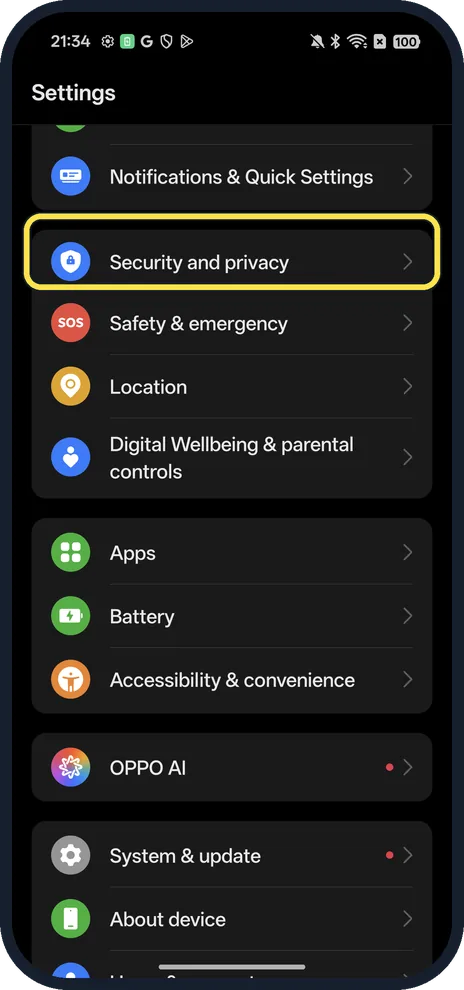
Open Security and privacy
Open Settings.
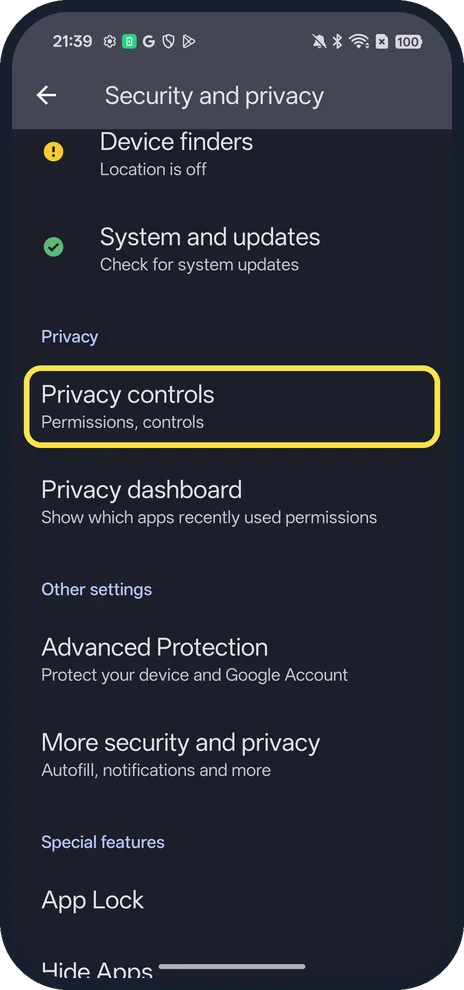
Tap Privacy controls
Scroll down to Privacy.
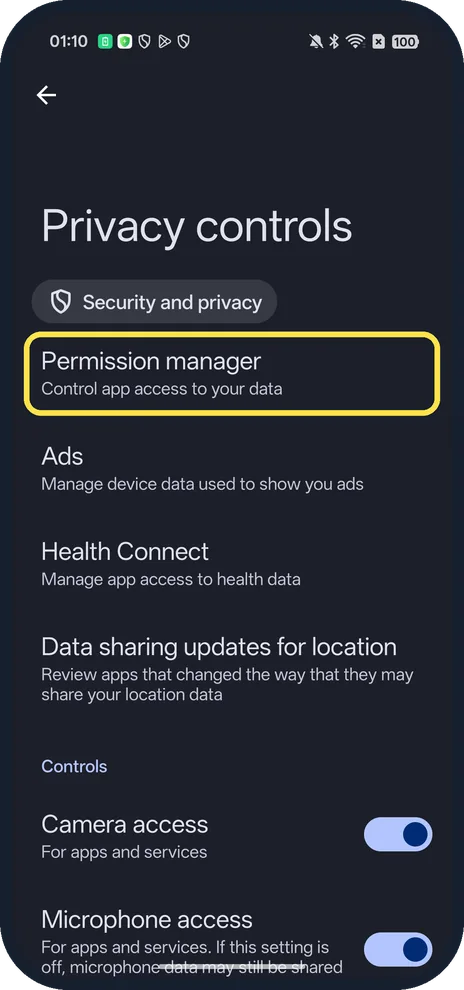
Tap Permission manager
Control app access to your data.
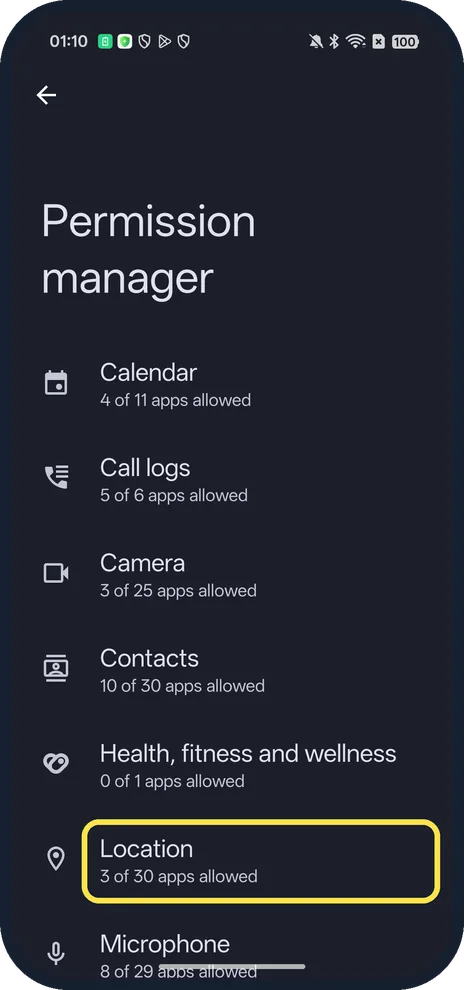
Pick a permission
Each row shows how many apps are allowed; ours: Location, 3 of 30 apps allowed.
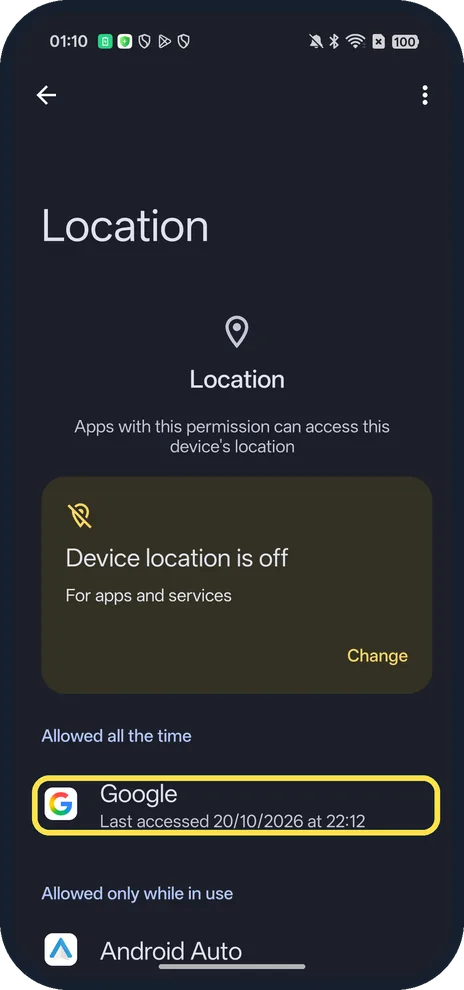
Tap the app
Apps are grouped by Allowed all the time, Allowed only while in use and so on.
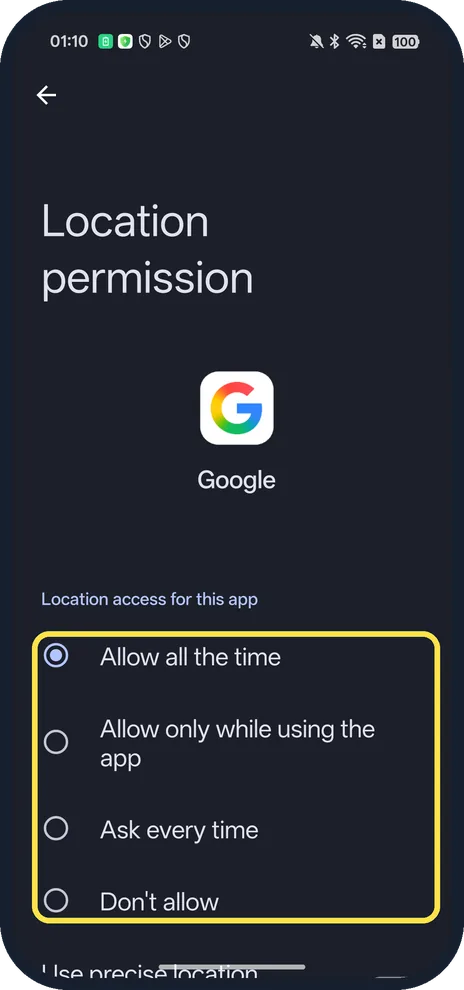
Choose the access
Tap one option; it saves at once.
If you do not see this option
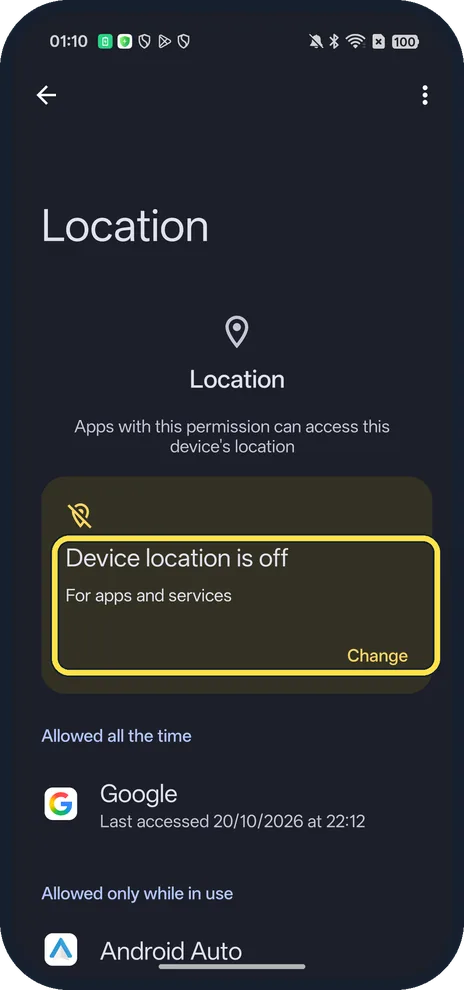
- Location off for the whole phone? The Location page says Device location is off; tap Change to turn it on.
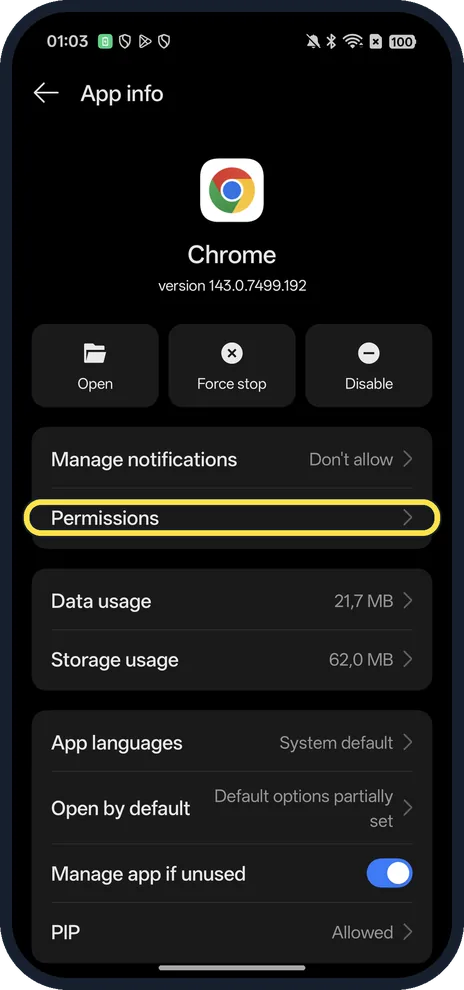
- Prefer to start from the app? App info has a Permissions row too: Settings, Apps, App management, the app, Permissions.
If this does not work
- App keeps asking? Google says Ask every time makes the app ask each time you open it. Pick Allow only while using the app to stop the prompt. Source: Change app permissions on your Android phone
- Map shows the wrong place? Under the choices, check Use precise location is on for that app.
About this guide
The screenshots are from our OPPO Reno13 5G, the European model CPH2689, with ColorOS 16.0.5 and Android 16 (build CPH2689_16.0.5.1001(EX01)), in Dark mode. We opened Google's location permission and changed nothing.
Good to know
To pick which app opens links, change default apps.
To hide private apps, lock and hide apps.
In short: Settings, Security and privacy, Privacy controls, Permission manager.
Links checked in October 2026. Menus and features can change after software updates. These steps match the version named at the top.
Did this guide work for you?
Sorry about that. What happened?