XIAOMI REDMI
How to change app permissions on a Xiaomi phone (HyperOS 3)

In short
Go to Settings, Privacy protection and tap All permissions. Pick a permission such as Camera to see which apps have it, then tap an app and choose Allow only while using the app, Ask every time or Don't allow. You can also start from the app's App info page.
6 of 6 steps show a real screenshot from our Redmi Note 15 Pro 5G. Each step was checked against the maker's own instructions, linked at the end.
Steps
- 1
Open Privacy protection
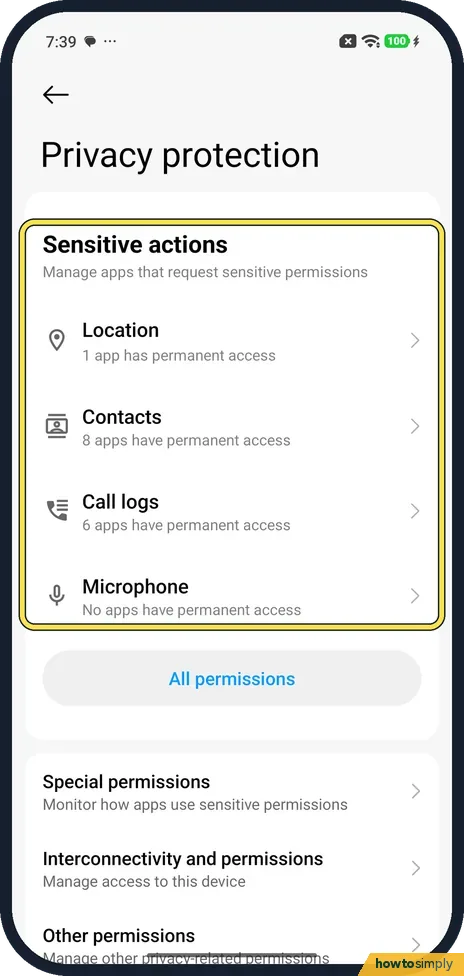
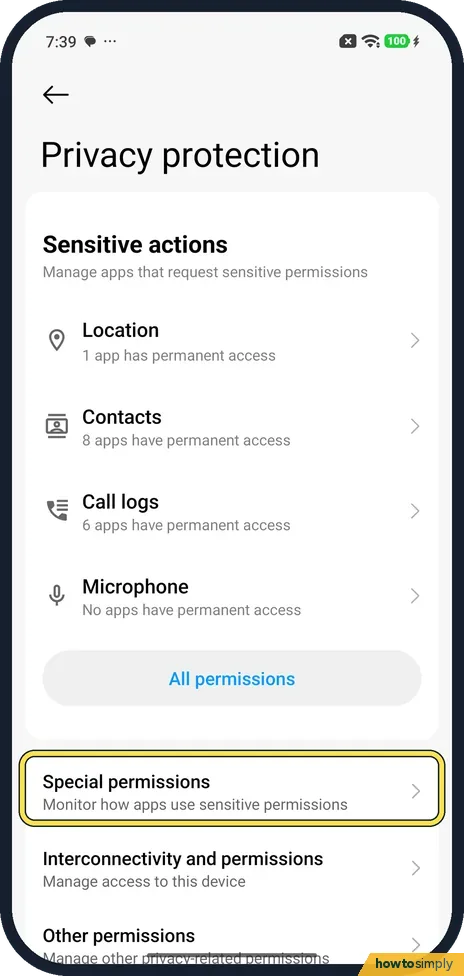
Open Settings and tap Privacy protection. Sensitive actions at the top lists Location, Contacts, Call logs and Microphone, with how many apps have permanent access.
- 2
Tap All permissions
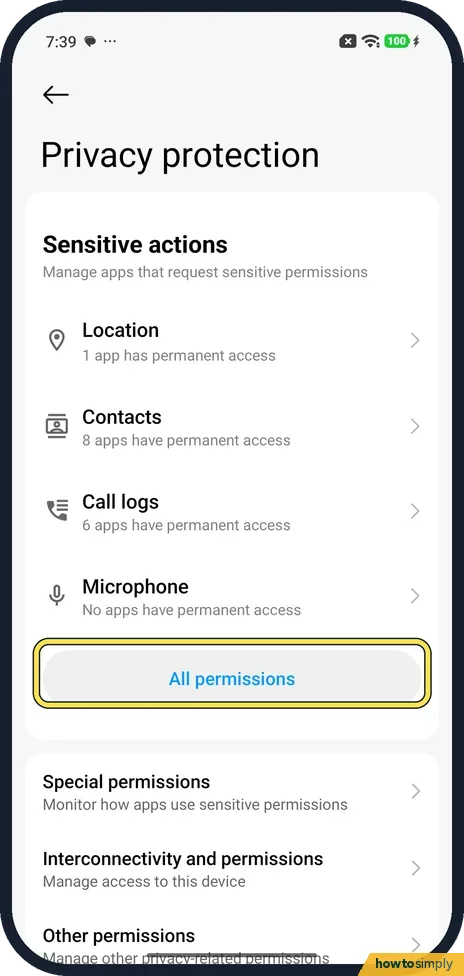
Tap the All permissions button below that list. It opens the Permission manager.
- 3
Pick a permission
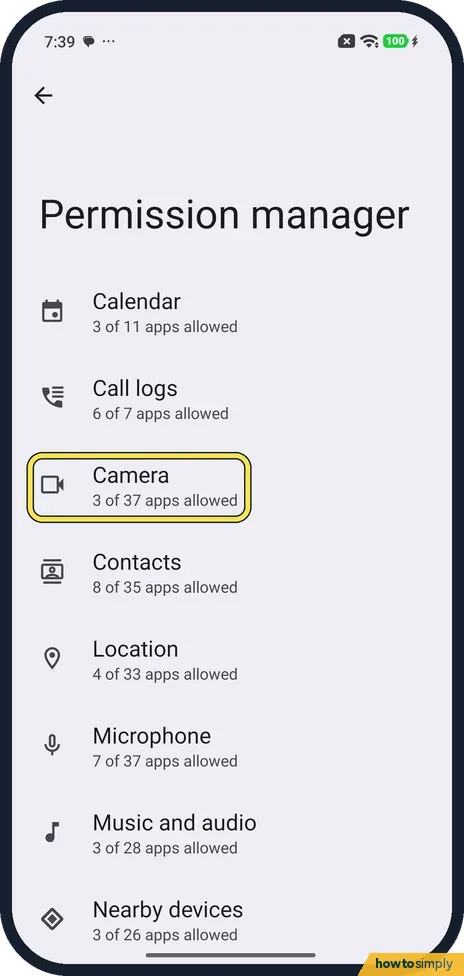
The list runs from Calendar and Call logs to SMS, each with a count. Ours said Camera: 3 of 37 apps allowed. Tap the permission you want to check.
- 4
See which apps have it
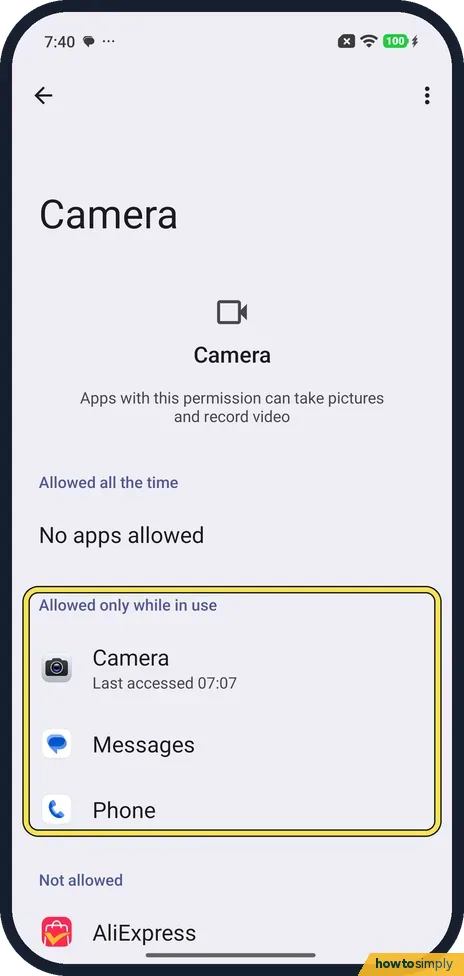
The Camera page splits apps into Allowed all the time, Allowed only while in use and Not allowed. On ours Camera, Messages and Phone could use it while in use.
- 5
Change it for one app
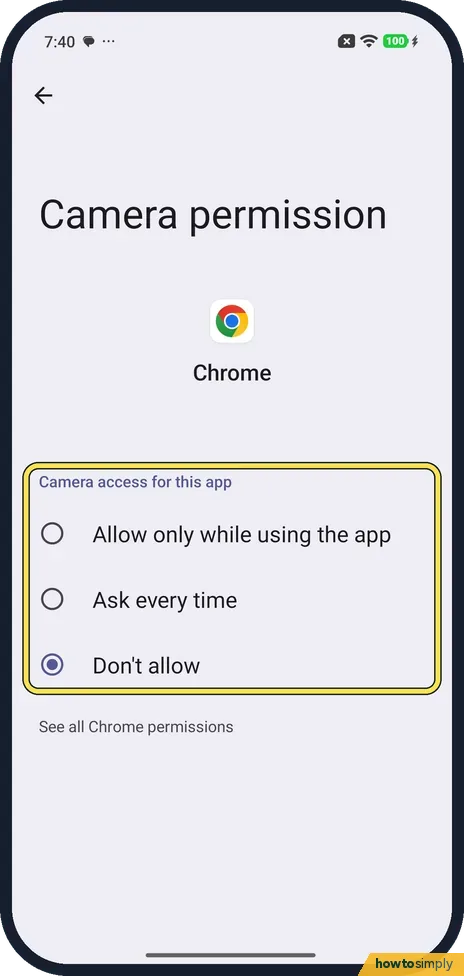
Tap an app to see its choices: Allow only while using the app, Ask every time or Don't allow. Chrome was set to Don't allow on ours. Tap the one you want.
- 6
Or start from the app
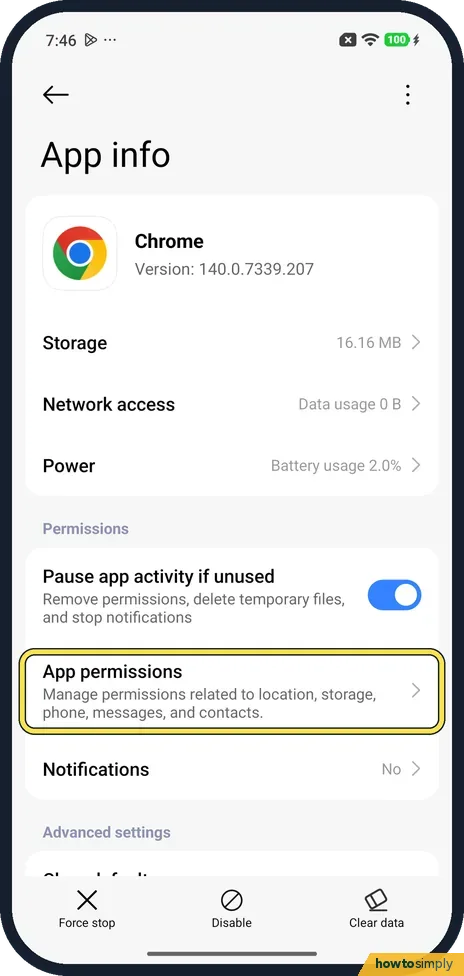
You can also open the app's App info page (Settings, Apps, the app) and tap App permissions. Its note says it covers location, storage, phone, messages and contacts.
If you do not see this option
- Looking for more permissions? Special permissions is the next card on the Privacy protection page. Its note says it monitors how apps use sensitive permissions. We did not open it here.
- Different route in Xiaomi's manual? Xiaomi's HyperOS 3 guide says Settings, Security & privacy, Privacy controls, Permission manager. On our phone it was Settings, Privacy protection, All permissions. Source: Generic User Guide for HyperOS 3.0
- No All the time choice? Google's Android help says All the time is only offered for location. Camera and microphone stop at Allow only while using the app. Source: Change app permissions on your Android phone
If this does not work
- Permissions switched themselves off? App info has a Pause app activity if unused switch, on for Chrome on ours. Its note says it removes permissions, deletes temporary files and stops notifications for apps you don't use. Turn it off for that app.
- An app still can't find you? Location has its own page with an on/off switch: how to change location settings.
- Want to see what apps used recently? Xiaomi's HyperOS 3 guide describes a Privacy dashboard that shows when apps used a permission in the past 24 hours, as a time line. See how to open the Privacy dashboard.
Good to know
Let an app install other apps: how to allow installing apps from unknown sources.
Stop an app's alerts too: how to turn off notifications for an app.
A permission change applies straight away. Denying access removes the app's ability to read new data, but does not delete what it collected before; for that, look in the app's own settings or account. Xiaomi's guide notes that Alarms & reminders lets an app run in the background, which may use more battery, so remove it from apps that do not need it.
About this guide
- Device
- Android
- Shown on
- Xiaomi Redmi Note 15 Pro 5G (25080RABDG), HyperOS 3.0.308.0, Android 16
- App
- Settings
- Path
- Settings › Privacy protection › All permissions
- Real screenshots
- 6 of 6 steps
- Checked
- October 2026
- Sources
- 2 official, linked below
Sources
Links checked October 2026. Menus and features can change with updates.Spotted a mistake? Menus change with updates, and we want every step to match your screen. Email us about this page or use the contact form. We read every report, and fixes are listed on What changed.
Liked this guide?
Follow us for new guides and short how-to videos.
Did this guide work for you?
Sorry about that. What happened?