GOOGLE PIXEL
How to change app permissions on a Google Pixel (Android 17)

In short
Open Settings, Security and privacy, Privacy controls, Permission manager. Tap a permission such as Camera to see which apps have it, then tap an app and pick Allow only while using the app, Ask every time or Don't allow.
7 of 7 steps show a real screenshot from our Pixel 10a. Each step was checked against the maker's own instructions, linked at the end.
Steps
- 1
Open Permission manager
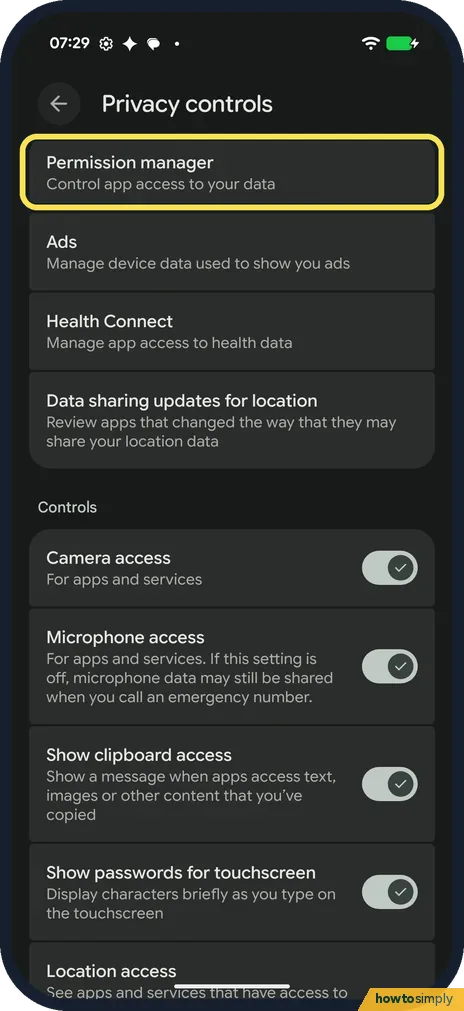
Open Settings, tap Security and privacy, then Privacy controls. Permission manager is at the top: Control app access to your data. Google's help page calls the middle step Privacy; on ours it was Privacy controls.
- 2
Pick a permission
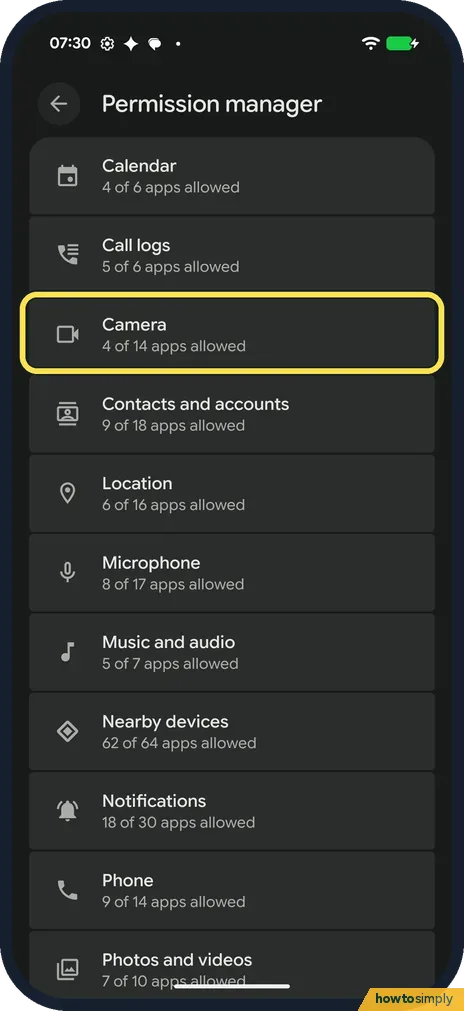
The list starts with Calendar, Call logs and Camera. Each row says how many apps are allowed. Ours said Camera 4 of 14 apps allowed. Tap Camera.
- 3
See who is allowed
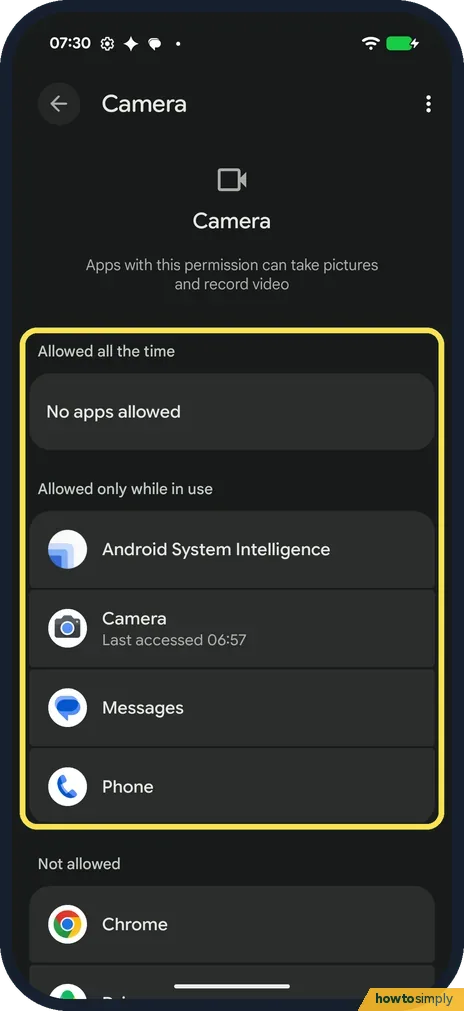
The Camera page sorts apps into Allowed all the time, Allowed only while in use and Not allowed. On ours no app had it all the time; Android System Intelligence, Camera, Messages and Phone had it while in use.
- 4
See who is blocked
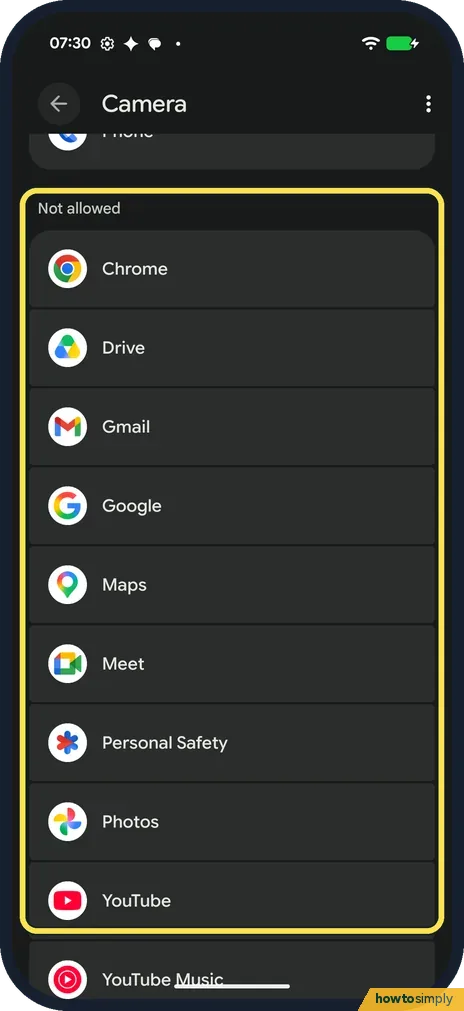
Scroll down to Not allowed. Ours listed Chrome, Drive, Gmail, Google, Maps, Meet, Personal Safety, Photos, YouTube and YouTube Music.
- 5
Change one app
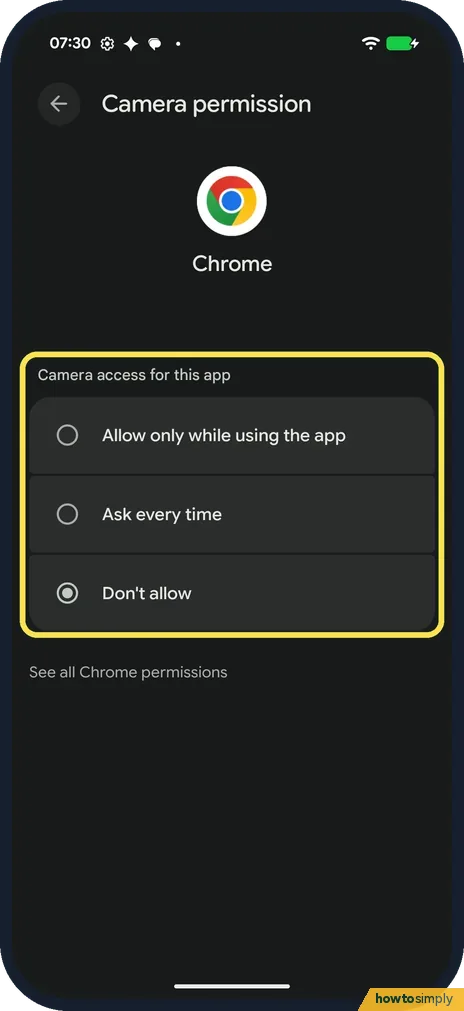
Tap an app. Chrome's page had three choices: Allow only while using the app, Ask every time and Don't allow. Ours was Don't allow. Google says Ask every time makes the app ask each time you open it.
- 6
See all of one app's permissions
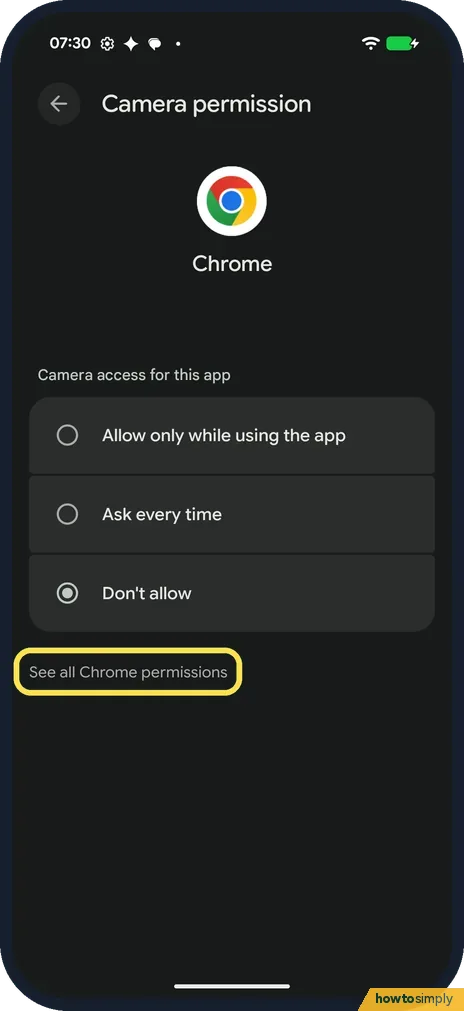
Tap See all Chrome permissions below the choices to see every permission for that app.
- 7
Block the camera or mic for every app
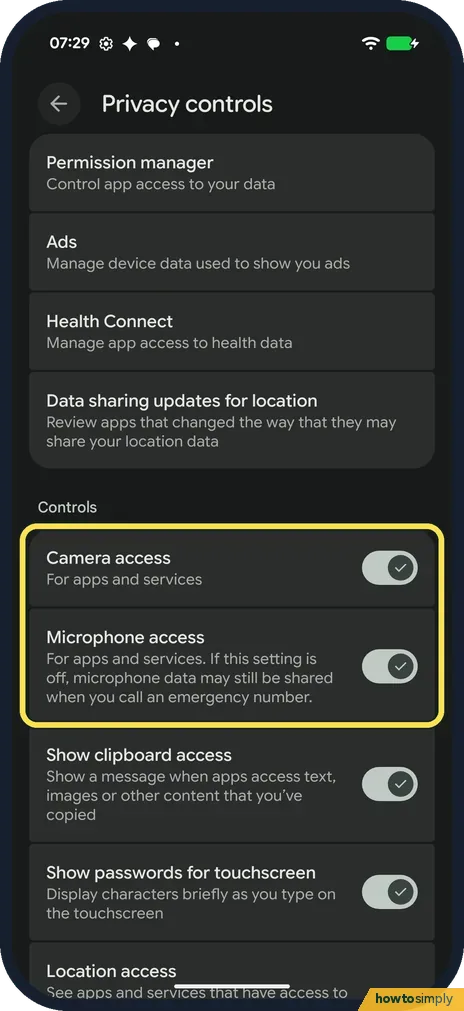
Back on Privacy controls, under Controls, Camera access and Microphone access switch them off for apps and services. Both were on on ours. The Microphone access note says microphone data may still be shared when you call an emergency number.
If you do not see this option
- No Privacy controls page? Google's help gives Settings, Security and privacy, Privacy, Permission manager. On our Pixel with Android 17, Permission manager was under Privacy controls. Google also says some steps only work on Android 11 and up. Source: Change app permissions on your Android phone
- Looking for Health or Body sensors? Google says the Health, Wellness, Fitness permission may appear as Body Sensors on Android 15 and below. Source: Change app permissions on your Android phone
- Rather start from the app? Google says to open Settings, Apps, pick the app and tap Permissions. We didn't check this path on ours. Source: Change app permissions on your Android phone
If this does not work
- App says it needs a permission you blocked? Open the permission in Permission manager, tap the app and pick Allow only while using the app or Ask every time. Google says Don't allow blocks it even while you use the app.
- A permission you gave has gone? Google says Pause app activity if unused removes permissions from apps you don't use. Turn it off under Settings, Apps, the app, Unused app settings.
Good to know
Privacy controls on ours also had Ads, Health Connect, Data sharing updates for location, Show clipboard access and Show passwords for touchscreen.
Worried about an app? Scan it with Play Protect: how to scan for harmful apps with Play Protect.
Location has more settings of its own: how to change location settings on a Google Pixel.
Installing apps from outside the Play Store is a separate permission: how to allow installing apps from unknown sources.
About this guide
- Device
- Android
- Shown on
- Google Pixel 10a, Android 17 (build CP3A.261005.005)
- App
- Settings
- Path
- Settings › Security and privacy › Privacy controls › Permission manager
- Real screenshots
- 7 of 7 steps
- Checked
- October 2026
- Sources
- 1 official, linked below
Sources
Links checked October 2026. Menus and features can change with updates.Spotted a mistake? Menus change with updates, and we want every step to match your screen. Email us about this page or use the contact form. We read every report, and fixes are listed on What changed.
Liked this guide?
Follow us for new guides and short how-to videos.
Did this guide work for you?
Sorry about that. What happened?