
howtosimply.com/guides/how-to-change-an-app-s-location-permission-on-a-samsung-galaxy/ · Checked October 2026 · Samsung Galaxy A57 5G (One UI 8.5, Android 16) and Samsung Galaxy A57 (One UI 9, Android 17 (build A576BXXU6BZIE))
In this guide
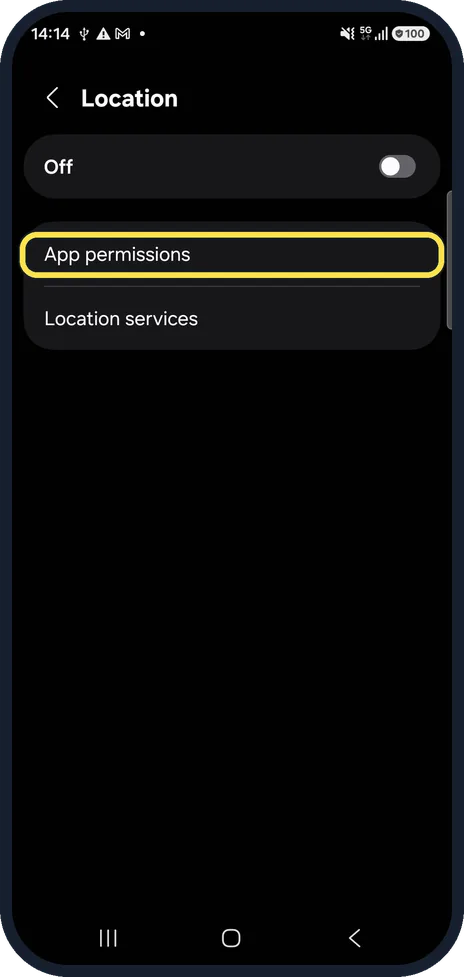
Open Settings, Location, App permissions. Apps are grouped by what they are allowed: all the time, only while in use, or not allowed. Tap an app and choose a new level, for example Allow only while using the app.
5 of 5 steps with real screenshots · 1 official source below
- Device
- Android
- Shown on
- Samsung Galaxy A57 5G (SM-A576B), One UI 8.5, Android 16, Samsung Galaxy A57 (SM-A576B), One UI 9, Android 17 (build A576BXXU6BZIE)
- App
- Settings
- Path
- Settings › Location › App permissions
- Real screenshots
- 5 of 5 steps
- What we did
- Observed: looked at each screen, changed nothing
- Our phone
- Shown on Galaxy A57, One UI 8.5
- Checked
- October 2026
- Sources
- 1 official, linked below
Step by step
Open App permissions
Open Settings, Location and tap App permissions.
See which apps can use location
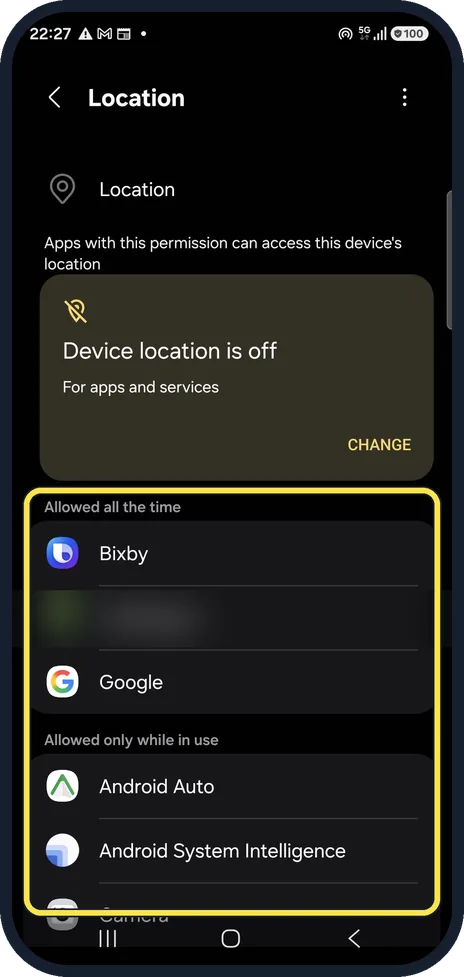
The list is grouped by access: our picture shows Allowed all the time and the start of Allowed only while in use. Scroll down for the rest. We blurred one of our apps.
Change an app
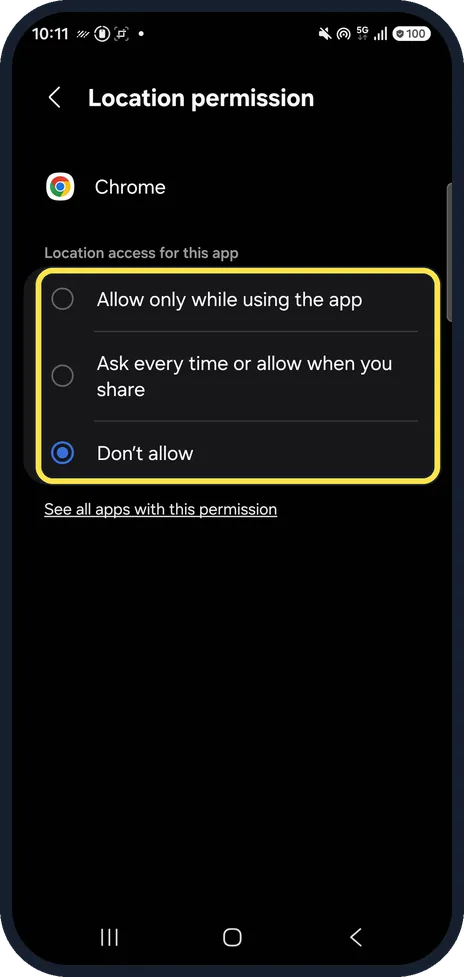
Tap an app and pick one of its choices: Allow all the time, Allow only while using the app, Ask every time or allow when you share, or Don't allow.
The choices depend on the app. For Chrome our phone offered three: Allow only while using the app, Ask every time or allow when you share, and Don't allow, which was selected.
Check precise location
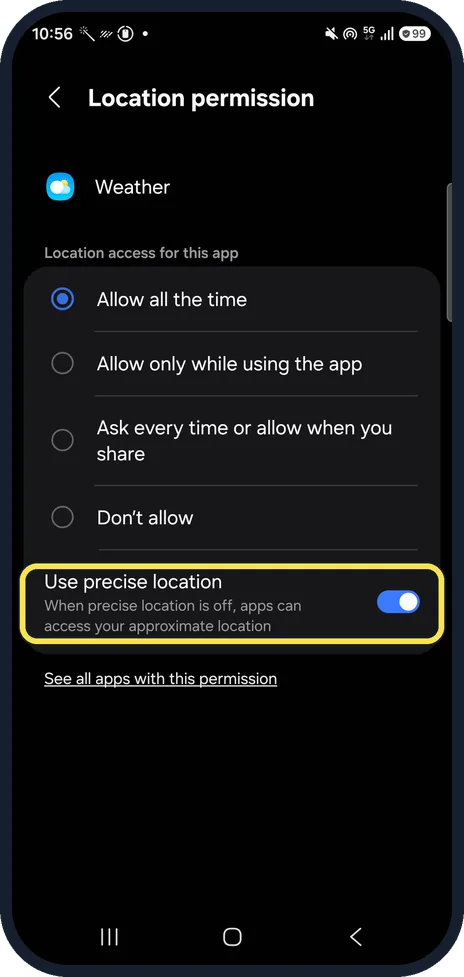
Apps that can use location in the background show a fourth choice, Allow all the time, and a Use precise location switch below. Weather on our phone was set to Allow all the time with precise location on. With the switch off, the app only gets your approximate location.
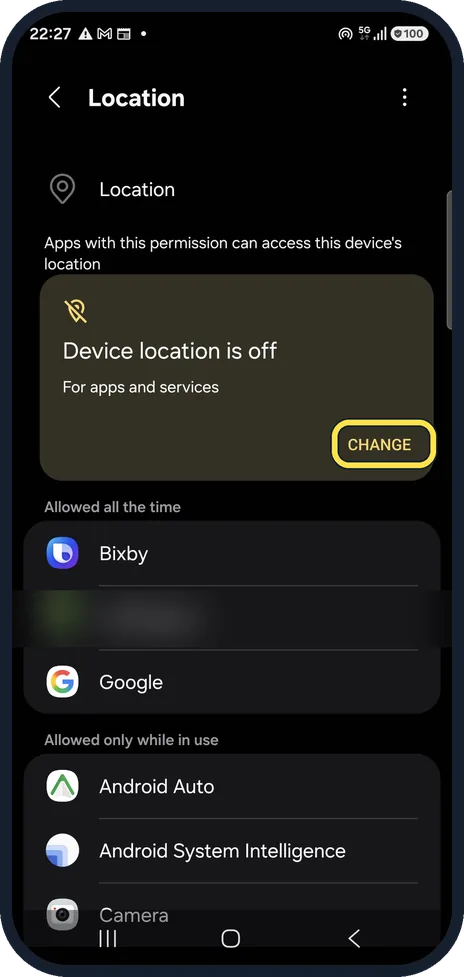
Location switched off?
At the top, ours says Device location is off. While it is off, no app gets your location; tap CHANGE to switch it on.
If you do not see this option
- The app is not in the list Samsung says App permissions lists the apps that have permission to use location. An app that has never asked does not appear; open it and use the feature that needs your location first. Source: How to activate my location and change settings for location permissions
- You would rather use the quick panel Samsung says you can swipe down and tap the Location icon to turn location on or off for every app at once. Source: How to activate my location and change settings for location permissions
If this does not work
- An app still cannot find you Samsung says the switch at the top of Settings, Location must be on, and that a Power saving mode or putting the app to sleep can weaken the GPS signal. Remove the app from the sleeping apps list. Source: How to activate my location and change settings for location permissions
- The location is not accurate Samsung says Improve accuracy, in the Location menu, has Wi-Fi scanning and Bluetooth scanning switches that help the phone find you more precisely. Source: How to activate my location and change settings for location permissions
About this guide
Few apps need your location all the time. Checking this list now and then is one of the easiest privacy wins on a phone.
Steps 3 and 4 are from the same phone after its One UI 9 update (Android 17).
Good to know
Wrong location in maps or weather is a different problem: Samsung Galaxy location not accurate.
In short: Settings, Location, App permissions, the app, choose the level.
Links checked in October 2026. Menus and features can change after software updates. These steps match the version named at the top.
📷 See real photos from the Galaxy A57 in our Camera Lab, next to 10 other phones.
Did this guide work for you?
Sorry about that. What happened?