
howtosimply.com/guides/google-keeps-stopping-on-a-samsung-galaxy-6-fixes/ · Checked October 2026 · Samsung Galaxy A57 5G (One UI 8.5, Android 16) and Samsung Galaxy A57 (One UI 9, Android 17 (build A576BXXU6BZIE))
In this guide
Restart the phone first. If the message comes back, open Settings, Apps, Google, tap Force stop, then Storage, Clear cache. Update the Google app and Android System WebView in the Play Store. Clear data only as a last resort, and install any software update.
8 of 9 steps with real screenshots · 1 official source below
- Device
- Android
- Shown on
- Samsung Galaxy A57 5G (SM-A576B), One UI 8.5, Android 16, Samsung Galaxy A57 (SM-A576B), One UI 9, Android 17 (build A576BXXU6BZIE)
- App
- Settings
- Path
- Settings › Apps › Google › Force stop
- Real screenshots
- 8 of 9 steps
- What we did
- Observed: looked at each screen, changed nothing
- Our phone
- Shown on Galaxy A57, One UI 8.5
- Checked
- October 2026
- Sources
- 1 official, linked below
Step by step
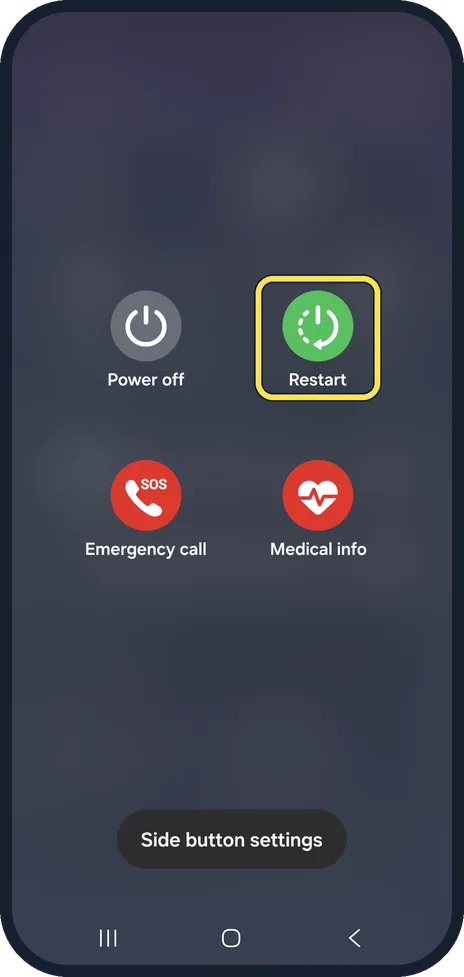
Restart the phone
Press and hold the side key and volume down, tap Restart, then try again. A restart clears a stuck process and fixes most one-off crashes.
Watch these steps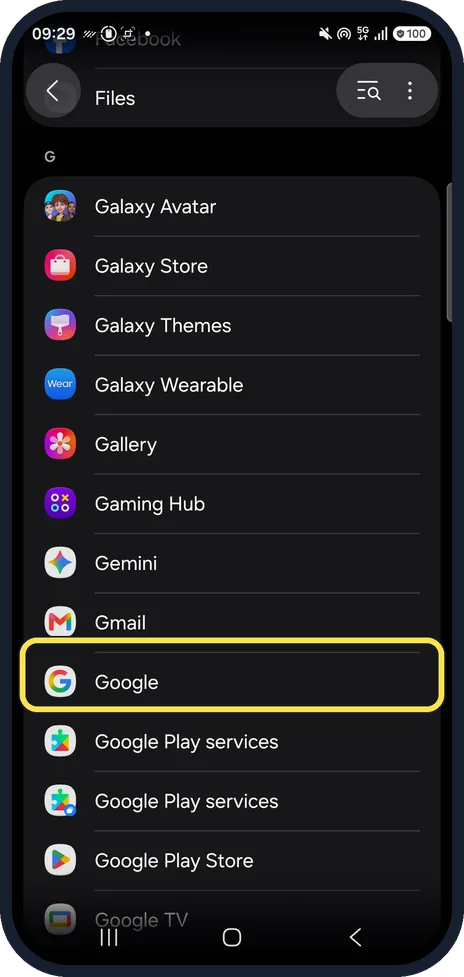
Open the Google app's App info
Open Settings, Apps and tap Google in the list. On ours it was below Gmail. Searching for Google at the top of Apps is quicker.
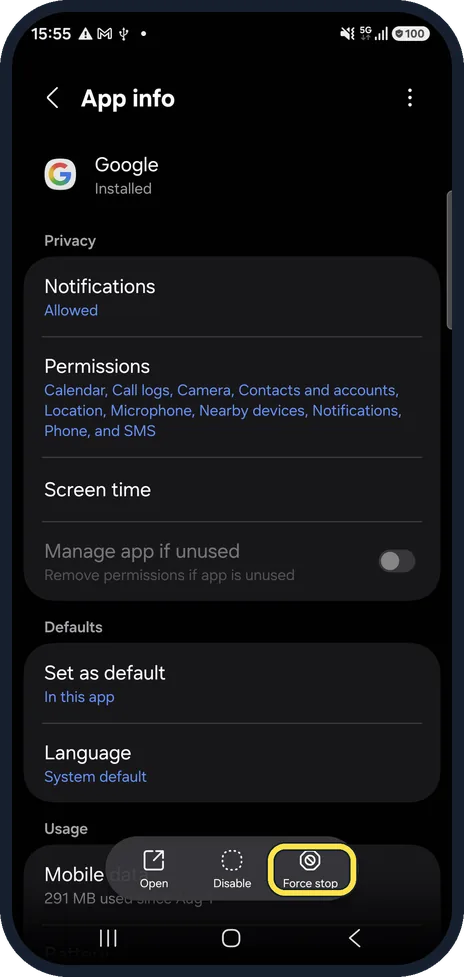
Tap Force stop
Force stop is in the bar at the bottom of App info. Confirm, then open the Google app again. We did not tap it on our phone.
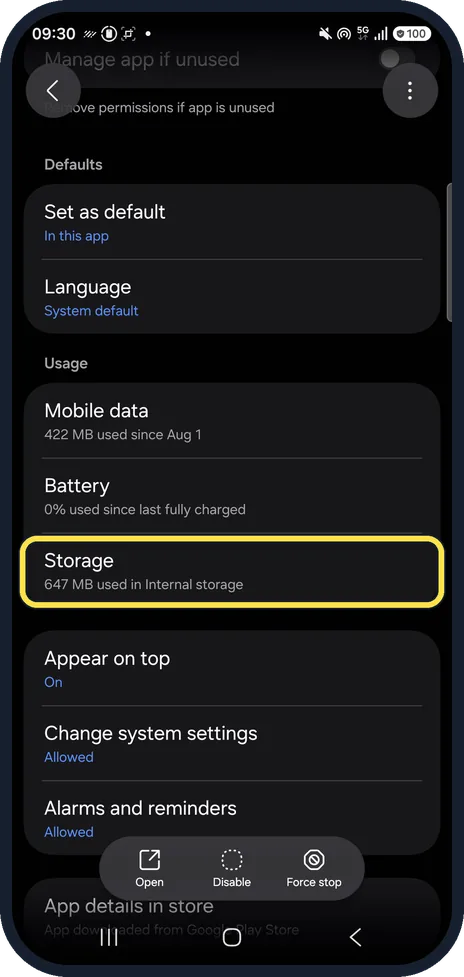
Scroll down to Storage
Storage is under Usage on App info. Ours showed 647 MB used in Internal storage. The bar at the bottom offered Open, Disable and Force stop, not Uninstall.
Clear the cache
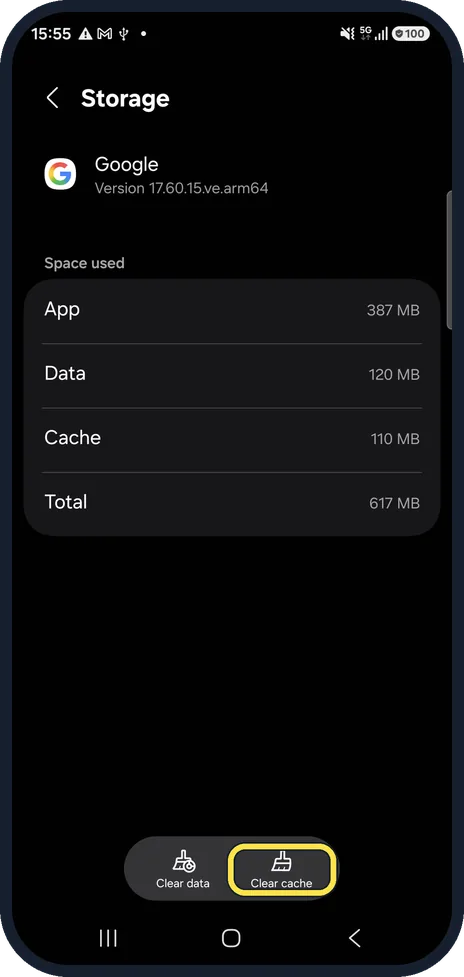
On App info tap Storage, then Clear cache. Our Google app held 110 MB of cache. Clearing it deletes only temporary files; you stay signed in.
Update the Google app and WebView
Open the Play Store, search for Google and tap Update if it appears. Do the same for Android System WebView, which many apps use to show web pages.
Check the WebView version
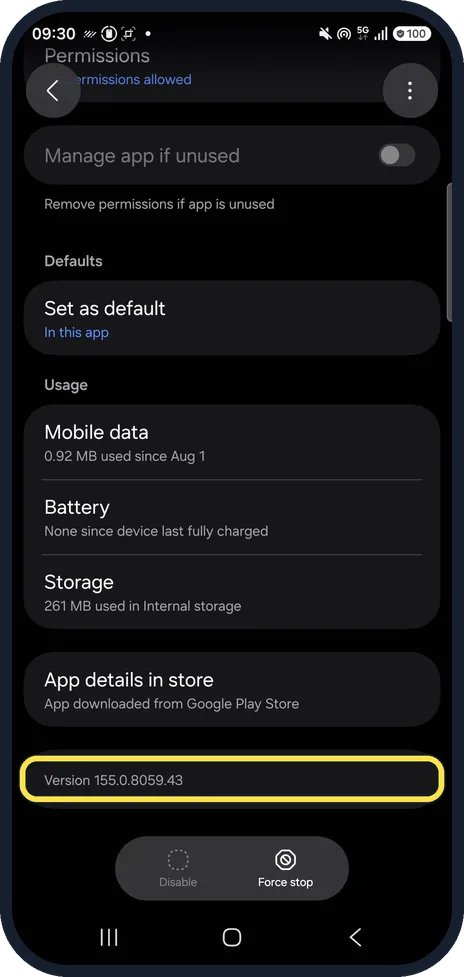
In Settings, Apps open Android System WebView and scroll to the bottom. Ours showed Version 155.0.8059.43, and App details in store said App downloaded from Google Play Store.
Clear data as a last resort
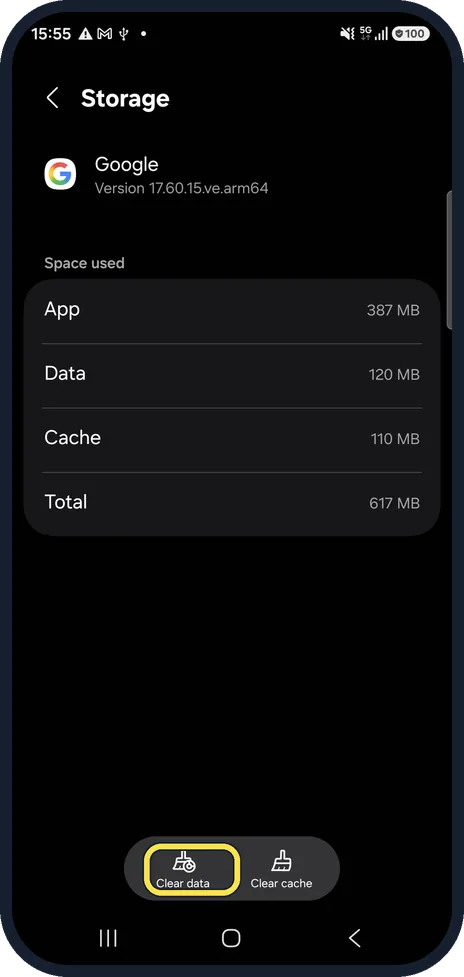
Clear data on the same Storage page resets the Google app to how it was when first opened, including its settings on this phone. Try it only if the crashes continue after the steps above.
Install the latest software
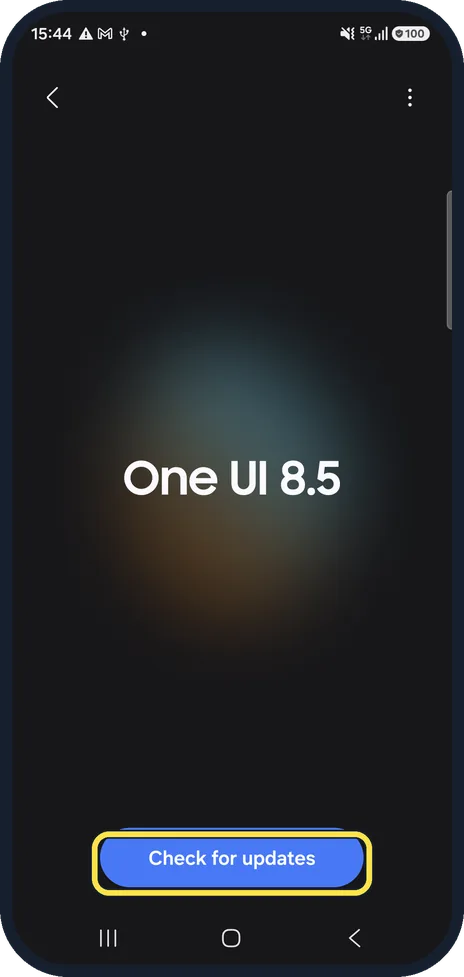
Settings, Software update, then tap Check for updates. Our phone was on One UI 8.5 for the older pictures here and on One UI 9 for steps 2, 4 and 7.
Watch these steps
If you do not see this option
- Software update is not under Settings Google notes that the place differs by phone: on some it is under About phone, Software update. On a Galaxy it is Settings, Software update. Source: Fix an installed Android app that isn't working
- The Google app does not show an Update button Google says to tap your profile icon in the Play Store, then Manage apps & devices. Waiting updates are listed under Updates available. Source: Fix an installed Android app that isn't working
If this does not work
- It still says Google keeps stopping Google suggests syncing the phone with Google's servers: in the date and time settings turn the automatic options off, set a wrong date and time, then turn the automatic options back on. Source: Fix an installed Android app that isn't working
- Several Google apps fail Google says to contact Google Play if you have trouble with Google apps or cannot update any apps. If only one app fails while others work, contact that app's developer. Source: Fix an installed Android app that isn't working
About this guide
The message means the Google app (search, Discover and the assistant) crashed. Clearing its cache keeps your settings; clearing its data resets the app on this phone.
Steps 2, 4 and 7 are from the same phone after its One UI 9 update (Android 17).
Good to know
If many different apps keep stopping at once, the shared part is usually Android System WebView or a nearly full storage: how to check and free up storage on a Samsung Galaxy phone.
The Google app is preinstalled: its App info offers Disable instead of Uninstall. Disabling it also turns off Google search and Discover, so use the steps above instead.
In short: Restart; Settings, Apps, Google, Force stop; Storage, Clear cache; update Google and WebView; Clear data only last.
Links checked in October 2026. Menus and features can change after software updates. These steps match the version named at the top.
📷 See real photos from the Galaxy A57 in our Camera Lab, next to 10 other phones.
Did this guide work for you?
Sorry about that. What happened?