
howtosimply.com/guides/windows-11-pc-slow-or-disk-at-100-what-to-check-first/ · Checked October 2026 · Windows 11 Enterprise 25H2 (build 26200.9457), Microsoft Cloud PC
In this guide
Press Ctrl + Shift + Esc to open Task Manager and click the Disk or CPU column to see which app is busy. Then turn off startup apps you do not need under Startup apps, free up space under Settings, System, Storage, install updates and run a quick virus scan, and restart.
8 of 9 steps with real screenshots · 2 official sources below
- Device
- Windows
- Shown on
- Windows 11 Enterprise 25H2 (build 26200.9457), Microsoft Cloud PC
- App
- Settings
- Path
- Settings › System › Storage
- Real screenshots
- 8 of 9 steps
- Checked
- October 2026
- Sources
- 2 official, linked below
Step by step
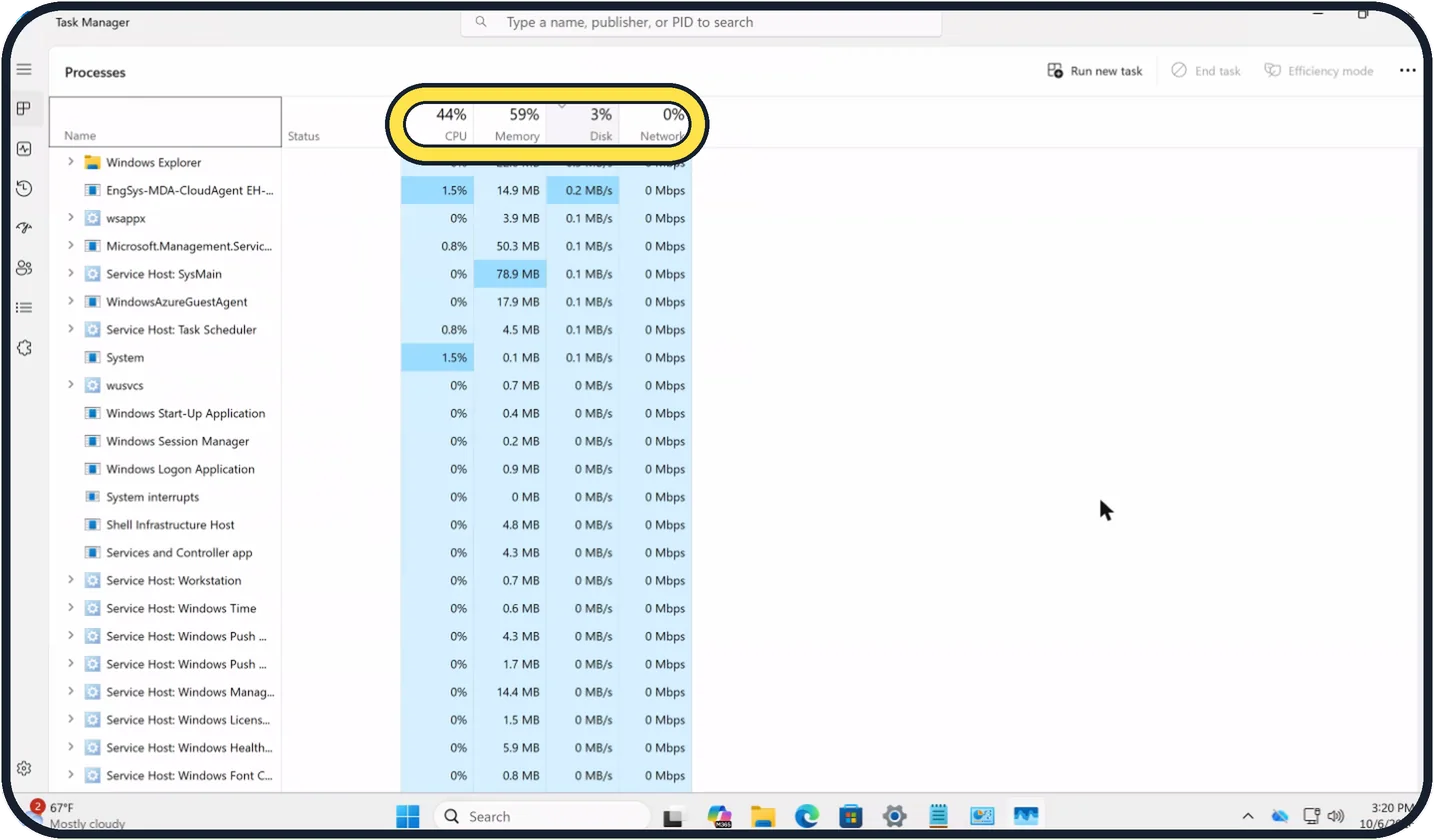
Zoomed in on the setting. Tap to see the whole screenTap the picture to see it full size Open Task Manager and sort by Disk
Press Ctrl + Shift + Esc. On the Processes page, click the Disk heading so the busiest app is at the top.
Do the same with CPU and Memory. The percentage above each column is the total.
Watch these steps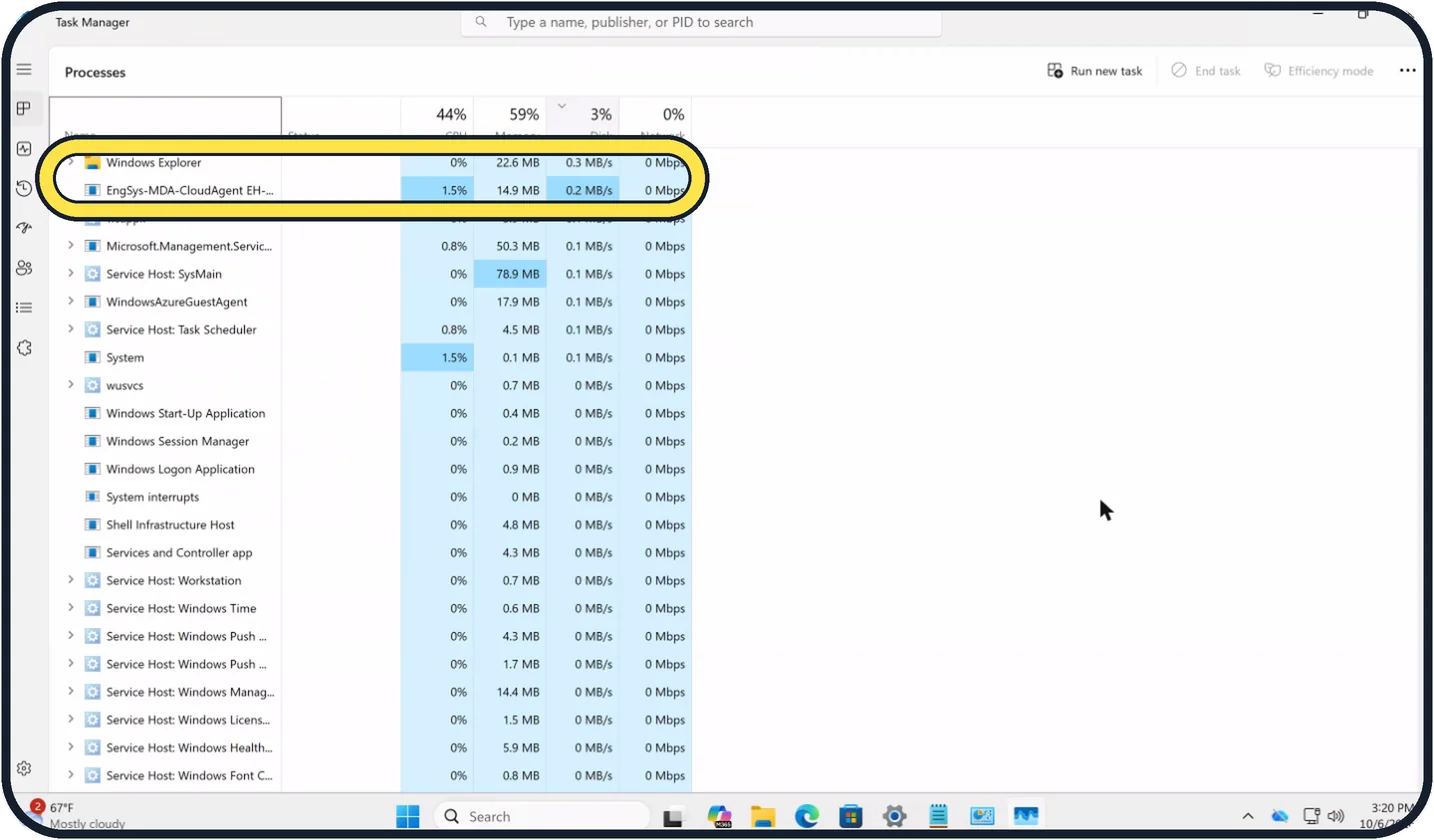
Zoomed in on the setting. Tap to see the whole screenTap the picture to see it full size Look at the top rows
An app that stays at the top for several minutes is the cause. Close it, or update or remove it.
On our Cloud PC disk use was only 3%, with the processor at 44% and memory at 59%.
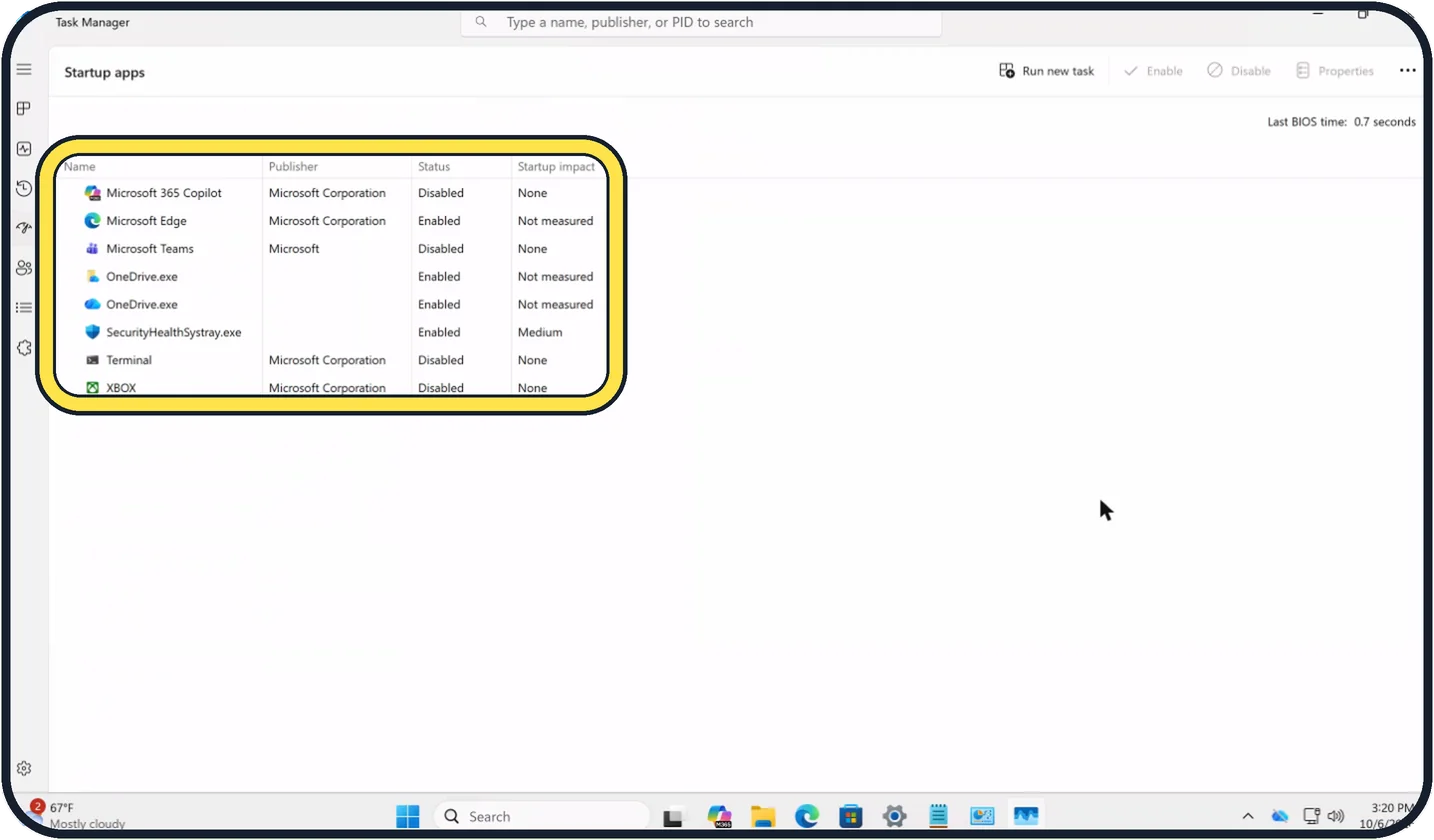
Zoomed in on the setting. Tap to see the whole screenTap the picture to see it full size Open Startup apps
Click Startup apps on the left of Task Manager. The bar shows only icons: it is the gauge icon, fourth below the menu button.
Status shows whether each app starts with Windows, and Startup impact how much it slows the start. Ours rated SecurityHealthSystray.exe Medium; the others read None or Not measured.
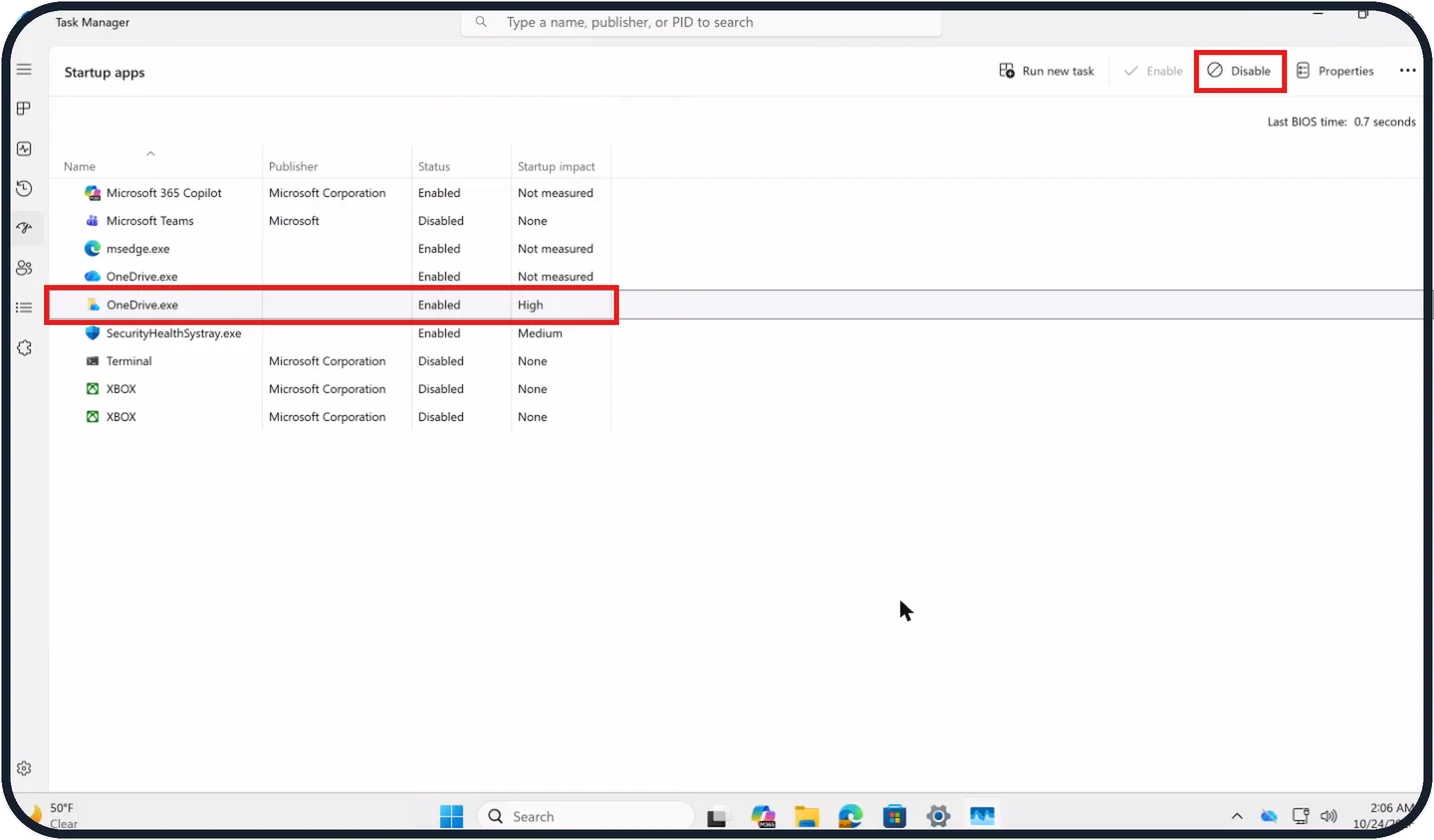
Tap the picture to see it full size Disable what you do not need
Select an app and click Disable at the top, or right-click it and choose Disable. Disable stays grey until an app is selected.
On our Cloud PC, selecting OneDrive.exe (Enabled, Startup impact High) made Disable active. The app still works when you open it yourself.
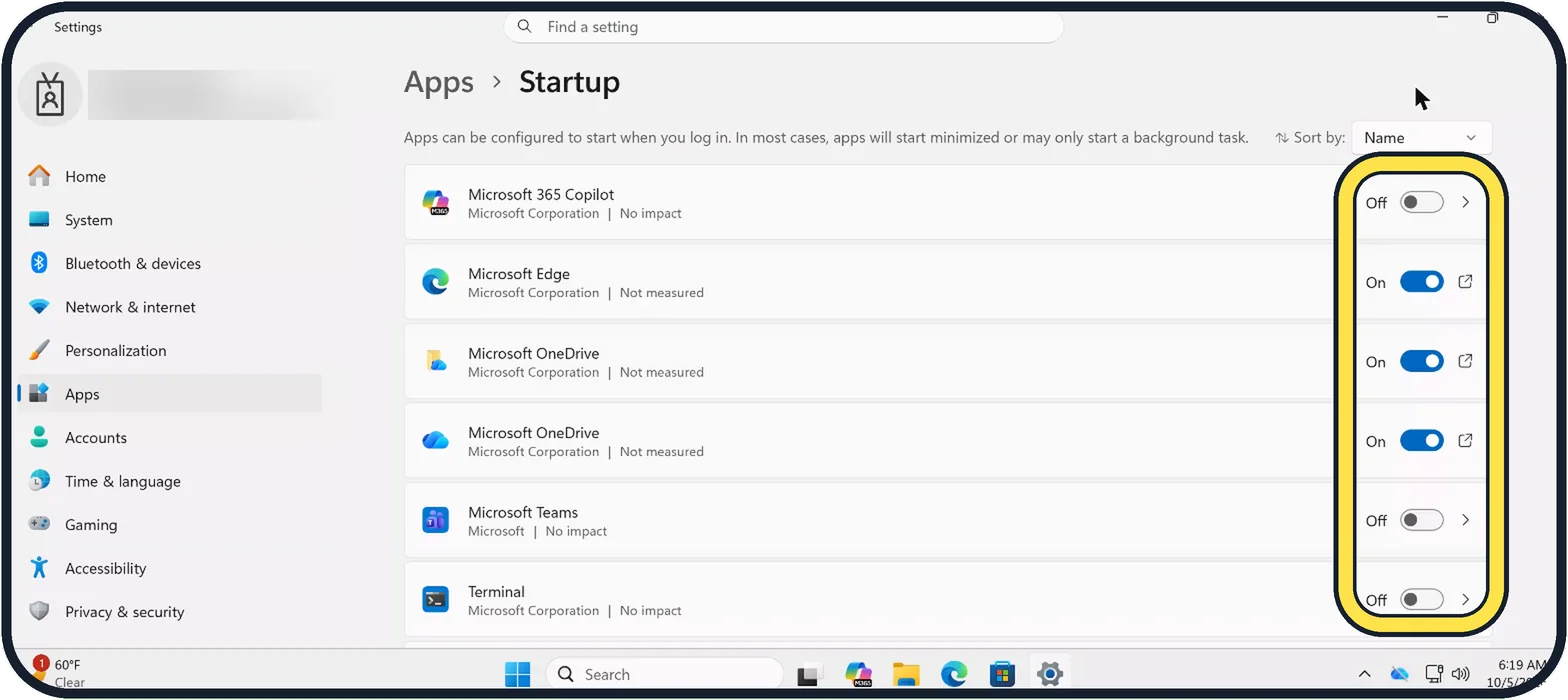
Zoomed in on the setting. Tap to see the whole screenTap the picture to see it full size Or use Settings
The same list is in Settings, Apps, Startup, with an On or Off switch for each app.
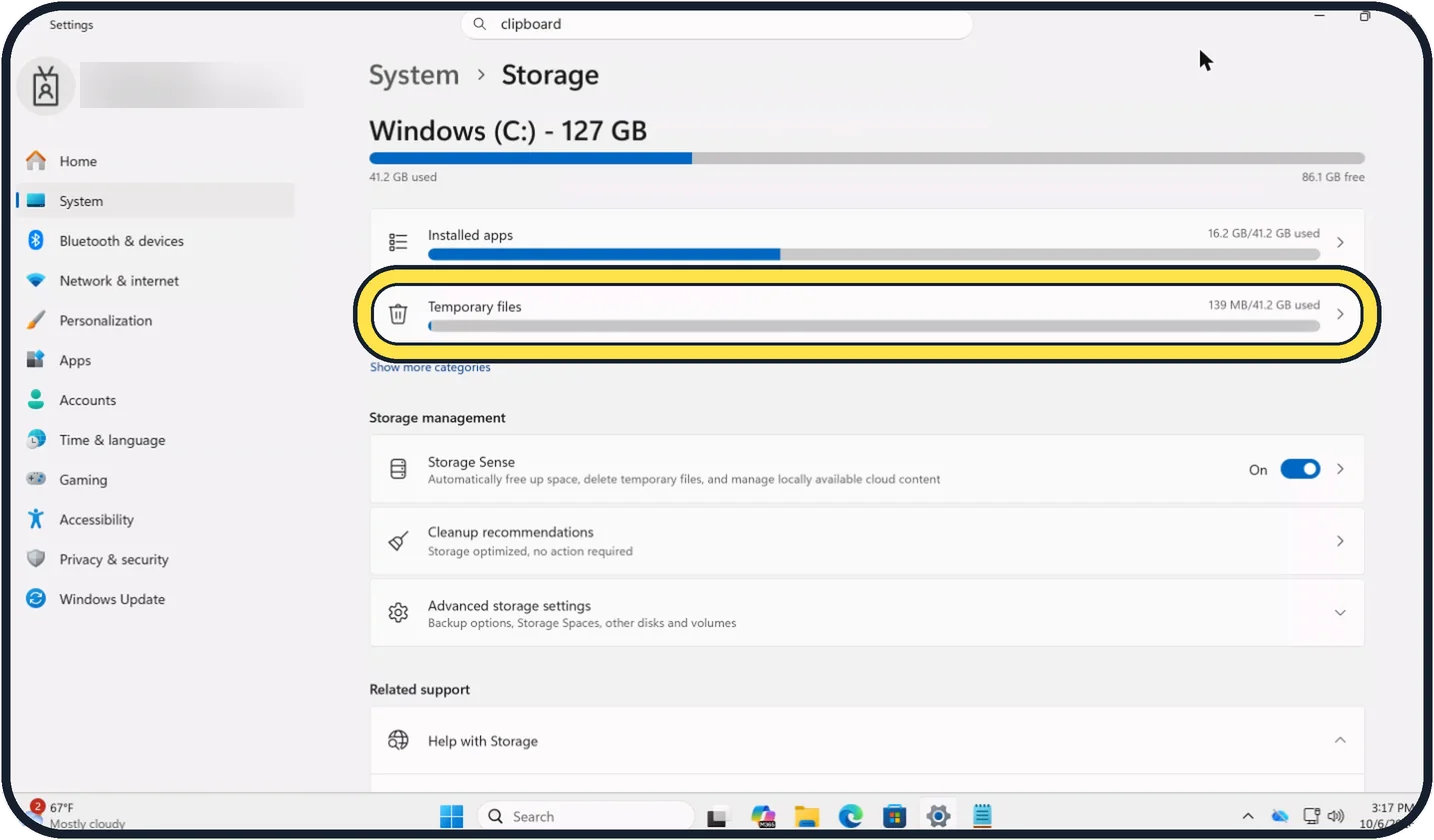
Tap the picture to see it full size Free up disk space
Open Settings, System, Storage. Click Temporary files and remove what you do not need, or switch on Storage Sense.
On our Cloud PC, Windows (C:) - 127 GB had 86.1 GB free and Storage Sense was On.
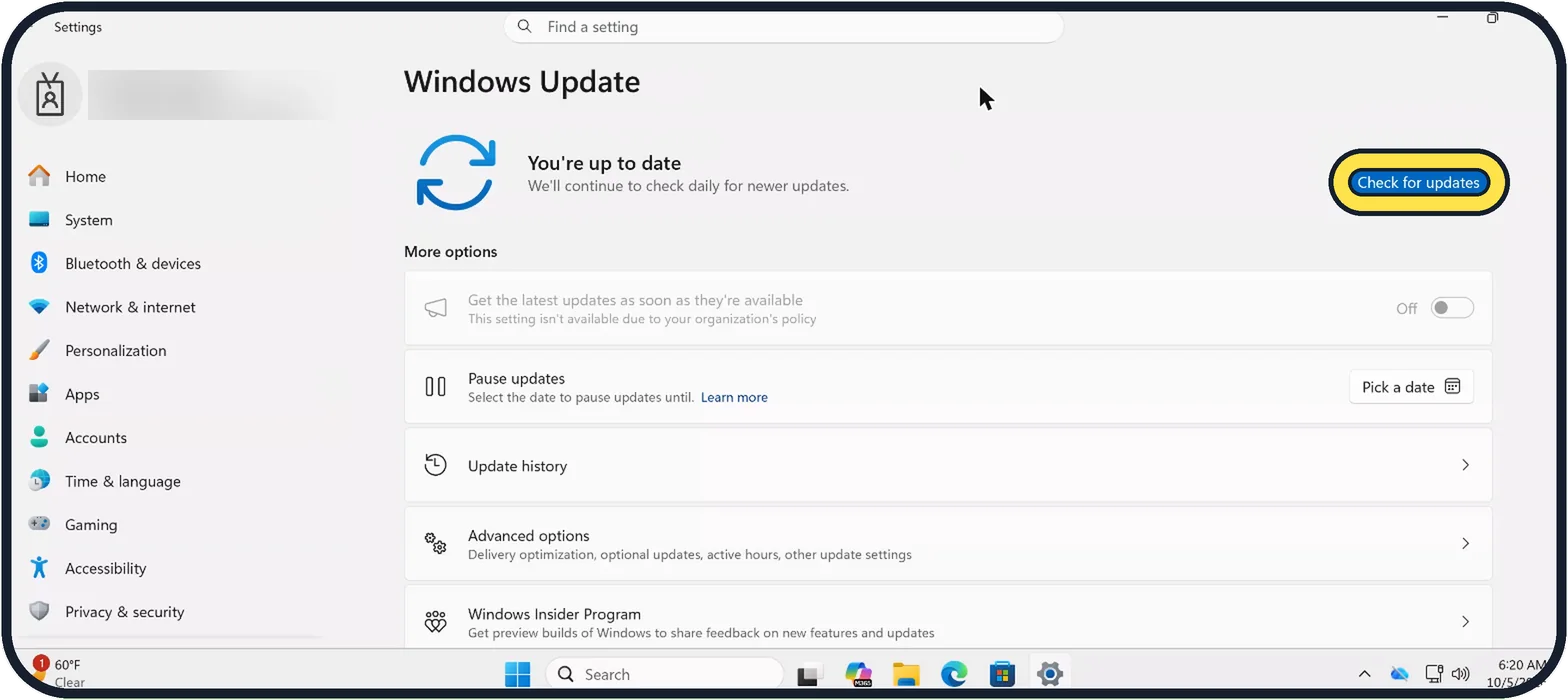
Zoomed in on the setting. Tap to see the whole screenTap the picture to see it full size Install updates
Open Settings, Windows Update and click Check for updates. Ours said You're up to date.
Microsoft also points to Advanced options, Optional updates for newer drivers.
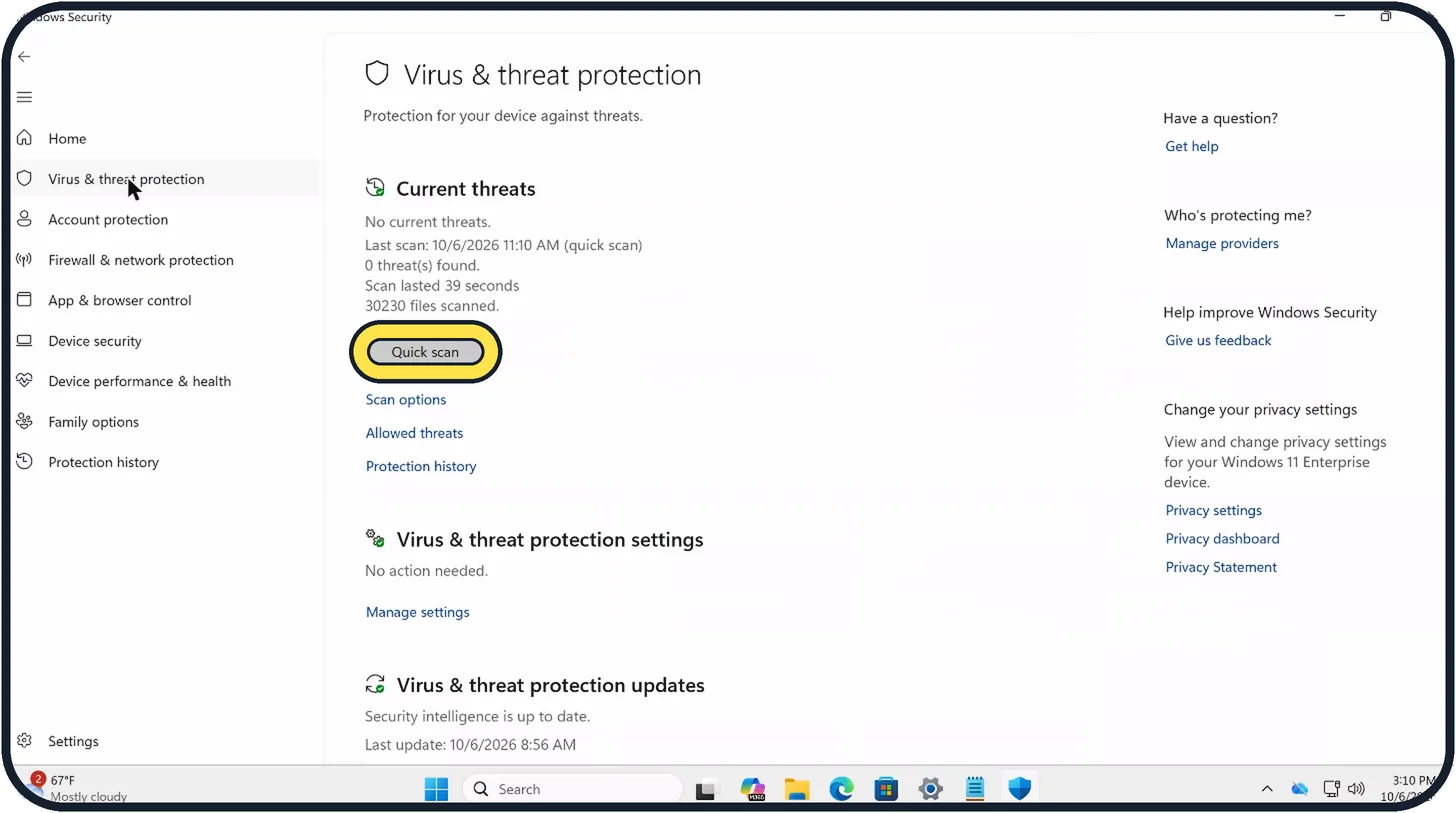
Zoomed in on the setting. Tap to see the whole screenTap the picture to see it full size Run a quick virus scan
Malware can keep the disk and processor busy. In Windows Security, Virus & threat protection, click Quick scan.
Restart
A restart closes everything that piled up and finishes pending updates. Use Restart, not Shut down.
Watch these steps
If you do not see this option
- A setting says it isn't available due to your organization's policy. Our work Cloud PC showed this under Get the latest updates as soon as they're available (step 7 picture), while Check for updates was still there. On a work PC, ask your IT team about locked settings.
- Your PC runs Windows 10. Microsoft says updates are under Settings, Update & security, Windows Update, where View optional updates lists optional driver updates. Sources: Tips to improve PC performance in Windows, Configure startup applications in Windows
If this does not work
- Disable is grey in Task Manager. Click an app in the Startup apps list first. On our Cloud PC Disable stayed grey until a row was selected.
- It is still slow and battery life does not matter. Microsoft suggests Settings, System, Power & battery, Power mode: Best performance. It warns that this uses more power and drains a laptop battery faster. Sources: Tips to improve PC performance in Windows, Configure startup applications in Windows
- The PC is old. Microsoft suggests searching Start for Adjust the appearance and performance of Windows and choosing Adjust for best performance on the Visual Effects tab. It also says older hardware may not improve much, and upgrading may be the long-term answer. Sources: Tips to improve PC performance in Windows, Configure startup applications in Windows
- An app keeps working in the background. Microsoft says to open Settings, Apps, Installed apps, click the app's More options (…), Advanced options, and set Let this app run in the background to Never. Sources: Tips to improve PC performance in Windows, Configure startup applications in Windows
About this guide
A slow PC usually has one busy app, too many apps starting with Windows, a nearly full drive or a pending update. Task Manager shows the first two in a minute. The order below follows Microsoft's tips for PC performance, starting with what you can see.
The screenshots are our own, taken on Windows 11 Enterprise 25H2 running as a Microsoft Cloud PC, a Windows PC that runs in the cloud.
Good to know
If one Windows process such as Service Host is at the top for a long time right after an update, let the PC finish: updates often work in the background for a while.
More power for plugged-in PCs: how to change the power mode on Windows 11. Full virus scan options: how to scan a Windows 11 PC for viruses with Windows Security.
In short: Ctrl + Shift + Esc, sort by Disk and CPU. Startup apps: disable what you do not need. Settings, System, Storage: free space. Install updates, Quick scan, restart.
- Microsoft Support: Tips to improve PC performance in Windows
- Microsoft Support: Configure startup applications in Windows
Links checked in October 2026. Menus and features can change after software updates. These steps match the version named at the top.
📷 Camera Lab: the same 6 scenes photographed with 11 phones, side by side.
Did this guide work for you?
Sorry about that. What happened?