
howtosimply.com/guides/how-to-scan-a-windows-11-pc-for-viruses-with-windows-security/ · Checked October 2026 · Windows 11 Enterprise 25H2 (build 26200.9457), Microsoft Cloud PC
In this guide
Open Start, type Windows Security and open the app. Click Virus & threat protection, then Quick scan. For a thorough check, click Scan options and choose Full scan, or Microsoft Defender Antivirus (offline scan) for malicious software that is particularly difficult to remove.
8 of 8 steps with real screenshots · 2 official sources below
- Device
- Windows
- Shown on
- Windows 11 Enterprise 25H2 (build 26200.9457), Microsoft Cloud PC
- Real screenshots
- 8 of 8 steps
- Checked
- October 2026
- Sources
- 2 official, linked below
Step by step
Zoomed in on the setting. Tap to see the whole screenTap the picture to see it full size Open Windows Security
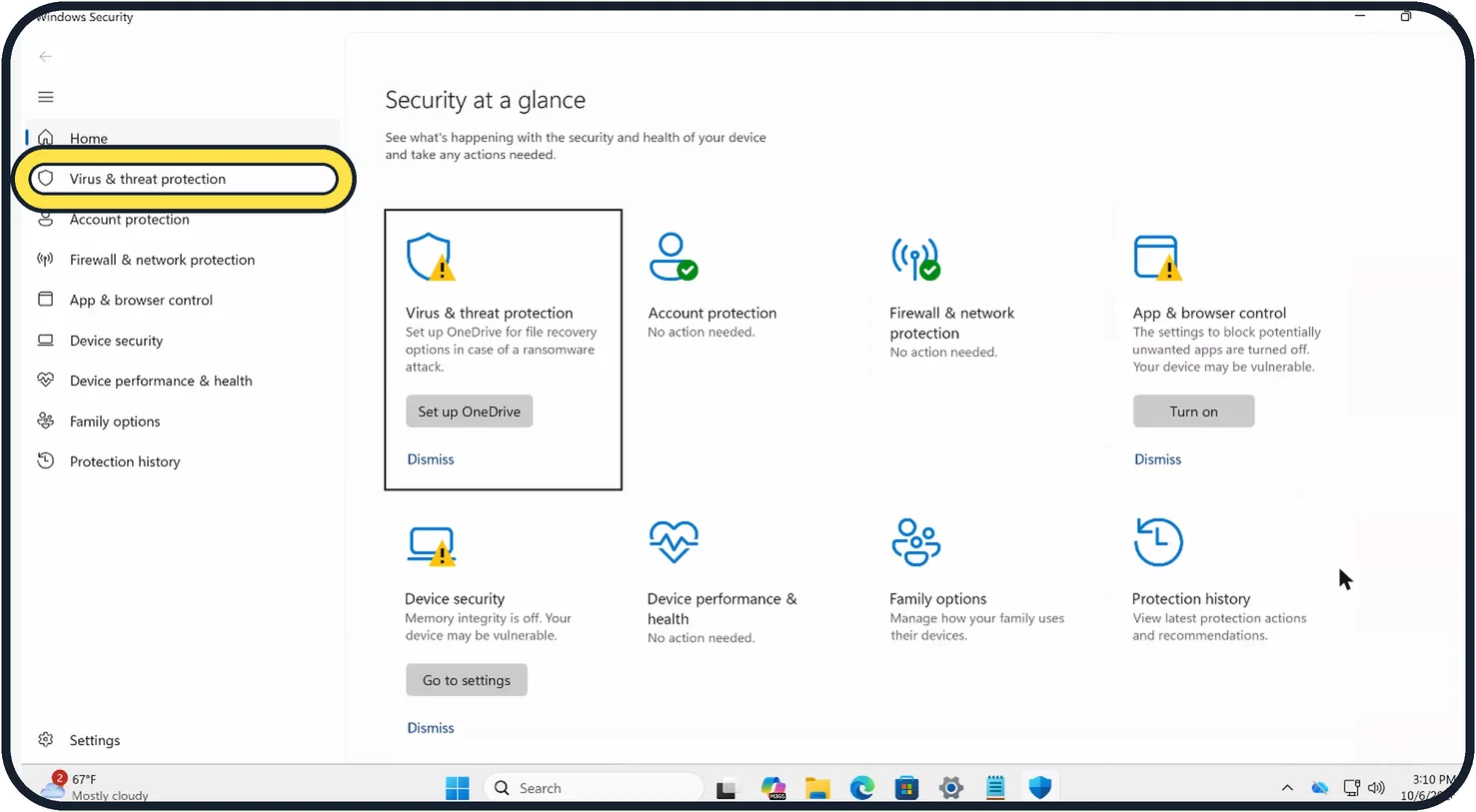
Click Start, type Windows Security and press Enter. Security at a glance shows a tile for each area; a yellow warning sign means Windows suggests an action. Click Virus & threat protection on the left.
Zoomed in on the setting. Tap to see the whole screenTap the picture to see it full size Run a quick scan
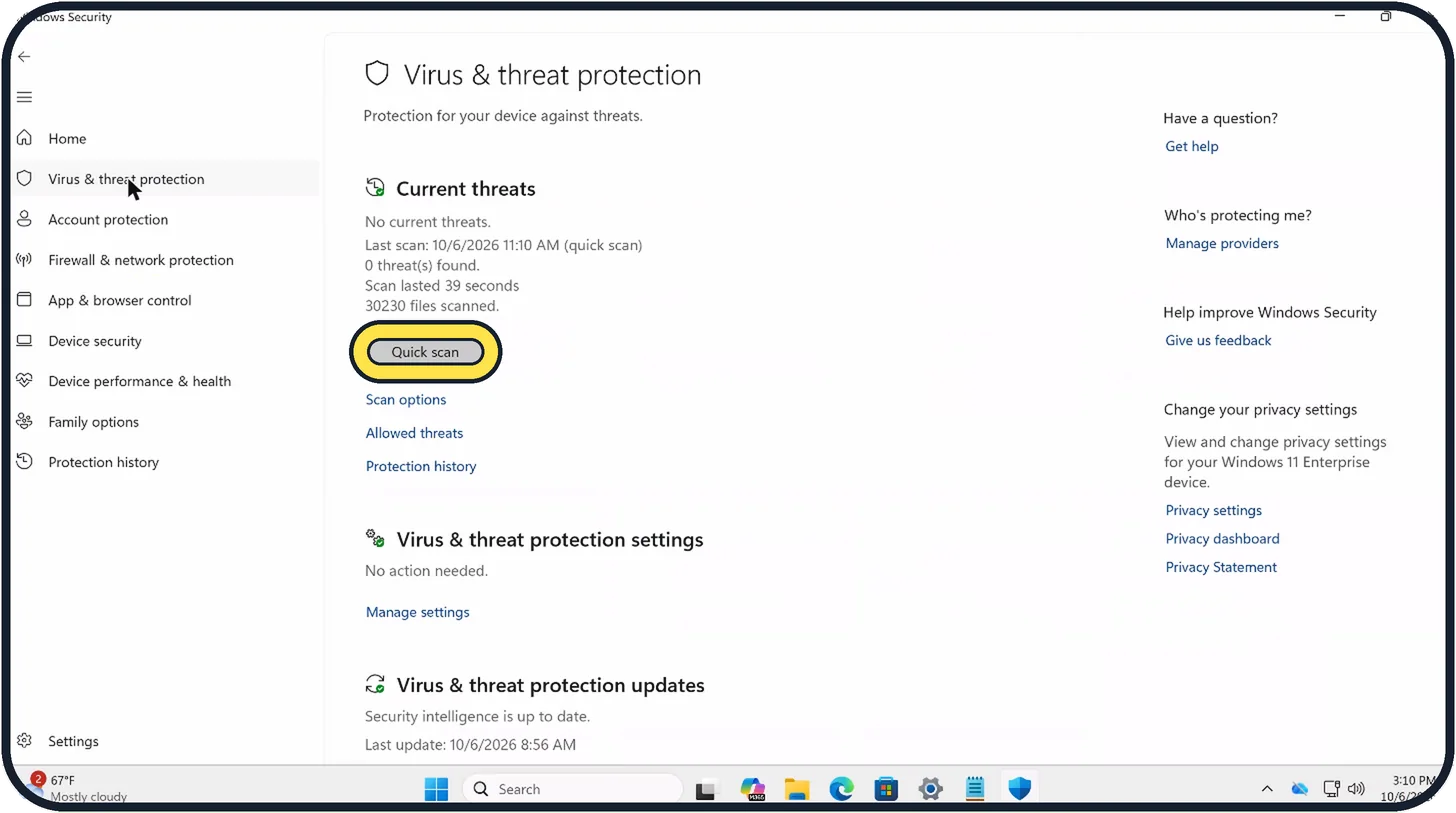
Click Quick scan. It checks the folders where malware usually settles. On our Cloud PC a quick scan took 24 to 39 seconds; on a PC with more files it can take a few minutes.
Zoomed in on the setting. Tap to see the whole screenTap the picture to see it full size Read the result
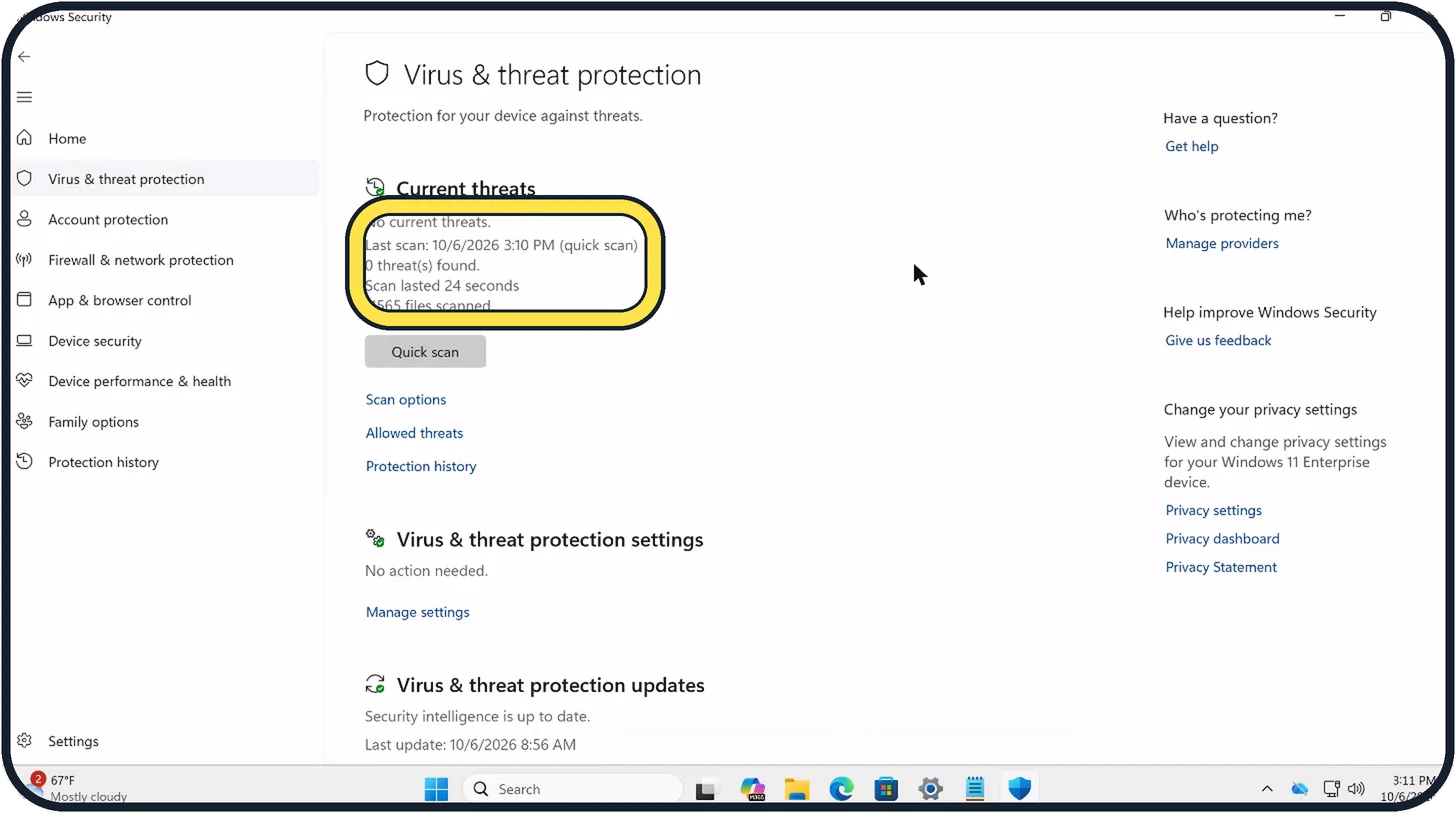
When the scan ends, Current threats shows the result, here No current threats and 0 threat(s) found, with the time of the last scan. If something is found, Windows lists it here with the actions you can take.
Zoomed in on the setting. Tap to see the whole screenTap the picture to see it full size Run a full scan if needed
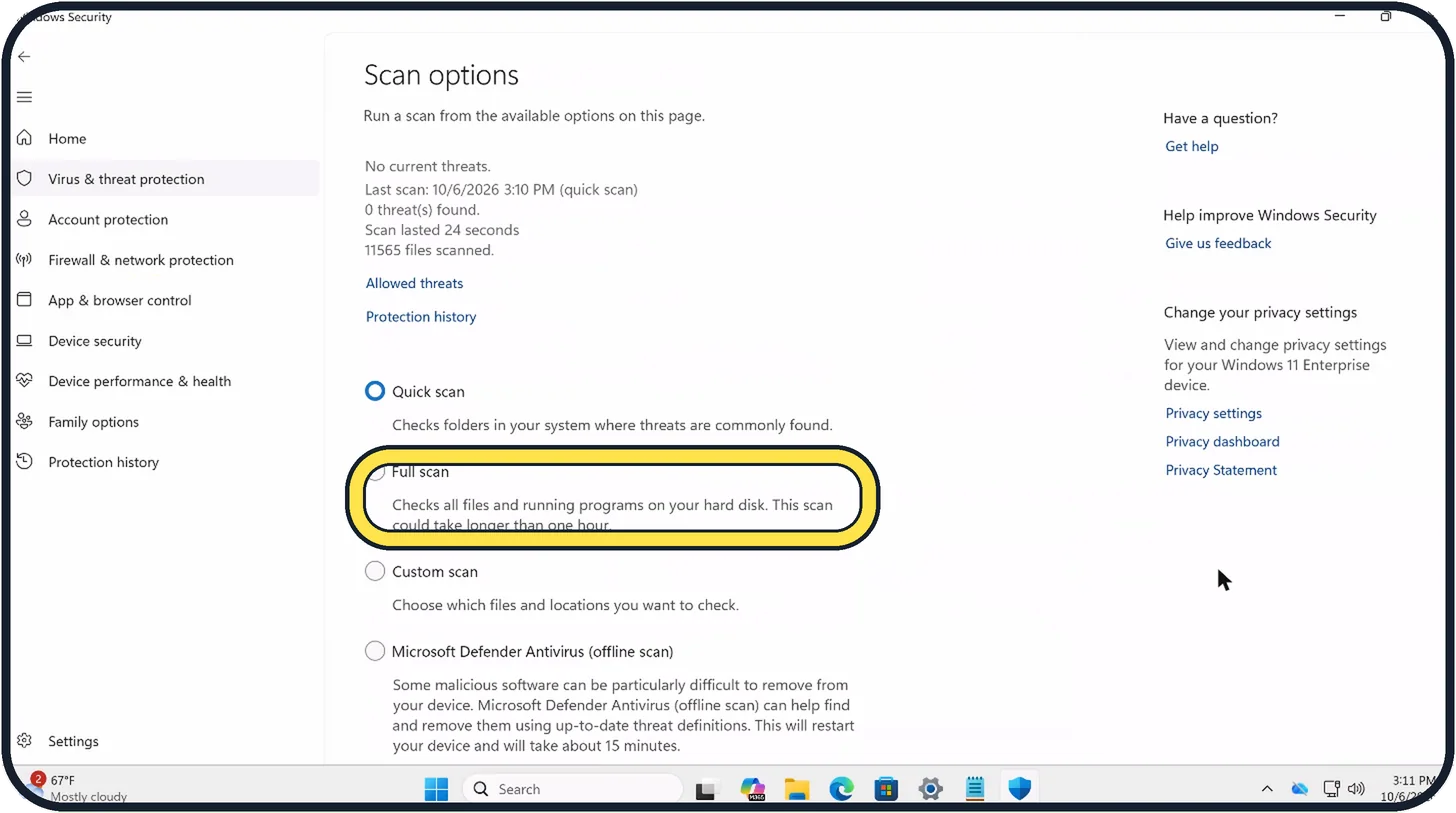
Click Scan options, select Full scan, scroll down and click Scan now. The page warns that this scan could take longer than one hour.
Zoomed in on the setting. Tap to see the whole screenTap the picture to see it full size Scan one folder or drive
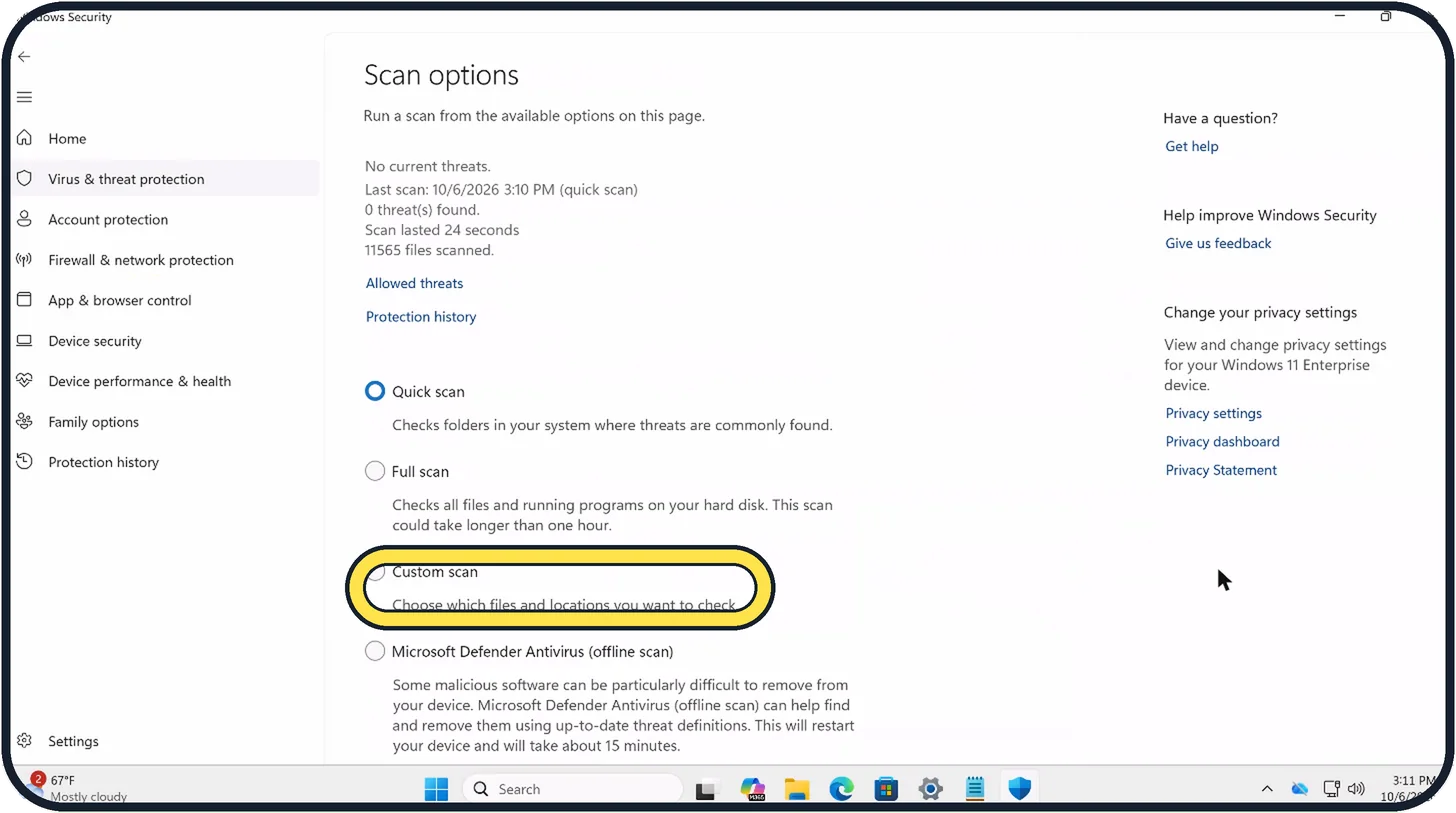
On the same page, choose Custom scan, scroll down and click Scan now, then pick the folder, for example a USB stick. The page describes it as: Choose which files and locations you want to check.
Zoomed in on the setting. Tap to see the whole screenTap the picture to see it full size Use the offline scan for stubborn malware
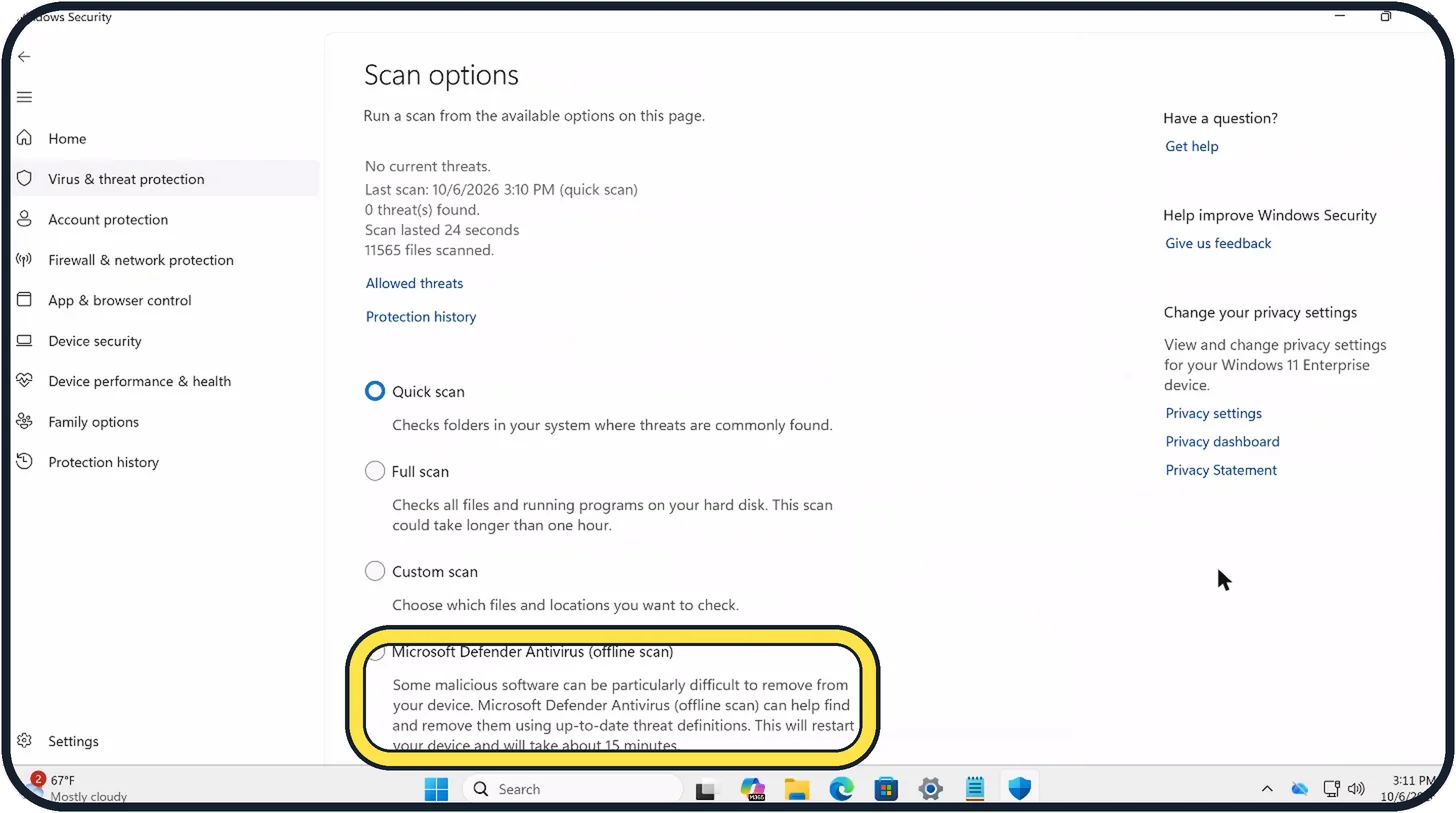
Choose Microsoft Defender Antivirus (offline scan), scroll down and click Scan now. Save your work first: the page says it restarts your device and takes about 15 minutes.
Zoomed in on the setting. Tap to see the whole screenTap the picture to see it full size Look at Protection history
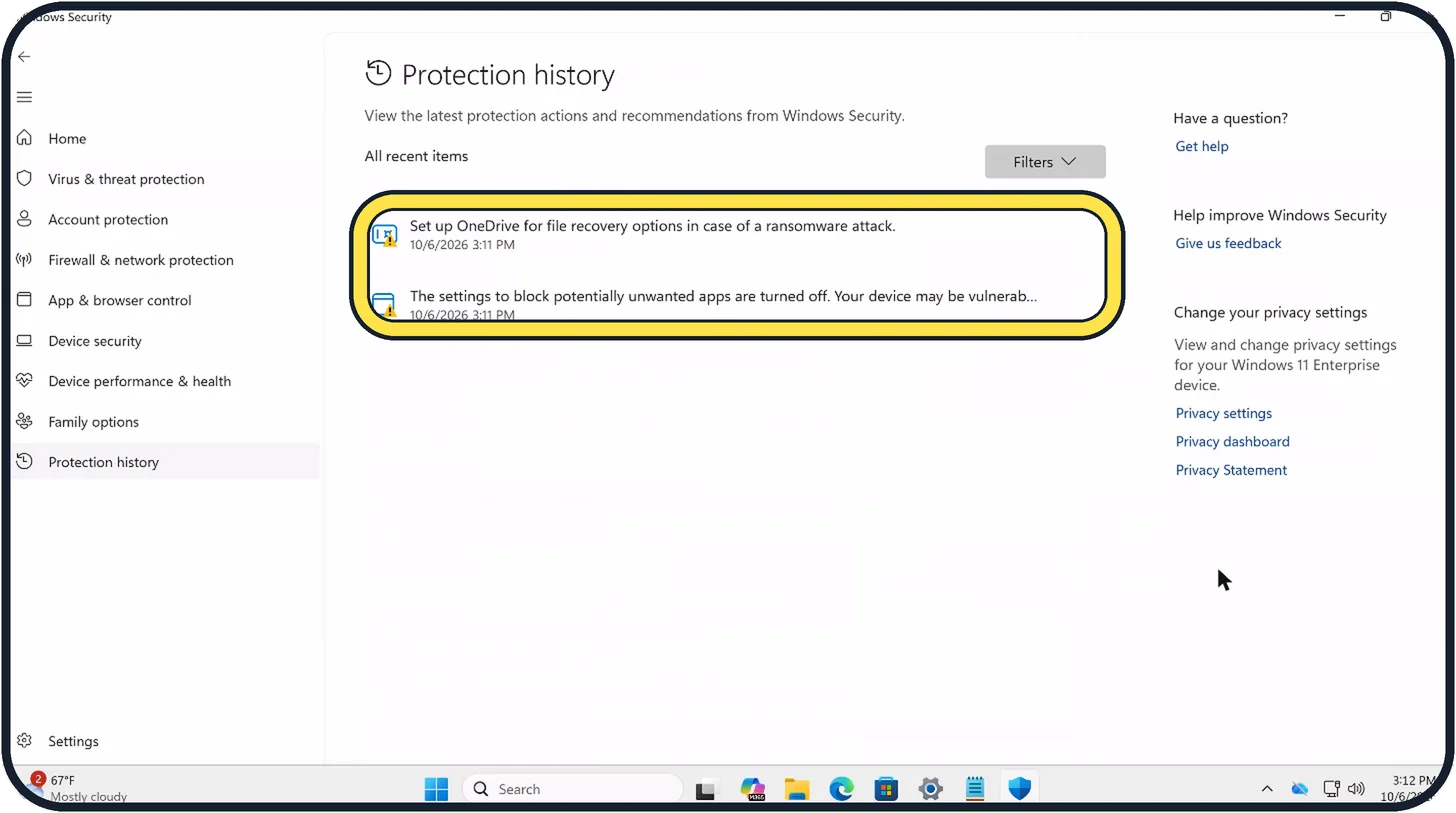
Click Protection history on the left. It shows the latest protection actions and recommendations from Windows Security. Ours lists only two recommendations and no threats: Set up OneDrive for file recovery options in case of a ransomware attack, and The settings to block potentially unwanted apps are turned off.
Zoomed in on the setting. Tap to see the whole screenTap the picture to see it full size Check that protection is up to date
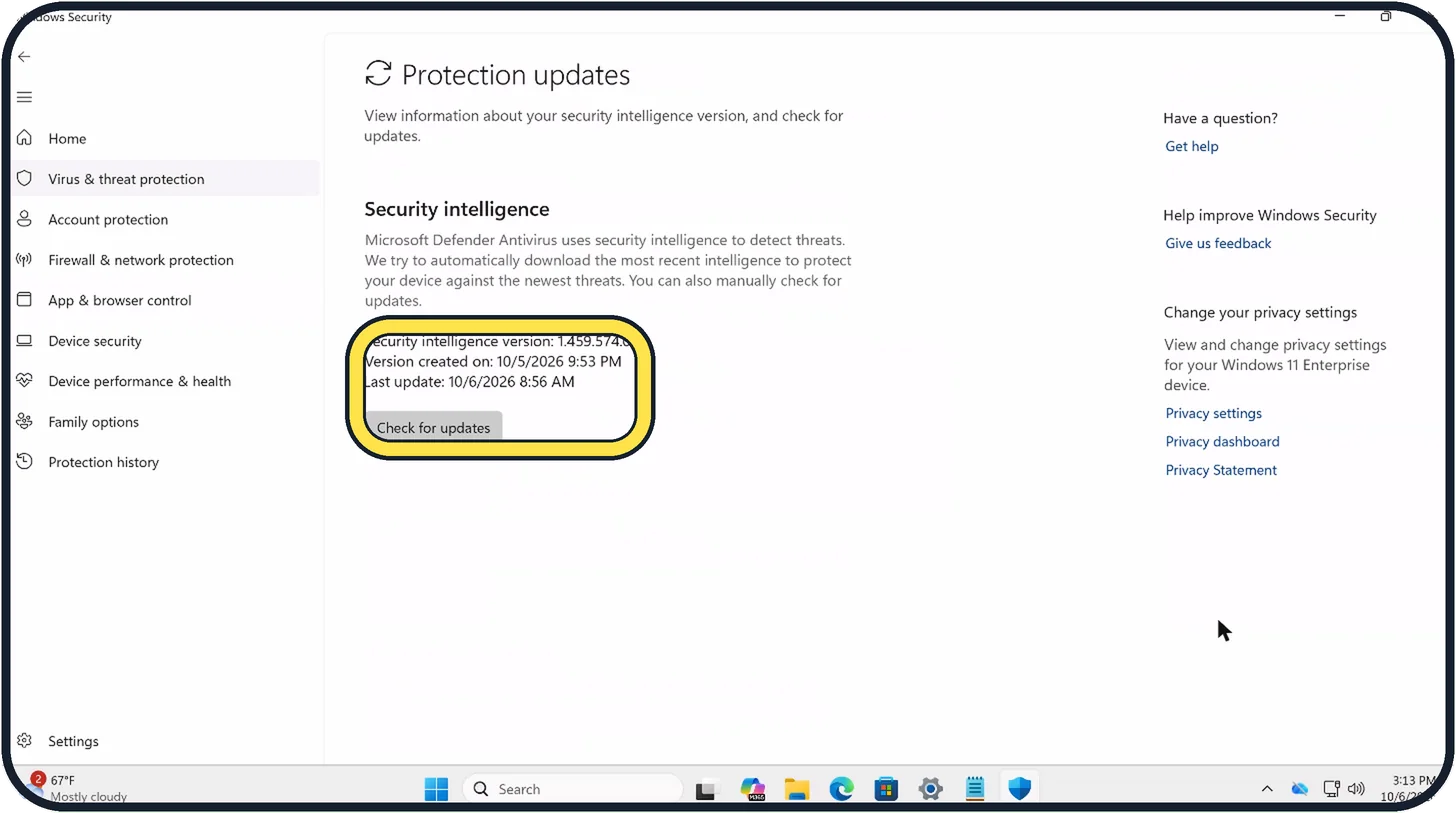
Back in Virus & threat protection, scroll to Virus & threat protection updates and click Protection updates. The page shows the security intelligence version and when it was last updated. Click Check for updates.
If this does not work
- What your result means: No current threats. The scan found nothing. Yellow suggestions in Security at a glance or Protection history, such as setting up OneDrive or blocking potentially unwanted apps, are tips for extra protection, not signs of an infection. Source: Protection History in the Windows Security App
- What your result means: Threat found - action needed. Microsoft says Defender found a possible threat and needs you to decide. Open it in Protection history and choose Actions. If you are not sure whether the file is safe, Microsoft says Quarantine is the best choice; Remove deletes it. Source: Protection History in the Windows Security App
- What your result means: Threat quarantined. Microsoft says the file has not been removed yet, but should not put your data or device at risk at present. You can remove it, or restore it if you are sure it is safe. Source: Protection History in the Windows Security App
- What your result means: Threat blocked. Microsoft says Defender blocked the threat and removed it. Nothing more is needed. If you are sure the file was safe, choose Actions, then Allow, and download it again. Source: Protection History in the Windows Security App
- What your result means: Remediation incomplete. Microsoft says Defender could not finish the cleaning. Click the entry to see the extra steps it asks for. If the threat comes back, run the offline scan from step 6, which Microsoft offers for malware that is hard to remove. Source: Protection History in the Windows Security App
- The scan buttons are missing or Defender is off. Microsoft says Defender turns itself off when another compatible antivirus program is installed. Run the scan in that program instead. Source: Virus and Threat Protection in the Windows Security App
- A familiar app is suddenly blocked from saving files. Microsoft says the message App is blocked comes from Controlled folder access. Allow only apps you trust through it. Source: Virus and Threat Protection in the Windows Security App
About this guide
Windows 11 comes with its own antivirus, Microsoft Defender, inside the Windows Security app. It runs in the background all the time. A manual scan makes sense when the PC behaves oddly or after you opened a file you do not trust.
On our Cloud PC, Security at a glance showed three yellow warnings, none of them a virus: set up OneDrive for ransomware file recovery, blocking of potentially unwanted apps turned off, and Memory integrity off. They are suggestions for extra protection, not signs of an infection.
Good to know
If another antivirus program is installed, Defender steps back and that program is in charge. Two real-time scanners at once slow the PC down.
Real-time protection can only be switched off for a short time. Windows turns it back on by itself.
After an infection, change the passwords of your important accounts from a clean device, and install all updates: how to check for updates on Windows 11.
If the PC is still unstable, see how to start Windows 11 in safe mode.
In short: Windows Security, Virus & threat protection, Quick scan. Scan options for Full, Custom or offline scan. Results under Protection history.
- Microsoft Support: Virus and Threat Protection in the Windows Security App
- Microsoft Support: Protection History in the Windows Security App
Links checked in October 2026. Menus and features can change after software updates. These steps match the version named at the top.
Did this guide work for you?
Sorry about that. What happened?