
howtosimply.com/guides/how-to-turn-off-narrator-on-windows-11/ · Checked October 2026 · Windows 11 Enterprise 25H2 (build 26200.9457), Microsoft Cloud PC
In this guide
Press Windows logo key + Ctrl + Enter. That shortcut turns Narrator, the voice that reads the screen aloud, on and off. To stop it from starting by itself, open Settings, Accessibility, Narrator, open the Narrator row and untick Start Narrator before sign-in and Start Narrator after sign-in.
3 of 4 steps with real screenshots · 1 official source below
- Device
- Windows
- Shown on
- Windows 11 Enterprise 25H2 (build 26200.9457), Microsoft Cloud PC
- App
- Settings
- Real screenshots
- 3 of 4 steps
- Checked
- October 2026
- Sources
- 1 official, linked below
Step by step
Press the shortcut
Press Windows logo key + Ctrl + Enter together.
The same three keys turn Narrator back on.
Tap the picture to see it full size Or use the settings
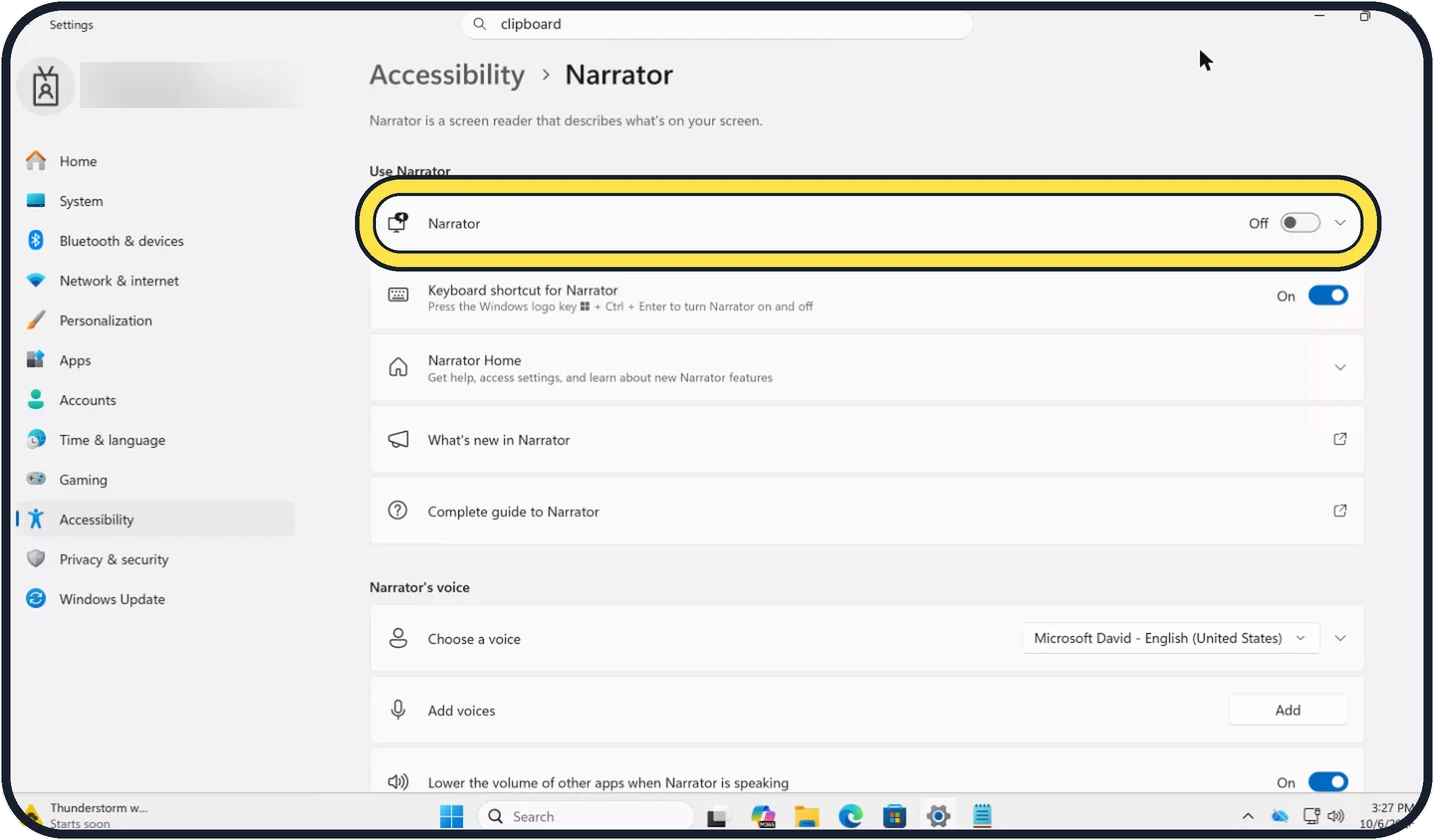
Open Start, then Settings, Accessibility, Narrator.
Switch off Narrator, the first row under Use Narrator. On our Cloud PC it shows Off.
Tap the picture to see it full size Stop it from starting by itself
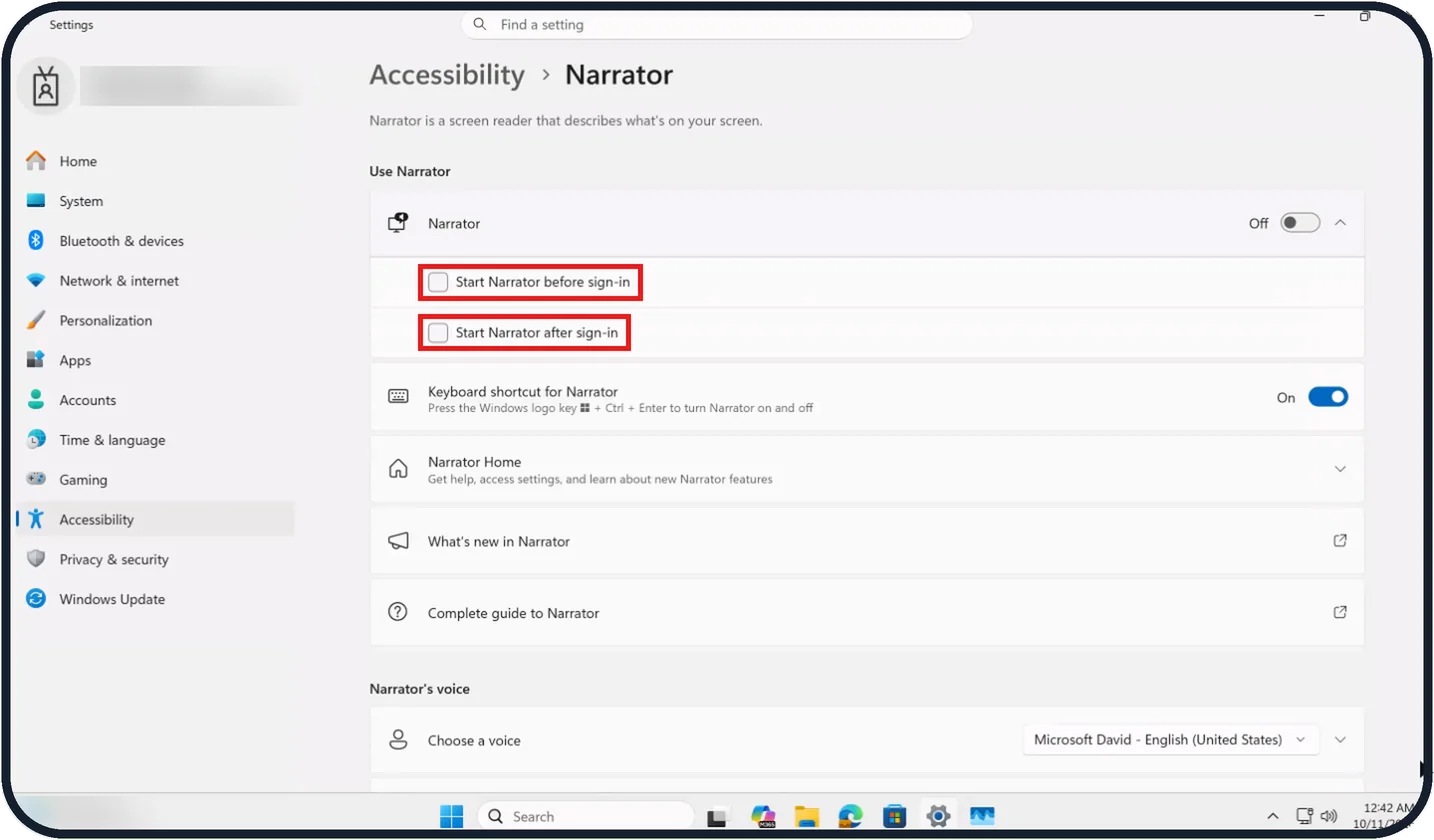
Click the arrow at the right end of the Narrator row to show its options.
Untick Start Narrator before sign-in and Start Narrator after sign-in. On our Cloud PC both boxes are unticked.
Tap the picture to see it full size Switch off the shortcut
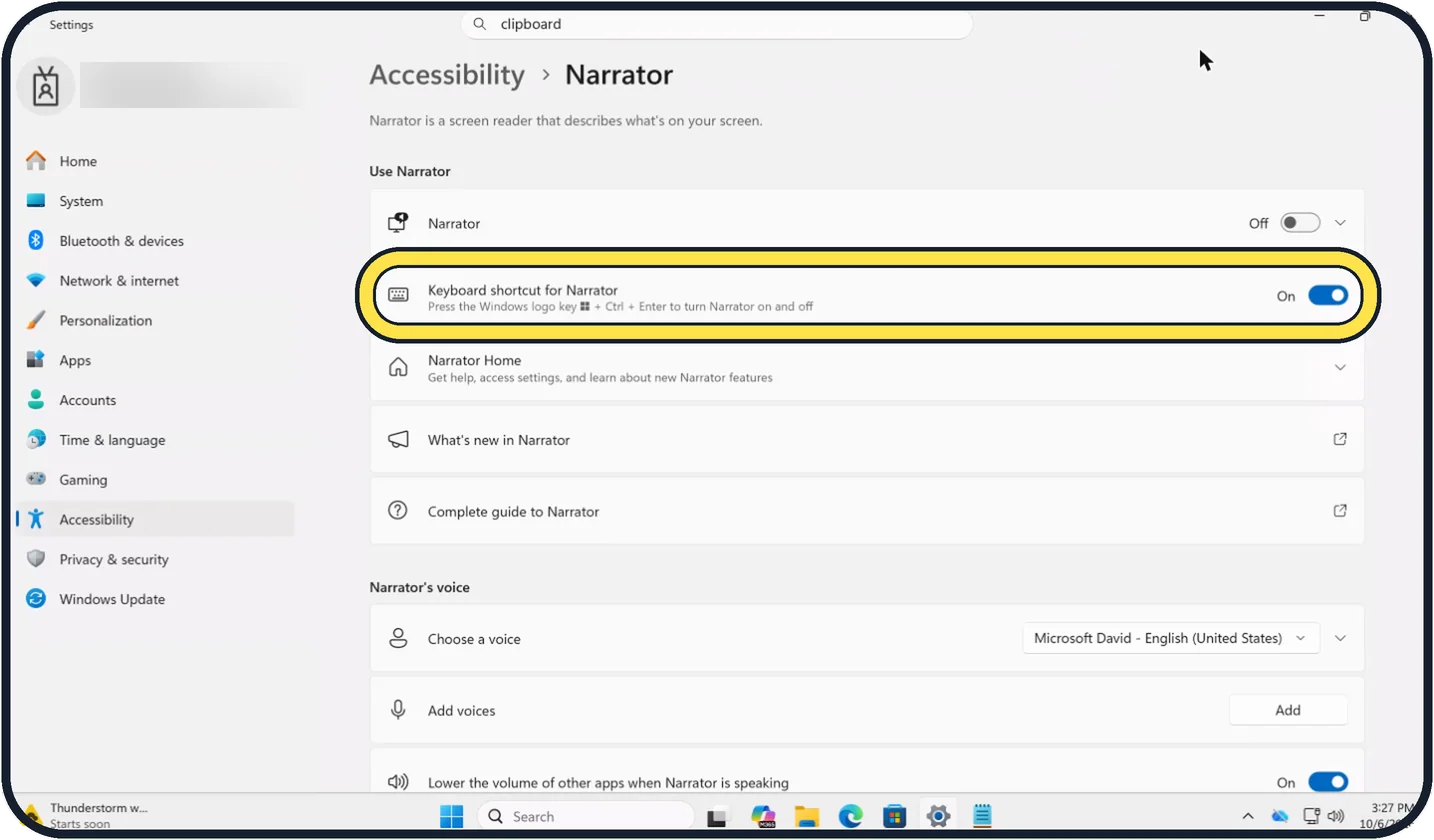
Just below, switch off Keyboard shortcut for Narrator, so Windows logo key + Ctrl + Enter no longer starts it by accident.
On our Cloud PC it is On.
If you do not see this option
- No tick boxes under Narrator The two start options only appear once the Narrator row is open. Click the arrow at the right end of the row; on our Cloud PC this shows Start Narrator before sign-in and Start Narrator after sign-in.
- Settings opens on another page Select Accessibility in the left-hand list, then Narrator. The page title should read Accessibility > Narrator.
- You cannot find the page Type Narrator in the Find a setting box at the top of Settings.
If this does not work
- Narrator comes back after a restart One of the start options is still ticked. Open the Narrator row and untick Start Narrator before sign-in and Start Narrator after sign-in.
- The voice starts again by accident Switch off Keyboard shortcut for Narrator. The row says it lets you press the Windows logo key + Ctrl + Enter to turn Narrator on and off.
- The shortcut does nothing If Keyboard shortcut for Narrator is switched off, the keys will not work. Use the Narrator switch under Use Narrator in Settings instead.
About this guide
Narrator is the screen reader built into Windows; Settings describes it as a screen reader that describes what's on your screen. Most people who search for this page switched it on by accident with its shortcut and want the voice to stop.
The screenshots are our own, taken on Windows 11 Enterprise 25H2 running as a Microsoft Cloud PC, a Windows PC that runs in the cloud. Where the Cloud PC shows something particular, the step says so.
Good to know
If the PC beeps when you press Caps Lock, a different feature is on. See how to turn off Sticky Keys on Windows 11, which also covers Toggle keys and Filter keys.
A screen that is zoomed in belongs to Magnifier: Windows key + Esc turns it off.
The same thing on other devices: how to turn off TalkBack on an Android phone.
In short: Windows logo key + Ctrl + Enter turns Narrator off. In Settings, Accessibility, Narrator, untick Start Narrator before sign-in and Start Narrator after sign-in, and switch off Keyboard shortcut for Narrator.
Links checked in October 2026. Menus and features can change after software updates. These steps match the version named at the top.
Did this guide work for you?
Sorry about that. What happened?