
howtosimply.com/guides/how-to-change-which-app-opens-a-file-on-windows-11/ · Checked October 2026 · Windows 11 Enterprise 25H2 (build 26200.9457), Microsoft Cloud PC
In this guide
Open Settings, Apps, Default apps. Type the file extension, such as .pdf or .jpg, into the search box at the top, select the result and choose the app you want. Or select an app in the list below to see every file type it can open, and change them one at a time.
5 of 6 steps with real screenshots · 1 official source below
- Device
- Windows
- Shown on
- Windows 11 Enterprise 25H2 (build 26200.9457), Microsoft Cloud PC
- App
- Settings
- Path
- Settings › Apps › Default apps
- Real screenshots
- 5 of 6 steps
- Checked
- October 2026
- Sources
- 1 official, linked below
Step by step
For one file, right away
Right-click the file in File Explorer, choose Open with and then Choose another app. Select the app and click Always. That changes the default for this file type.
Zoomed in on the setting. Tap to see the whole screenTap the picture to see it full size Open the Default apps settings
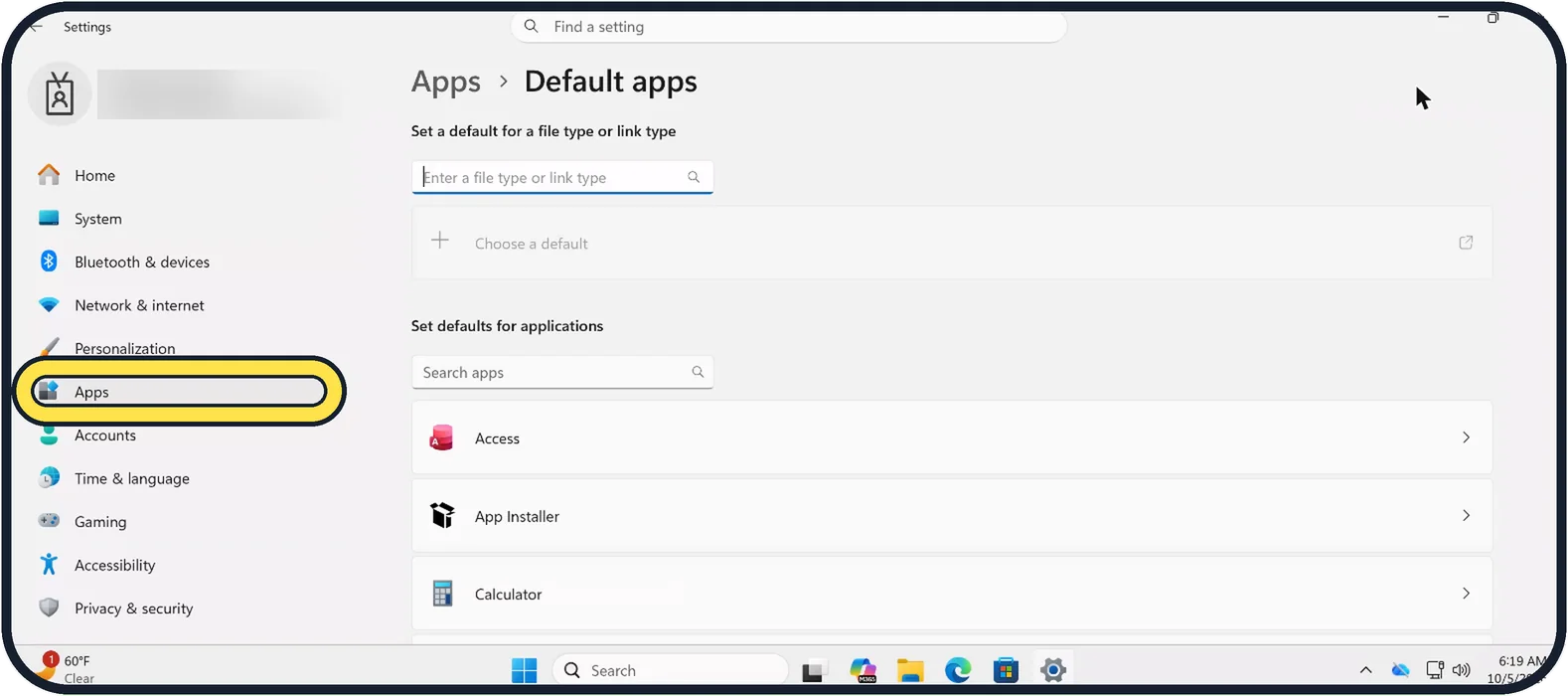
Open Start, Settings, click Apps in the sidebar and then Default apps.
Tap the picture to see it full size Set the default by file type
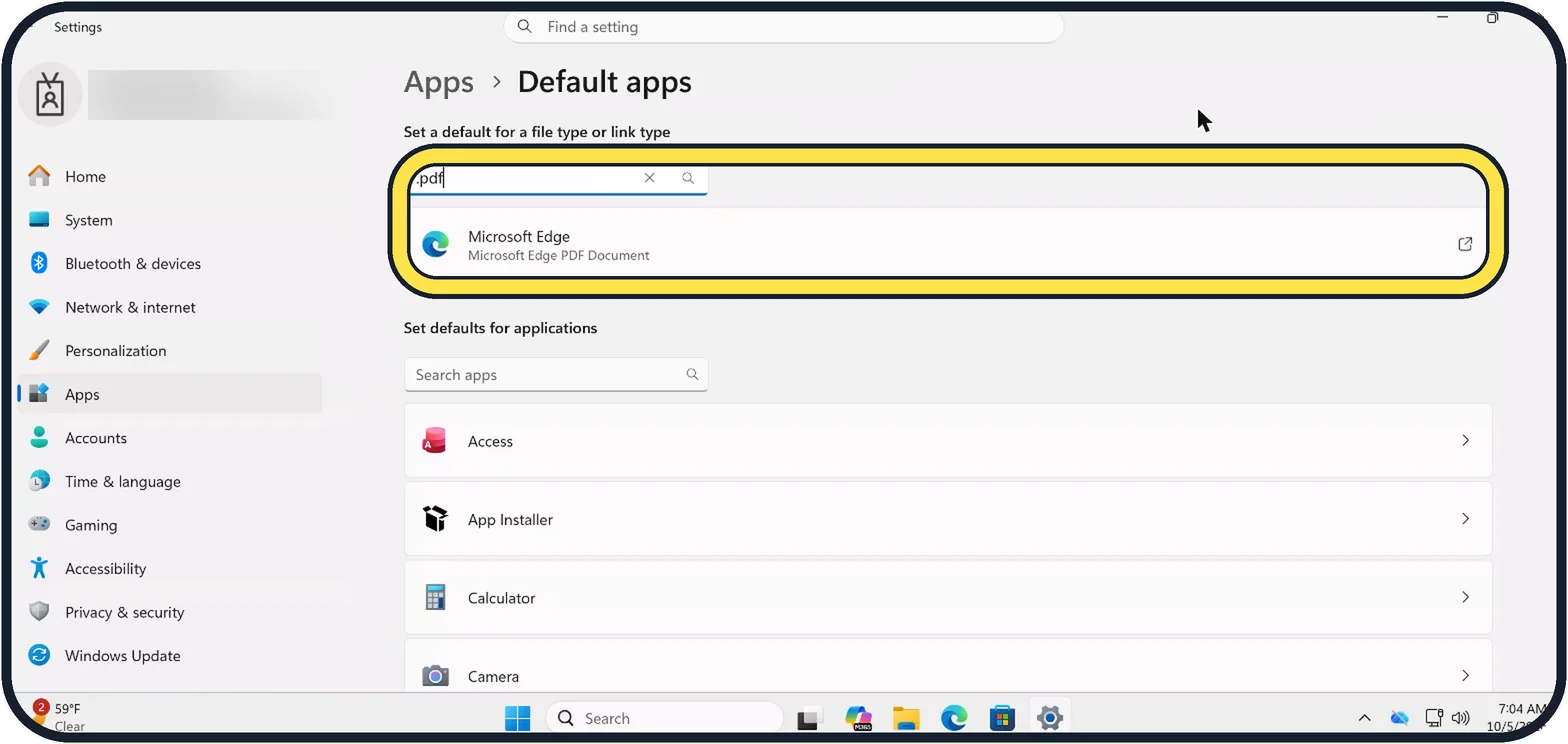
Type the file extension into the box at the top, with the dot, for example .pdf, .jpg or .mp3. The current app appears underneath; on our Cloud PC .pdf opens in Microsoft Edge. Click it and choose another app from the list.
Tap the picture to see it full size Set the default by link type
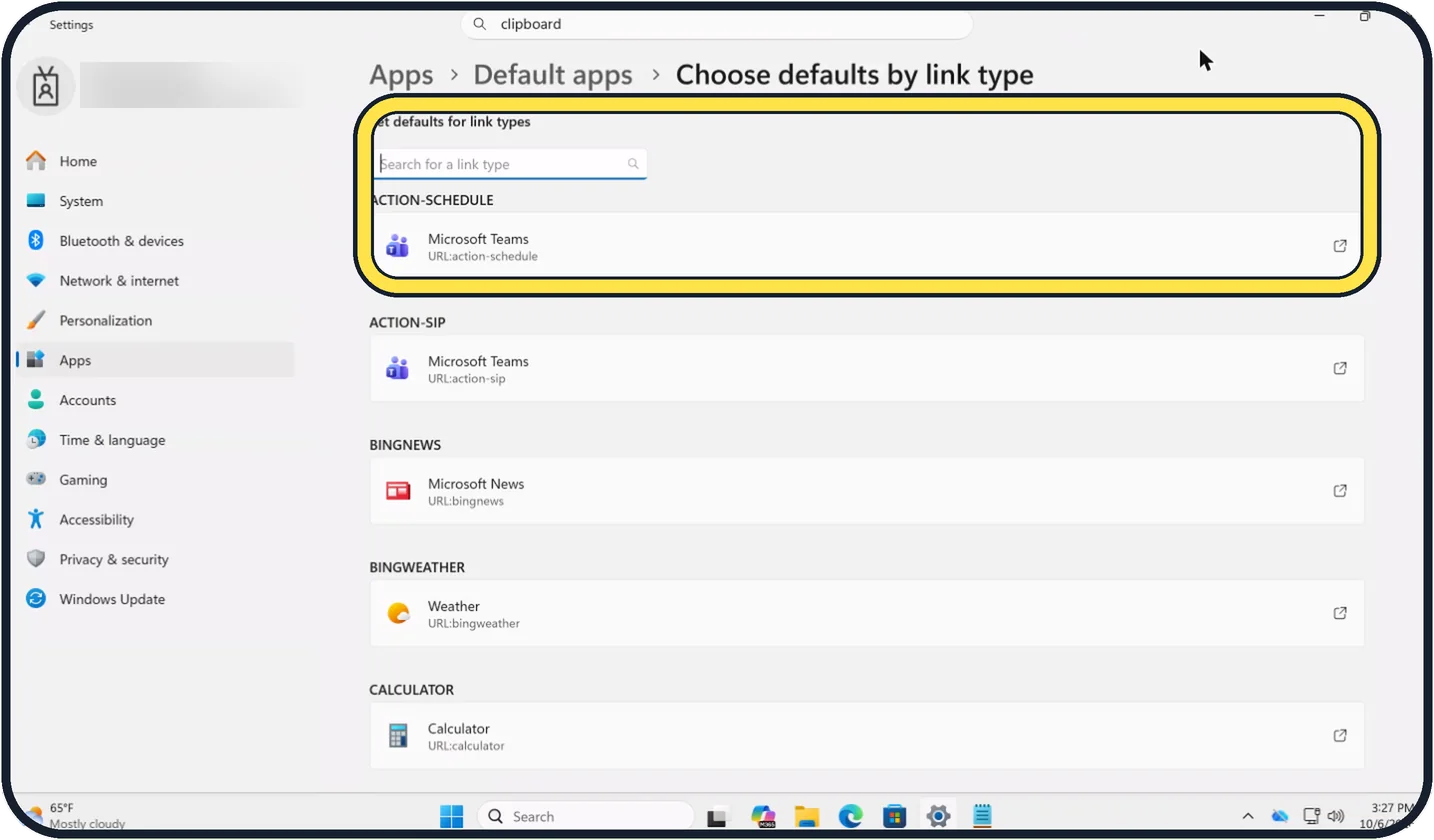
Link types have their own page under Default apps, called Choose defaults by link type. Type a link type into Search for a link type, for example MAILTO for email links. On our Cloud PC the list starts with ACTION-SCHEDULE, which opens in Microsoft Teams.
Tap the picture to see it full size Set the defaults by app
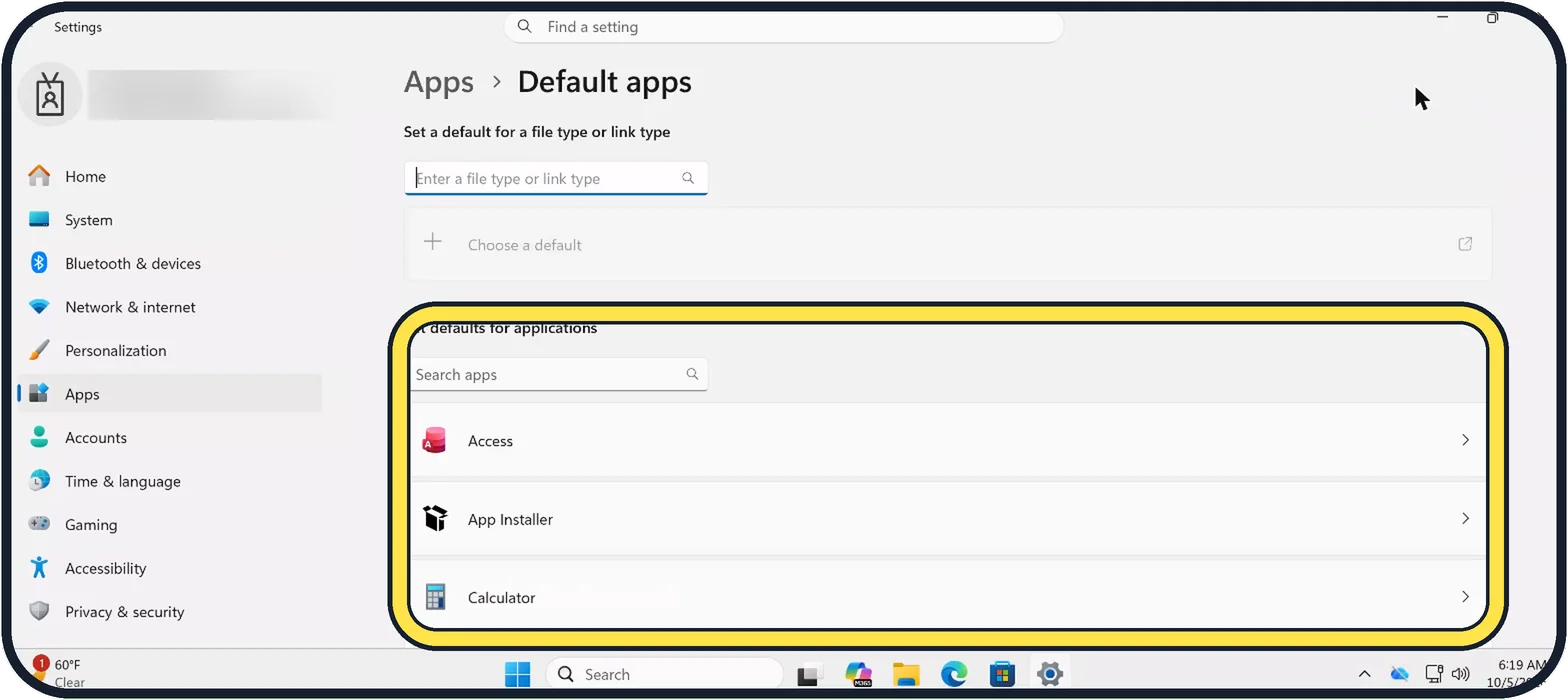
Under Set defaults for applications, search for an app or scroll through the list and click it. Windows shows every file and link type that app can open. Click a type and choose the app.
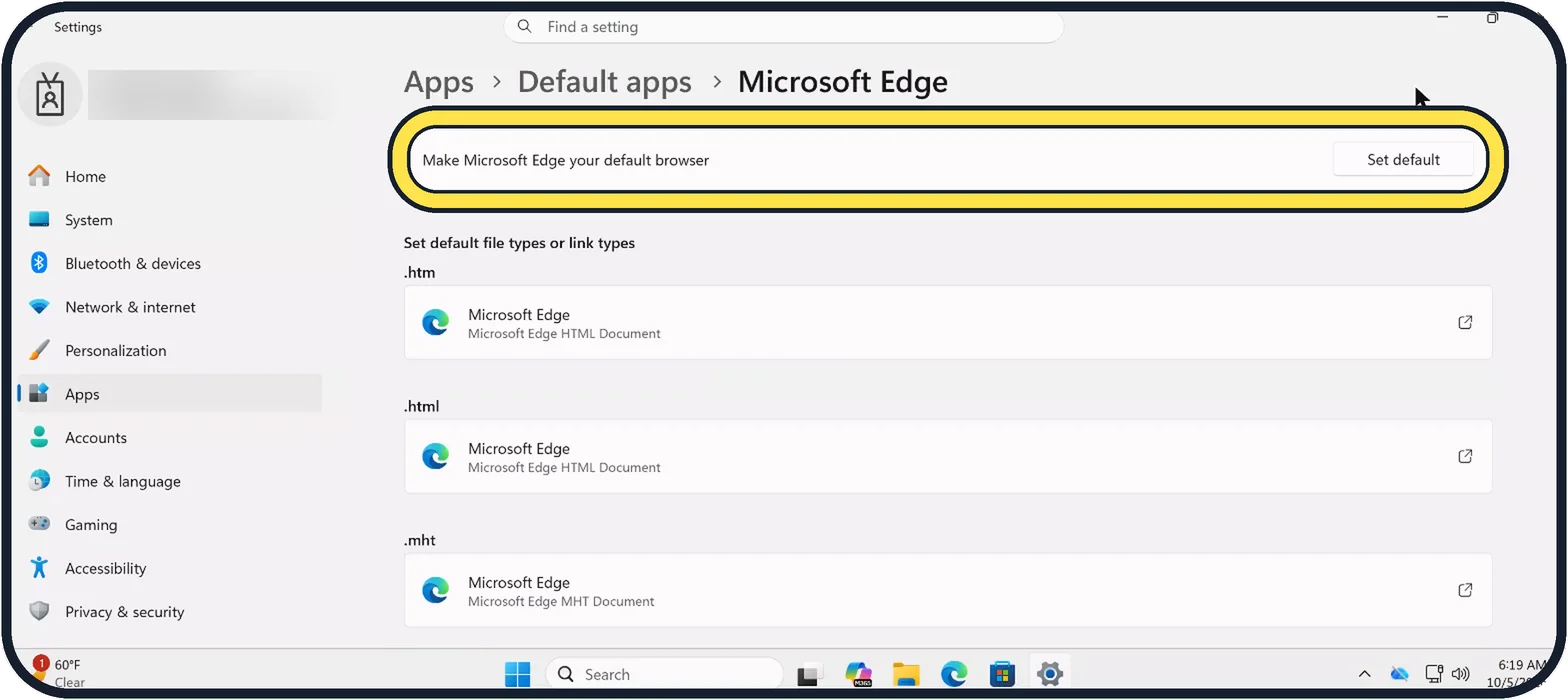
Tap the picture to see it full size Make a browser the default in one step
Click the browser in the app list. At the top, next to Make [browser] your default browser, click Set default. On our Cloud PC the row reads Make Microsoft Edge your default browser. Below it are the file types it opens, such as .htm, .html and .mht.
About this guide
Every file type on a PC has a default app, the one that opens when you double-click. PDFs open in the browser, photos in the Photos app, music in Media Player, until you decide otherwise. Windows 11 sets these per file type, which is more work than before, but precise.
Good to know
If the app you want is not offered, it may not be installed correctly, or it may not open that type. Install it again, then return to this setting.
More detail on browsers: how to change the default browser on Windows 11.
To see the endings of file names in the first place: how to show hidden files and file extensions on Windows 11. On a Mac: how to change which app opens a file type on a Mac.
In short: Settings, Apps, Default apps. Type the extension, pick the app. Or right-click a file, Open with, Choose another app, Always.
Links checked in October 2026. Menus and features can change after software updates. These steps match the version named at the top.
Did this guide work for you?
Sorry about that. What happened?