
howtosimply.com/guides/samsung-galaxy-notifications-delayed-6-fixes/ · Checked October 2026 · Samsung Galaxy A57 5G (SM-A576B), One UI 8.5, Android 16
In this guide
Open Settings, Battery, Background usage limits. Take the app out of Sleeping apps and Deep sleeping apps, add it to Never auto sleeping apps, or switch off Put unused apps to sleep. Then turn off Power saving and check the app's own notification settings.
6 of 6 steps with real screenshots · 2 official sources below
- Device
- Android
- Shown on
- Samsung Galaxy A57 5G (SM-A576B), One UI 8.5, Android 16
- App
- Settings
- Real screenshots
- 6 of 6 steps
- What we did
- Observed: looked at each screen, changed nothing
- Checked
- October 2026
- Sources
- 2 official, linked below
Step by step
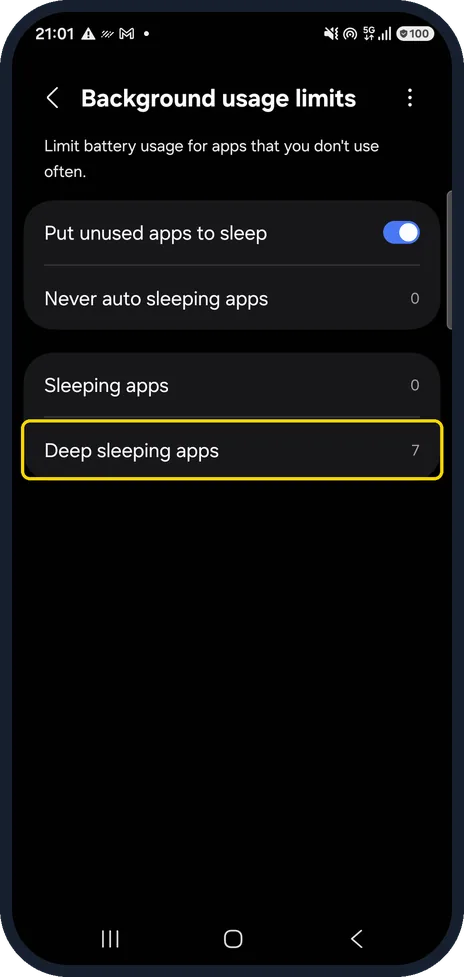
Check Deep sleeping apps
Settings, Battery, Background usage limits. Samsung says apps in Deep sleeping apps never run in the background. On our Galaxy A57 the number next to it was 7.
Watch these steps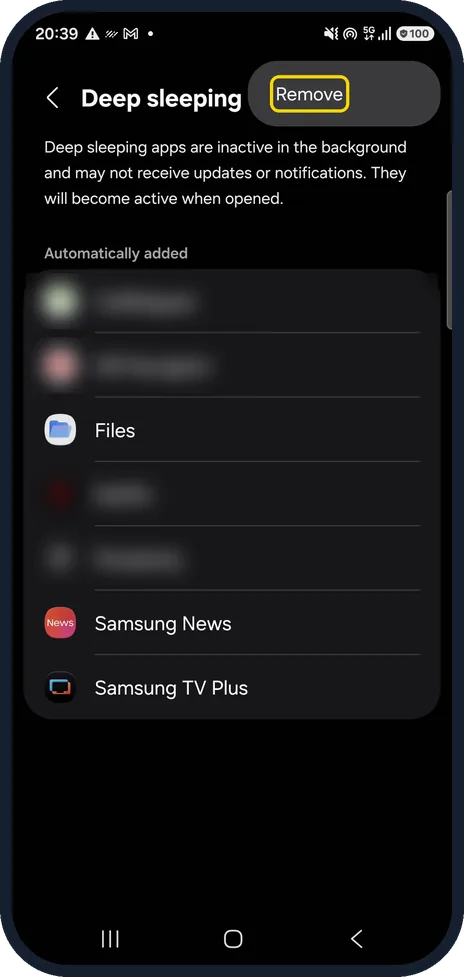
Take the app out of the list
Open Deep sleeping apps (and Sleeping apps) and find the late app. Samsung's notifications page says to touch and hold the app and tap Remove. Its sleeping apps page says to tap the three dots, then Remove apps. On our Galaxy A57 with One UI 8.5 that menu item reads just Remove.
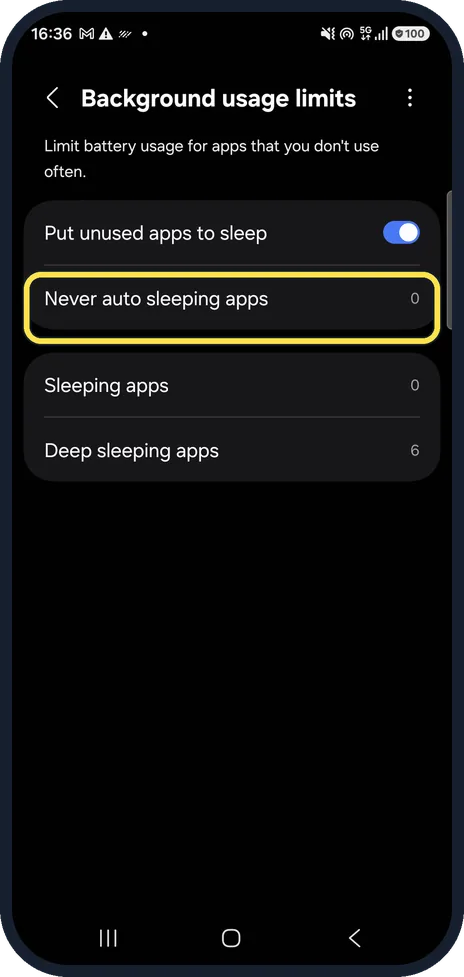
Add it to Never auto sleeping apps
Apps in this list are never put to sleep. Add every app whose messages must arrive on time. Samsung's sleeping apps page calls it Never sleeping apps; on our Galaxy A57 with One UI 8.5 the row is Never auto sleeping apps, with 0 apps in it.
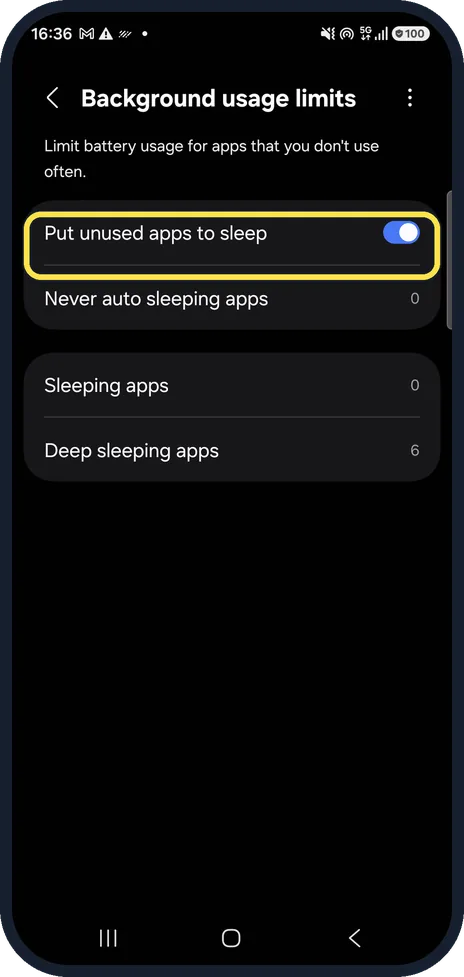
Or stop putting apps to sleep
Samsung says Put unused apps to sleep sends apps you have not used for a while to sleep automatically. Switching it off helps every app, at some cost to battery life. It was on on our Galaxy A57.
Turn off Power saving
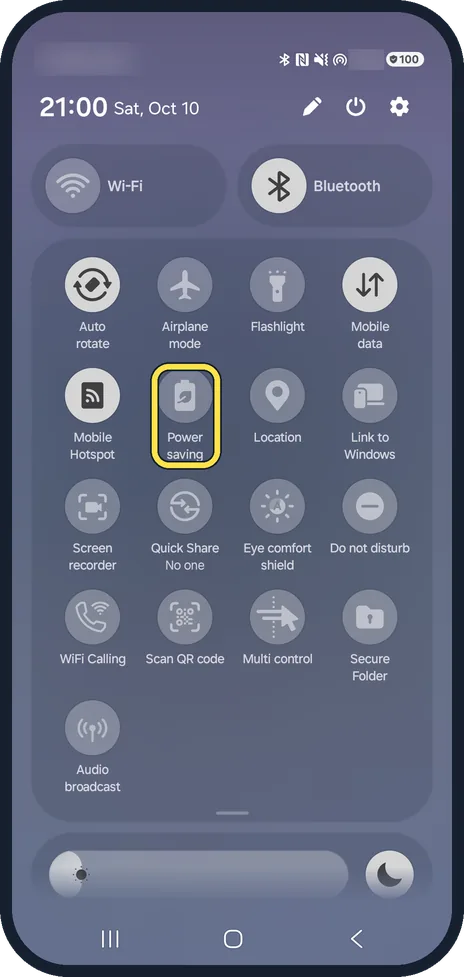
Samsung says Power saving reduces background activity. Swipe down from the top right and tap Power saving to turn it off. On our Galaxy A57 it was off. The quick panel takes its colour from the wallpaper, so on our phone it is lilac grey even in Dark mode.
Check the app's notification settings
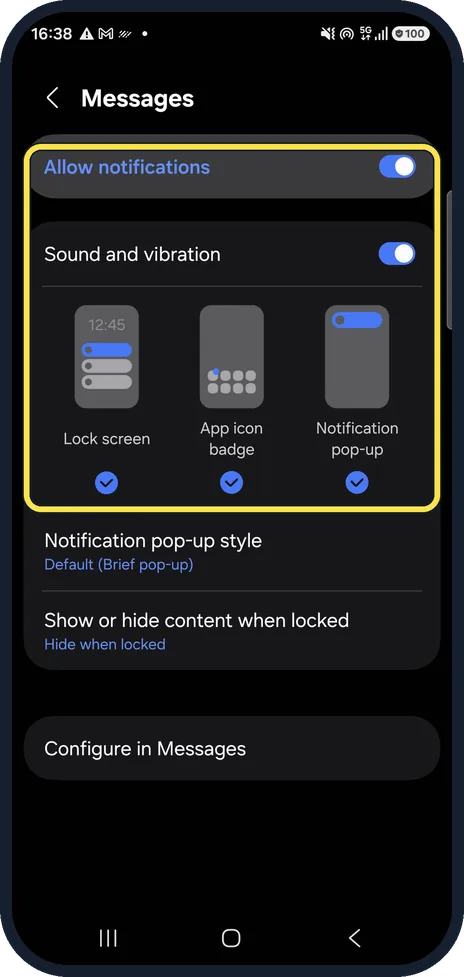
Settings, Notifications, App notifications, then the app. Allow notifications must be on, and the Lock screen and Notification pop-up boxes must be ticked if you want to see them there.
Watch these steps
If you do not see this option
- No Never auto sleeping apps row Samsung's page names it Never sleeping apps. On our Galaxy A57 with One UI 8.5 it is Never auto sleeping apps, the second row of Background usage limits. Source: Sleeping apps on your Galaxy device
- No Background usage limits on the Battery page Samsung says that on some devices the path is Battery and device care, then Battery. On our Galaxy A57 it is Settings, Battery, Background usage limits. Source: Apps on Samsung phone or tablet are not sending notifications
If this does not work
- Still late with the app awake Samsung says some apps have extra notification settings inside the app itself. Check those too. Source: Apps on Samsung phone or tablet are not sending notifications
- The app goes back to sleep Put unused apps to sleep moves it again after a while. Add the app to Never auto sleeping apps, or switch Put unused apps to sleep off. Source: Sleeping apps on your Galaxy device
About this guide
When messages only arrive once you open the app, check whether the phone has put the app to sleep. Samsung says deep sleeping apps never run in the background.
Our own apps in the lists are blurred; the preinstalled ones are shown.
Good to know
Notifications not arriving at all? Samsung Galaxy notifications not showing? 5 settings to check.
More about the sleep lists: how to put apps to sleep on a Samsung Galaxy phone.
In short: Background usage limits: out of the sleep lists, into Never auto sleeping apps, or Put unused apps to sleep off; Power saving off; app notifications on.
- Samsung US: Sleeping apps on your Galaxy device
- Samsung US: Apps on Samsung phone or tablet are not sending notifications
Links checked in October 2026. Menus and features can change after software updates. These steps match the version named at the top.
📷 See real photos from the Galaxy A57 in our Camera Lab, next to 10 other phones.
Did this guide work for you?
Sorry about that. What happened?