XIAOMI REDMI
How to turn off notifications for an app on a Xiaomi phone (HyperOS 3)

In short
Go to Settings, Notifications & status bar, App notifications and turn off the switch next to the app. Or tap the app's name and turn off Show notifications. All its other notification settings then go grey. Chrome's were off on ours.
6 of 6 steps show a real screenshot from our Redmi Note 15 Pro 5G. Each step was checked against the maker's own instructions, linked at the end.
Steps
- 1
Open App notifications
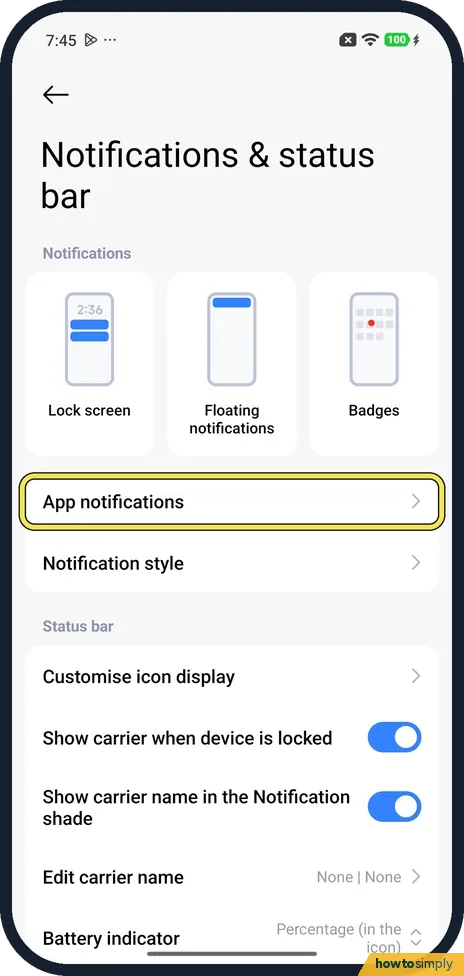
Open Settings, tap Notifications & status bar, then App notifications.
- 2
Find the app
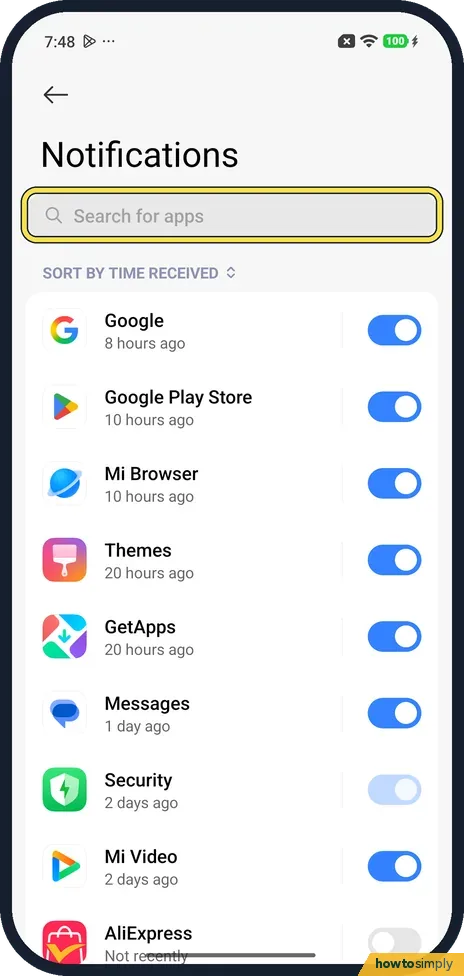
Use Search for apps at the top. The list is sorted by time received, so apps that sent notifications lately are first.
- 3
Turn off its switch
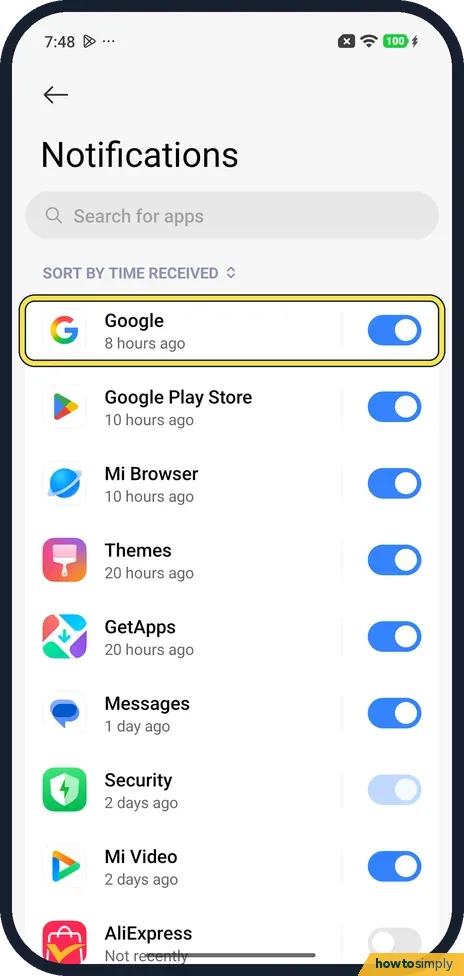
Each app has a switch on the right. Tap it to turn that app's notifications off.
- 4
Or open the app's page
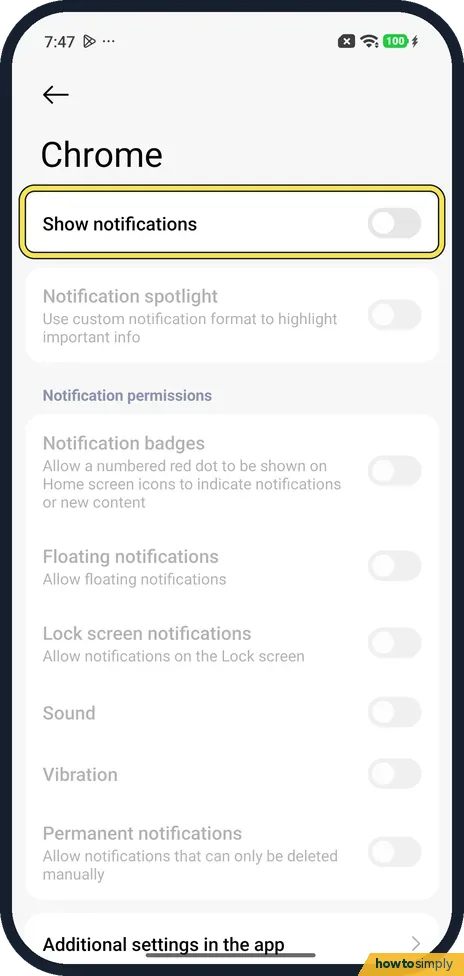
Tap the app's name instead to open its page. Show notifications is at the top. It was off for Chrome on ours.
- 5
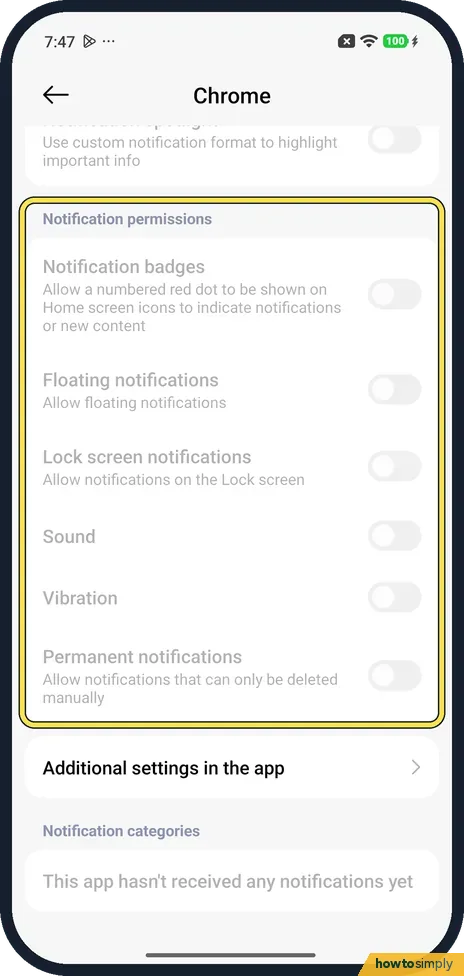
The rest goes grey
With Show notifications off, everything below is greyed out: Notification badges, Floating notifications, Lock screen notifications, Sound, Vibration and Permanent notifications.
- 6
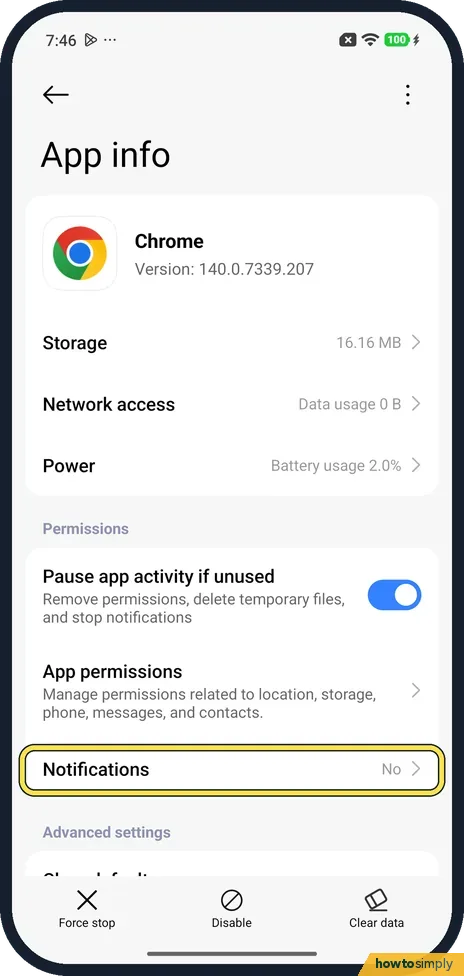
Or start from App info
The app's App info page (Settings, Apps, the app) has a Notifications row. Chrome's said No.
If you do not see this option
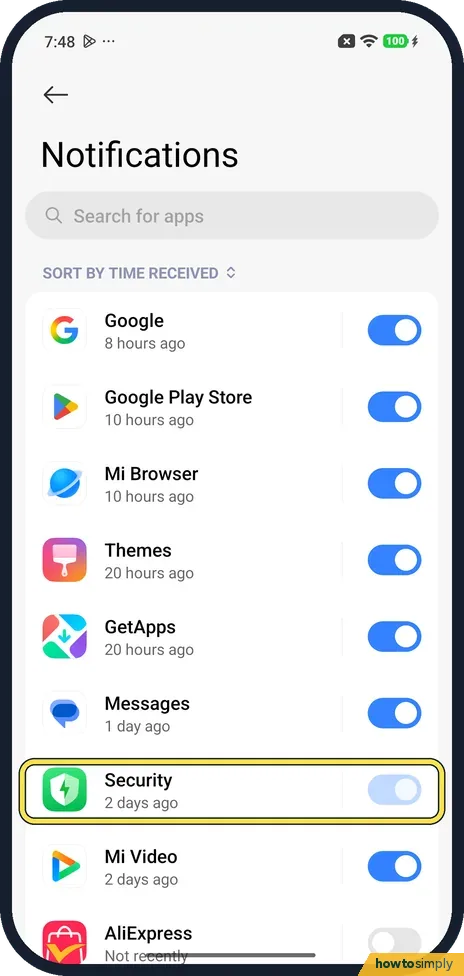
- A switch you can't move? On our list the Security app's switch was pale. We did not try it, so we can't say whether it can be turned off.
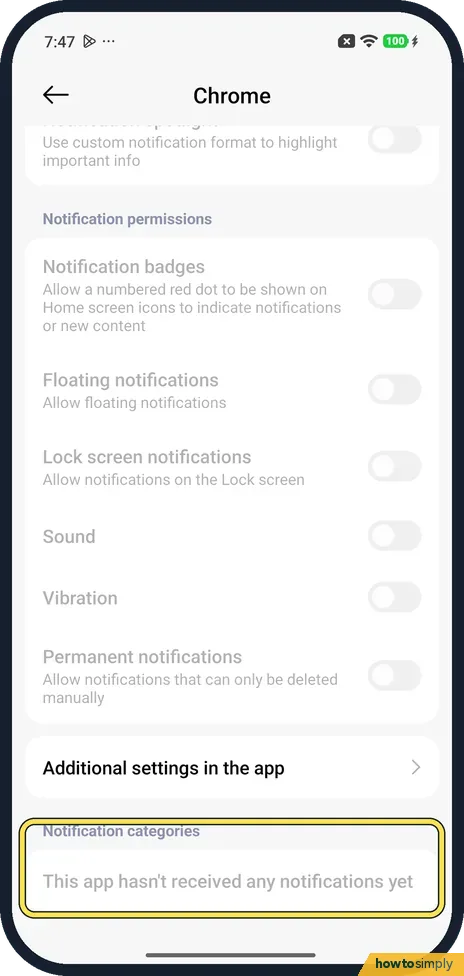
- No categories to pick from? Notification categories lets you turn off single kinds of alerts. Chrome showed This app hasn't received any notifications yet.
- From the notification itself? Google's Android help says you can press and hold a notification, tap Settings and turn it off there. We did not try this on our Redmi. Source: Control notifications on Android
If this does not work
- Only want them off the lock screen? Use the Lock screen switch instead: Xiaomi lock screen notifications.
- Want quiet for a while, not for good? Use Do not disturb.
- Notifications came back after an update? Open the app's page again and check Show notifications and each category.
- Still hear the app's alerts? Check whether the sound comes from a different app, such as a companion or messaging app linked to it. The list in App notifications is sorted by time received, so the app that just alerted you is at the top.
- Want to keep the alert but hide the banner? Leave Show notifications on and turn off Floating notifications for that app instead. Xiaomi's user guide covers the same switch under Notifications & status bar, Floating notifications.
Good to know
Check what else the app can use: how to change app permissions.
Once off, the app stops showing banners, lock screen alerts, sounds and icon badges. It still runs and syncs; you just are not told. Open the app now and then so you do not miss anything you need. To undo, turn the switch back on. The settings below Show notifications return as they were.
Notifications you missed while the app was muted are not shown later. If you need to check what an app sent before you turned it off, see see notification history on a Xiaomi phone. To stop only the red counters on icons, see turn off notification badges and floating notifications.
About this guide
- Device
- Android
- Shown on
- Xiaomi Redmi Note 15 Pro 5G (25080RABDG), HyperOS 3.0.308.0, Android 16
- App
- Settings
- Path
- Settings › Notifications & status bar › App notifications
- Real screenshots
- 6 of 6 steps
- Checked
- October 2026
- Sources
- 2 official, linked below
Sources
Links checked October 2026. Menus and features can change with updates.Spotted a mistake? Menus change with updates, and we want every step to match your screen. Email us about this page or use the contact form. We read every report, and fixes are listed on What changed.
Liked this guide?
Follow us for new guides and short how-to videos.
Did this guide work for you?
Sorry about that. What happened?