
howtosimply.com/guides/how-to-turn-on-data-saver-on-a-samsung-galaxy/ · Checked October 2026 · Samsung Galaxy A57 5G (One UI 8.5, Android 16) and Samsung Galaxy A57 (One UI 9, Android 17 (build A576BXXU6BZIE))
In this guide
Open Settings, Connections, Data usage, tap Data saver and switch on Turn on now. Apps then cannot use mobile data in the background, except the ones you add under Apps that can always use data.
6 of 6 steps with real screenshots · 1 official source below
- Device
- Android
- Shown on
- Samsung Galaxy A57 5G (SM-A576B), One UI 8.5, Android 16, Samsung Galaxy A57 (SM-A576B), One UI 9, Android 17 (build A576BXXU6BZIE)
- App
- Settings
- Path
- Settings › Connections › Data usage › Data saver
- Real screenshots
- 6 of 6 steps
- What we did
- Observed: looked at each screen, changed nothing
- Our phone
- Shown on Galaxy A57, One UI 8.5
- Checked
- October 2026
- Sources
- 1 official, linked below
Step by step
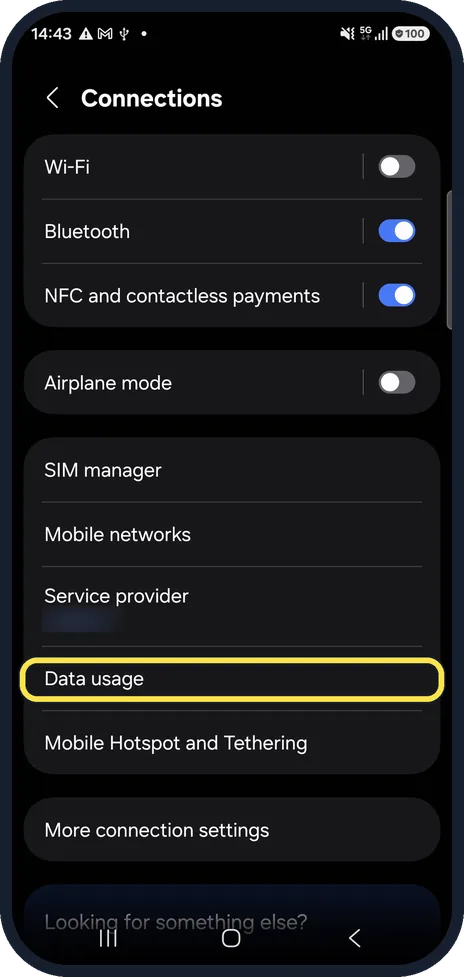
Open Data usage
Settings, Connections, Data usage. The top shows how much mobile data you have used this cycle.
Watch these steps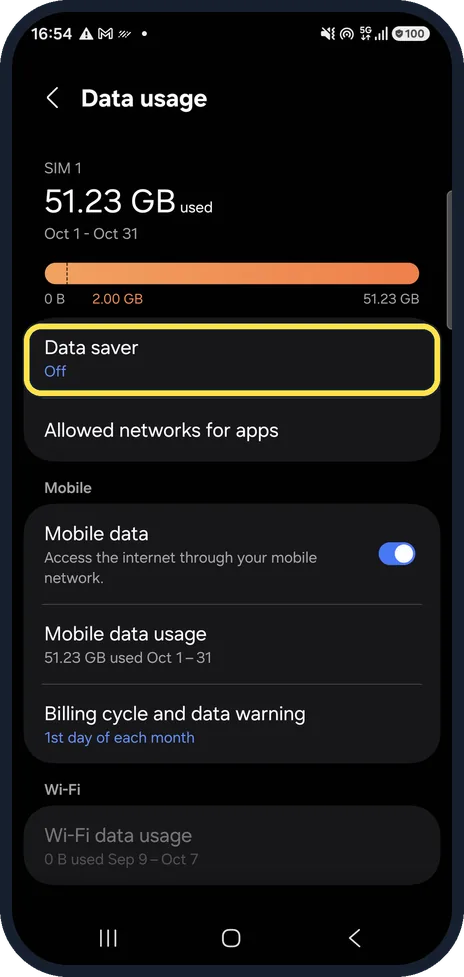
Tap Data saver
The line underneath shows whether it is on. Ours was off.
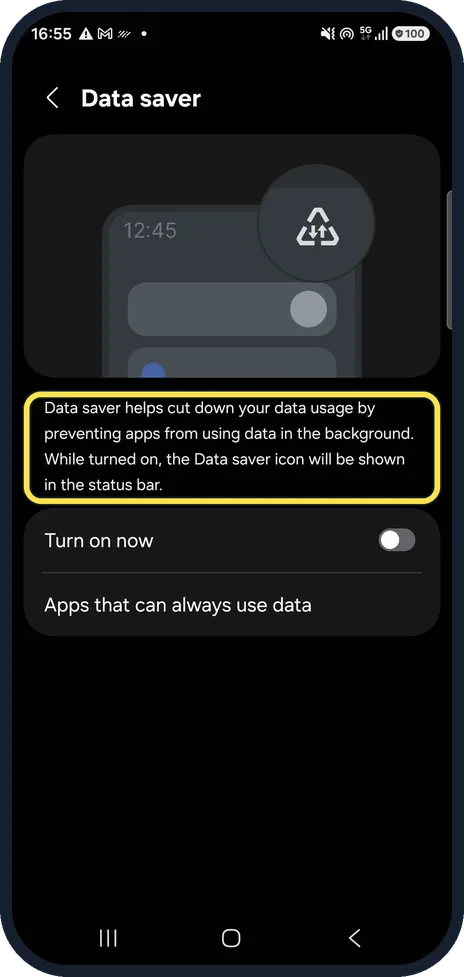
Know what it does
Samsung's text on the page: it prevents apps from using data in the background, and shows a Data saver icon in the status bar while on.
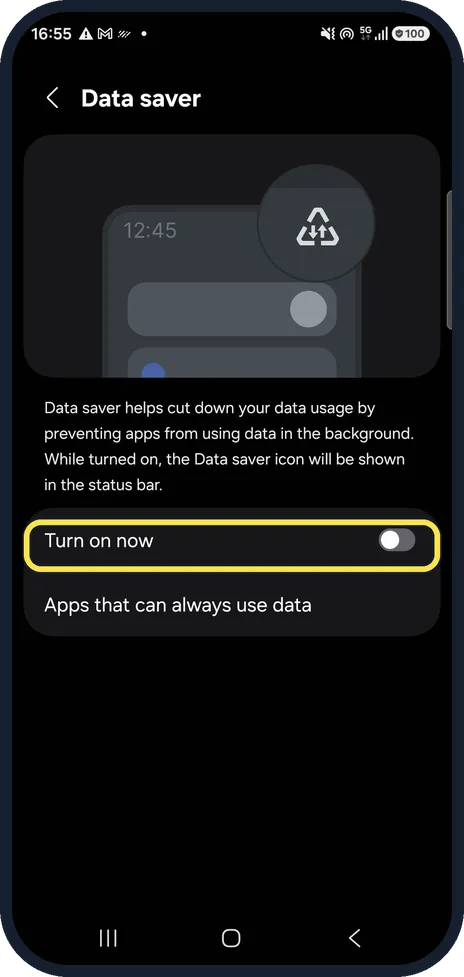
Switch on Turn on now
Data saver stays on until you switch it off again.
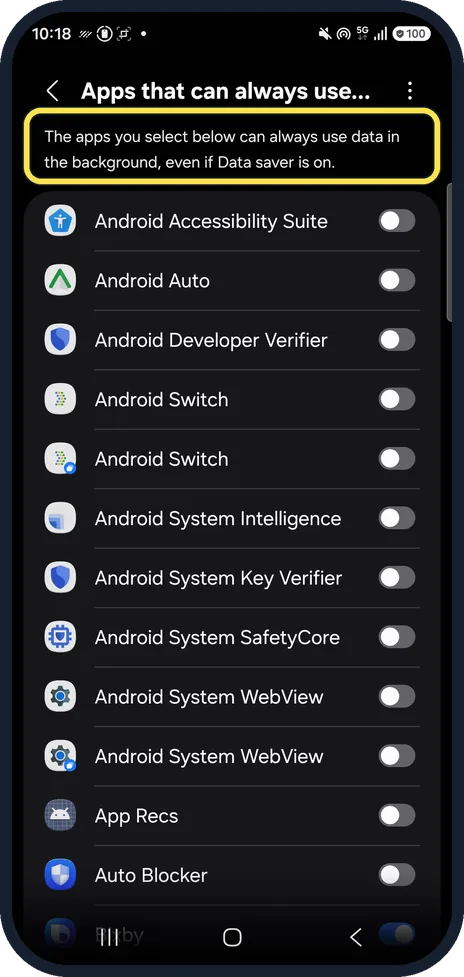
Let some apps keep using data
Apps that can always use data lets chosen apps, such as a messenger, keep working in the background while Data saver is on.
On ours every app in the list was switched off.
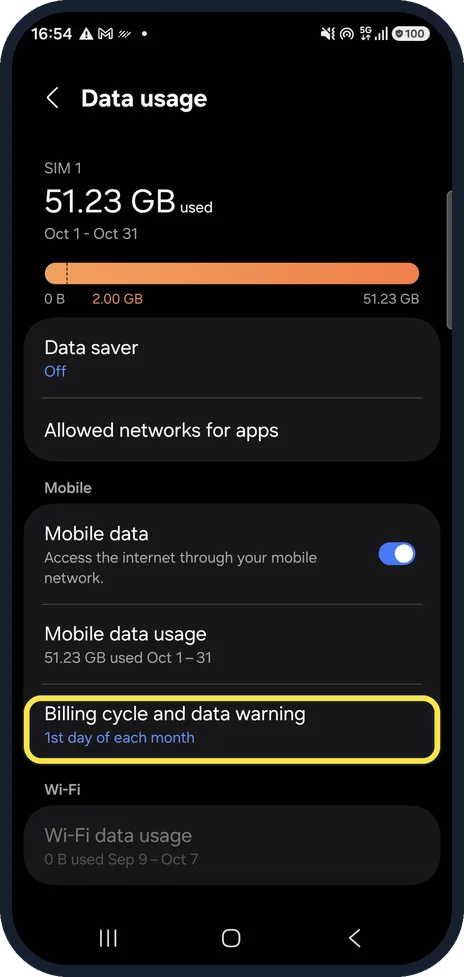
Set a data warning
Back on Data usage, Billing cycle and data warning sets the day your plan restarts and warns you before you reach a limit.
Watch these steps
If you do not see this option
- There is no Data saver row Samsung says Data saver is not available without an active SIM card or mobile network connection, or when the phone is on Wi-Fi only. Screens also vary by carrier. Source: Manage data usage on your Galaxy phone
- You want a hard limit, not just less data Samsung says Mobile data usage, the gear icon, lets you set a billing cycle start date, a data warning and a data limit. Source: Manage data usage on your Galaxy phone
If this does not work
- A messenger stops getting messages Samsung says to add exceptions: tap Allowed to use data while Data saver is on, then switch on the apps that must keep working. The three dots offer Show system apps. Source: Manage data usage on your Galaxy phone
- You want to know which app used the data Samsung says Mobile data usage on the same page breaks it down by app. Source: Manage data usage on your Galaxy phone
About this guide
Data saver stops apps using mobile data in the background, which helps when your plan has a small allowance. On a Galaxy it sits on the Data usage page, next to your usage and the data warning.
Step 5 is from the same phone after its One UI 9 update (Android 17).
Good to know
Mobile data usage on the same page shows which apps used the most data this cycle.
Stop app updates using mobile data too: how to make Google Play update apps only on Wi-Fi.
No mobile data at all? Samsung Galaxy mobile data not working? 7 fixes.
In short: Settings, Connections, Data usage, Data saver, Turn on now. Add exceptions under Apps that can always use data.
Links checked in October 2026. Menus and features can change after software updates. These steps match the version named at the top.
📷 See real photos from the Galaxy A57 in our Camera Lab, next to 10 other phones.
Did this guide work for you?
Sorry about that. What happened?