SAMSUNG GALAXY
How to turn off notifications for one app on a Samsung Galaxy (One UI 9)

In short
Open Settings, Notifications, App notifications and turn off the switch next to the app. Or tap the app's name to turn off Allow notifications, or choose where its notifications show: Lock screen, App icon badge or Notification pop-up.
4 of 4 steps show a real screenshot from our Galaxy A57. Each step was checked against the maker's own instructions, linked at the end.
Steps
- 1
Open Notifications
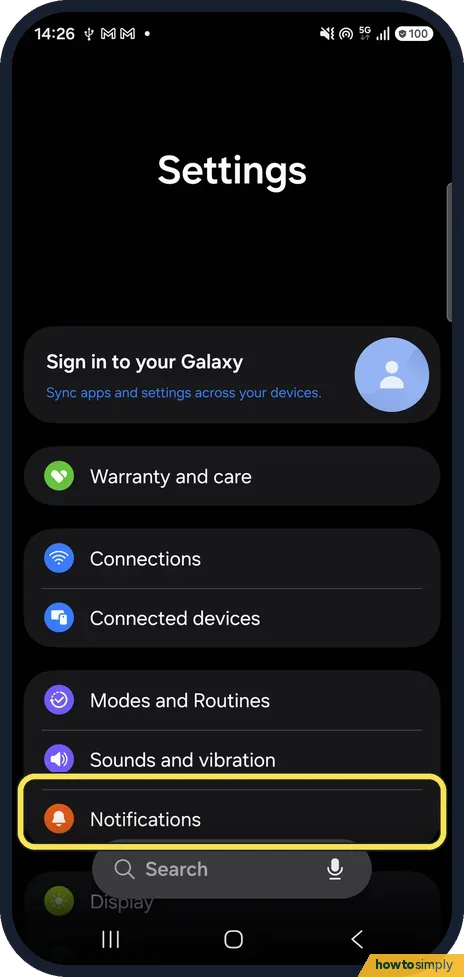
Open Settings and tap Notifications.
- 2
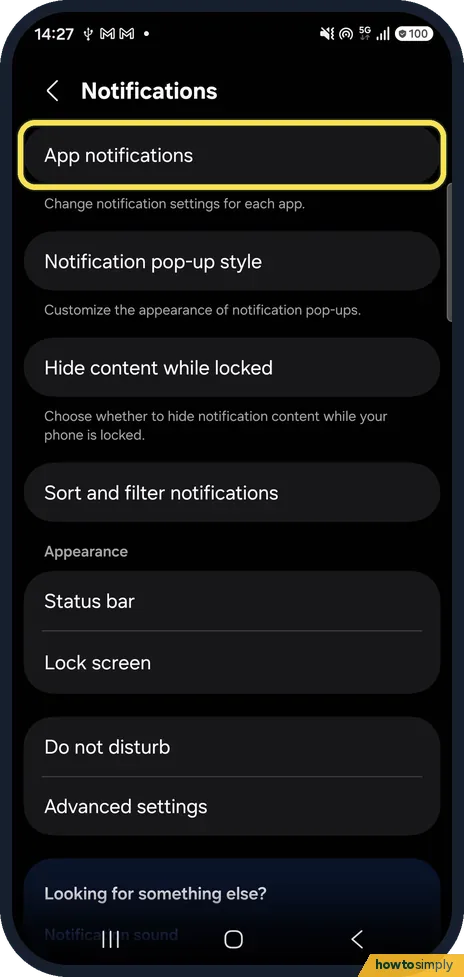
Tap App notifications
App notifications is at the top: Change notification settings for each app.
- 3
Find the app
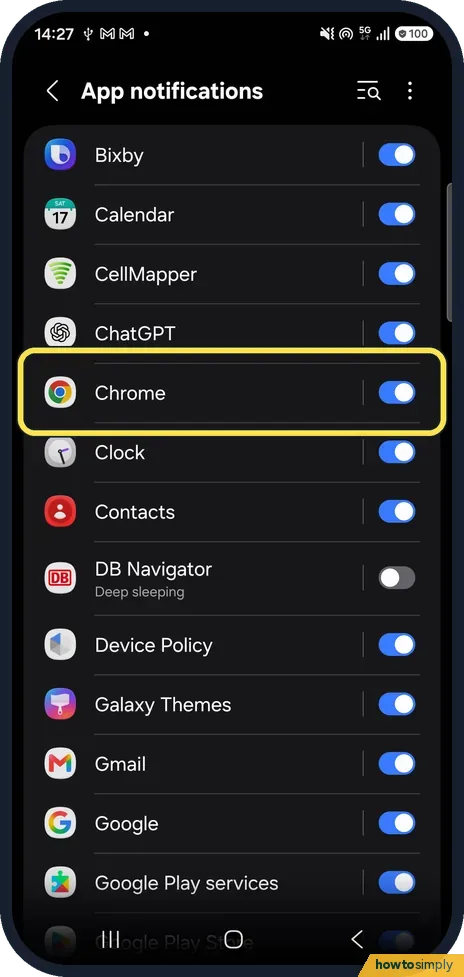
Every app has a switch. Turn it off to stop all its notifications, or tap the app's name for more choices. We tapped Chrome.
- 4
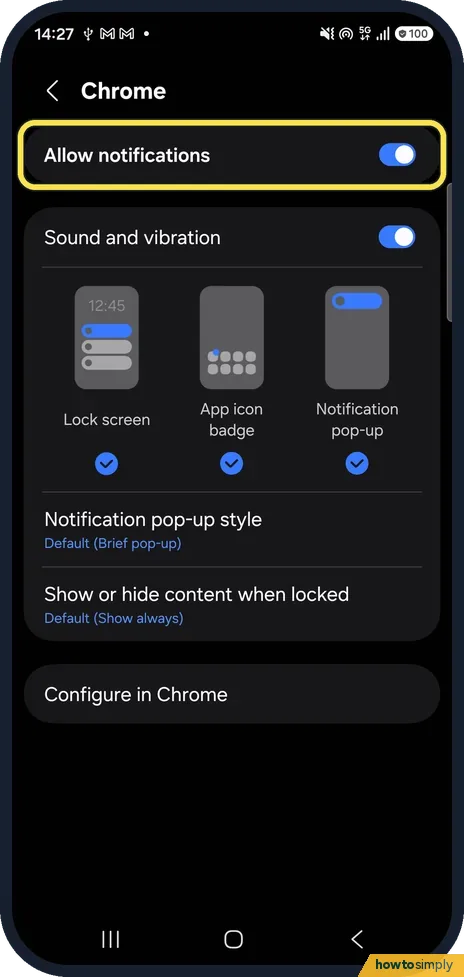
Turn off Allow notifications
The app's page starts with Allow notifications. Below are Sound and vibration, where notifications show (Lock screen, App icon badge, Notification pop-up), Notification pop-up style and Show or hide content when locked.
If you do not see this option
- No notification categories? Google says that if an app has categories, you can tap one for more options. For Chrome, our page had none; at the bottom was Configure in Chrome, which we did not open. Source: Control notifications on Android
- App switch already off? In our list DB Navigator was off and marked Deep sleeping. Turn the switch on to allow it again.
If this does not work
- Still getting notifications from a website? Those come from Chrome. Configure in Chrome, at the bottom of Chrome's page, leads to Chrome's own settings; we did not open it.
- Want them quieter, not off? Leave Allow notifications on and switch off Sound and vibration, or untick Notification pop-up.
- Missed one you turned off? Notification history keeps a list: see notification history.
- Faster way from the notification itself? Google describes touching and holding a notification in the notification panel to open that app's notification settings. It is handy when you are not sure which app sent it. The options shown on a Galaxy can differ from Google's wording.
- A work app cannot be silenced? On a phone managed by an employer, the administrator can lock notification settings for work apps. Ask them if the switch is greyed out.
Good to know
Notifications not arriving at all? 5 settings to check on a Galaxy.
On a Pixel: turn off notifications for one app on a Google Pixel.
Turning off notifications does not close the app, stop it syncing or remove its data. It also does not reduce the app's battery use much, because the app still runs in the background as before. To undo, turn the switch back on.
If you would rather keep the notifications but stop them showing on a locked screen, Google says you can hide sensitive content instead. For a quiet period for all apps at once, use Do Not Disturb: use Do Not Disturb on a Samsung Galaxy.
About this guide
- Device
- Android
- Shown on
- Samsung Galaxy A57 (SM-A576B), One UI 9, Android 17 (build A576BXXU6BZIE)
- App
- Settings
- Path
- Settings › Notifications › App notifications
- Real screenshots
- 4 of 4 steps
- What we did
- Observed: looked at each screen, changed nothing
- Checked
- October 2026
- Sources
- 1 official, linked below
Sources
Links checked October 2026. Menus and features can change with updates.Spotted a mistake? Menus change with updates, and we want every step to match your screen. Email us about this page or use the contact form. We read every report, and fixes are listed on What changed.
Liked this guide?
Follow us for new guides and short how-to videos.
Did this guide work for you?
Sorry about that. What happened?