
howtosimply.com/guides/how-to-turn-off-bixby-on-a-samsung-galaxy/ · Checked October 2026 · Samsung Galaxy A57 5G (One UI 8.5, Android 16) and Samsung Galaxy A57 (One UI 9, Android 17 (build A576BXXU6BZIE))
In this guide
Open Settings, Advanced features, Side button and set Long press to Power off menu, so the button no longer starts Bixby. To sign out of Bixby itself, open Advanced features, Bixby and tap Leave Bixby. It cannot be deleted from the phone.
6 of 6 steps with real screenshots · 2 official sources below
- Device
- Android
- Shown on
- Samsung Galaxy A57 5G (SM-A576B), One UI 8.5, Android 16, Samsung Galaxy A57 (SM-A576B), One UI 9, Android 17 (build A576BXXU6BZIE)
- App
- Settings
- Path
- Settings › Advanced features › Side button: Long press
- Real screenshots
- 6 of 6 steps
- What we did
- Observed: looked at each screen, changed nothing
- Our phone
- Shown on Galaxy A57, One UI 8.5
- Checked
- October 2026
- Sources
- 2 official, linked below
Step by step
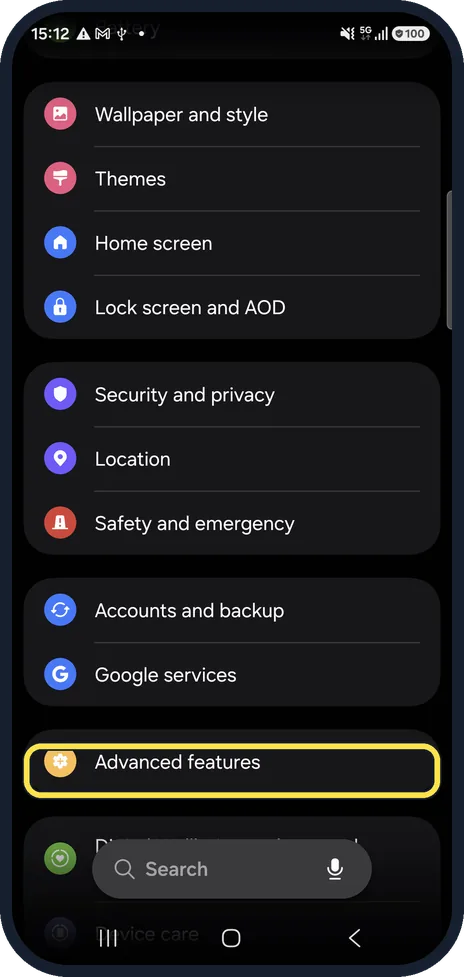
Open Advanced features
Open Settings and tap Advanced features.
Watch these steps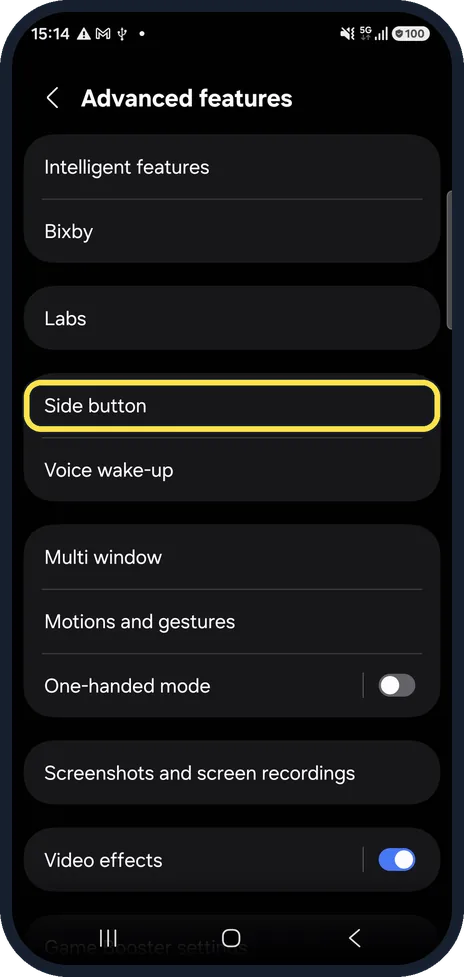
Tap Side button
It is in the third group, above Voice wake-up.
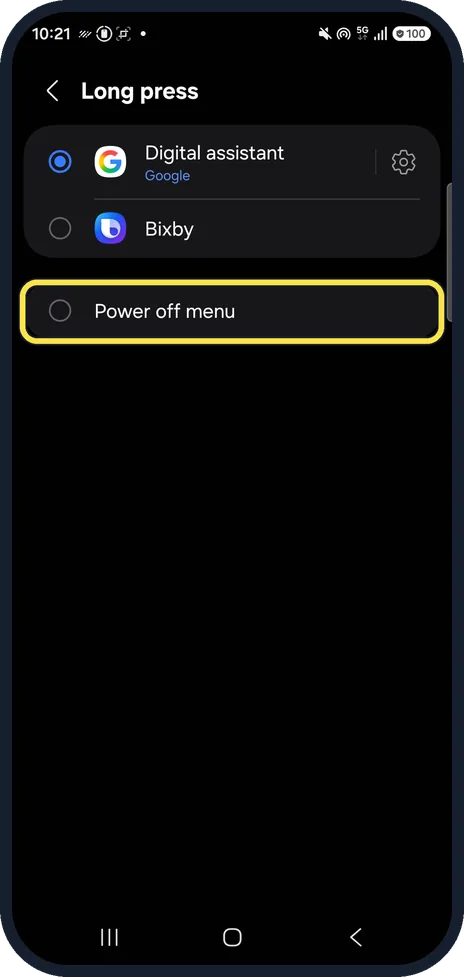
Set Long press to Power off menu
Tap Long press and choose Power off menu. Ours was set to Digital assistant (Google); on some phones it says Bixby.
Ours listed Digital assistant (Google), Bixby and Power off menu; we left it on Digital assistant.
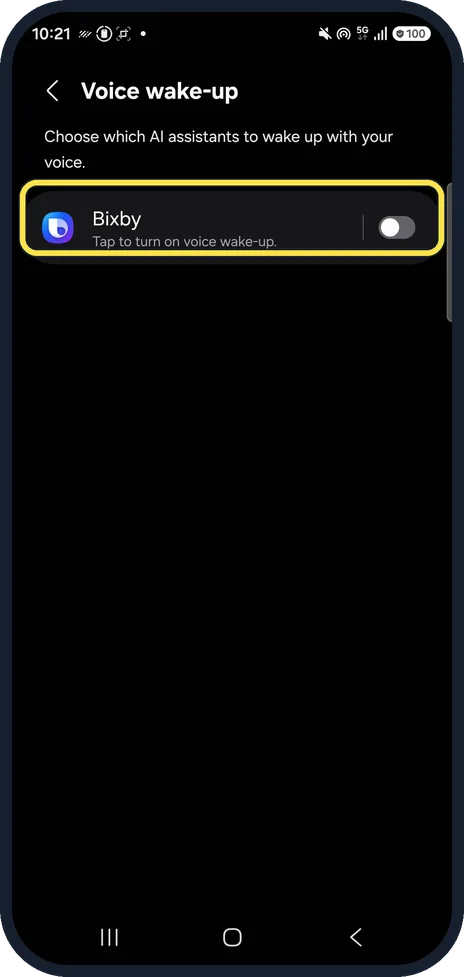
Check Voice wake-up
Back on Advanced features, Voice wake-up controls whether the phone listens for a wake phrase. Tap Voice wake-up and turn it off there if you never talk to an assistant.
On ours the page listed Bixby, with its switch off.
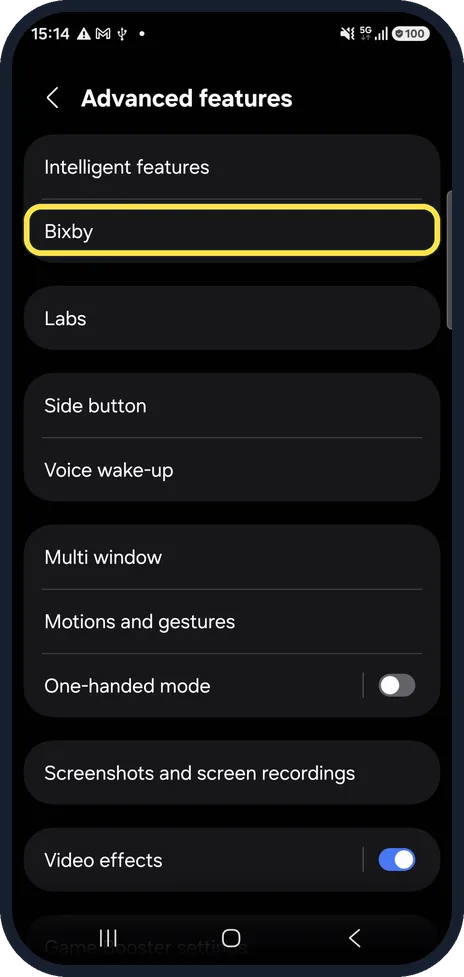
Open Bixby
Tap Bixby on the Advanced features page.
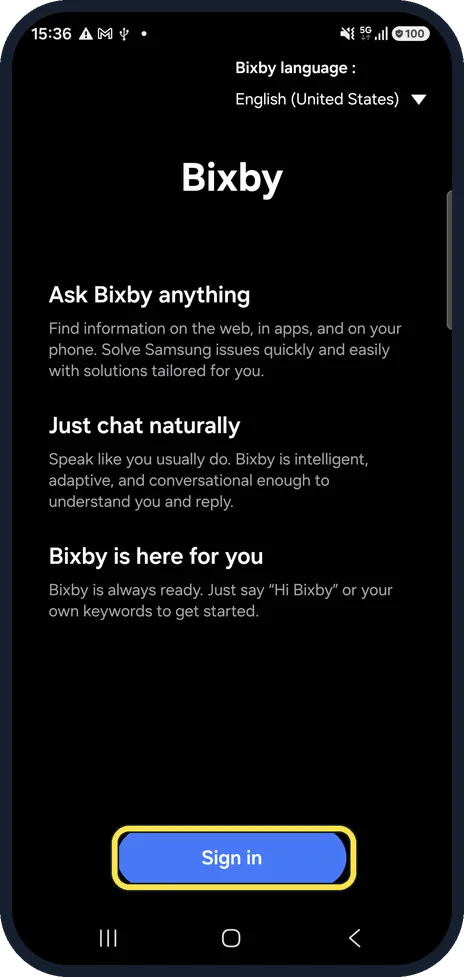
Sign in shown? Bixby is already off
Our phone showed this welcome page with a Sign in button, which means Bixby was never set up. If yours shows Bixby settings instead, tap Leave Bixby.
Watch these steps
If you do not see this option
- You want to delete Bixby completely Samsung says Bixby cannot be uninstalled. Leave Bixby removes your Bixby account and data from the phone instead. Source: How to remap or turn off Bixby on your Galaxy phone
- Your phone has a separate Bixby key Samsung says older models such as the Galaxy S8 and S10 series and the Note9 have a Bixby key on the left side, and pressing and holding it always starts Bixby Voice. Source: Set up the Side button or Bixby key on your Galaxy phone
If this does not work
- Bixby still opens by accident Samsung says to set the Side button's Long press to Power off menu (step 3). The button then shows the power menu instead. Source: How to remap or turn off Bixby on your Galaxy phone
- You want Bixby back later Samsung says that after Leave Bixby you need to set Bixby up again before it works. Source: How to remap or turn off Bixby on your Galaxy phone
About this guide
Bixby is Samsung's voice assistant. Most people meet it by accident, when holding the side button to switch the phone off. On our phone Bixby was not set up at all, and the side button was set to Google's assistant.
Steps 3 and 4 are from the same phone after its One UI 9 update (Android 17).
Good to know
Samsung says Bixby itself cannot be removed. Leaving it signs you out; clearing its data under Settings, Apps, Bixby also deletes your Bixby history.
More about the side button: how to change what the side button does on a Samsung Galaxy.
In short: Settings, Advanced features, Side button: Long press, Power off menu. Then Advanced features, Bixby, Leave Bixby.
- Samsung US: How to remap or turn off Bixby on your Galaxy phone
- Samsung CA: Set up the Side button or Bixby key on your Galaxy phone
Links checked in October 2026. Menus and features can change after software updates. These steps match the version named at the top.
📷 See real photos from the Galaxy A57 in our Camera Lab, next to 10 other phones.
Did this guide work for you?
Sorry about that. What happened?