XIAOMI REDMI
How to turn off notification badges and floating notifications on a Xiaomi phone (HyperOS 3)

In short
Go to Settings, Notifications & status bar. Tap Badges and turn off the switch for an app to remove the number on its icon. Tap Floating notifications and turn off an app to stop its pop-ups, or use Hide temporarily at the top.
7 of 7 steps show a real screenshot from our Redmi Note 15 Pro 5G. Each step was checked against the maker's own instructions, linked at the end.
Steps
- 1
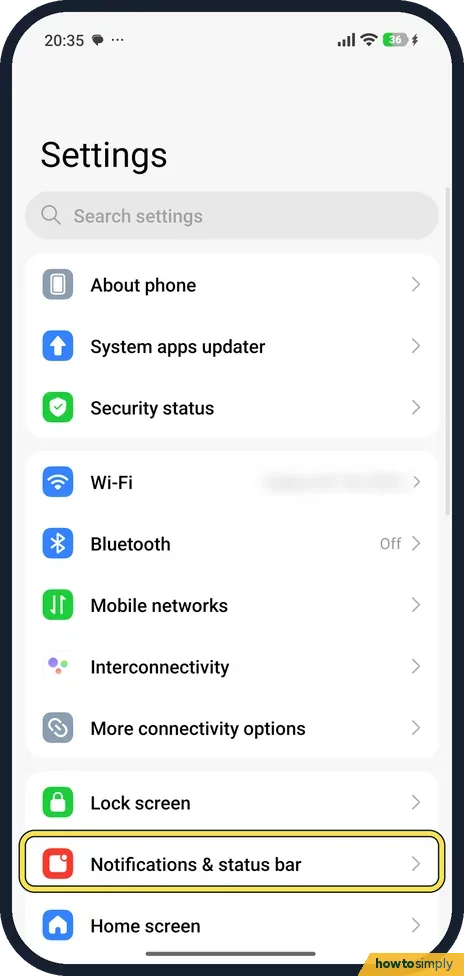
Open Notifications & status bar
Open Settings and tap Notifications & status bar, below Lock screen.
- 2
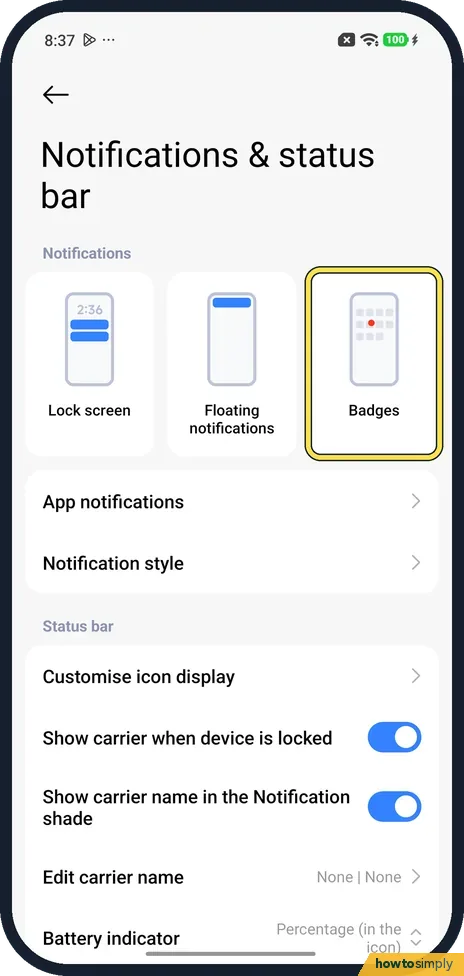
Tap Badges
Three cards sit at the top: Lock screen, Floating notifications and Badges. Tap Badges.
- 3
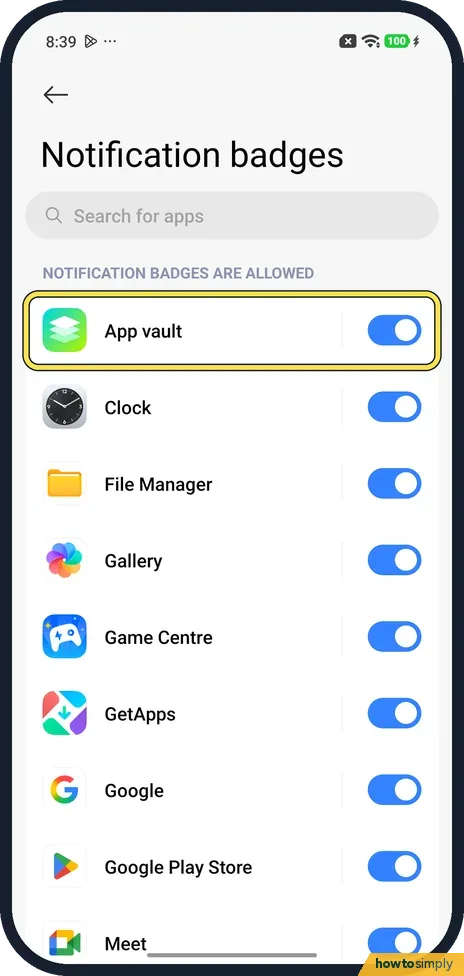
Turn off an app's badge
Notification badges lists apps under Notification badges are allowed, each with a switch. Turn off the switch for an app to hide its badge. Search for apps at the top finds one quickly.
- 4
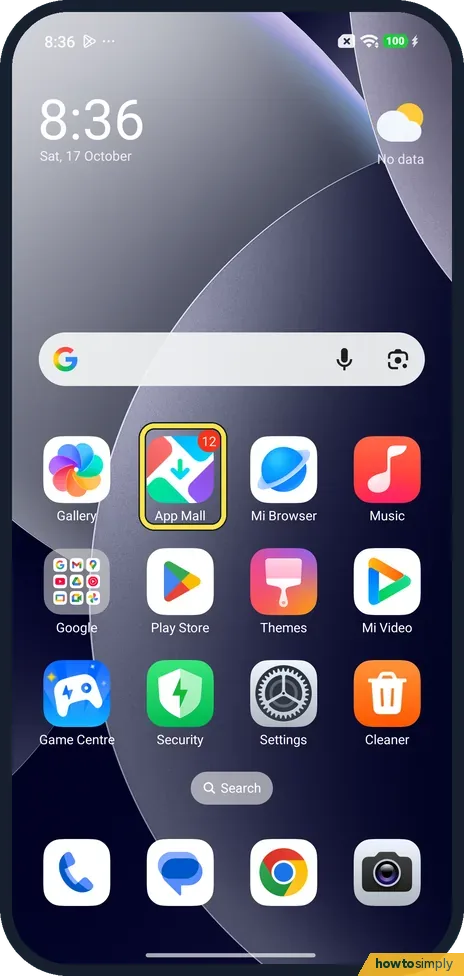
What a badge looks like
On our home screen App Mall had a red 12 on its icon. That is a badge.
- 5
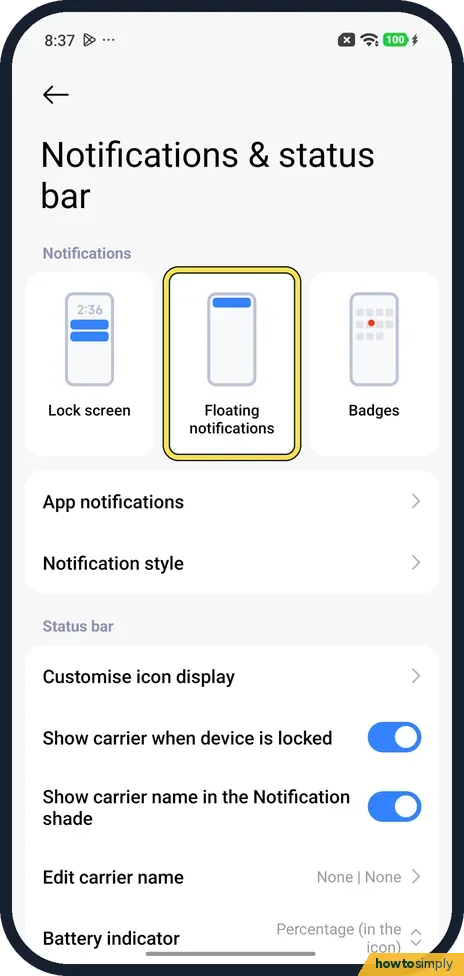
Tap Floating notifications
Back on Notifications & status bar, tap the middle card, Floating notifications.
- 6
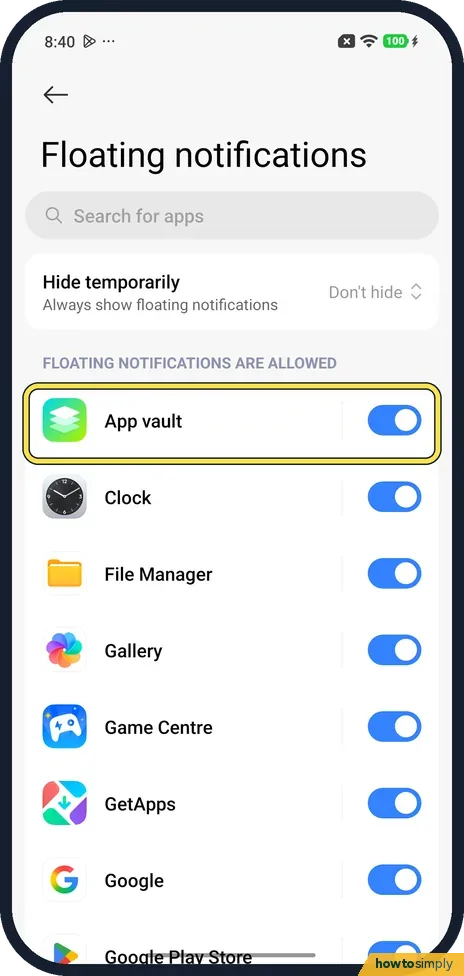
Turn off an app's pop-ups
The list under Floating notifications are allowed works the same way. Turn off an app to stop its notifications floating over the screen.
- 7
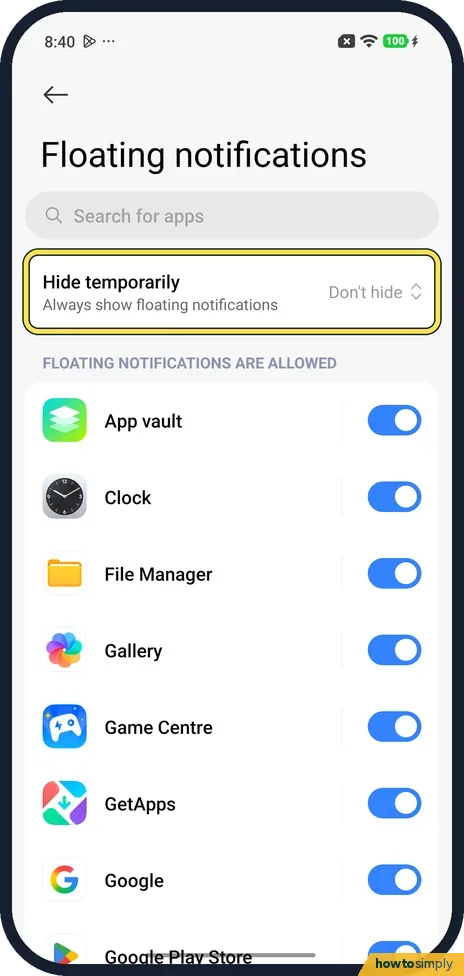
Or hide them for a while
Hide temporarily, at the top, said Don't hide: Always show floating notifications. Tap it to set a time to hide them.
If you do not see this option
- Badges set app by app? Xiaomi's REDMI 13C steps are Badges, pick the app, turn on Show notifications, then the Notification badges switch. Ours had a switch per app right in the Badges list. Source: How to manage notification badges on the Redmi 13C?
- No Notifications & status bar? Xiaomi's older help gives Settings, Notifications & Control center, then Floating notifications under Notifications. Source: How to hide floating notifications?
If this does not work
- A pop-up covers what you are doing? Xiaomi says to swipe up on the floating notification to hide upcoming ones for a while, and to use Hide temporarily to set the time.
- Badge on an app you never open? Xiaomi suggests keeping badges only for important apps, to avoid clutter. Turn the rest off in the Badges list.
- Want no notifications at all from an app? That is a different switch: how to turn off notifications for an app on a Xiaomi phone.
- Pop-ups interrupt your games? Xiaomi's HyperOS 3 guide says the Game Turbo toolbox, opened by swiping the sidebar indicator during a game, has a DND button that restricts floating notifications. That avoids changing every app's switch.
Good to know
Lock screen notifications missing? See Xiaomi lock screen notifications not showing.
Both changes are cosmetic: notifications still arrive in the shade, and keep their sound and vibration. Hide temporarily only pauses pop-ups for the time you set, after which they come back on their own. To undo anything, turn the app's switch back on in the same list. If you want a quieter phone for a set period rather than app by app, Do not disturb silences notifications in one go.
About this guide
- Device
- Android
- Shown on
- Xiaomi Redmi Note 15 Pro 5G (25080RABDG), HyperOS 3.0.308.0, Android 16
- App
- Settings
- Real screenshots
- 7 of 7 steps
- Checked
- October 2026
- Sources
- 3 official, linked below
Sources
Links checked October 2026. Menus and features can change with updates.Spotted a mistake? Menus change with updates, and we want every step to match your screen. Email us about this page or use the contact form. We read every report, and fixes are listed on What changed.
Liked this guide?
Follow us for new guides and short how-to videos.
Did this guide work for you?
Sorry about that. What happened?