GOOGLE PIXEL
How to turn off notifications for one app on a Google Pixel (Android 17)

In short
Open Settings, Notifications, App notifications. Change the Most recent filter to All apps, find the app and turn off its switch. Or tap the app's name and turn off the top switch, such as All Chrome notifications. The Turned off filter lists the apps you've switched off.
6 of 6 steps show a real screenshot from our Pixel 10a. Each step was checked against the maker's own instructions, linked at the end.
Steps
- 1
Open App notifications
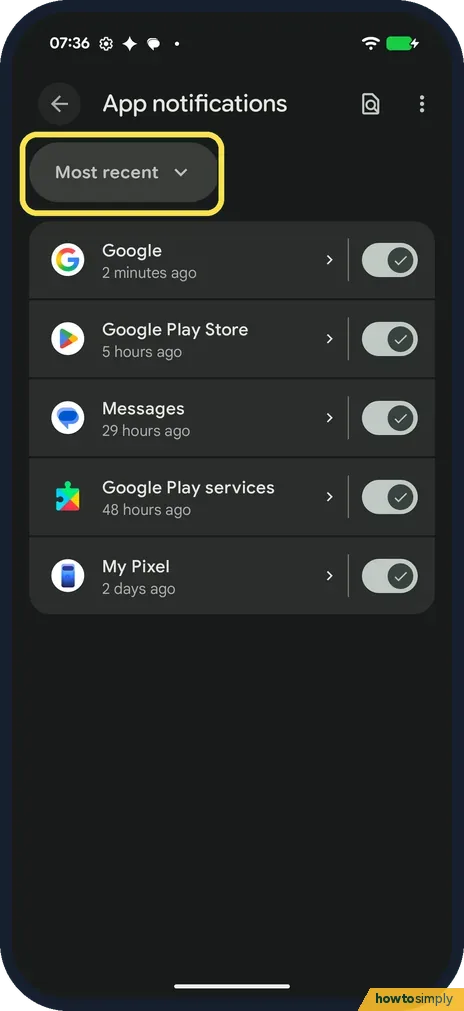
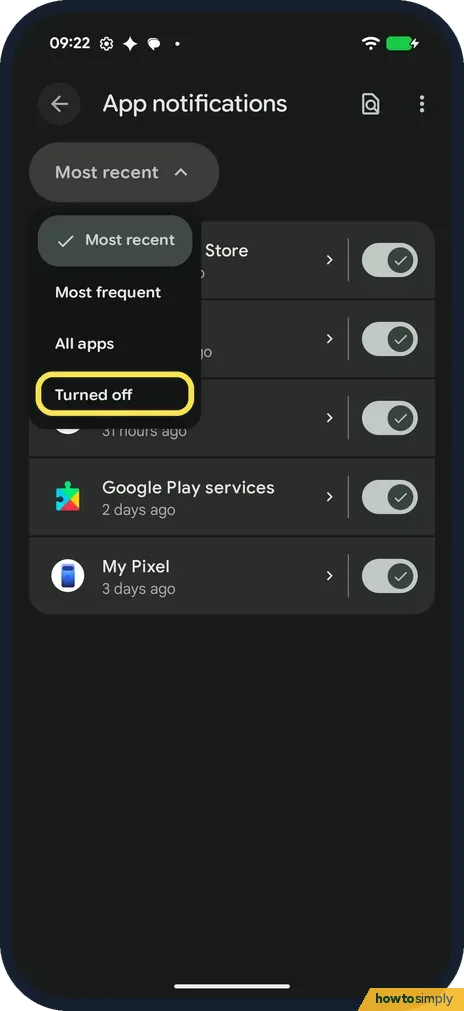
Open Settings, tap Notifications, then App notifications. It opens on a Most recent filter, which showed only 5 apps on ours: Google, Google Play Store, Messages, Google Play services and My Pixel.
- 2
Pick All apps
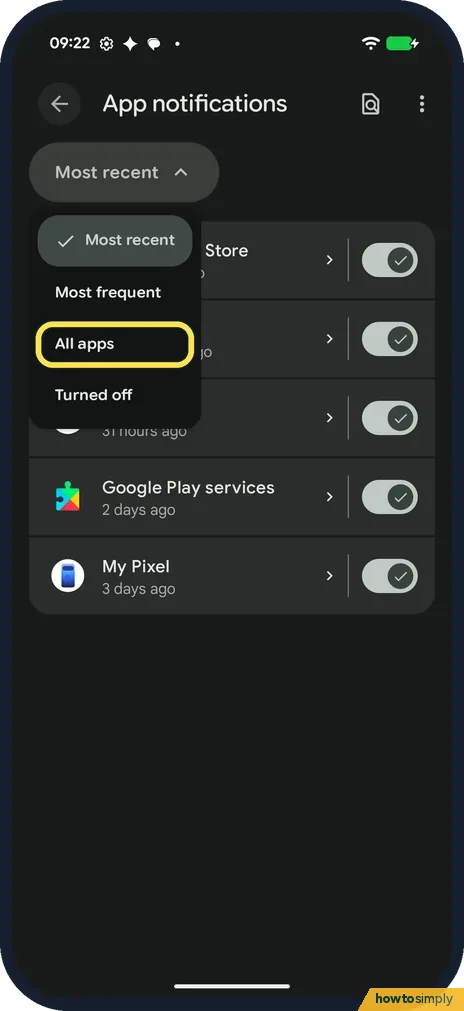
Tap Most recent. The choices are Most recent, Most frequent, All apps and Turned off. Tap All apps to list every app.
- 3
Turn off the app's switch
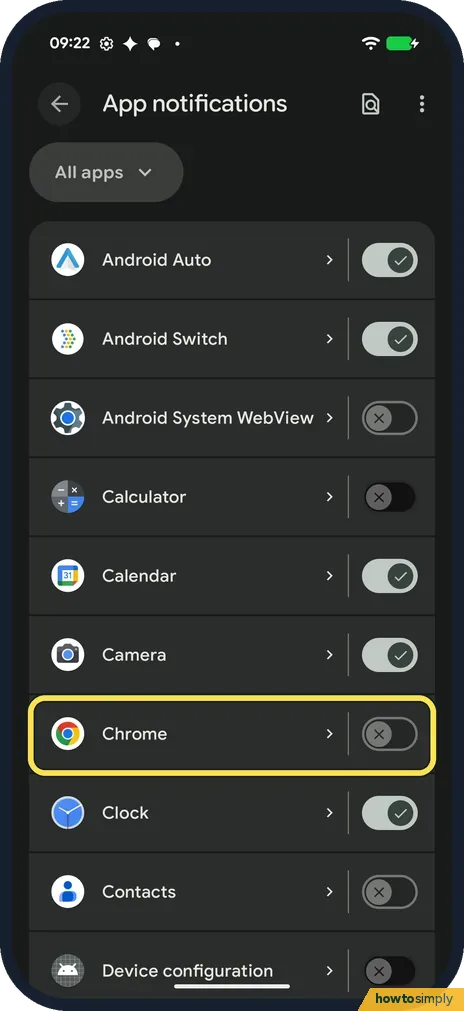
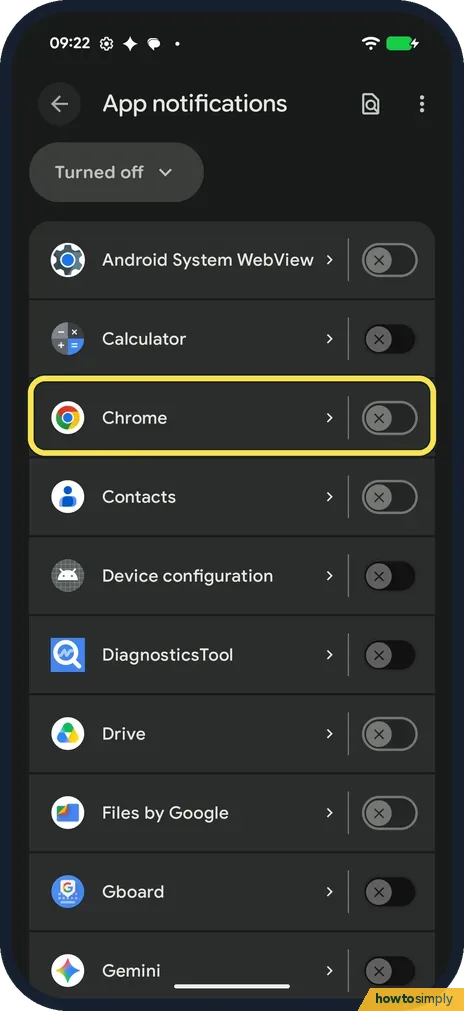
All apps lists the apps from A to Z, each with a switch on the right. Turn an app's switch off to stop all its notifications. Chrome was in the list on ours, with its switch already off; Calendar's and Camera's were on.
- 4
Or open the app's page
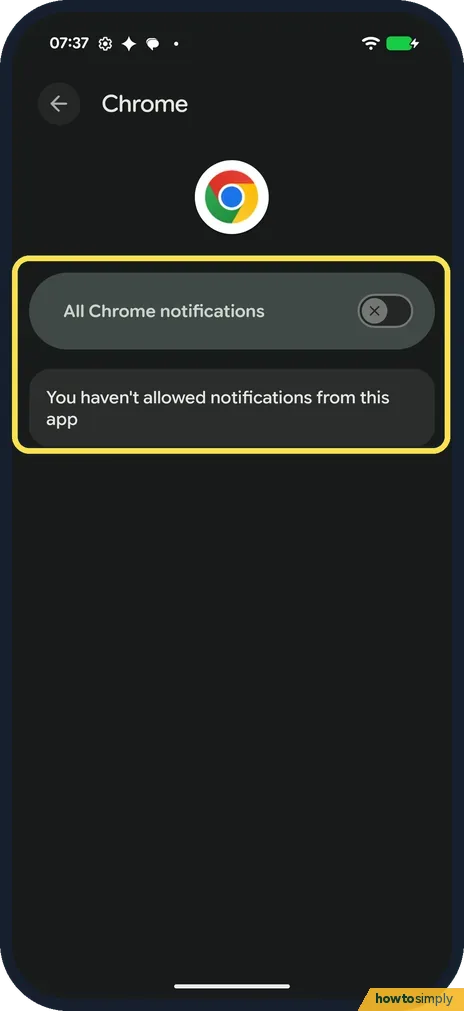
Tap the app's name instead. Chrome's page had All Chrome notifications at the top, off, and the note You haven't allowed notifications from this app.
- 5
Pick Turned off
Back on App notifications, tap the filter again and pick Turned off, the last choice.
- 6
Check the Turned off list
It lists every app whose notifications are off. Ours started with Android System WebView, Calculator, Chrome, Contacts and Device configuration. Turn an app's switch on here to get its notifications back.
If you do not see this option
- App not in the list? Most recent only lists apps that sent notifications lately: ours showed just 5. Google says to pick All apps in the dropdown to find more. Source: Control notifications on Android
- Filter called Recently sent? That is Google's name for it; ours reads Most recent. Google says that if you don't see it at all, you are on an older Android version: tap App notifications, then the app. Source: Control notifications on Android
- Other Android phone? Google says settings can vary by phone. For a Xiaomi, see our guide on how to turn off notifications for an app on a Xiaomi phone. Source: Control notifications on Android
- Want fewer alerts, not none? On the app's page, Google says you can choose from specific notification categories instead of turning everything off. Tap a category for options such as Alerting or Silent, so its alerts arrive without a sound or pop-up. Source: Control notifications on Android
If this does not work
- Now you miss alerts you wanted? Pick Turned off in the filter, turn the app back on, then see Pixel not getting notifications: 6 settings to check.
- Still getting some alerts from it? Google says many apps also control notifications from a settings menu inside the app. Check the app's own settings, and check it shows under Turned off.
- Website pop-ups in Chrome? Those are set in Chrome: how to stop website notifications in Chrome on Android.
Good to know
Google says you can also touch and hold a notification and turn the app's notifications off there.
Silence everything for a while instead: how to use Do Not Disturb and modes.
Missed something? how to see notification history on a Google Pixel.
Turning off an app's notifications does not stop the app working. It still runs, syncs and uses data as before; you just are not told about it. To undo it, turn the switch on again from All apps or the Turned off list.
About this guide
- Device
- Android
- Shown on
- Google Pixel 10a, Android 17 (build CP3A.261005.005)
- App
- Settings
- Path
- Settings › Notifications › App notifications
- Real screenshots
- 6 of 6 steps
- Checked
- October 2026
- Sources
- 2 official, linked below
Sources
Links checked October 2026. Menus and features can change with updates.Spotted a mistake? Menus change with updates, and we want every step to match your screen. Email us about this page or use the contact form. We read every report, and fixes are listed on What changed.
Liked this guide?
Follow us for new guides and short how-to videos.
Did this guide work for you?
Sorry about that. What happened?