
howtosimply.com/guides/whatsapp-notifications-delayed-on-a-google-pixel-settings-to-check/ · Checked October 2026 · Google Pixel 10a, Android 17 (build CP3A.261005.005), WhatsApp 2.26.41.77
In this guide
On a Pixel with Android 17, open Settings, Apps, WhatsApp. Check that App battery usage has Allow background usage on, that Notifications has All WhatsApp notifications on, and that Mobile data usage has Background data on. WhatsApp 2.26.41.77.
4 of 4 steps with real screenshots · 2 official sources below
- Device
- Android
- Shown on
- Google Pixel 10a, Android 17 (build CP3A.261005.005), WhatsApp 2.26.41.77
- App
- Real screenshots
- 4 of 4 steps
- Checked
- October 2026
- Sources
- 2 official, linked below
Step by step
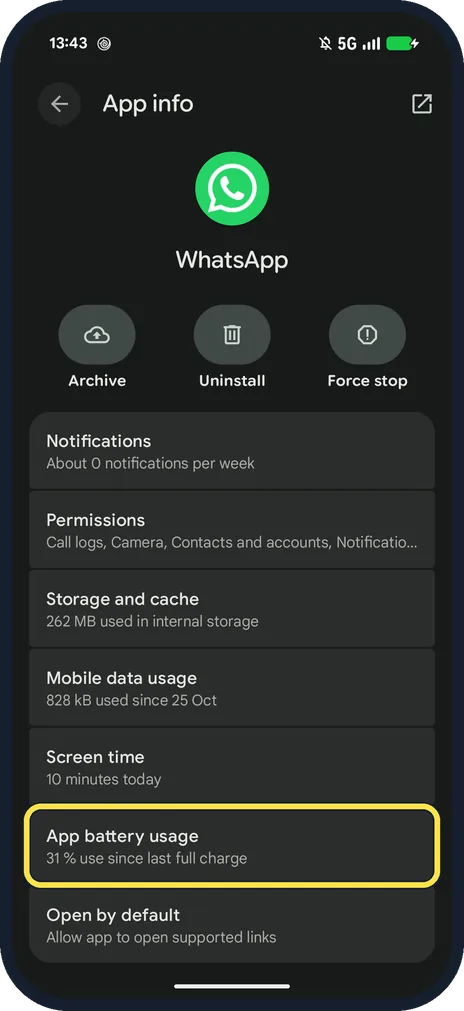
Open WhatsApp's App info and tap App battery usage
Settings, Apps, WhatsApp. Ours said 31 % use since last full charge.
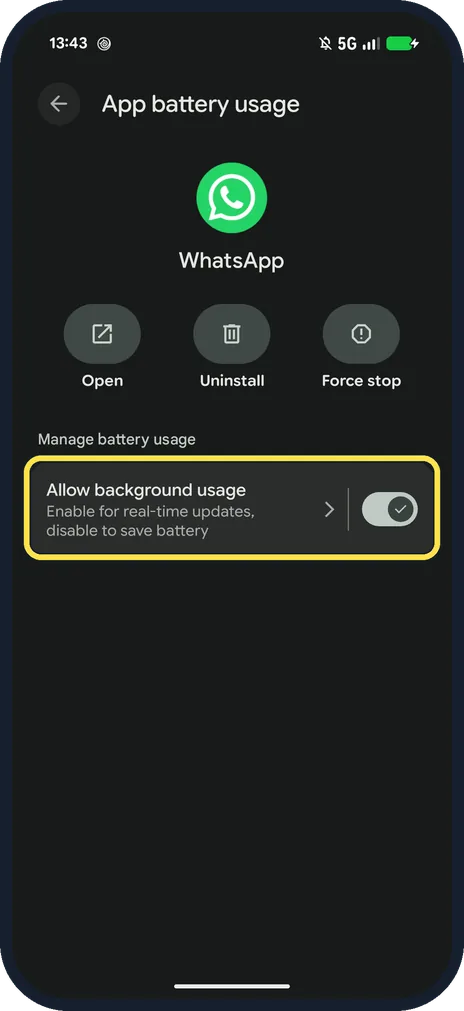
Turn on Allow background usage
Its note says: Enable for real-time updates, disable to save battery. On Android 17 there is no Unrestricted label here.
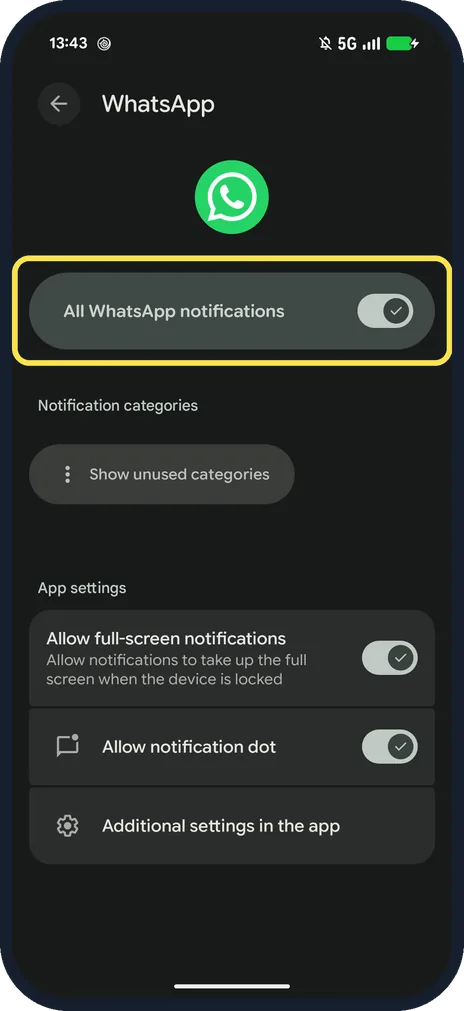
Check All WhatsApp notifications
Back in App info, tap Notifications. The top switch must be on.
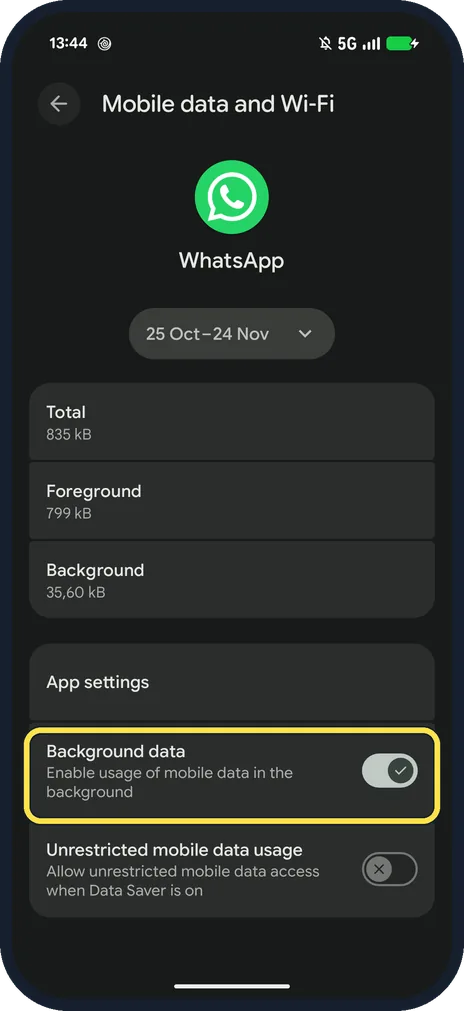
Check Background data
Back in App info, tap Mobile data usage. Background data must be on. Ours also had Unrestricted mobile data usage, for when Data Saver is on, switched off.
If you do not see this option
- Choices instead of a switch? Google's Pixel help describes tapping Allow background usage and then choosing under it, such as Optimized. On our Android 17 it was a single switch, with no Unrestricted label. Source: Keep Adaptive Battery & battery optimization on
- Adaptive Battery on? Google says Adaptive Battery may delay notifications to extend battery life. It is in Settings, Battery, Battery Saver, Adaptive Battery. Source: Keep Adaptive Battery & battery optimization on
If this does not work
- Messages only arrive when you open WhatsApp? WhatsApp calls that a push notification issue: check notification permission, background data and battery settings. Source: Can't see or hear notifications
- Still late? WhatsApp suggests turning off Do Not Disturb, updating WhatsApp and restarting the phone. Source: Can't see or hear notifications
- Background data already on? WhatsApp suggests turning it off and on again. Source: Can't see or hear notifications
About this guide
WhatsApp says late notifications are usually push notification problems: notification permission, background data or battery limits.
The screenshots are from our Google Pixel 10a with Android 17 and WhatsApp 2.26.41.77, in Dark mode, taken on 25 October 2026. All three were on and we changed nothing; these are the settings to check, not a staged fault.
Good to know
To change the sound itself, see change or mute WhatsApp notification sounds.
In short: App info: App battery usage on, Notifications on, Mobile data usage: Background data on.
- WhatsApp Help Center: Can't see or hear notifications
- Pixel Phone Help: Keep Adaptive Battery & battery optimization on
Links checked in October 2026. Menus and features can change after software updates. These steps match the version named at the top.
📷 See real photos from the Pixel 10a in our Camera Lab, next to 10 other phones.
Did this guide work for you?
Sorry about that. What happened?