
howtosimply.com/guides/how-to-turn-off-keyboard-sound-and-vibration-on-a-samsung-galaxy/ · Checked October 2026 · Samsung Galaxy A57 5G (SM-A576B), One UI 8.5, Android 16
In this guide
Open Settings, General management, Samsung Keyboard settings, Swipe, touch, and feedback, Touch feedback, and switch off Sound and Vibration. The typing sound also has a switch of its own under Settings, Sounds and vibration, System sound.
7 of 7 steps with real screenshots · 2 official sources below
- Device
- Android
- Shown on
- Samsung Galaxy A57 5G (SM-A576B), One UI 8.5, Android 16
- App
- Settings
- Real screenshots
- 7 of 7 steps
- What we did
- Observed: looked at each screen, changed nothing
- Checked
- October 2026
- Sources
- 2 official, linked below
Step by step
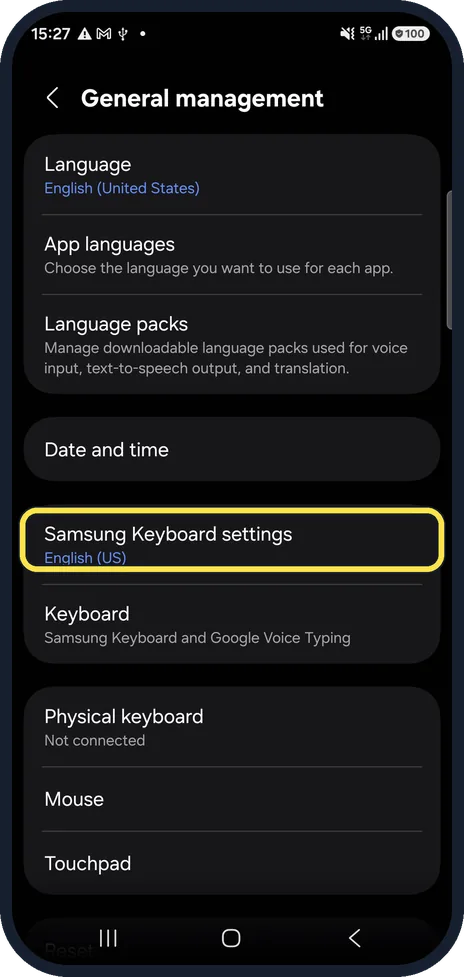
Open Samsung Keyboard settings
Settings, General management, Samsung Keyboard settings.
Watch these steps
Tap Swipe, touch, and feedback
Scroll down the keyboard settings. Swipe, touch, and feedback is in its own box just below Custom symbols.
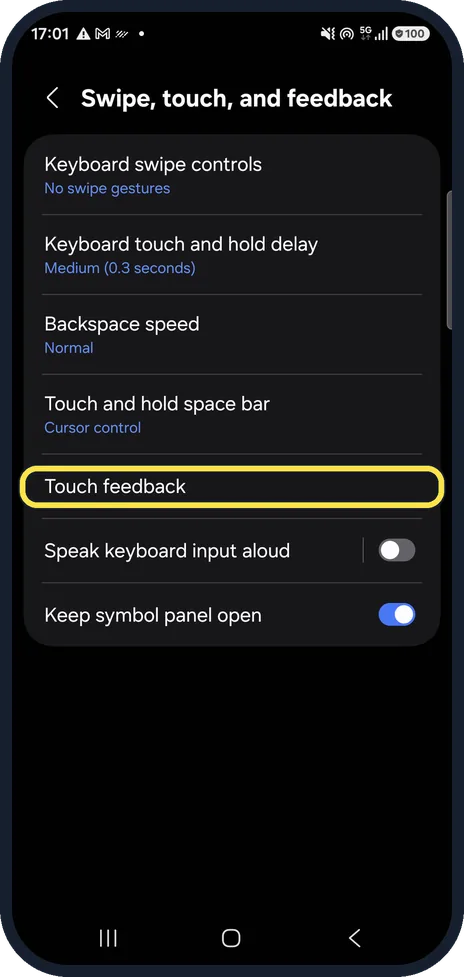
Tap Touch feedback
It is on the Swipe, touch, and feedback page.
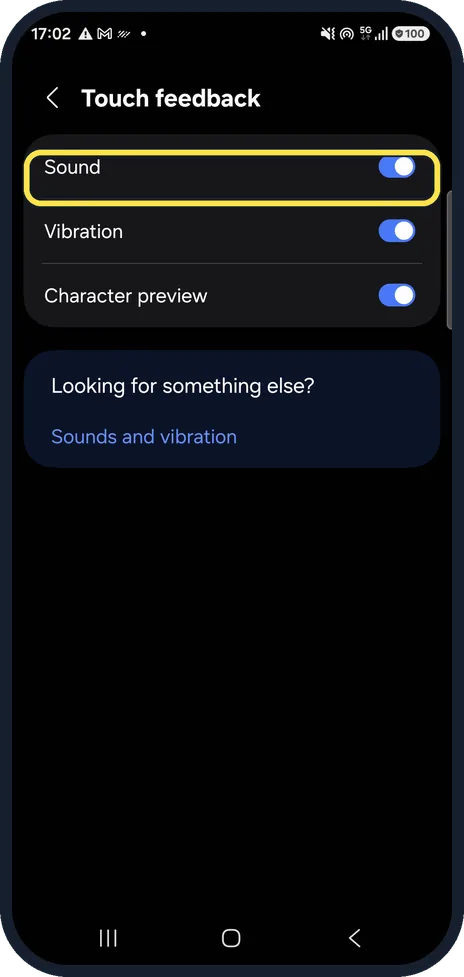
Switch off Sound
Sound plays a tone whenever you type. It was on on ours.
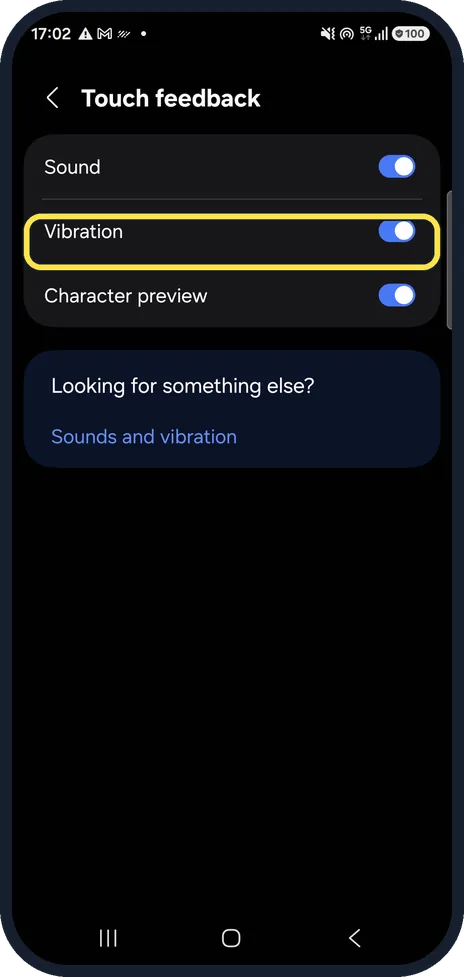
Switch off Vibration
Vibration makes a small buzz with each key. Samsung notes that some models don't support it. It was on on ours.
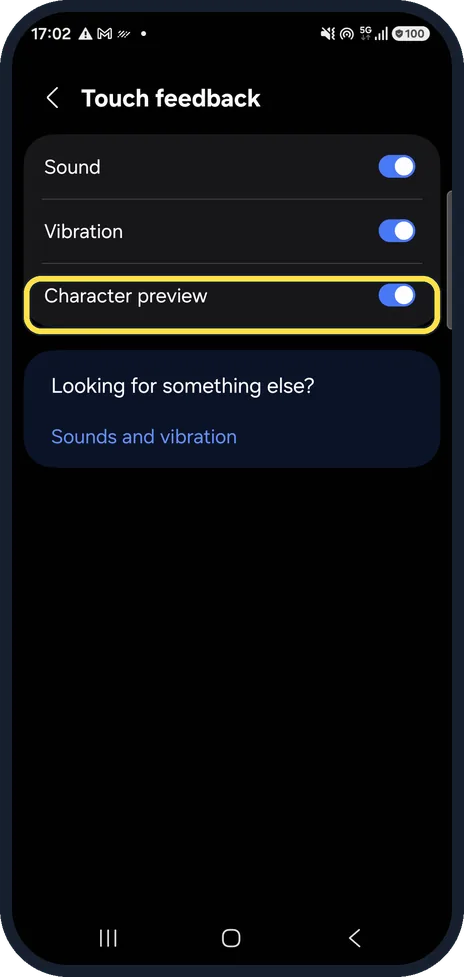
Decide about Character preview
This shows an enlarged letter above your finger as you type. It makes no sound; leave it on if it helps.
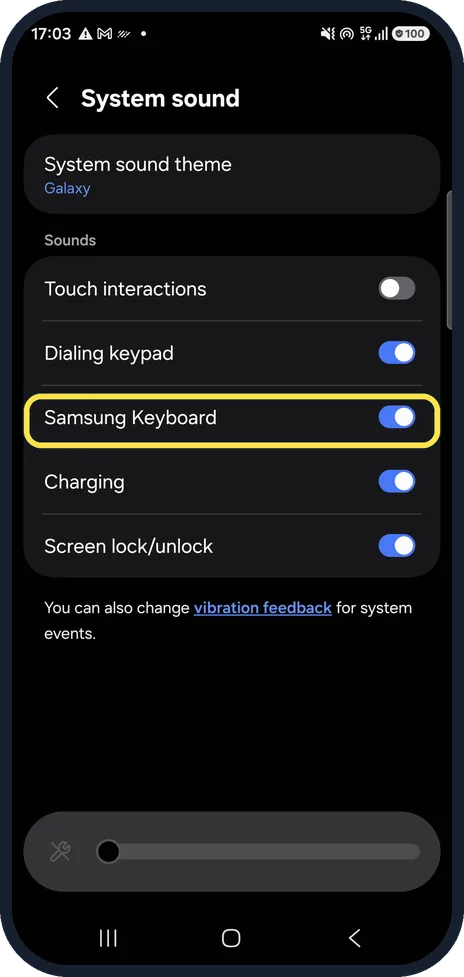
Check the system switch too
Settings, Sounds and vibration, System sound. Under Sounds there is a Samsung Keyboard switch as well; it was on on ours.
Watch these steps
If you do not see this option
- You open the settings from the keyboard Samsung also gives this route: open the keyboard, tap the settings cog, then Swipe, touch and feedback, Touch feedback. Source: How do I use the keyboard on my phone?
- There is no Vibration switch Samsung says the Touch feedback options depend on the phone. Its examples are the A40, A50 and A70, which have no keyboard vibration. Source: How do I use the keyboard on my phone?
If this does not work
- You still hear a click when typing If you type with Gboard, it has its own switches. Google says to open the keyboard, tap Menu, Settings, Preferences and set Sound and Keyboard vibration under Key tap. Source: Change your keyboard theme, sound, or vibration
- Gboard still vibrates Google says Gboard's vibration follows the phone: when the phone's vibration settings are off, they override Gboard's. Source: Change your keyboard theme, sound, or vibration
About this guide
The click and buzz on every key press come from the Samsung Keyboard itself, so the main switches are in the keyboard settings. A second keyboard sound switch is under Sounds and vibration, System sound.
On other models and older One UI versions, some names and positions may differ.
Good to know
Keyboard slow rather than noisy? Samsung Keyboard lagging? 6 fixes.
Want the phone silent altogether? How to use Do not disturb on a Samsung Galaxy phone.
In short: Samsung Keyboard settings, Swipe, touch, and feedback, Touch feedback: Sound off, Vibration off. Also Sounds and vibration, System sound, Samsung Keyboard.
- Samsung UK: How do I use the keyboard on my phone?
- Gboard Help: Change your keyboard theme, sound, or vibration
Links checked in October 2026. Menus and features can change after software updates. These steps match the version named at the top.
📷 See real photos from the Galaxy A57 in our Camera Lab, next to 10 other phones.
Did this guide work for you?
Sorry about that. What happened?