
howtosimply.com/guides/samsung-galaxy-notifications-not-showing-5-settings-to-check/ · Checked October 2026 · Samsung Galaxy A57 5G (SM-A576B), One UI 8.5, Android 16
In this guide
Turn off Do not disturb and Power saving in the quick panel, then open Settings, Notifications, App notifications and make sure the app's switch is on. If the app is in Sleeping apps or Deep sleeping apps under Settings, Battery, Background usage limits, remove it there or add it to Never auto sleeping apps.
5 of 5 steps with real screenshots · 2 official sources below
- Device
- Android
- Shown on
- Samsung Galaxy A57 5G (SM-A576B), One UI 8.5, Android 16
- Starts in
- Quick Settings
- Real screenshots
- 5 of 5 steps
- Checked
- October 2026
- Sources
- 2 official, linked below
Step by step
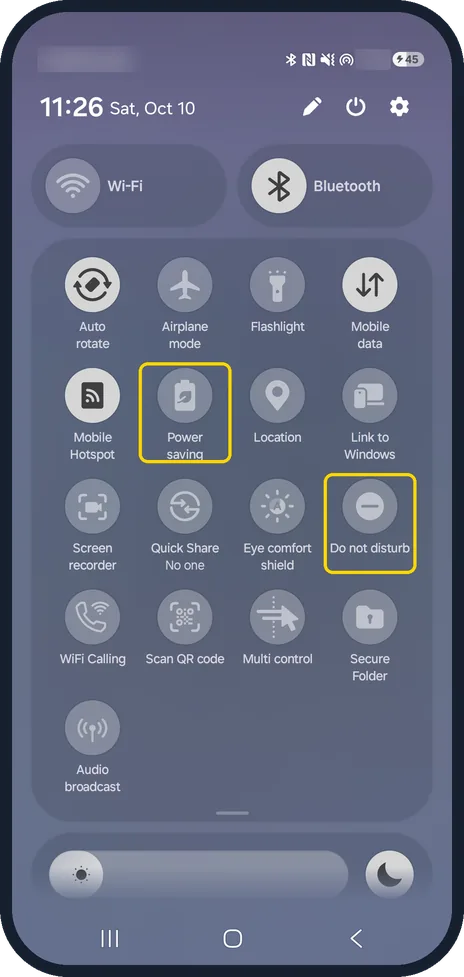
Turn off Do not disturb and Power saving
Swipe down from the top right of the screen to open the quick panel. If Do not disturb or Power saving is lit up, tap it to turn it off: Samsung says either one could block notifications. On our Galaxy A57 both were off. The quick panel takes its colour from the wallpaper, so it can look light even in dark mode.
Watch these steps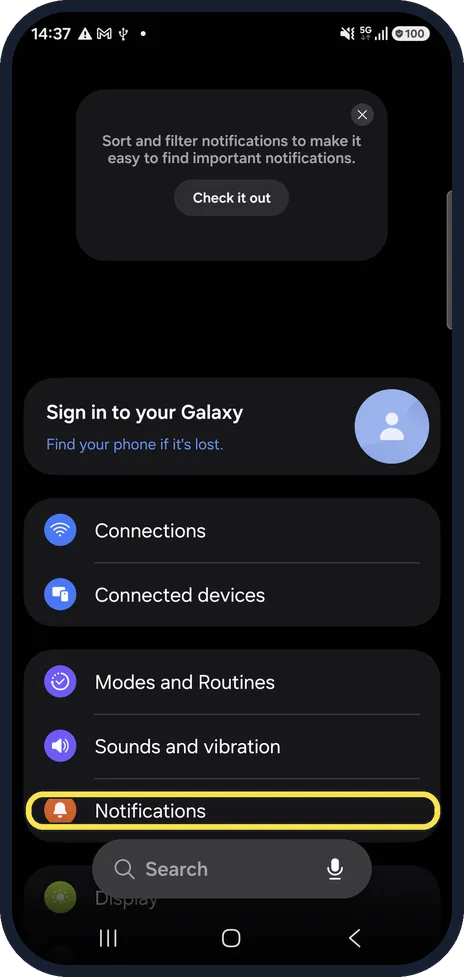
Open Notifications
Open Settings and tap Notifications.
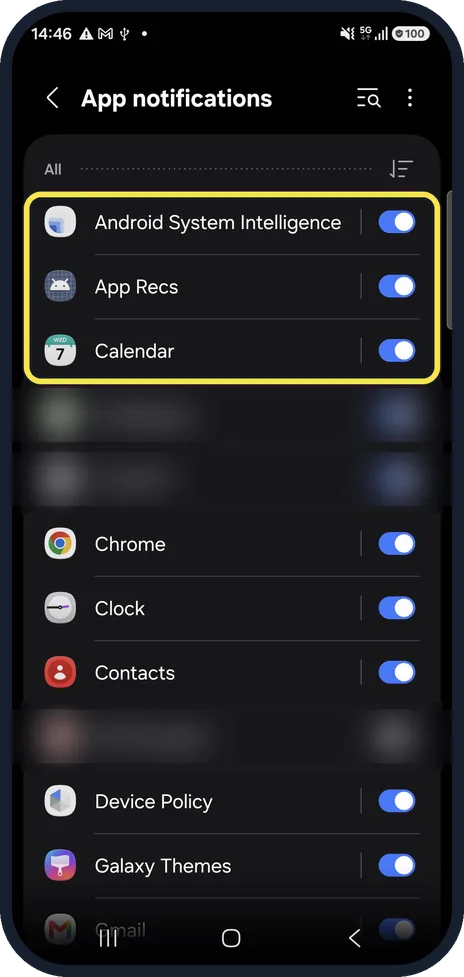
Check the app's switch
Tap App notifications. Every app has a switch; the app must be switched on. On our Galaxy A57 the preinstalled apps, such as Calendar and Chrome, were all on. Samsung also gives the path Settings, Apps, the app, Notifications, where the switch next to Allow notifications must be on.
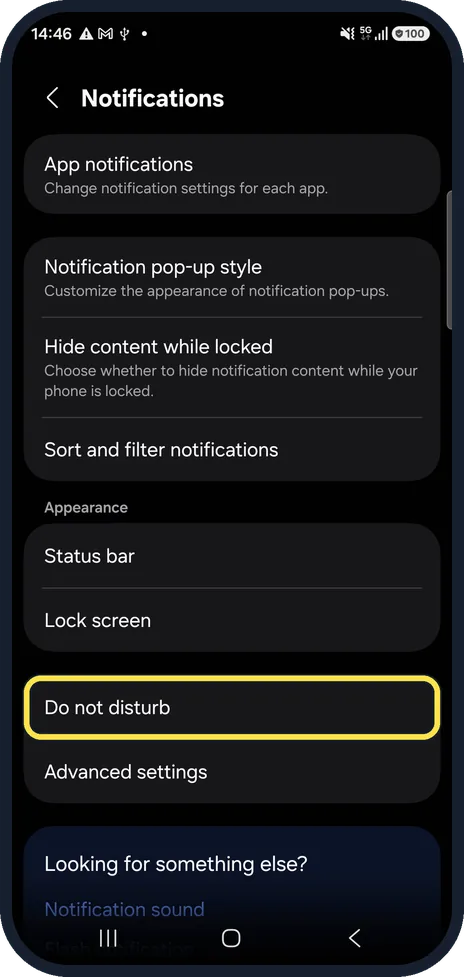
Check Do not disturb here too
Back on the Notifications page, Do not disturb has its own row, below Lock screen on our Galaxy A57. Open it to check whether it is set to come on by itself.
Take the app out of sleep
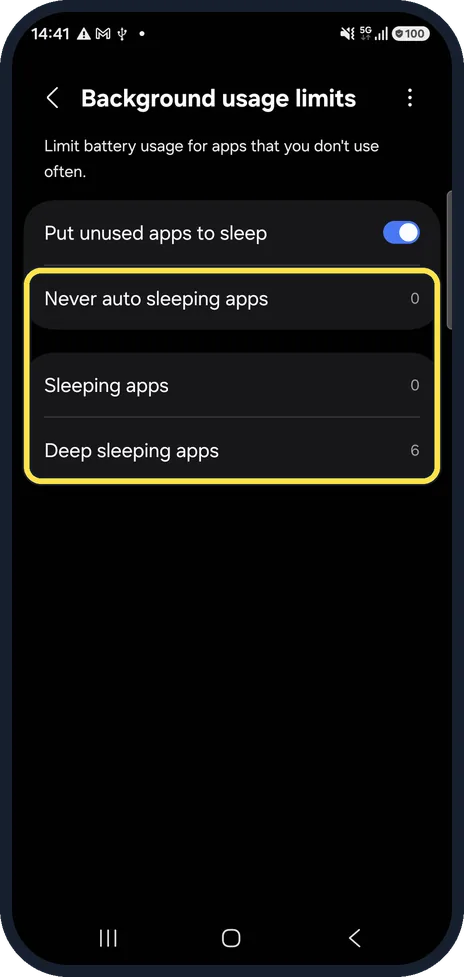
Open Settings, Battery, Background usage limits. Samsung says to touch and hold the app under Sleeping apps and tap Remove, then check Deep sleeping apps too. Samsung says apps in Never sleeping apps never sleep in the background; on our Galaxy A57 the row is Never auto sleeping apps, with 0 apps in it.
Watch these steps
If you do not see this option
- No Do not disturb button in the quick panel On our Galaxy A57 it is in the third row of buttons, at the right, after you swipe down twice.
- No Background usage limits on the Battery page Samsung says that on some devices the path is Battery and device care, then Battery. On our Galaxy A57 it is Settings, Battery, Background usage limits. Source: Apps on Samsung phone or tablet are not sending notifications
If this does not work
- The app is in neither sleep list Check the app's own notification settings: Samsung says some apps have extra ones inside the app. Source: Apps on Samsung phone or tablet are not sending notifications
- Notifications stop again after a while Put unused apps to sleep sends apps you have not used for a while back to sleep. Add the app to Never auto sleeping apps; on our Galaxy A57 that list was empty. Source: Sleeping apps on your Galaxy device
About this guide
Samsung's fix list for missing notifications checks three places in this order: a mode that silences them, the app's own switch, and battery limits that put the app to sleep.
Our own apps in the lists are blurred.
Good to know
Samsung says some apps have extra notification settings inside the app itself. Check those after the phone's settings.
Put unused apps to sleep, on the same Background usage limits page, puts apps you have not used for a while to sleep automatically, Samsung says. If notifications from such an app stop, look there first.
For the battery side of the same settings: Samsung Galaxy battery draining fast? 6 fixes.
In short: Quick panel: Do not disturb and Power saving off. Settings, Notifications, App notifications: app switched on. Settings, Battery, Background usage limits: remove the app from Sleeping or Deep sleeping apps.
- Samsung US: Apps on Samsung phone or tablet are not sending notifications
- Samsung US: Sleeping apps on your Galaxy device
Links checked in October 2026. Menus and features can change after software updates. These steps match the version named at the top.
📷 See real photos from the Galaxy A57 in our Camera Lab, next to 10 other phones.
Did this guide work for you?
Sorry about that. What happened?