 Illustration
You are viewing the macOS 26 version of this guide, recorded on macOS Tahoe 26 (MacBook Pro) on 4 October 2026. It is kept as it was and not updated. See the macOS 27 version.
howtosimply.com/guides/mac-running-slow-8-fixes-to-try/ · Checked 4 October 2026 · MacBook Pro · macOS Tahoe 26
In this guide
Restart the Mac, check Activity Monitor for an app using too much memory or processor, free up storage until at least 10% of the disk is empty, and remove apps that open at login. Then install any macOS update.
4 of 8 steps with real screenshots · 5 official sources below
- Device
- Mac
- Shown on
- macOS Tahoe 26 (MacBook Pro)
- App
- System Settings
- Real screenshots
- 4 of 8 steps
- Checked
- 4 October 2026
- Sources
- 5 official, linked below
Find the likely cause
- If the Mac has not been restarted for days or weeks, restart it first (step 1).
- If one app stays at the top of the CPU list, quit it (step 2) and see whether the Mac speeds up before trying anything else.
- If the Mac slows down when many apps or browser tabs are open, check Memory Pressure (step 3) and close what you do not need.
- If the storage bar is nearly full, see what is filling the disk and use the recommendations (steps 4 and 5).
- If the Mac is slow from the moment you log in, trim the apps that open at login (step 6).
Step by step
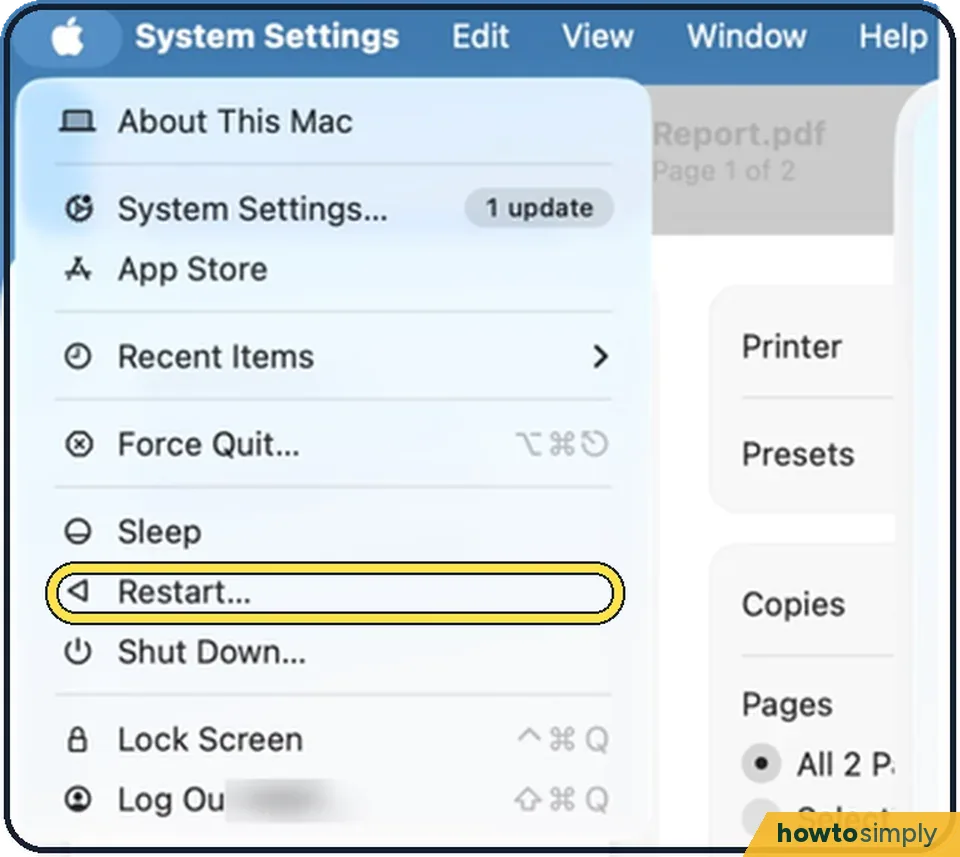
Tap the picture to see it full size Restart
Click the Apple menu and choose Restart. If you normally only close the lid, the Mac may have been running for weeks.
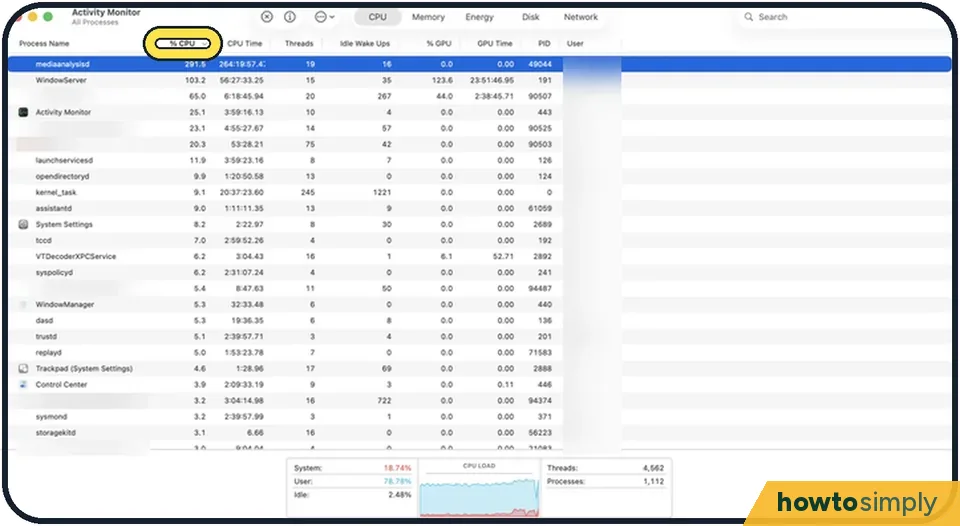
Tap the picture to see it full size Find the app that is using everything
Open Activity Monitor from Applications, Utilities, or press Command + Space and type its name. On the CPU tab, click the % CPU column to sort. An app that stays near the top at a high percentage is the cause. Select it and click the X button to quit it.
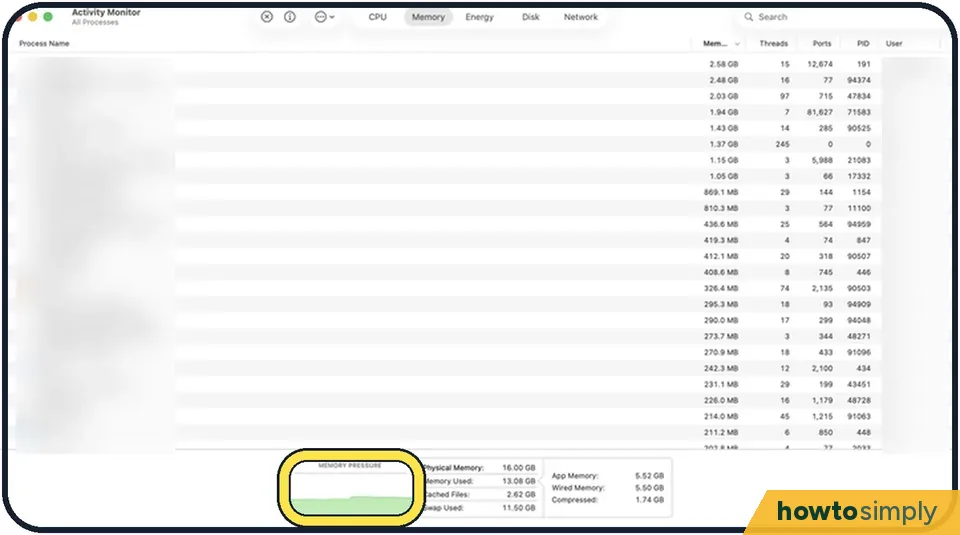
Tap the picture to see it full size Look at Memory Pressure
On the Memory tab, the graph at the bottom should be green. Yellow or red means too many apps and browser tabs are open. Close some.
Free up storage
A nearly full disk slows macOS badly. Our guide: how to check and free up storage on a Mac.
Trim login items
Fewer apps starting by themselves means more memory for your work: how to stop apps opening at login.
Close browser tabs and remove extensions
Each tab is a small app. Dozens of tabs and several extensions can use more memory than everything else together.
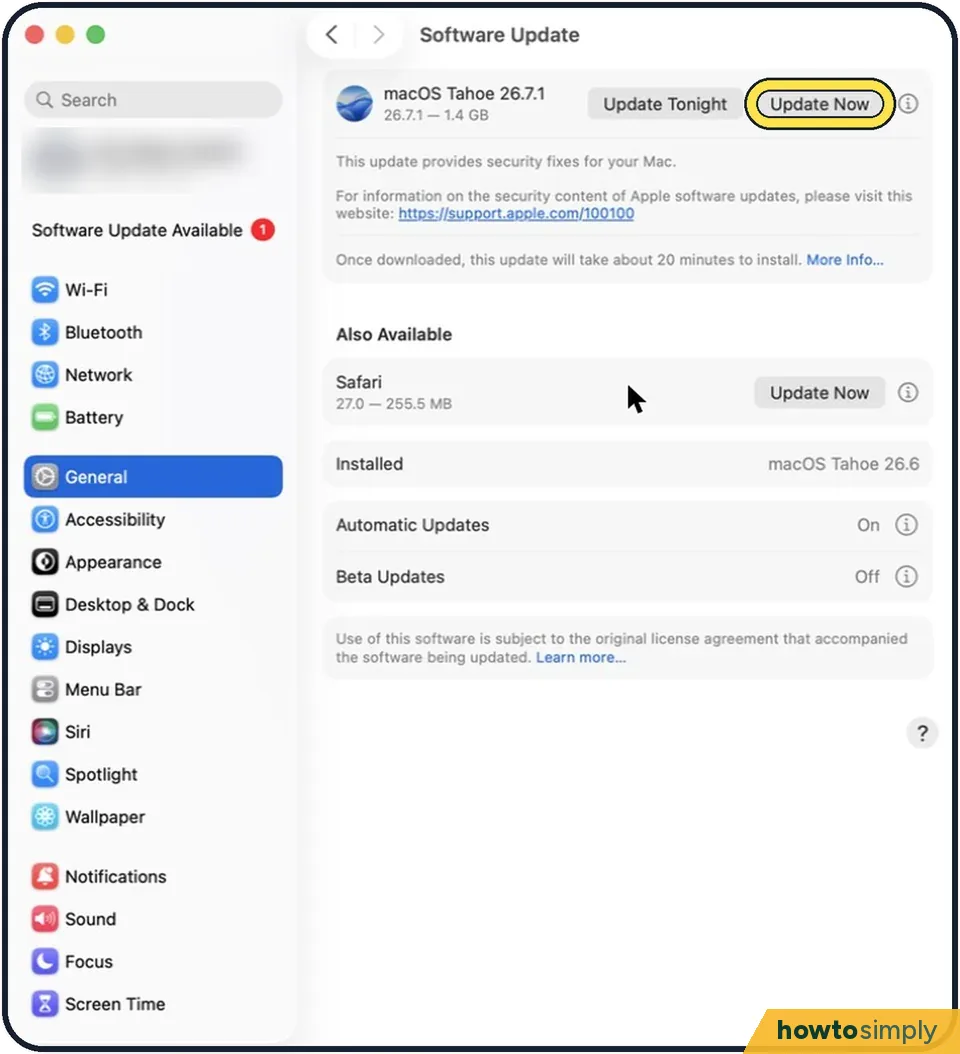
Tap the picture to see it full size Update macOS and your apps
Open System Settings, General, Software Update. Update apps in the App Store under Updates.
Give it time after an update
After a big macOS update, the Mac re-indexes files for search and Photos for a few hours. It is slow and warm during that time and recovers by itself when left on and plugged in.
About this guide
A slow Mac is usually short of memory or storage, or has one app misbehaving in the background. The Mac has a built-in tool that shows which.
Good to know
If the fans are loud and the Mac is hot, check that the vents are not blocked and that it is not sitting on a blanket.
You do not need a "cleaner" app. Many are aggressive adverts, and some are malware.
An older Mac with a mechanical hard disk and 8 GB of memory or less will stay slow with current software whatever you do.
In short: Apple menu > Restart… > Activity Monitor > System Settings > General > Storage > Login Items & Extensions > Software Update > App Store > Updates
Links checked in October 2026. Menus and features can change after software updates. These steps match the version named at the top.
📷 Camera Lab: the same 6 scenes photographed with 11 phones, side by side.
Did this guide work for you?
Sorry about that. What happened?