
howtosimply.com/guides/how-to-force-quit-a-frozen-app-on-a-mac/ · Checked October 2026 · MacBook Neo · macOS 27.0.1
In this guide
Press Option + Command + Esc (or choose Apple menu > Force Quit…), select the frozen app and click Force Quit, then click Force Quit again to confirm.
5 of 5 steps with real screenshots · 1 official source below
- Device
- Mac
- Shown on
- macOS 27.0.1 (MacBook Neo)
- Real screenshots
- 5 of 5 steps
- Checked
- October 2026
- Sources
- 1 official, linked below
Step by step
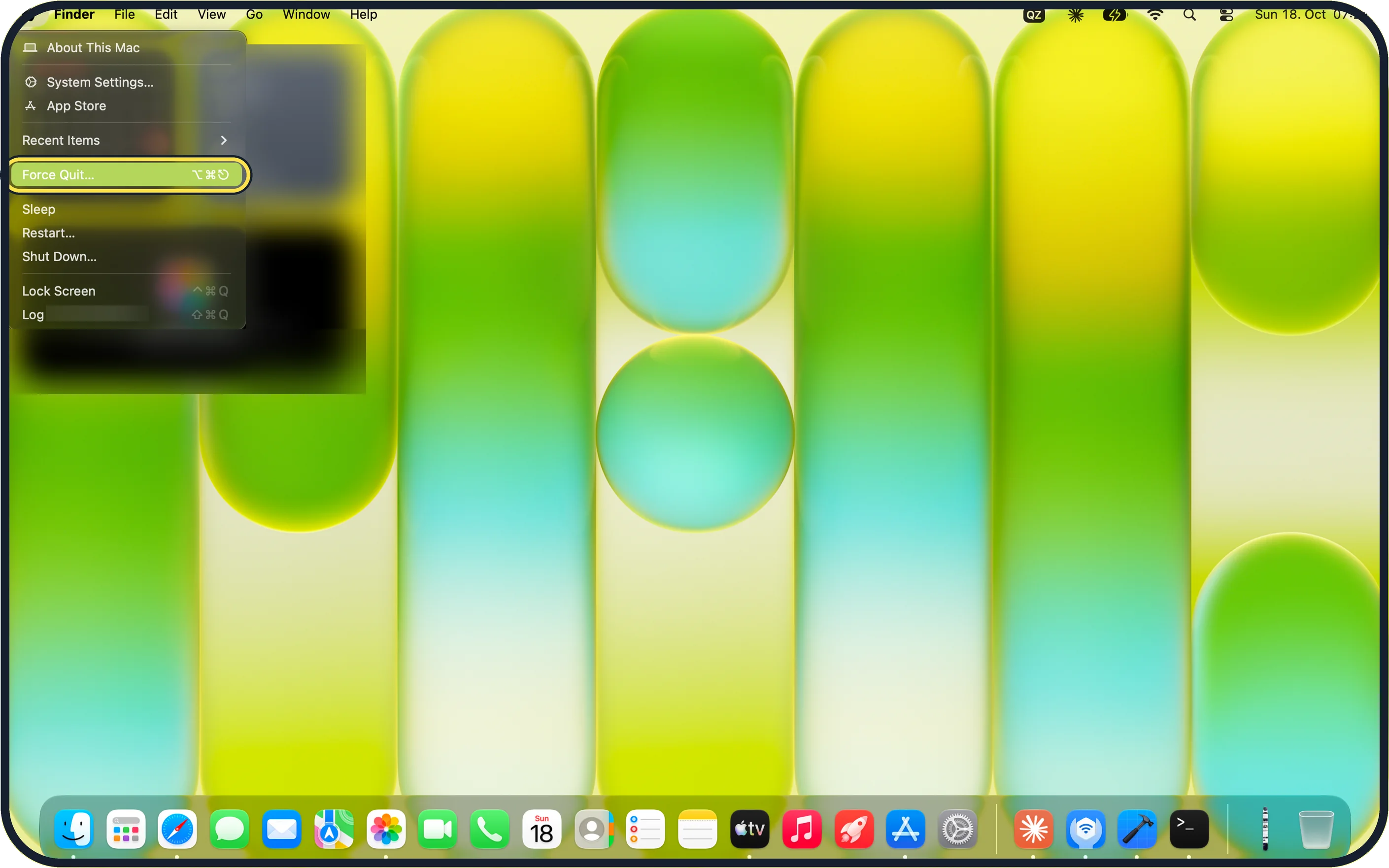
Zoomed in on the setting. Tap to see the whole screenTap the picture to see it full size Open the Force Quit Applications window
Press Option + Command + Esc, or click the Apple menu and choose Force Quit….
On our MacBook Neo the Apple menu item reads "Force Quit…" with the shortcut ⌥⌘⎋ next to it.
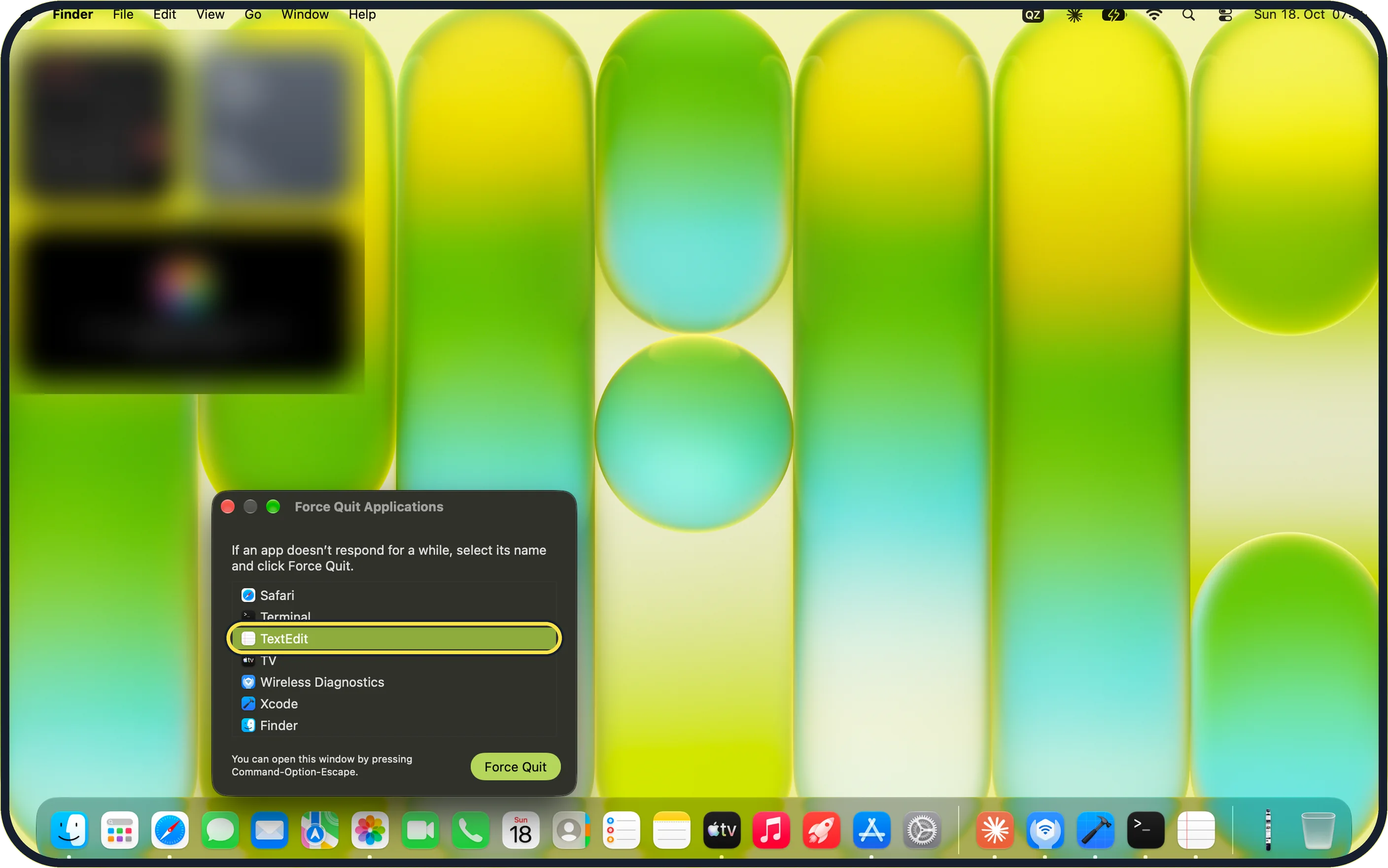
Zoomed in on the setting. Tap to see the whole screenTap the picture to see it full size Select the frozen app
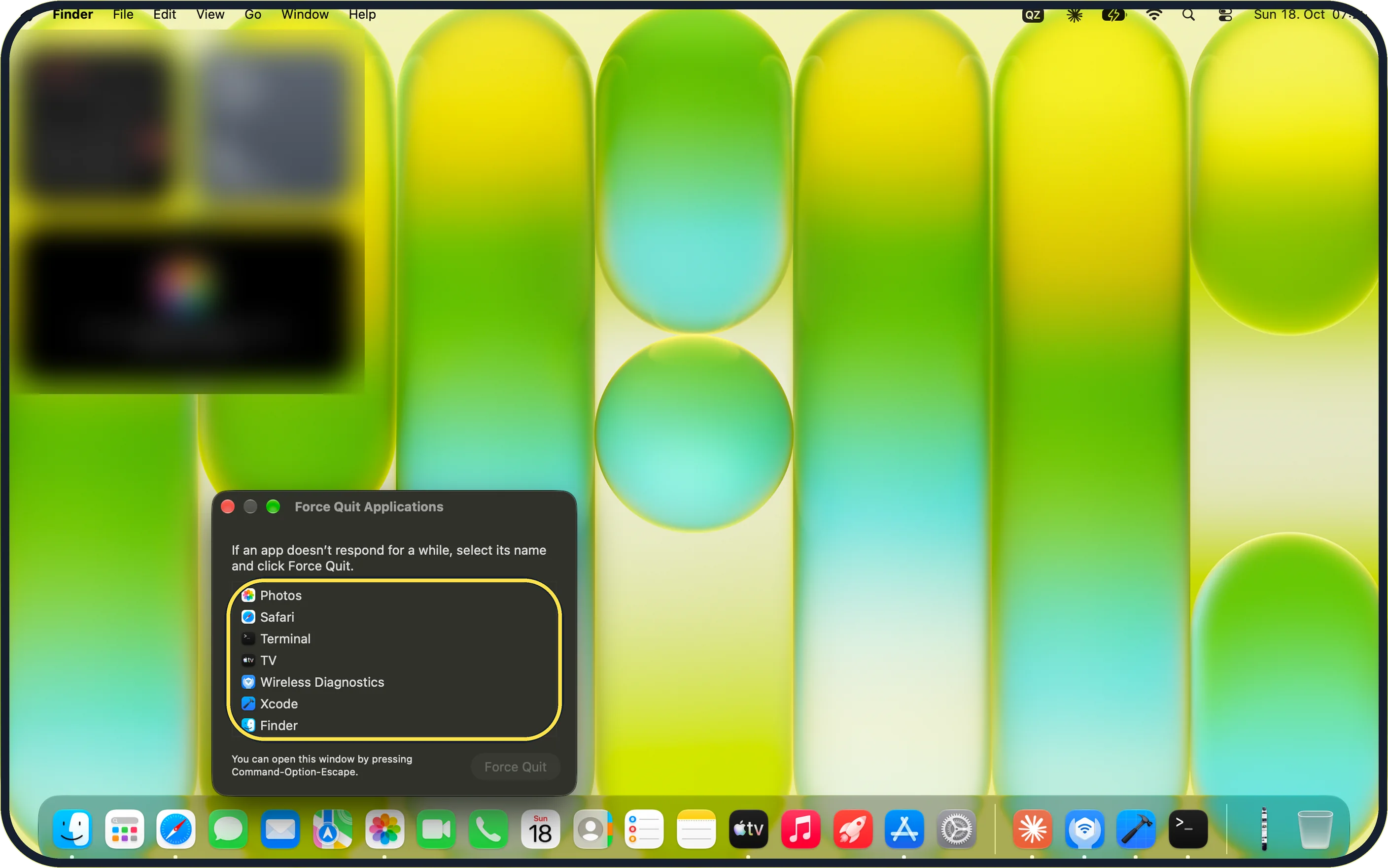
Click the app's name in the list. Apple says a frozen app may be marked "Not Responding".
On our MacBook Neo the window says "If an app doesn't respond for a while, select its name and click Force Quit."
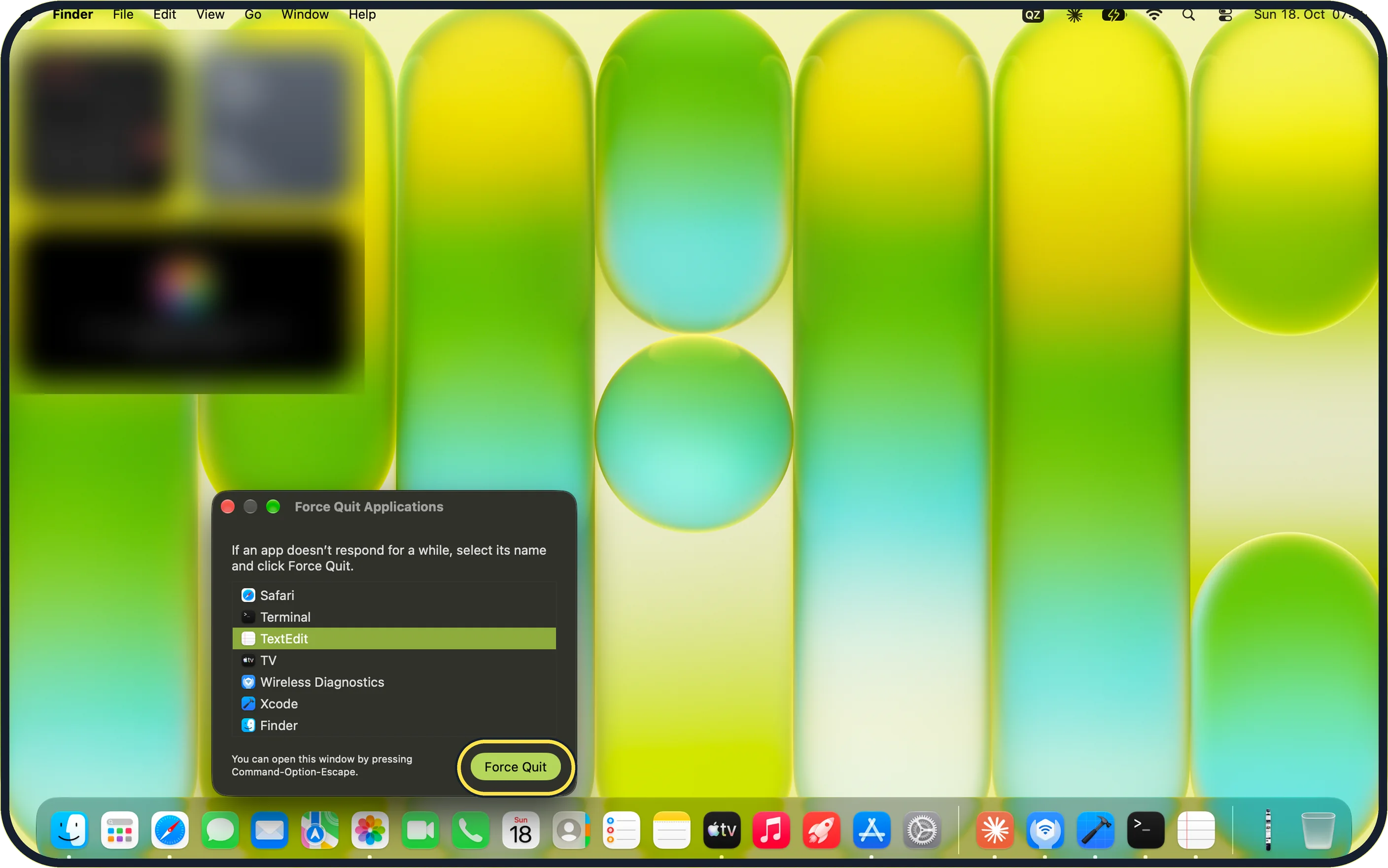
Zoomed in on the setting. Tap to see the whole screenTap the picture to see it full size Click Force Quit
The button is in the bottom right corner of the window.
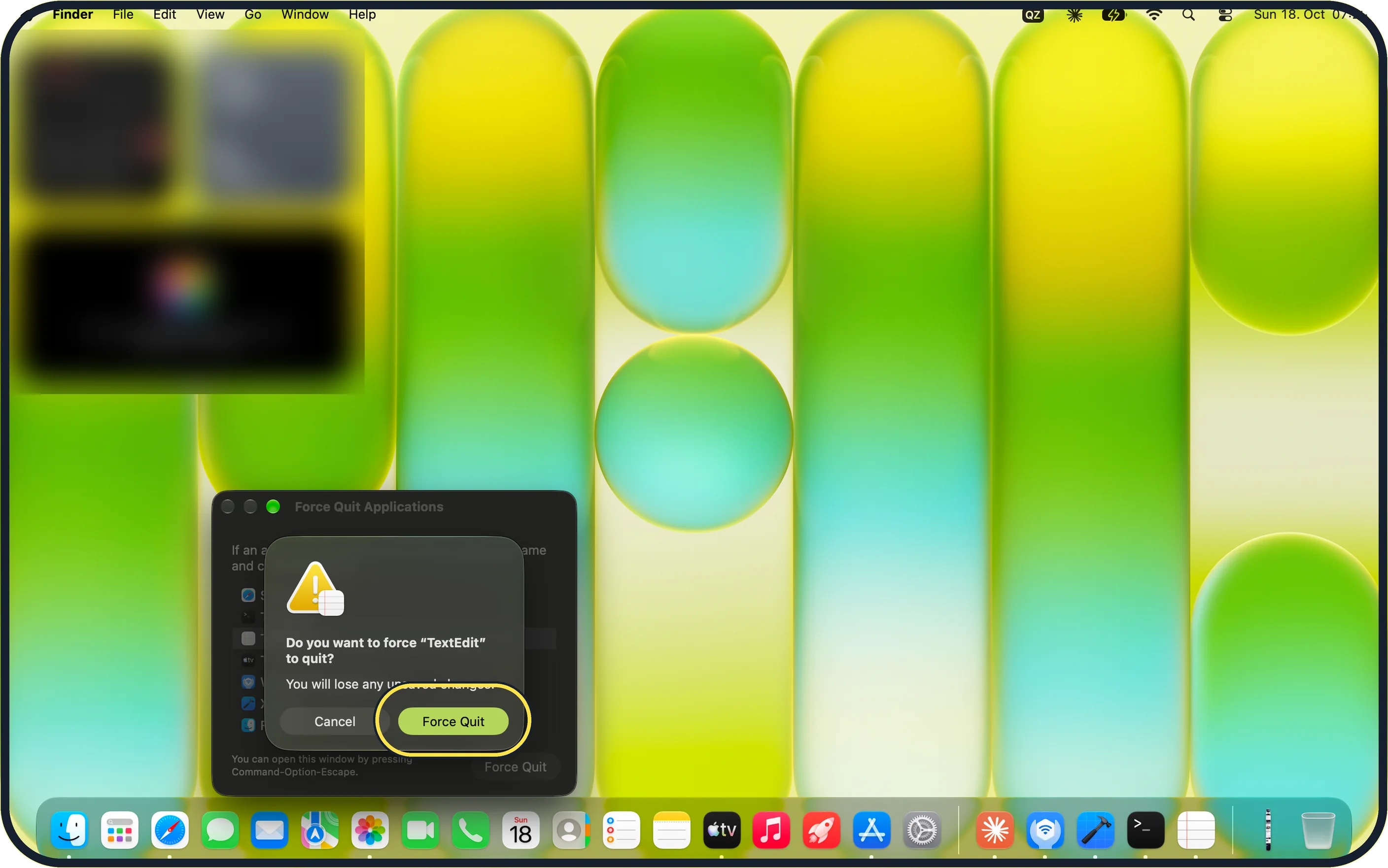
Zoomed in on the setting. Tap to see the whole screenTap the picture to see it full size Confirm with Force Quit
A message asks whether you want to force the app to quit. Click Force Quit, or Cancel to leave it running.
On our MacBook Neo it read "Do you want to force "TextEdit" to quit? You will lose any unsaved changes."
Zoomed in on the setting. Tap to see the whole screenTap the picture to see it full size Check the app has gone
The app disappears from the list. You can close the window with the red button in its top left corner.
What we saw on our device
- Open the Force Quit Applications window: On our MacBook Neo the Apple menu item reads "Force Quit…" with the shortcut ⌥⌘⎋ next to it.
- Confirm with Force Quit: On our MacBook Neo it read "Do you want to force "TextEdit" to quit?
If you do not see this option
- The keyboard shortcut does nothing Click the Apple menu and choose Force Quit… instead. Source: How to force an app to quit on your Mac
- The button says Relaunch, not Force Quit You have Finder selected. On our MacBook Neo the button changes to Relaunch for Finder; select another app to force quit it.
- The Force Quit button is greyed out No app is selected. Click an app's name in the list first.
If this does not work
- The app is still running If you clicked Cancel in the confirmation message, nothing is closed. Select the app again, click Force Quit and confirm with Force Quit.
- Finder is not responding Select Finder in the Force Quit Applications window and click Relaunch.
- The whole Mac is frozen Apple says to hold the power button, or the Touch ID button, for about ten seconds until the Mac turns off, then turn it on again. Source: How to force an app to quit on your Mac
About this guide
When an app stops responding, you can close just that app without restarting the Mac. Any unsaved changes in it are lost, so wait a minute first in case it recovers.
Screenshots: MacBook Neo, macOS 27.0.1, dark mode.
Good to know
Open the app again as usual afterwards. Anything you had not saved before force quitting is lost.
Another way: click the Apple menu in the top left corner and choose Force Quit….
If Finder itself is stuck, select Finder in the Force Quit Applications window and click Relaunch.
Apple says that if the pointer does not move and nothing reacts, you can hold the power button, or the Touch ID button, for about ten seconds until the Mac switches off. Wait a few seconds and turn it on again.
On our MacBook Neo the window's footer reads "You can open this window by pressing Command-Option-Escape."
In short: Option + Command + Esc (or Apple menu > Force Quit…) > select the app > Force Quit > Force Quit.
Links checked in October 2026. Menus and features can change after software updates. These steps match the version named at the top.
Did this guide work for you?
Sorry about that. What happened?