In this guide
In TextEdit, Pages, Preview and other Apple apps, choose File, Revert To, Browse All Versions. Pick the older version on the right and click Restore.
- Device
- Mac
- Shown on
- macOS 27.0.1 (MacBook Neo)
- App
- TextEdit
- Path
- TextEdit › File › Revert To › Browse All Versions
- Real screenshots
- 4 of 4 steps
- Checked
- October 2026
- Sources
- 1 official, linked below
Step by step
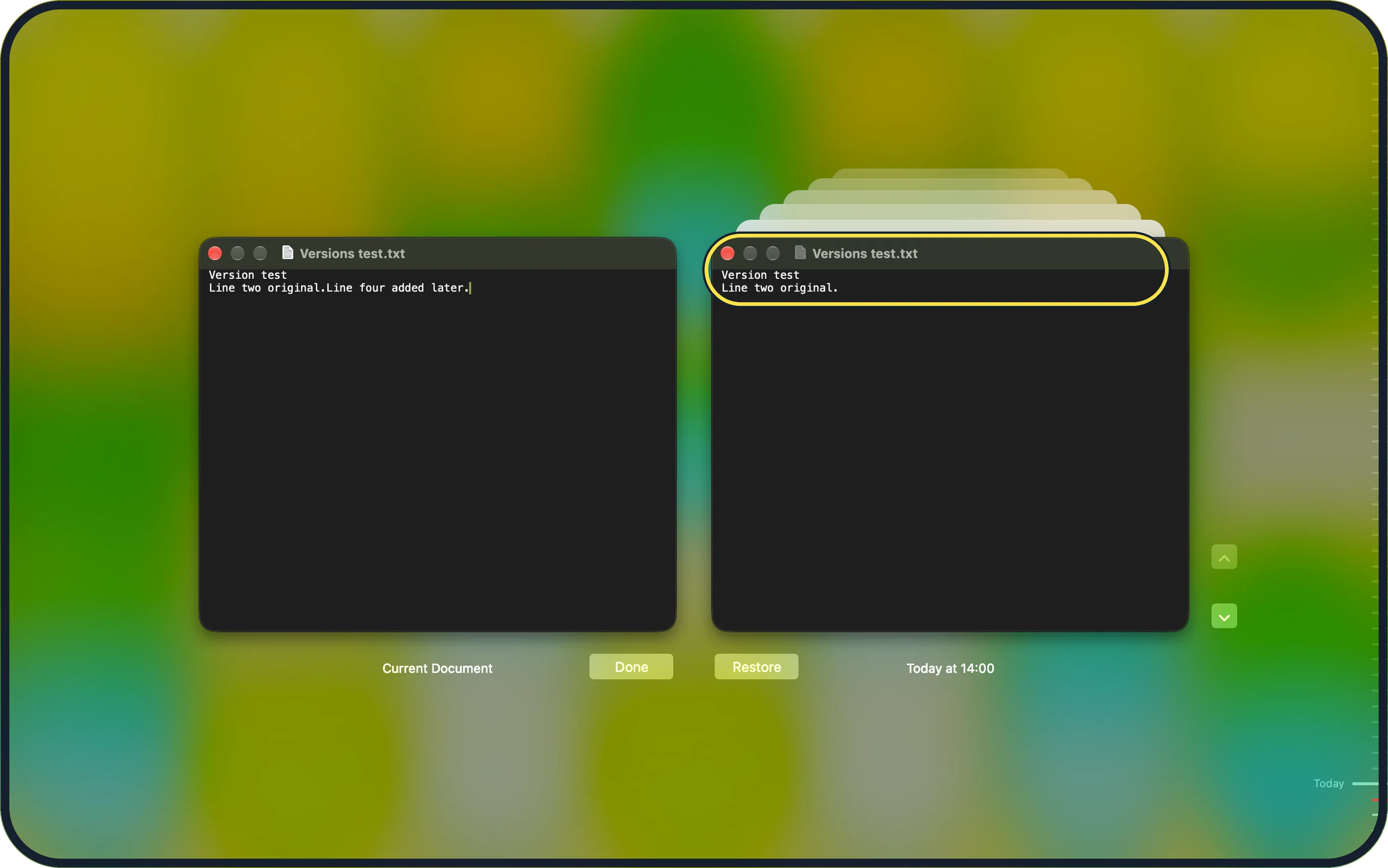
Tap the picture to see it full size Browse All Versions opens
In the open document, choose File, Revert To, Browse All Versions. This view opens: the current version on the left, older ones on the right.
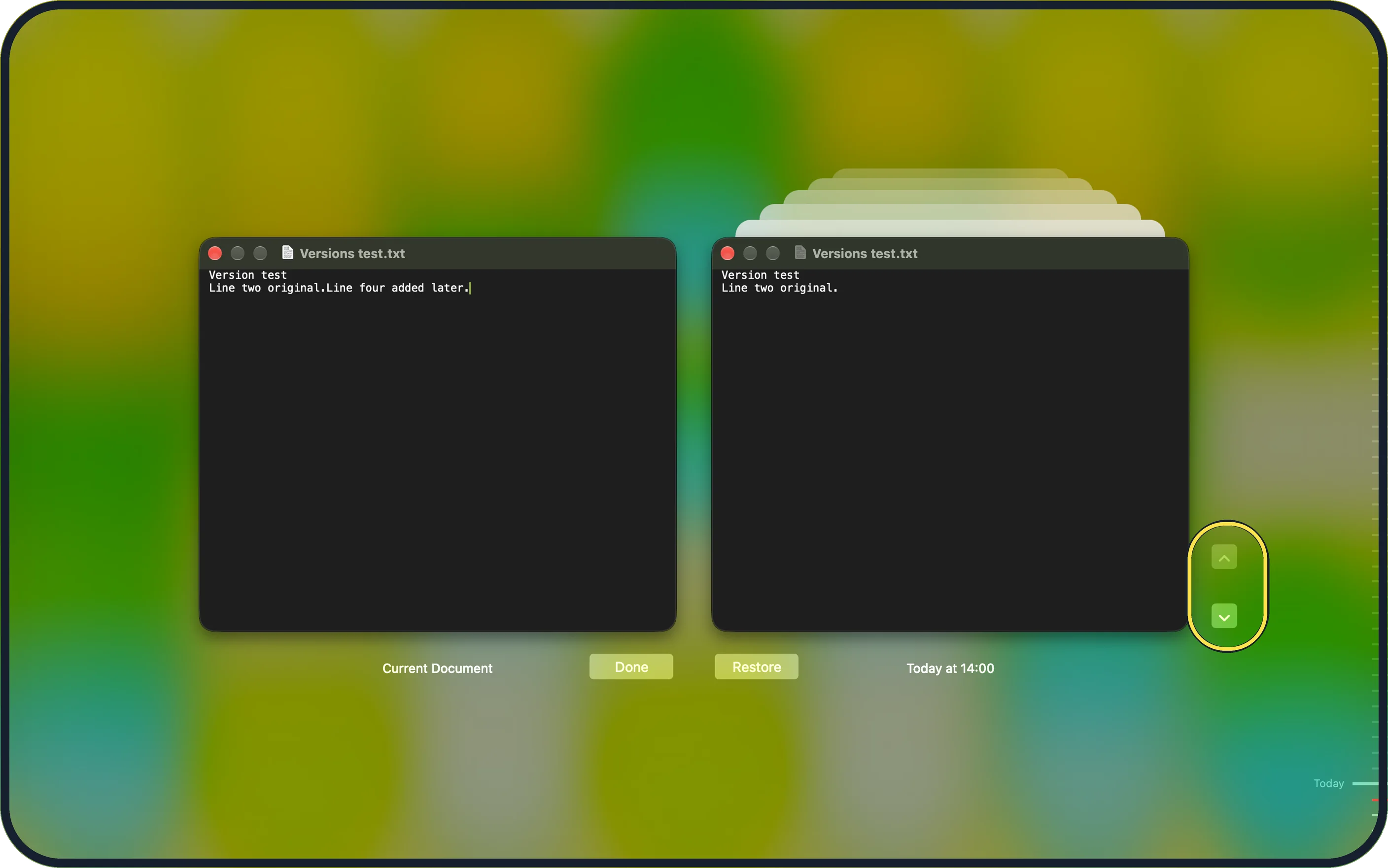
Tap the picture to see it full size Step back to the version you want
Older versions stack up behind the right-hand window. The arrows beside it step through them; the date under it shows when each was saved (ours: Today at 14:00).
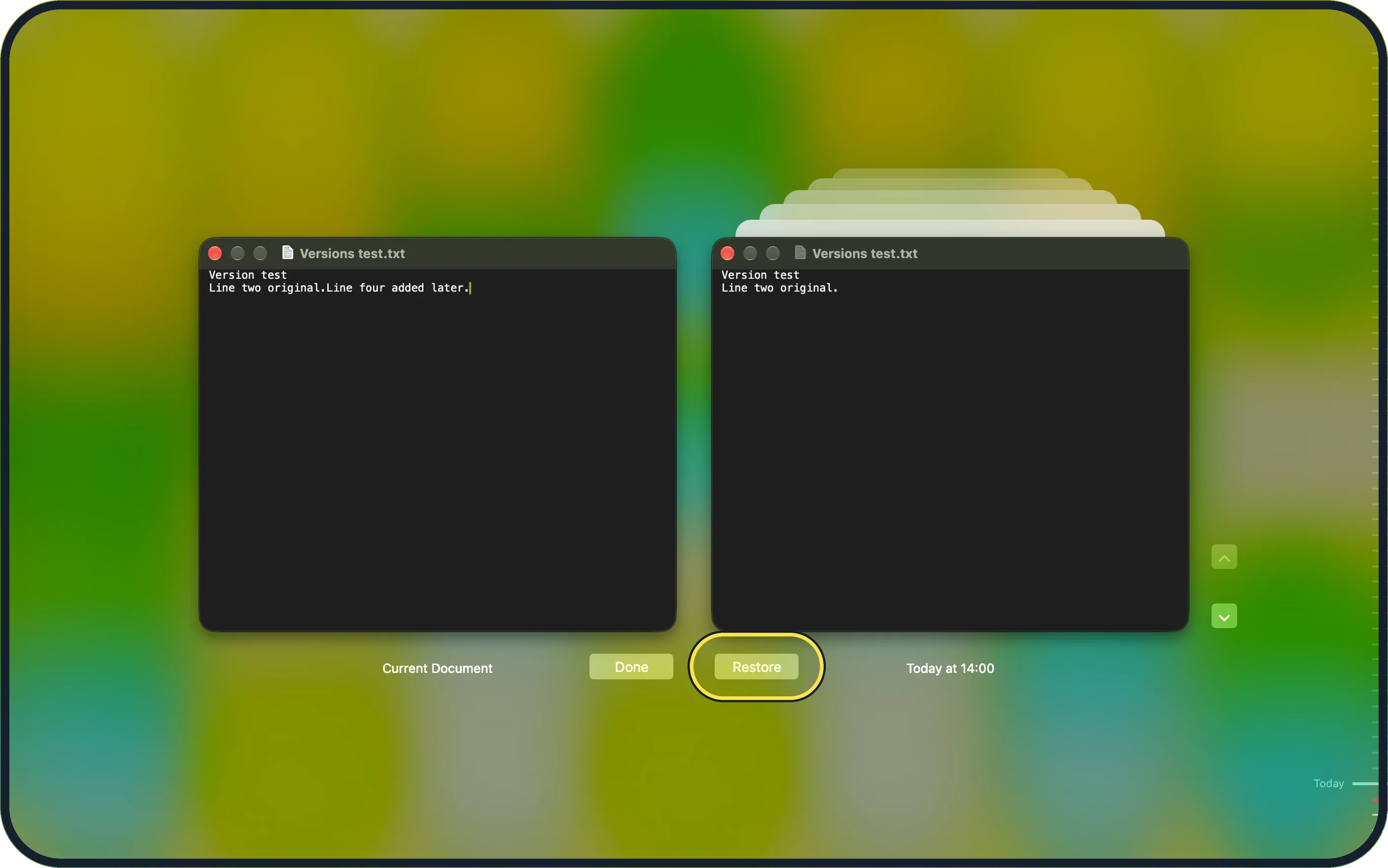
Tap the picture to see it full size Click Restore
Restore is under the older version. Done, under the current one, closes the browser and changes nothing.
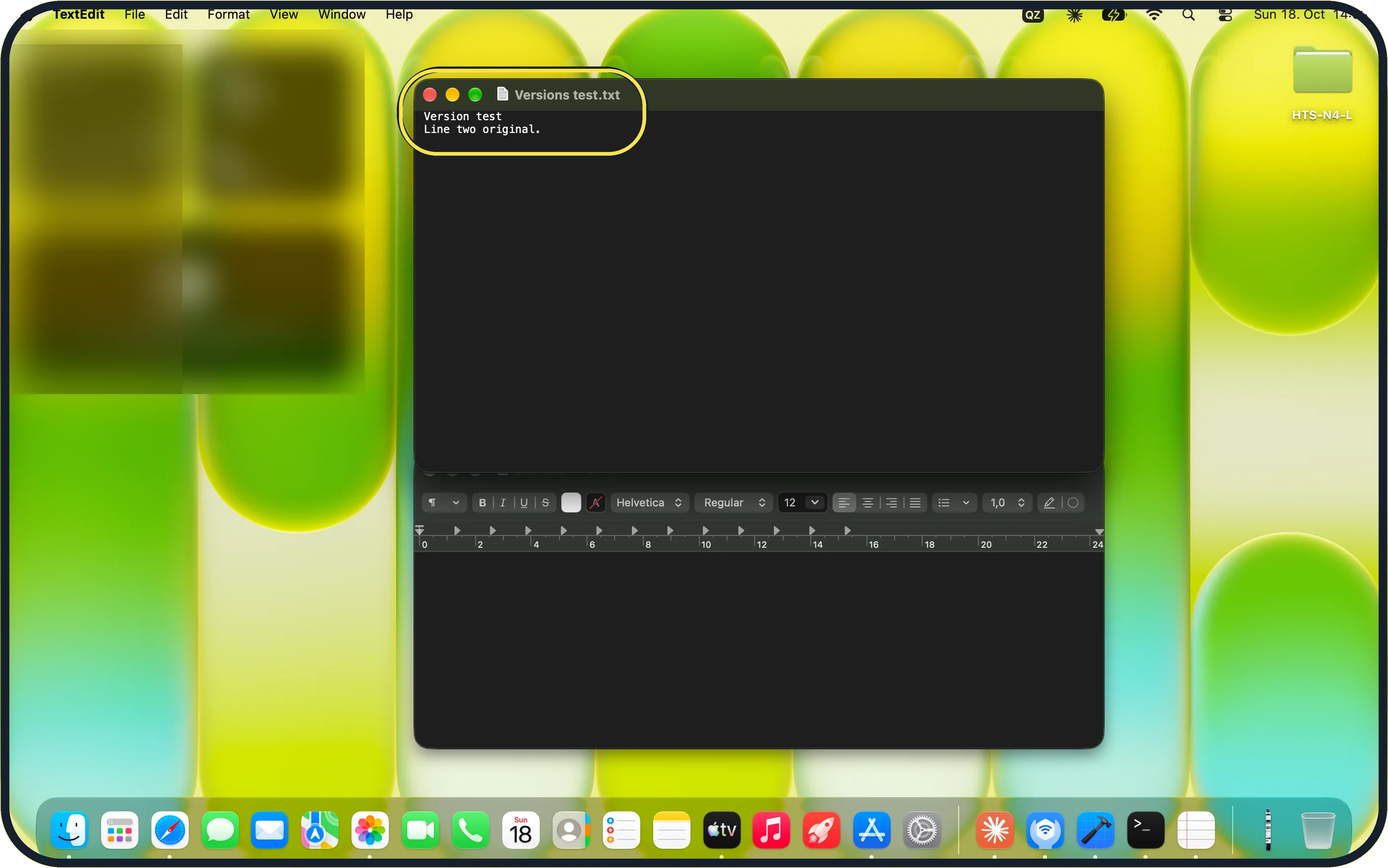
Tap the picture to see it full size Check the document
Ours went back to the original second line; "Line four added later." was gone.
If you do not see this option
- No Revert To in the File menu? The app does not save versions; check its own history or a backup.
- Only one version? Versions come from saving. A document saved once has no older version; Time Machine backups can add more. Source: View and restore past versions of documents on Mac
If this does not work
- Restore did nothing? Make sure you picked a version on the right, not the current one on the left.
- Want to keep both? Apple says to hold Option and click Restore a Copy: the older version opens as a new document. Source: View and restore past versions of documents on Mac
About this guide
Apple apps save versions as you work, so an older one can come back without Time Machine.
The screenshots are from our MacBook Neo with macOS 27.0.1, taken on 18 October 2026. We saved a test document twice and restored the first version.
Good to know
Working from iCloud Drive? Keep iCloud Drive files downloaded so they open offline.
In short: File, Revert To, Browse All Versions, pick, Restore.
Links checked in October 2026. Menus and features can change after software updates. These steps match the version named at the top.
Did this guide work for you?
Sorry about that. What happened?