
howtosimply.com/guides/how-to-format-an-external-drive-on-a-mac/ · Checked October 2026 · MacBook Pro · macOS Tahoe 26
In this guide
Back up anything on the drive first, because formatting erases it. Open Disk Utility, choose View, Show All Devices, select the drive at the top level, click Erase, choose a format and click Erase.
3 of 5 steps with real screenshots · 1 official source below
- Device
- Mac
- Shown on
- macOS Tahoe 26 (MacBook Pro)
- App
- Disk Utility
- Path
- Disk Utility › View › Show All Devices
- Real screenshots
- 3 of 5 steps
- Checked
- October 2026
- Sources
- 1 official, linked below
Step by step
Copy off anything you need
Erasing removes every file on the drive, and it cannot be undone.
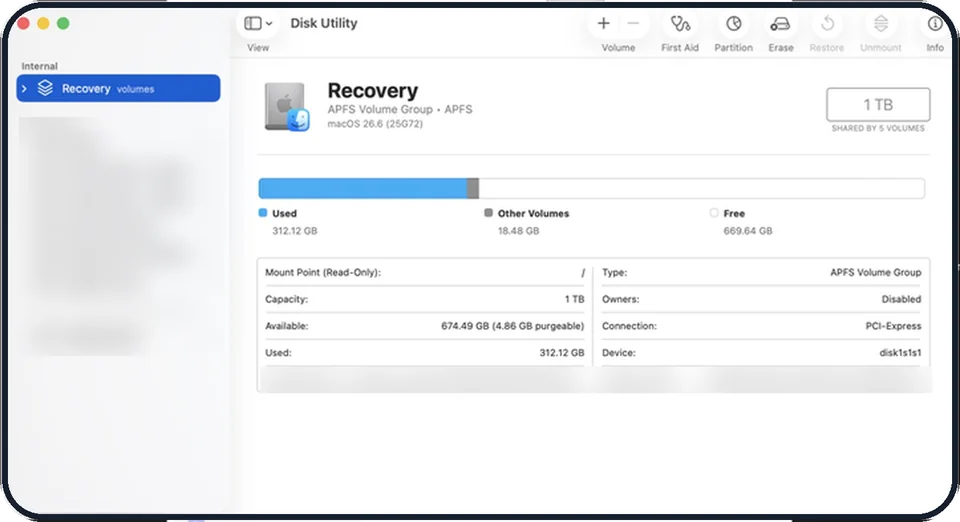
Tap the picture to see it full size Open Disk Utility
Press Command + Space, type Disk Utility and press Return.
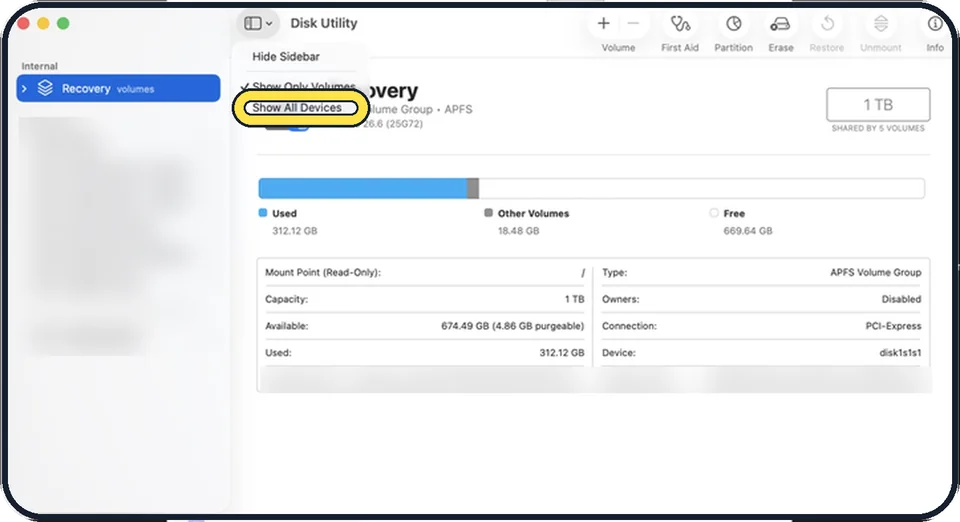
Zoomed in on the setting. Tap to see the whole screenTap the picture to see it full size Show all devices and select the drive
Click the View button and choose Show All Devices. On our Mac the menu lists Hide Sidebar, Show Only Volumes (ticked) and Show All Devices. In the sidebar, click the top entry for the external drive, the one with the maker's name, not the volume indented beneath it.
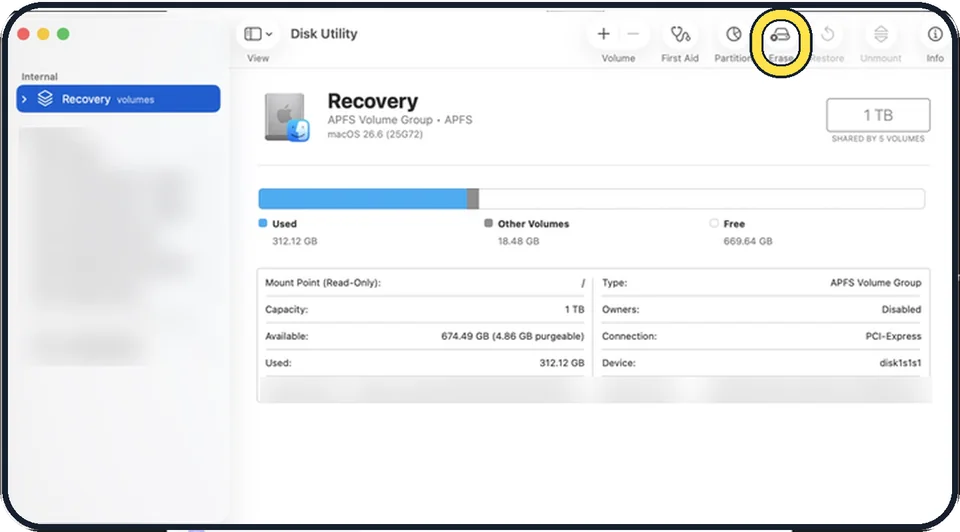
Zoomed in on the setting. Tap to see the whole screenTap the picture to see it full size Click Erase and choose a format
Our picture shows the internal Recovery volume group selected; make sure yours shows the external drive before you click Erase. Choose a format that suits where you will use the drive.
Name the drive and click Erase
It takes from a few seconds to a few minutes. Click Done.
About this guide
A new drive, or one used with Windows before, often needs formatting before a Mac can write to it. The right format depends on where you will use the drive.
The pictures are screenshots of Disk Utility on our Mac.
Good to know
Check twice that you selected the external drive and not the Mac's internal disk.
Always eject a drive before unplugging it: click the eject icon next to its name in Finder. This matters most with ExFAT, which is easier to corrupt.
macOS can read drives formatted as NTFS, the usual Windows format, but cannot write to them.
For Time Machine backups, let Time Machine format the drive itself: how to back up a Mac with Time Machine.
In short: Disk Utility, View, Show All Devices, select the drive, Erase, choose format.
Links checked in October 2026. Menus and features can change after software updates. These steps match the version named at the top.
Did this guide work for you?
Sorry about that. What happened?