
howtosimply.com/guides/how-to-stop-apps-from-opening-at-login-on-a-mac/ · Checked October 2026 · MacBook Pro · macOS Tahoe 26
In this guide
Open System Settings, click General, then Login Items & Extensions. Select an app under Open at Login and click the minus button. Below that, switch off background items you do not need.
3 of 4 steps with real screenshots · 1 official source below
- Device
- Mac
- Shown on
- macOS Tahoe 26 (MacBook Pro)
- App
- System Settings
- Path
- System Settings › General › Login Items & Extensions
- Real screenshots
- 3 of 4 steps
- Checked
- October 2026
- Sources
- 1 official, linked below
Step by step
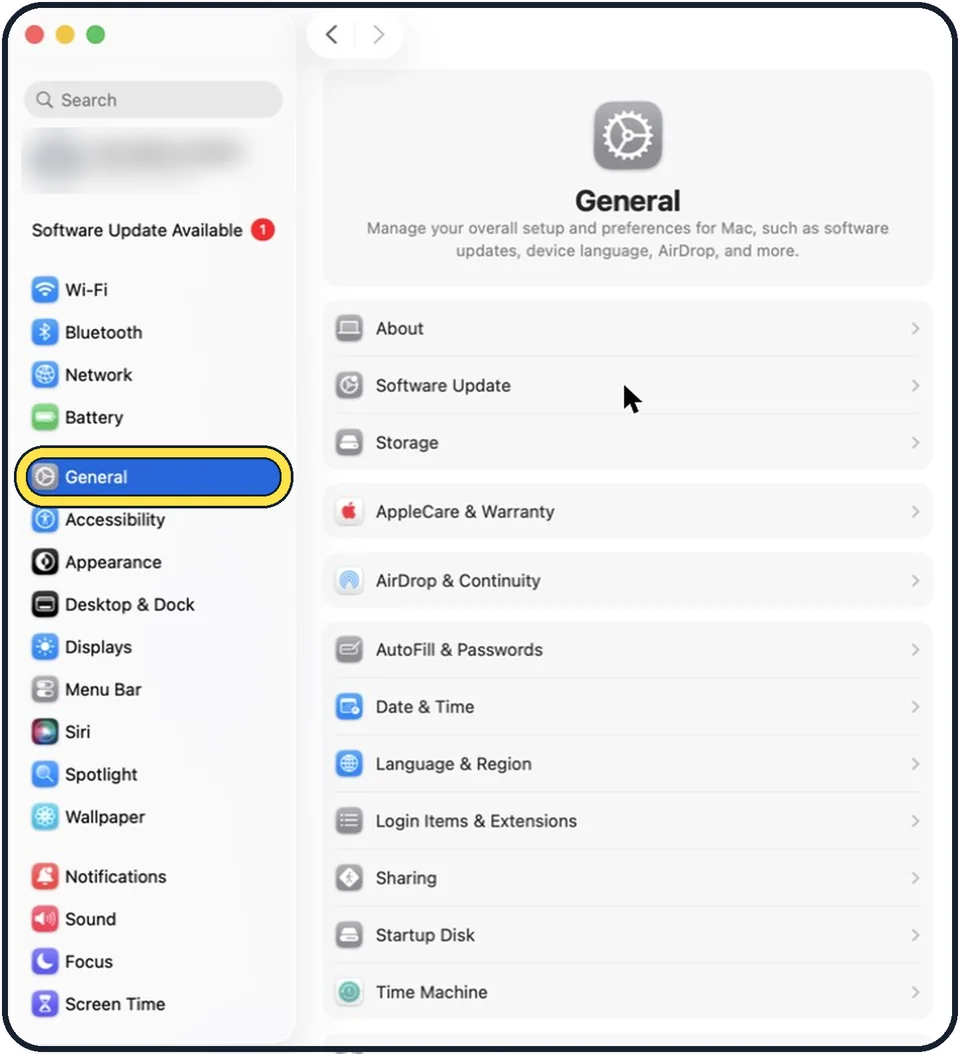
Zoomed in on the setting. Tap to see the whole screenTap the picture to see it full size Open System Settings and click General
Click the Apple menu in the top left corner and choose System Settings. Then click General on the left.
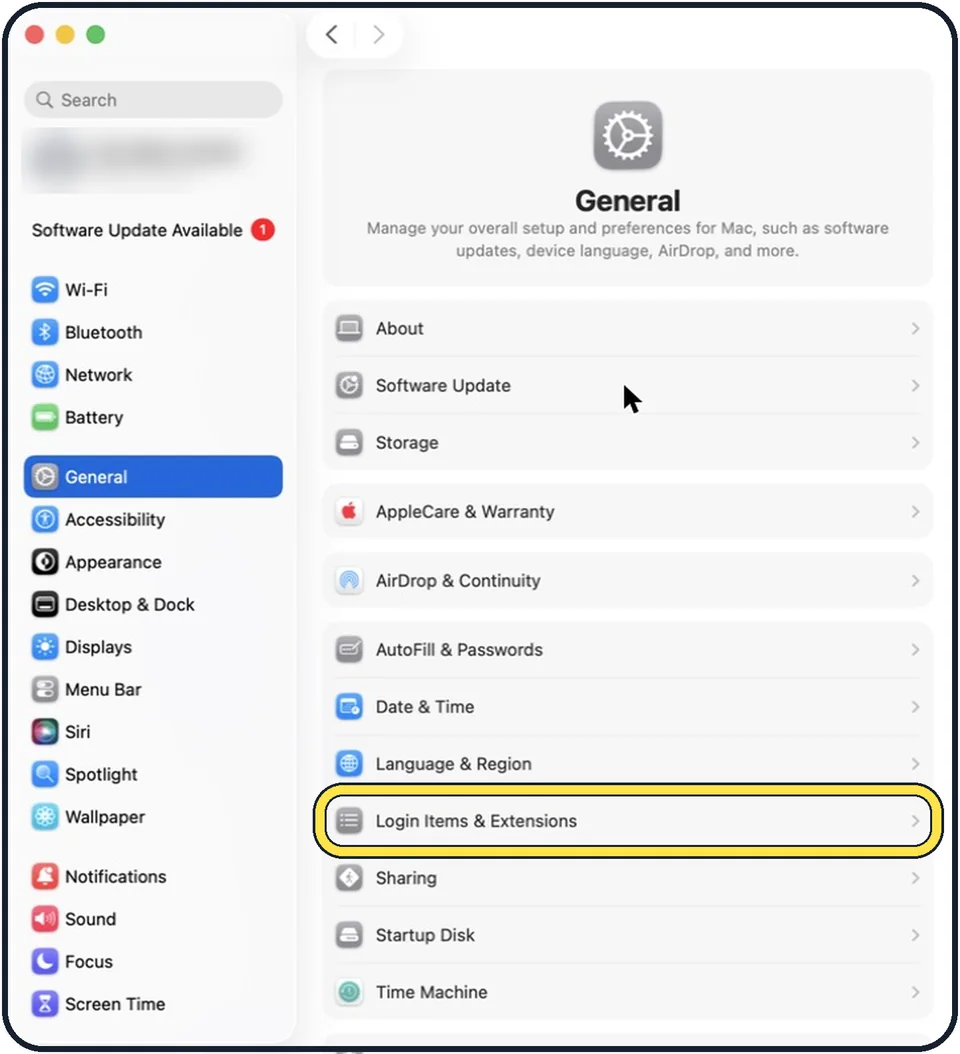
Tap the picture to see it full size Click Login Items & Extensions
On older versions of macOS it is called Login Items.
Remove apps from Open at Login
The top list shows apps that open when you log in. Click one and then click the minus button below the list.
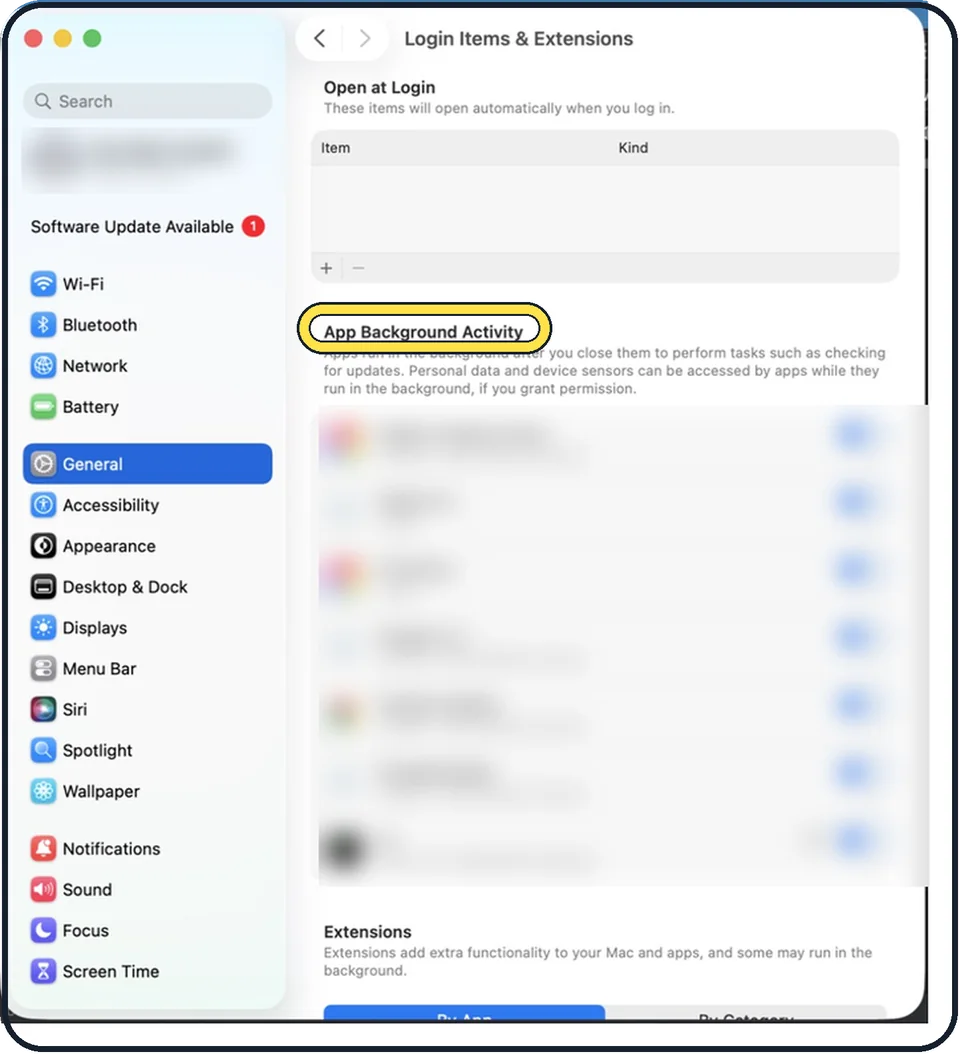
Zoomed in on the setting. Tap to see the whole screenTap the picture to see it full size Switch off background items
The second list, called App Background Activity or Allow in the Background on older versions, shows helpers that run without a window, such as updaters. Switch off the ones for apps you rarely use. Leave on anything from Apple, your backup software and your password manager.
About this guide
Apps that open by themselves when you log in make the Mac slower to start and keep running in the background. You can remove them from the list without uninstalling them.
Good to know
A quick alternative for an app in the Dock: right-click its icon, choose Options and untick Open at Login.
If windows from your last session keep reopening, untick "Reopen windows when logging back in" in the dialog that appears when you restart or shut down.
Mac still slow after login? Mac running slow? 8 fixes to try.
See what is using the processor right now: How to use Activity Monitor on a Mac.
In short: System Settings, General, Login Items & Extensions. Remove apps with the minus button and switch off background items you do not need.
Links checked in October 2026. Menus and features can change after software updates. These steps match the version named at the top.
Did this guide work for you?
Sorry about that. What happened?