
howtosimply.com/guides/internet-works-in-one-browser-but-not-another-on-windows-11/ · Checked October 2026 · Windows 11 Enterprise 25H2 (build 26200.9457), Microsoft Cloud PC
In this guide
If one browser loads pages and another does not, your connection works and a setting is to blame. Check Settings, Network & internet, Proxy for a proxy or script you did not add, set DNS to Automatic (DHCP), then check the failing browser's extensions and secure DNS.
6 of 7 steps with real screenshots · 2 official sources below
- Device
- Windows
- Shown on
- Windows 11 Enterprise 25H2 (build 26200.9457), Microsoft Cloud PC
- App
- Settings
- Real screenshots
- 6 of 7 steps
- Checked
- October 2026
- Sources
- 2 official, linked below
Step by step
Rule out the browser first
Open a private window in the failing browser and load a page. In Edge, this is an InPrivate window, marked InPrivate at the top right.
If the page loads there, an extension or a browser setting is the likely cause: skip to the extension step.
Tap the picture to see it full size Open the Proxy settings
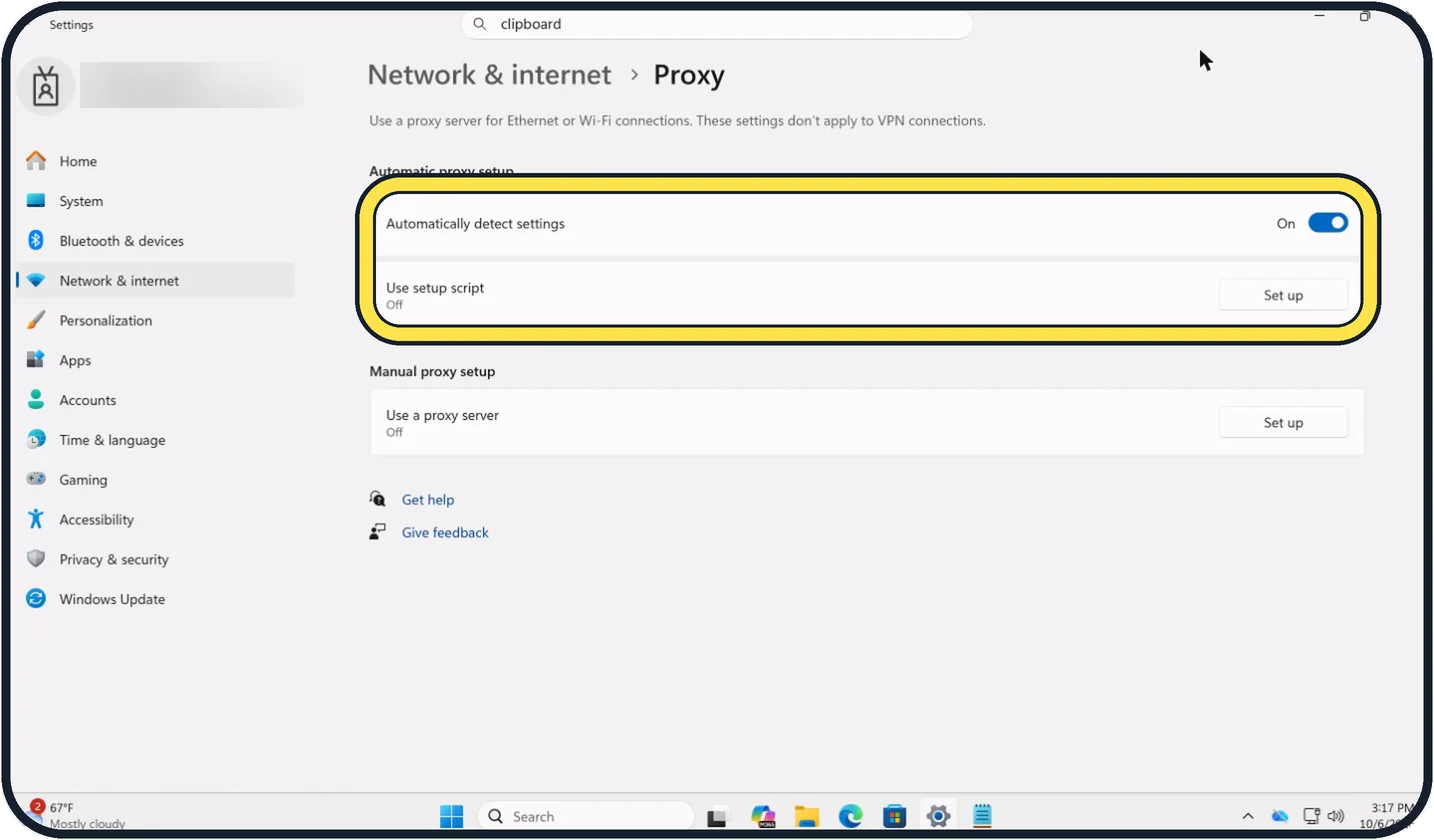
Open Settings, Network & internet, Proxy.
On our Cloud PC, Automatically detect settings is On and Use setup script is Off, which is usual for a home PC.
Tap the picture to see it full size Switch off a proxy you did not set up
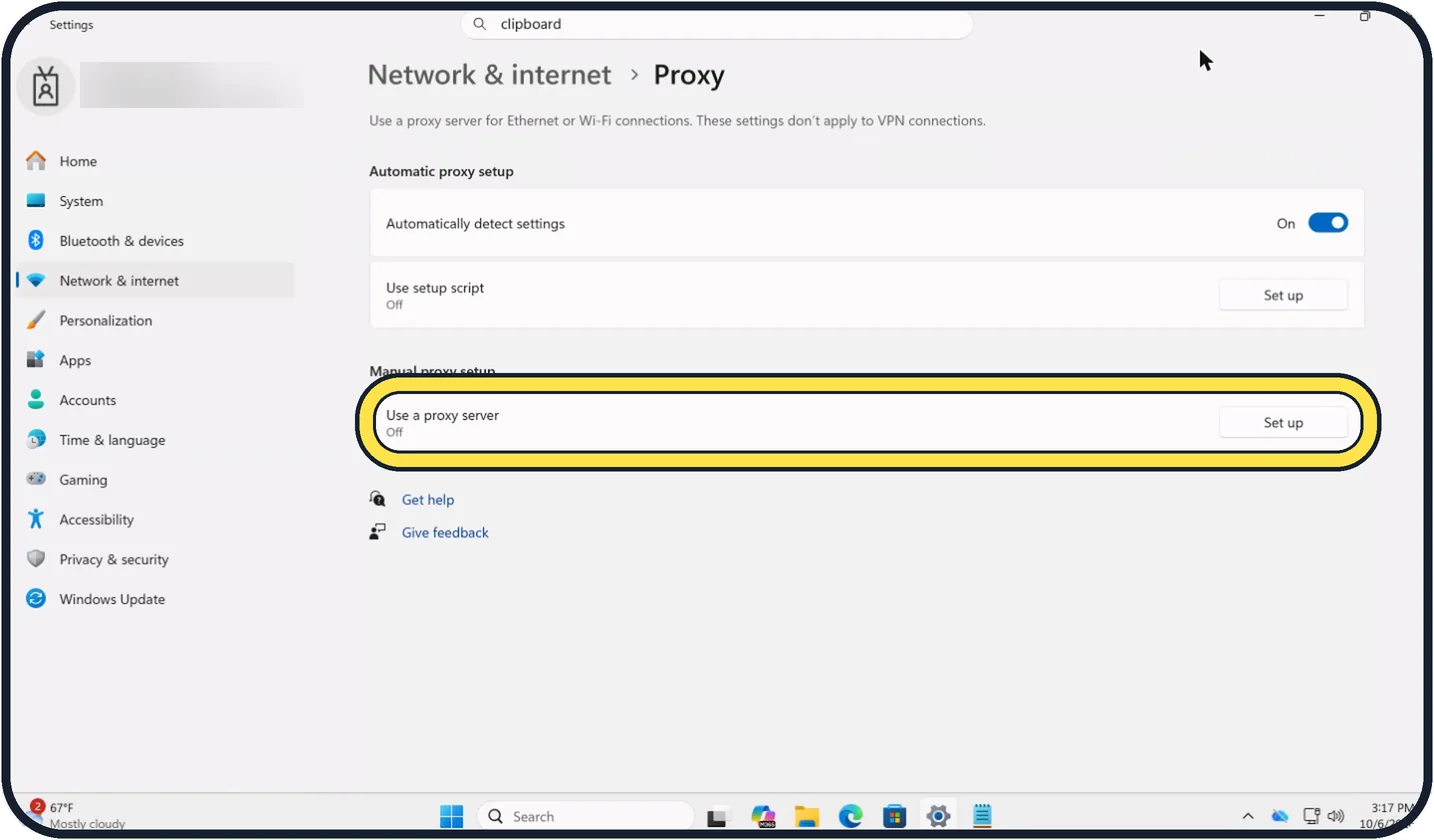
Under Manual proxy setup, Use a proxy server should say Off unless your workplace gave you one.
A proxy added by unwanted software can block some browsers. Click Set up and switch it off.
Tap the picture to see it full size Check the DNS setting
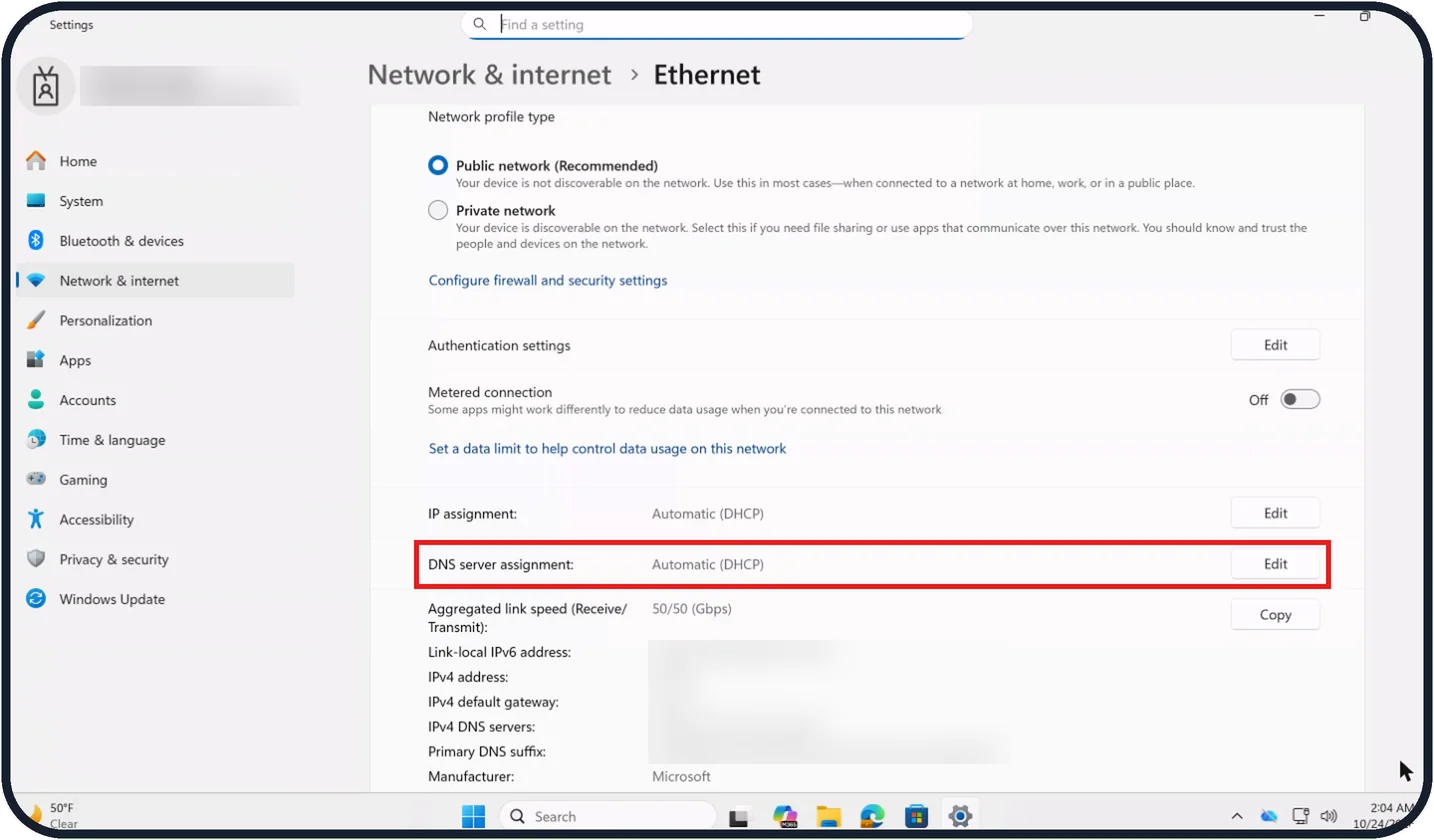
Open Network & internet, Ethernet or Wi-Fi, then your network.
On our Cloud PC, both IP assignment and DNS server assignment show Automatic (DHCP).
Click Edit next to DNS server assignment.
Tap the picture to see it full size Set DNS back to Automatic
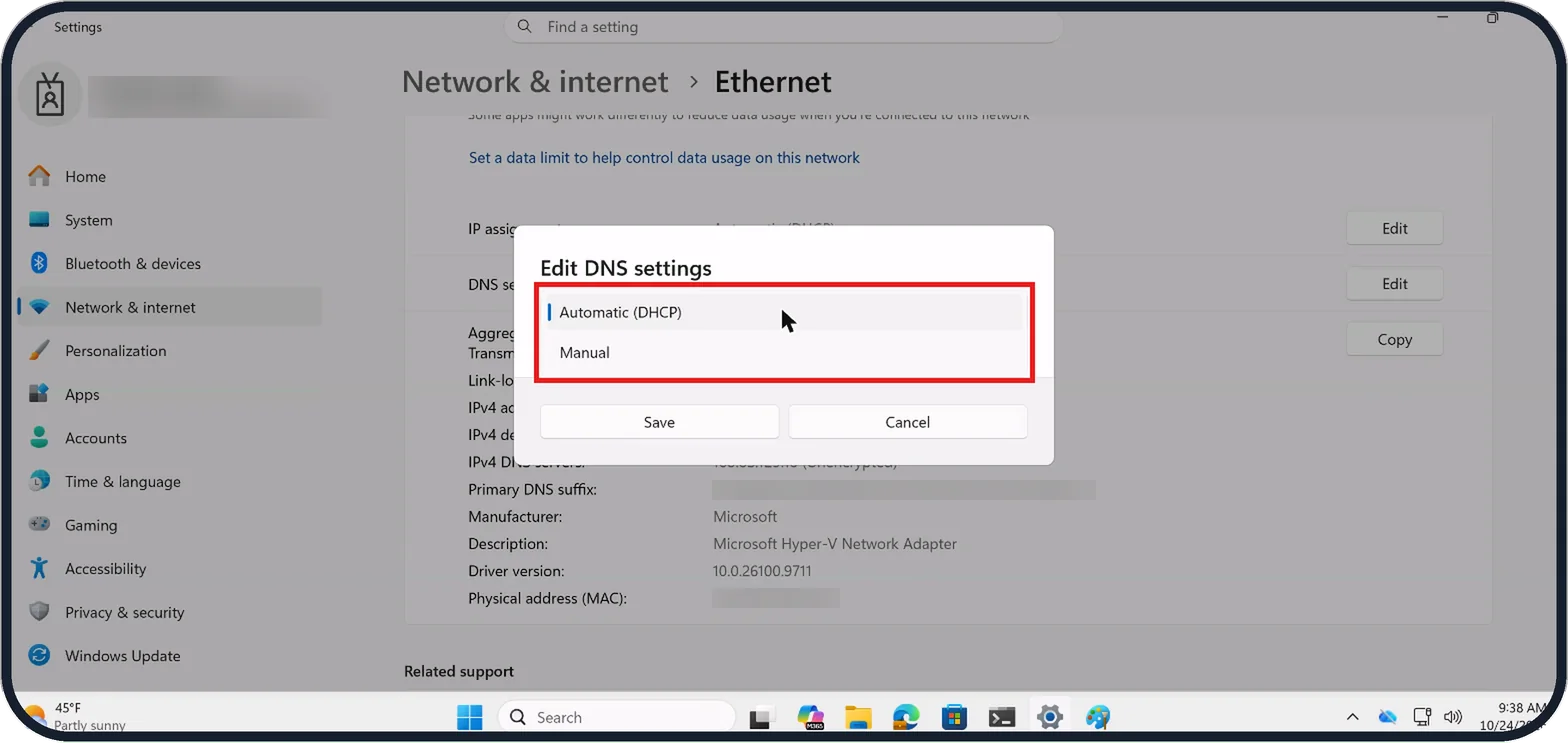
In the Edit DNS settings box, choose Automatic (DHCP) from the list and click Save, unless you set a DNS server on purpose.
On our Cloud PC, the list offers two choices: Automatic (DHCP) and Manual.
If the box shows Manual, Microsoft says the DNS server addresses were typed in by hand; picking Automatic (DHCP) lets the router set them.
Tap the picture to see it full size Switch off the browser's extensions
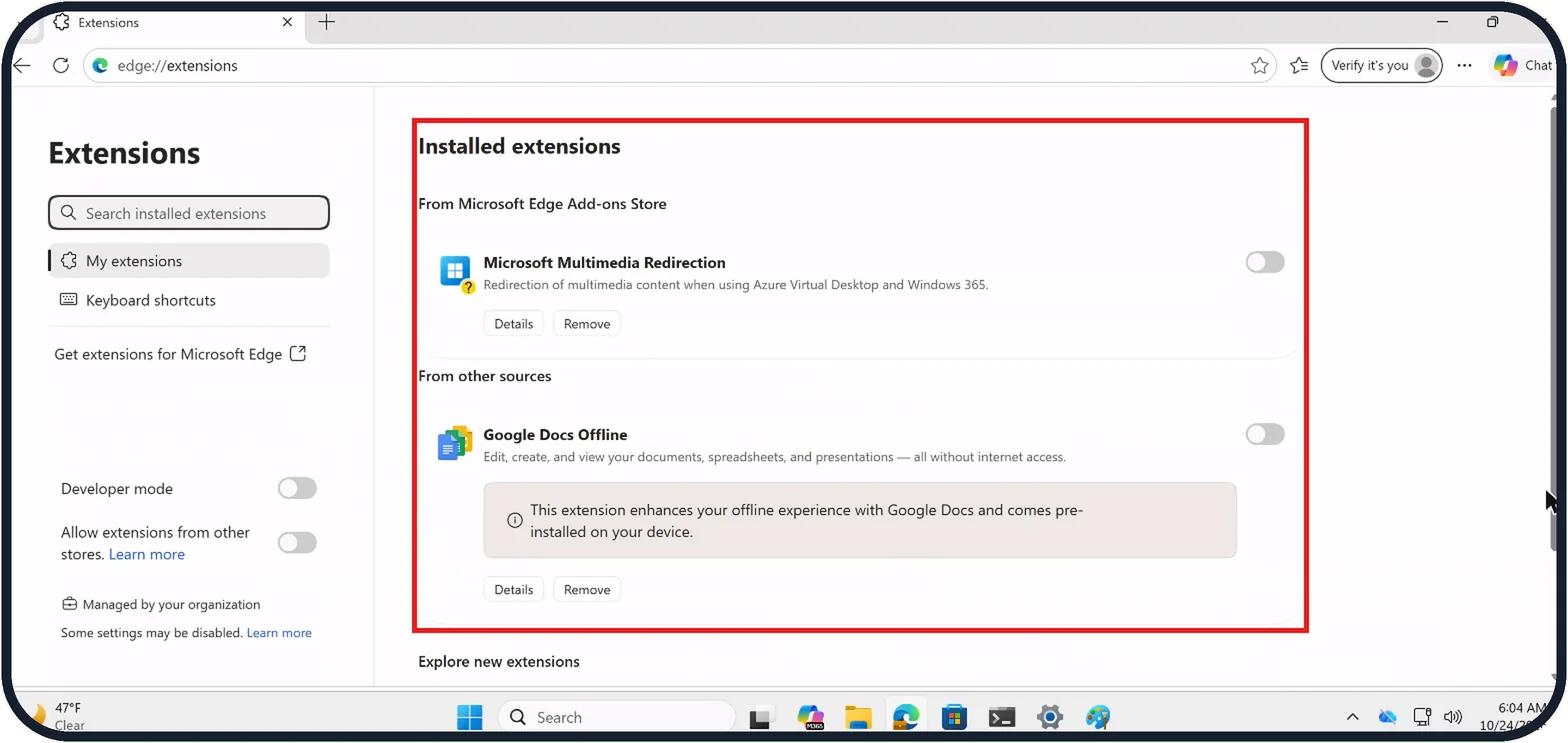
In Edge, go to edge://extensions and switch off every extension under Installed extensions, then try again. A VPN or ad blocker extension is a common cause.
On our Cloud PC, the list shows Microsoft Multimedia Redirection and Google Docs Offline, both switched off, and the page says Managed by your organization.
Tap the picture to see it full size Check the browser's secure DNS
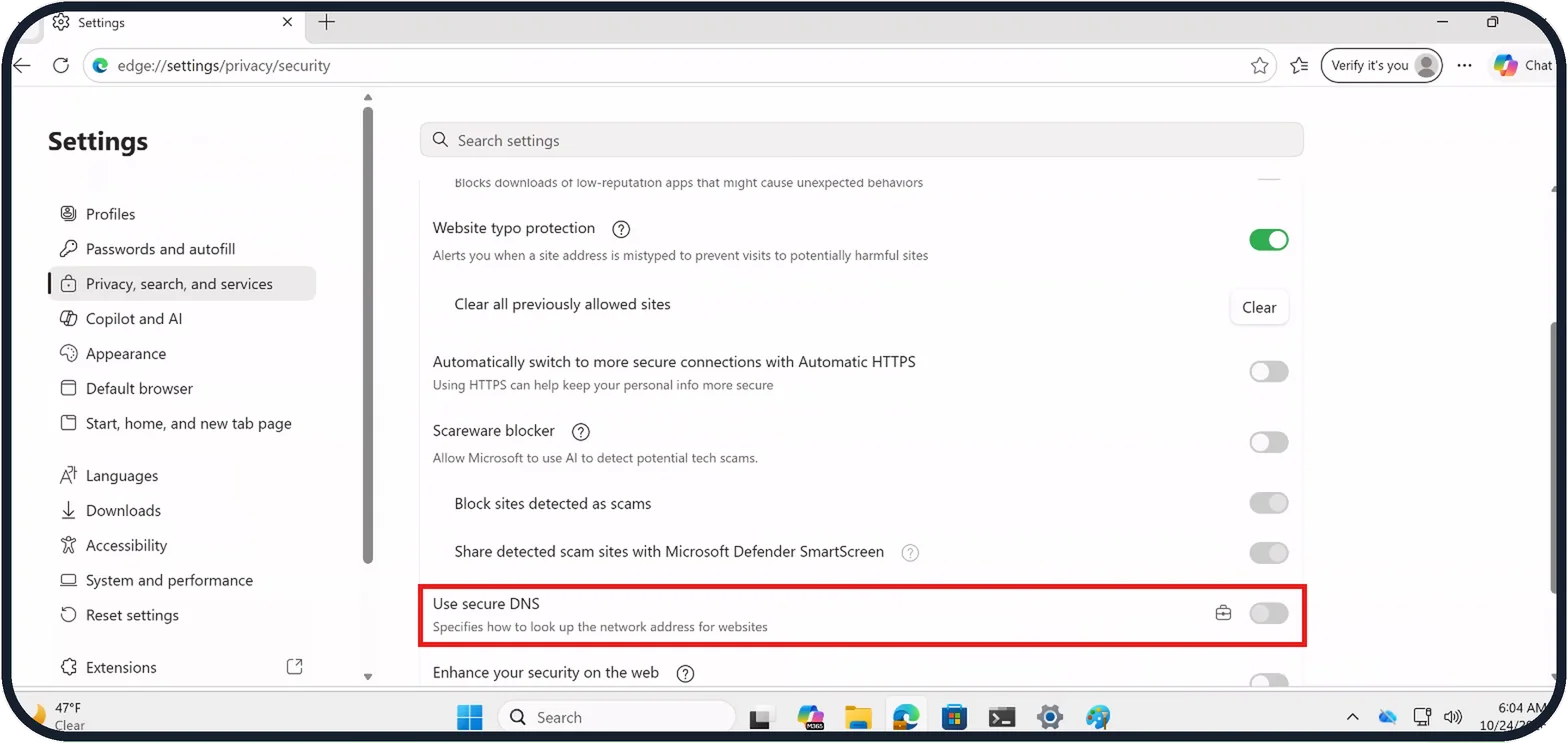
In Edge, open Settings, Privacy, search, and services and scroll to Use secure DNS. If it is on with a provider you did not choose, switch it off and try again.
A briefcase icon next to the switch means your organisation controls it.
If you do not see this option
- Your PC uses Wi-Fi Microsoft says to open Wi-Fi, Manage known networks and choose your network to reach its IP and DNS settings, instead of the Ethernet page in our pictures. Sources: Use a proxy server in Windows, Essential Network Settings and Tasks in Windows
- Use a proxy server is On on a work PC Microsoft says some companies require a proxy server and give out its details. Leave it on and ask your IT department. Sources: Use a proxy server in Windows, Essential Network Settings and Tasks in Windows
- Use secure DNS cannot be changed A briefcase icon next to the switch means your organisation manages it, as on our Cloud PC. Ask your IT department.
If this does not work
- Use setup script is on and you did not add it Microsoft says a setup script is only needed when your organisation uses one. Click Set up next to Use setup script and switch it off. Sources: Use a proxy server in Windows, Essential Network Settings and Tasks in Windows
- Only the VPN connection fails The Proxy page on our Cloud PC says its settings don't apply to VPN connections. Microsoft says a VPN has its own: Network & internet, VPN, select the connection, Advanced options, then Edit next to Proxy settings for this VPN connection. Sources: Use a proxy server in Windows, Essential Network Settings and Tasks in Windows
- Edit DNS settings already shows Automatic (DHCP) DNS is not the cause. Click Cancel to close the box without changing anything and go on to the browser steps.
- Extensions page says Managed by your organization Some extensions and settings may be locked by your organisation, as on our Cloud PC. Ask your IT department before removing them.
About this guide
When Chrome works but Edge does not, or the other way round, Windows itself is online. People on Microsoft Q&A asked about exactly this in late September 2026. The usual causes are a proxy, a DNS setting, or something inside the one browser that fails.
The screenshots are our own, taken on Windows 11 Enterprise 25H2 running as a Microsoft Cloud PC, a Windows PC that runs in the cloud. Edge on our Cloud PC is managed by an organisation, so some of its settings are locked.
Good to know
Security software can block one browser. If you run another antivirus besides Windows Security, check its web protection or firewall list for that browser.
Nothing works in any browser? Start with Ethernet not working on Windows 11: 6 fixes to try.
In short: Private window first. Then Settings, Network & internet, Proxy: no unknown proxy. DNS server assignment: Automatic (DHCP). Then the browser's extensions and its Use secure DNS setting.
- Microsoft Support: Use a proxy server in Windows
- Microsoft Support: Essential Network Settings and Tasks in Windows
Links checked in October 2026. Menus and features can change after software updates. These steps match the version named at the top.
📷 Camera Lab: the same 6 scenes photographed with 11 phones, side by side.
Did this guide work for you?
Sorry about that. What happened?