
howtosimply.com/guides/how-to-change-the-default-browser-on-windows-11/ · Checked October 2026 · Windows 11 Enterprise 25H2 (build 26200.9457), Microsoft Cloud PC
In this guide
Open Settings, choose Apps, then Default apps. Click the browser you want, such as Chrome or Firefox, and click Set default at the top of its page.
4 of 5 steps with real screenshots · 1 official source below
- Device
- Windows
- Shown on
- Windows 11 Enterprise 25H2 (build 26200.9457), Microsoft Cloud PC
- App
- Settings
- Path
- Settings › Apps › Default apps
- Real screenshots
- 4 of 5 steps
- Checked
- October 2026
- Sources
- 1 official, linked below
Step by step
Install the browser first
Download Chrome, Firefox, Brave or another browser from its official website and run the installer.
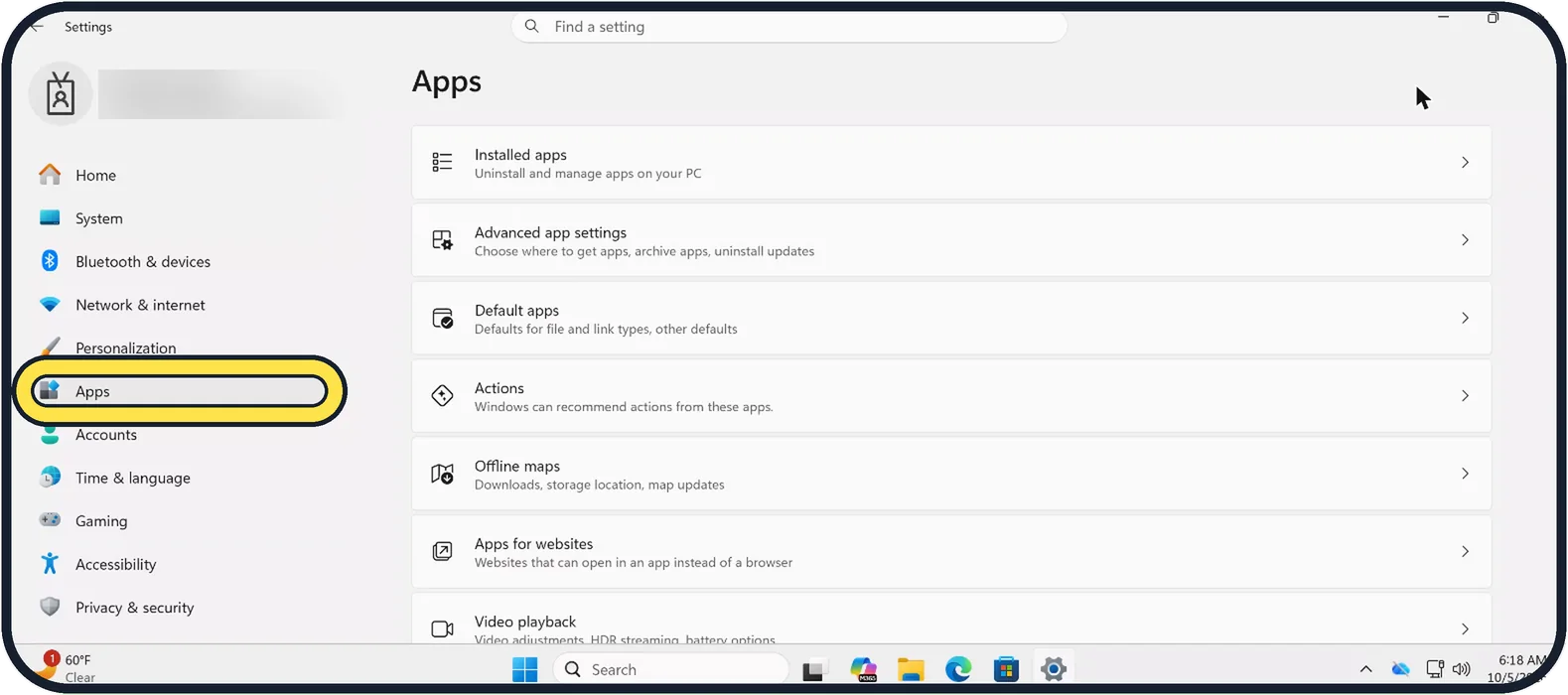
Zoomed in on the setting. Tap to see the whole screenTap the picture to see it full size Open Settings and choose Apps
Press Windows + I and click Apps on the left.
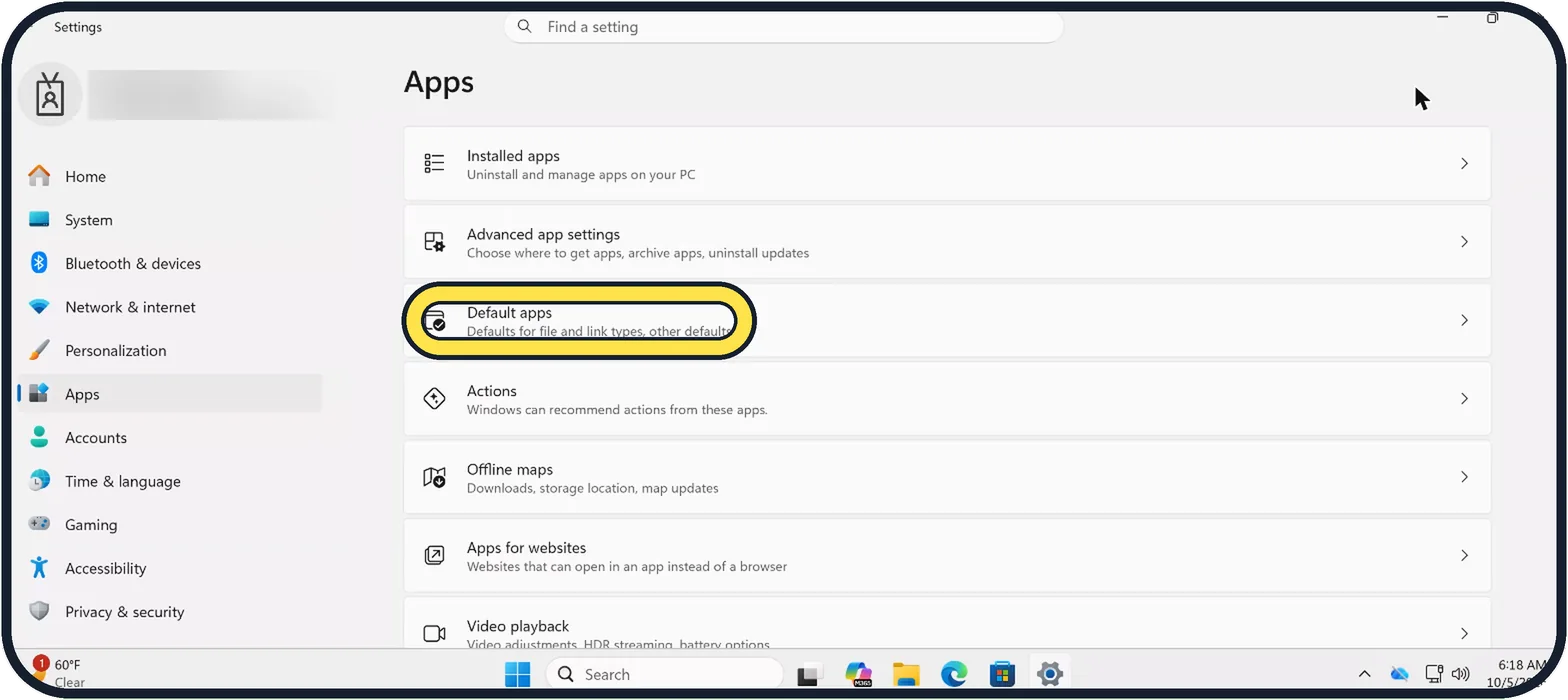
Zoomed in on the setting. Tap to see the whole screenTap the picture to see it full size Click Default apps
A list of every installed app appears under Set defaults for applications.
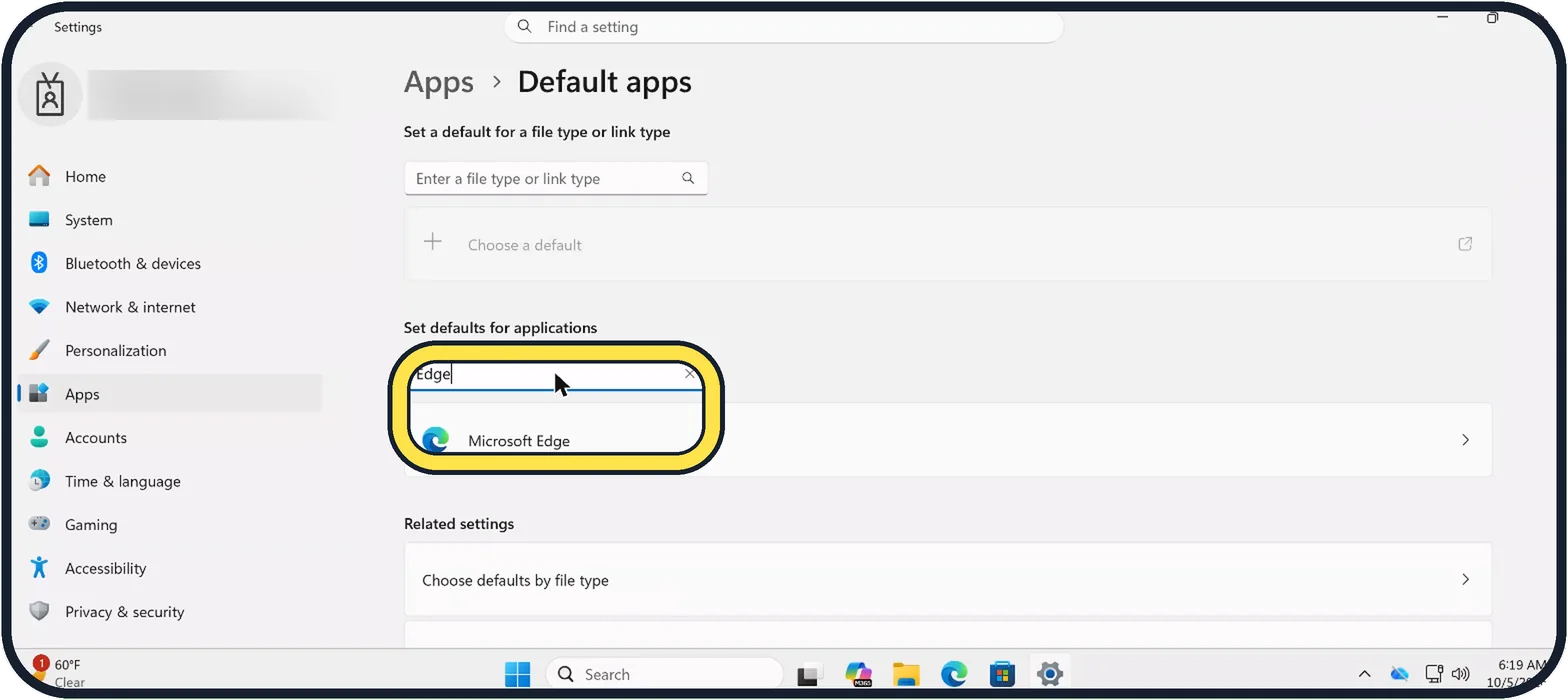
Zoomed in on the setting. Tap to see the whole screenTap the picture to see it full size Click your browser in the list
Scroll, or type its name into the Search apps box, then click it.
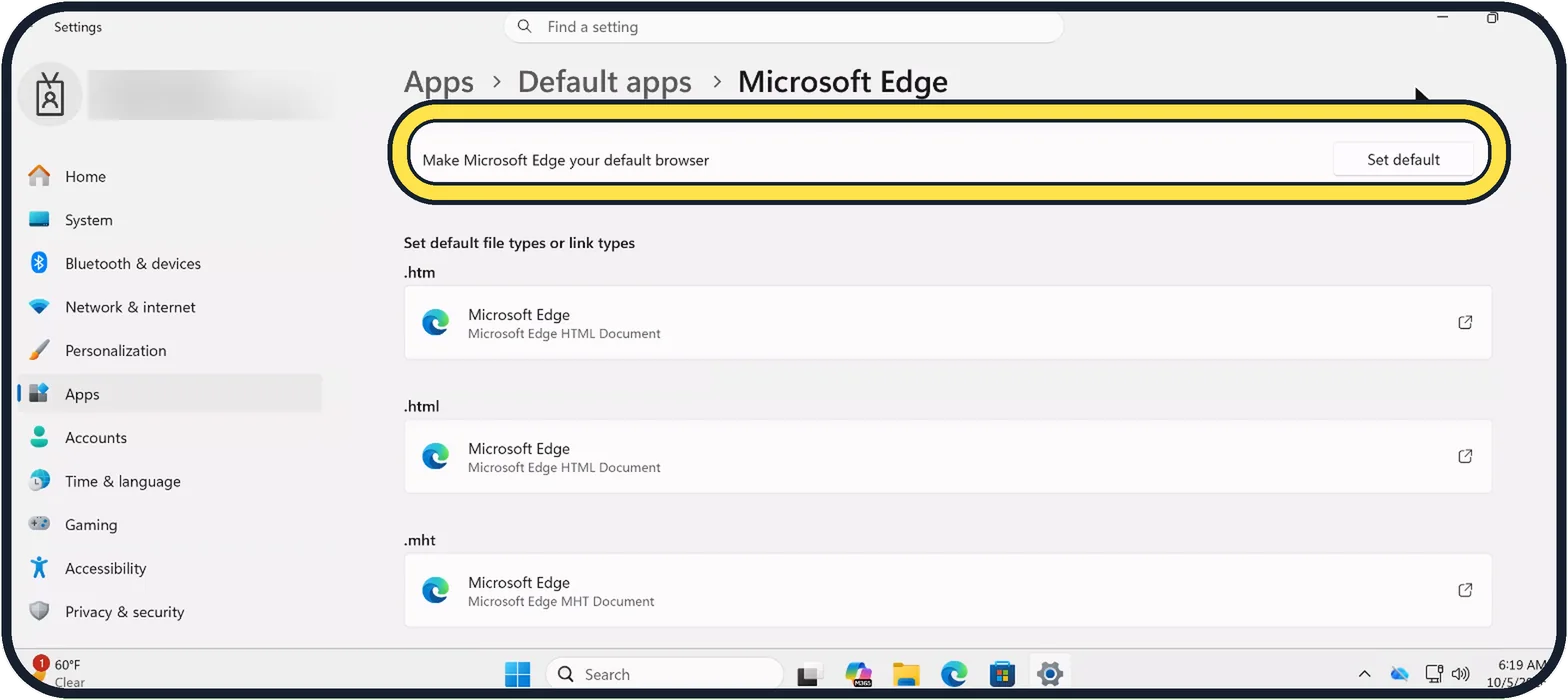
Tap the picture to see it full size Click Set default
The button is at the top of the browser's page, next to "Make ... your default browser". Web links, HTML files and web shortcuts now open in that browser.
About this guide
Windows 11 opens links in Microsoft Edge until you tell it otherwise. Switching takes four clicks once the other browser is installed.
No other browser could be installed on our Cloud PC, so the screenshots show the page for Microsoft Edge. Every browser has the same page with the same Set default button.
Good to know
PDF files may still open in Edge. On the same page, click .pdf and choose the app you prefer.
Links inside some Windows features, such as the search box and Widgets, may still open in Edge.
Most browsers also offer a "Make default" button in their own settings, which brings you to this page.
In short: Settings, Apps, Default apps, choose the browser, Set default.
Links checked in October 2026. Menus and features can change after software updates. These steps match the version named at the top.
Did this guide work for you?
Sorry about that. What happened?