
howtosimply.com/guides/how-to-check-if-your-drive-is-encrypted-with-bitlocker-on-windows-11/ · Checked October 2026 · Windows 11 Enterprise 25H2 (build 26200.9457), Microsoft Cloud PC
In this guide
Open Start, type BitLocker and open Manage BitLocker. Next to Windows (C:) it says BitLocker on or BitLocker off. In Settings, Privacy & security, a Device encryption entry appears only on PCs that support it.
4 of 4 steps with real screenshots · 1 official source below
- Device
- Windows
- Shown on
- Windows 11 Enterprise 25H2 (build 26200.9457), Microsoft Cloud PC
- App
- Settings
- Path
- Settings › Privacy & security
- Real screenshots
- 4 of 4 steps
- Checked
- October 2026
- Sources
- 1 official, linked below
Step by step
Tap the picture to see it full size Look in Privacy & security
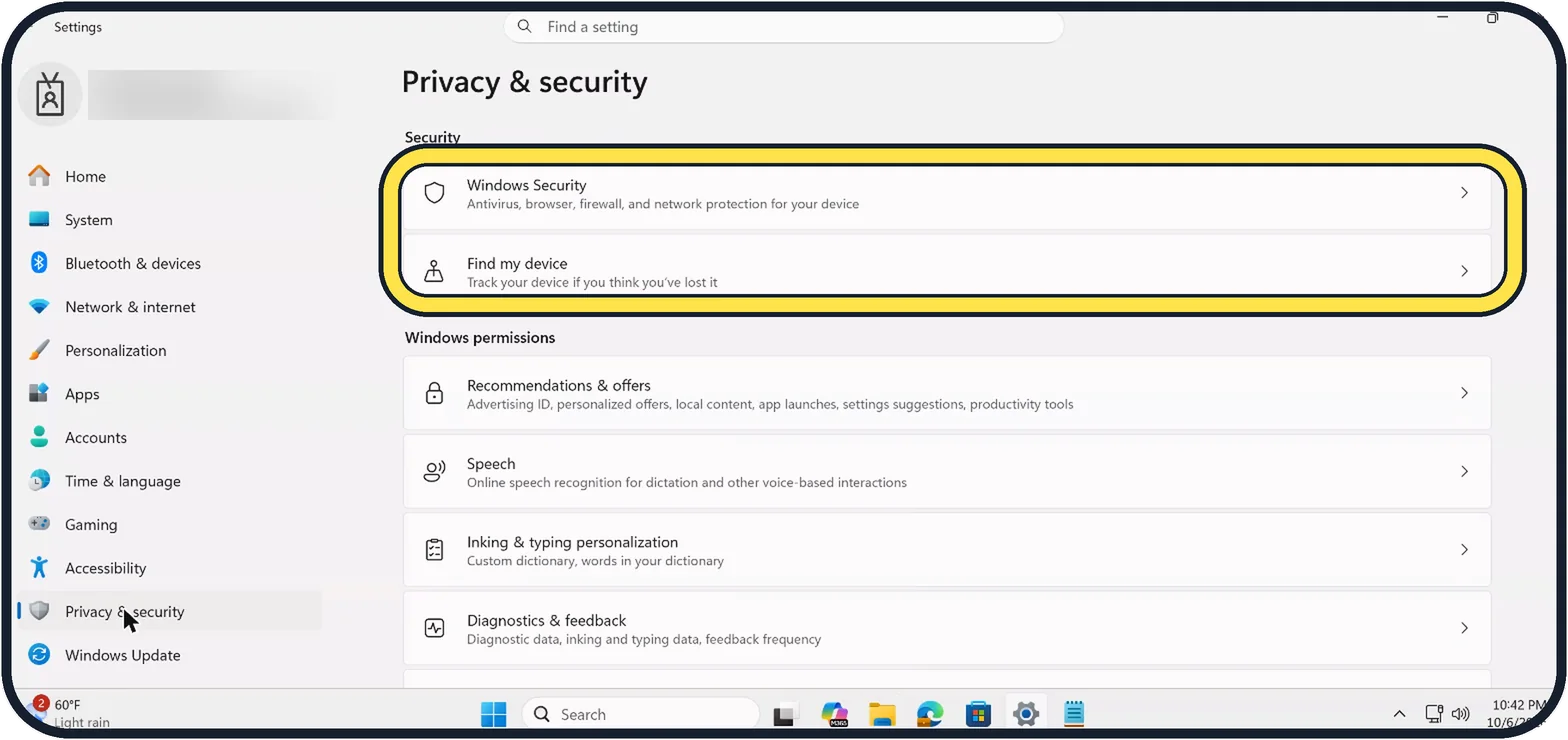
Press Windows + I and click Privacy & security. On PCs that support device encryption, a Device encryption entry is listed under Security. Our Cloud PC lists only Windows Security and Find my device, so it has none.
Zoomed in on the setting. Tap to see the whole screenTap the picture to see it full size Search for BitLocker
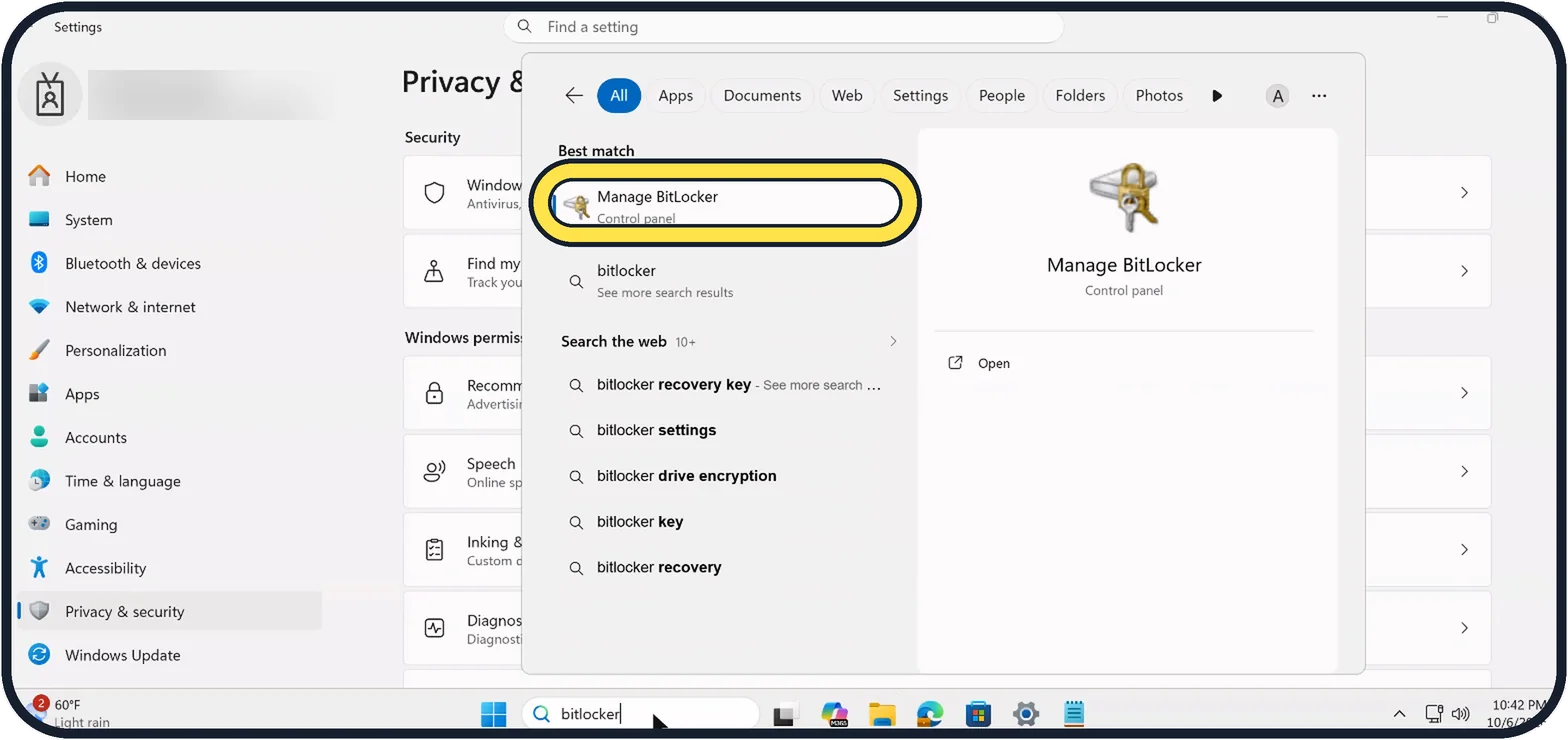
Open Start and type bitlocker. Click Manage BitLocker.
Zoomed in on the setting. Tap to see the whole screenTap the picture to see it full size Read the drive status
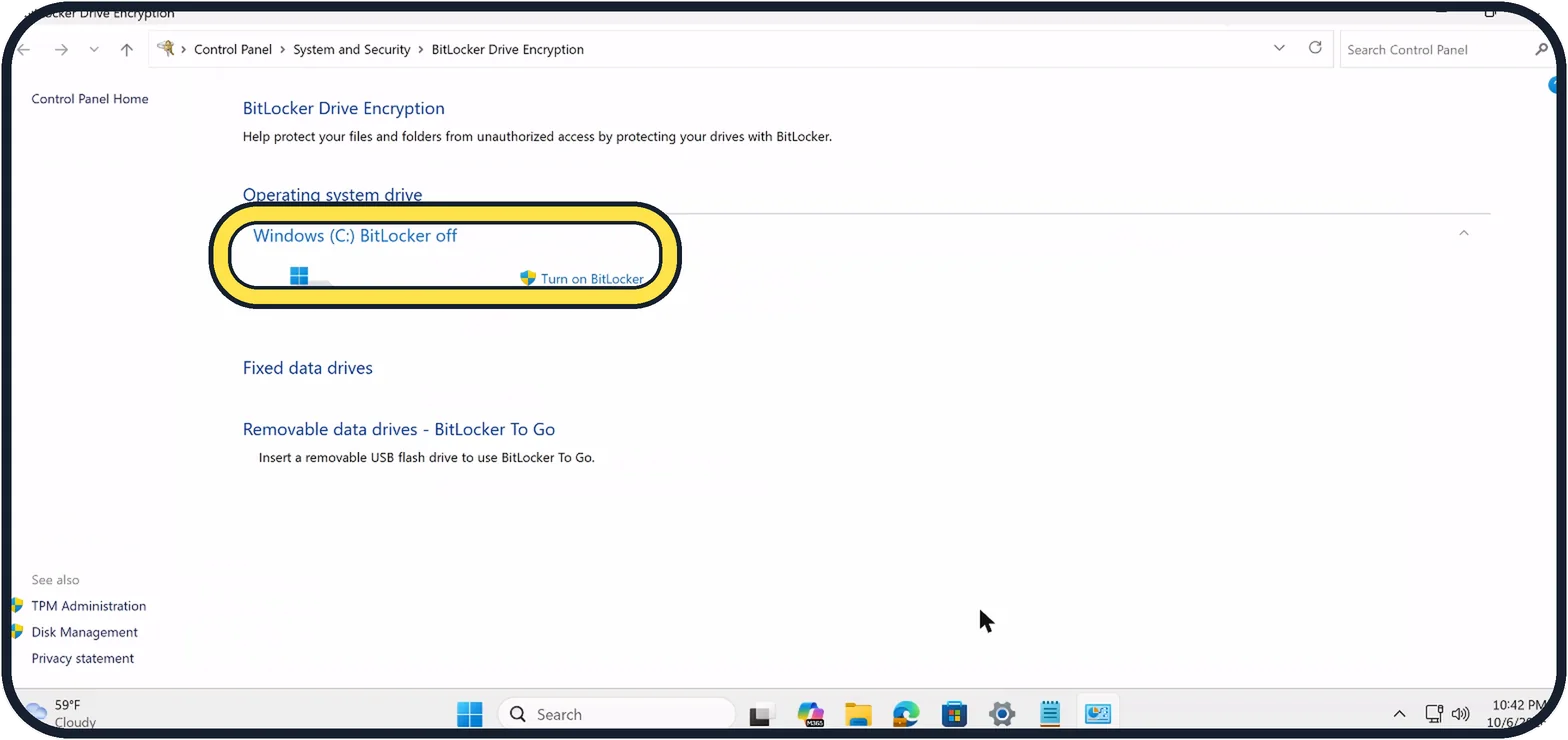
Under Operating system drive, Windows (C:) shows BitLocker on or off. Ours is off. Turn on BitLocker next to it starts encryption and needs an administrator; we did not click it.
Zoomed in on the setting. Tap to see the whole screenTap the picture to see it full size Or right-click the drive
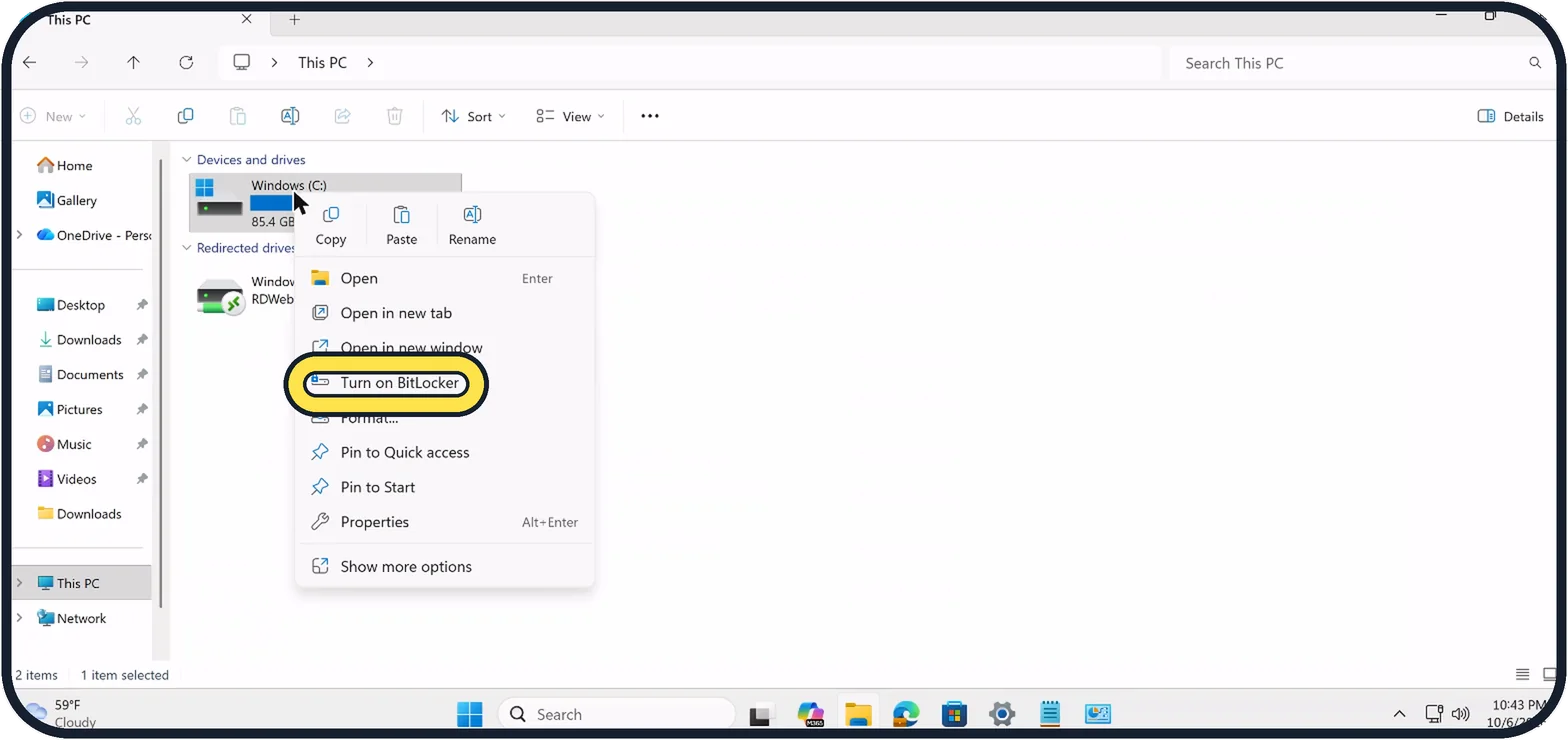
In File Explorer, open This PC and right-click Windows (C:). Turn on BitLocker in the menu means the drive is not encrypted with BitLocker yet.
If you do not see this option
- No Device encryption entry Microsoft says it is either unavailable on the PC, or you are signed in with a standard user account. Sign in with an administrator account and look again. Source: Device Encryption in Windows
- Your PC runs Windows 11 Home Microsoft says BitLocker Drive Encryption is on Pro, Enterprise and Education. Home gets Device Encryption on supported PCs instead. Source: Device Encryption in Windows
If this does not work
- Device encryption is off with a local account Microsoft says it turns on by itself only when you sign in with a Microsoft account or a work or school account. Source: Device Encryption in Windows
- You want to know why it is unavailable Microsoft says to run System Information as administrator and read Device Encryption Support. Meets prerequisites means it is available; TPM is not usable or WinRE is not configured says why not. Source: Device Encryption in Windows
About this guide
Encryption protects your files if the PC is lost or stolen, but it also means you need a recovery key if Windows ever asks for it. Check the state first; the check changes nothing.
Good to know
Before you turn encryption on, know where the recovery key will be saved. With a Microsoft account it is stored in that account; without the key, an encrypted drive cannot be opened if Windows asks for it.
Windows 11 Home has device encryption instead of BitLocker on supported PCs. It is the Device encryption entry under Privacy & security from step 1.
Removable data drives - BitLocker To Go on the same page encrypts USB sticks.
In short: Start, bitlocker, Manage BitLocker: Windows (C:) BitLocker on or off. Settings, Privacy & security: Device encryption if supported.
Links checked in October 2026. Menus and features can change after software updates. These steps match the version named at the top.
📷 Camera Lab: the same 6 scenes photographed with 11 phones, side by side.
Did this guide work for you?
Sorry about that. What happened?