
howtosimply.com/guides/how-to-add-a-keyboard-language-on-windows-11/ · Checked October 2026 · Windows 11 Enterprise 25H2 (build 26200.9457), Microsoft Cloud PC
In this guide
Open Settings, Time & language, Language & region. Click the three dots next to your language, choose Language options and, under Keyboards, click Add a keyboard. To type in a new language, click Add a language first. Switch between keyboards with Windows + Spacebar.
6 of 8 steps with real screenshots · 1 official source below
- Device
- Windows
- Shown on
- Windows 11 Enterprise 25H2 (build 26200.9457), Microsoft Cloud PC
- App
- Settings
- Path
- Settings › Time & language › Language & region
- Real screenshots
- 6 of 8 steps
- Checked
- October 2026
- Sources
- 1 official, linked below
Step by step
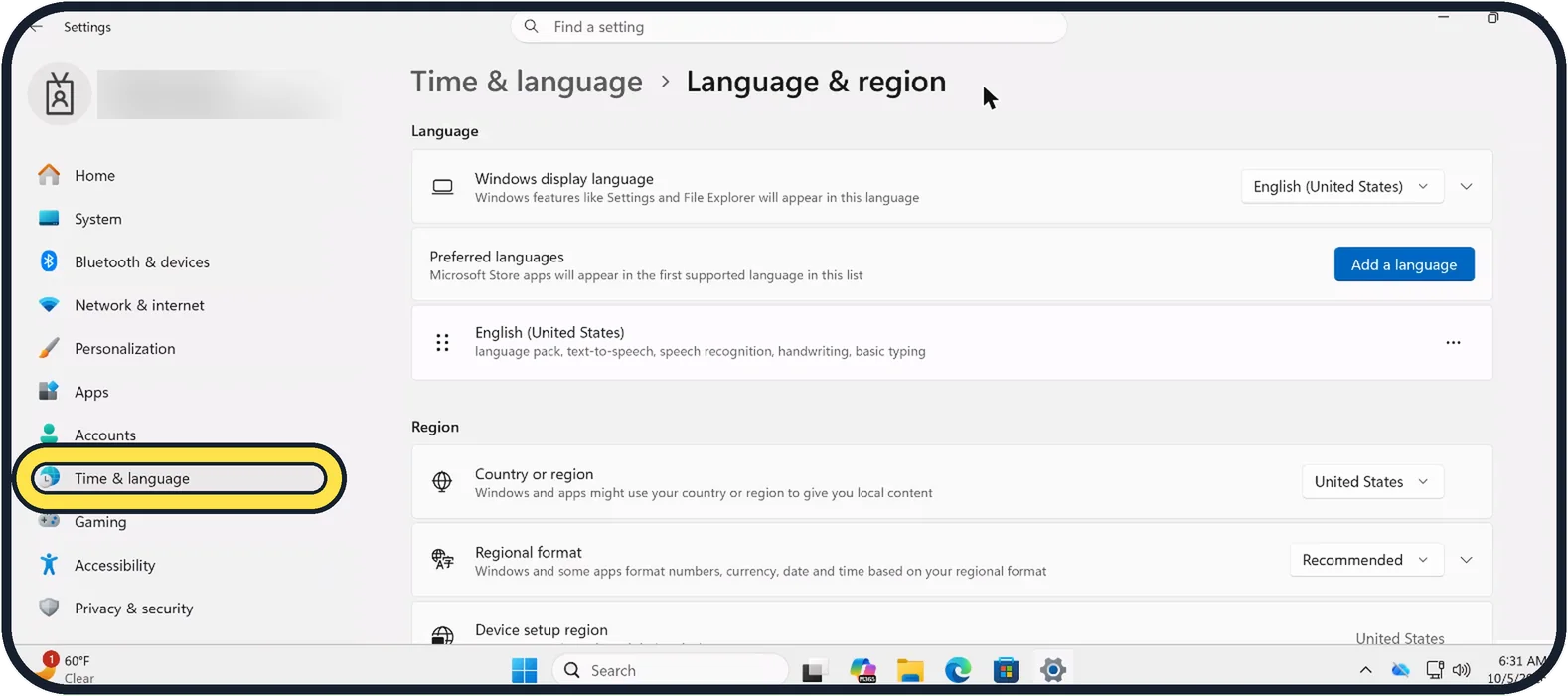
Zoomed in on the setting. Tap to see the whole screenTap the picture to see it full size Open Language & region
Open Start, Settings, click Time & language and then Language & region.
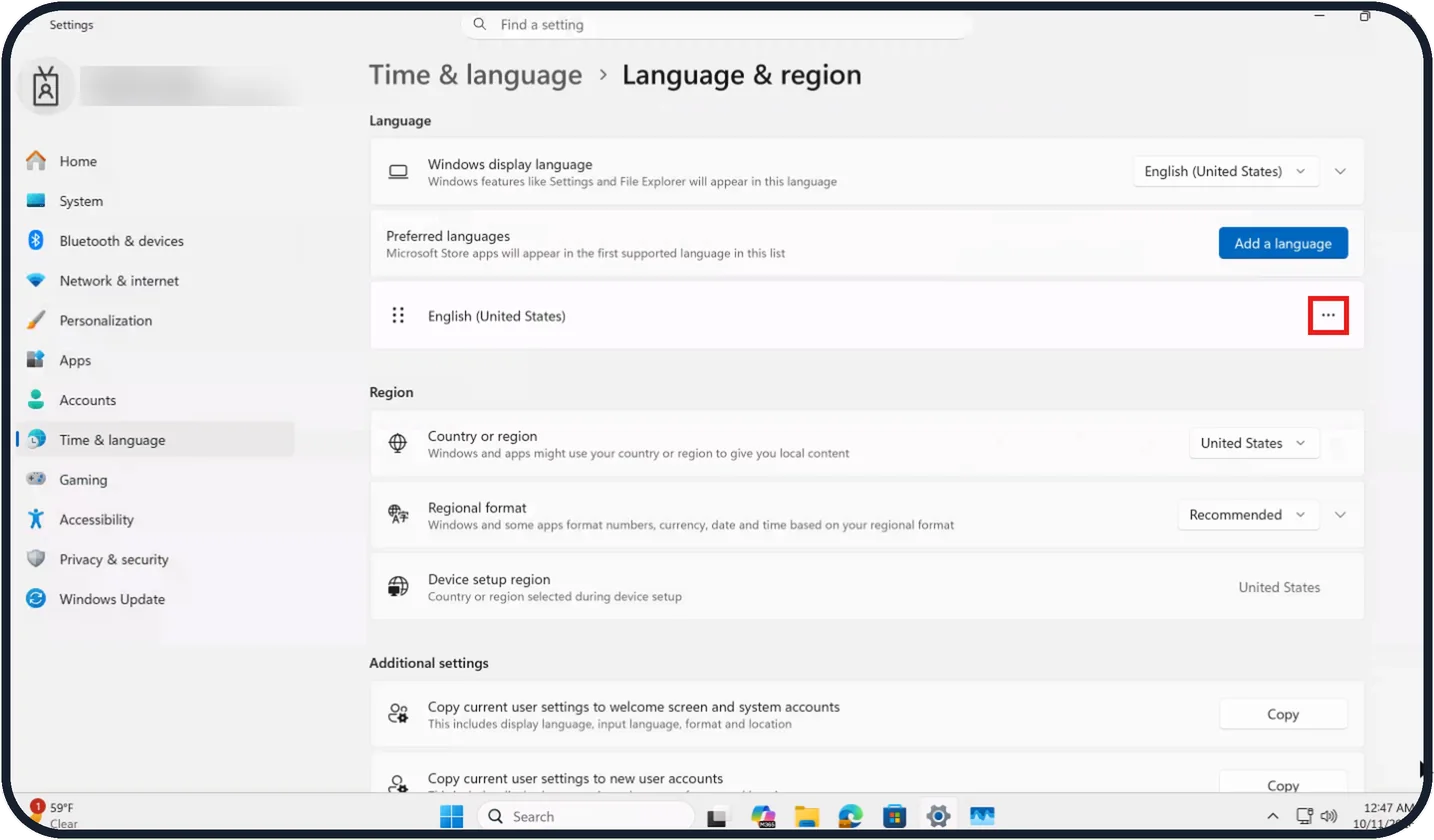
Tap the picture to see it full size Open Language options
To add only a keyboard layout, click the three dots (…) at the right of your language, here English (United States).
Microsoft says the menu that opens has Language options: choose it. On our Cloud PC English (United States) was the only language under Preferred languages, and its three dots sit at the far right of that row.
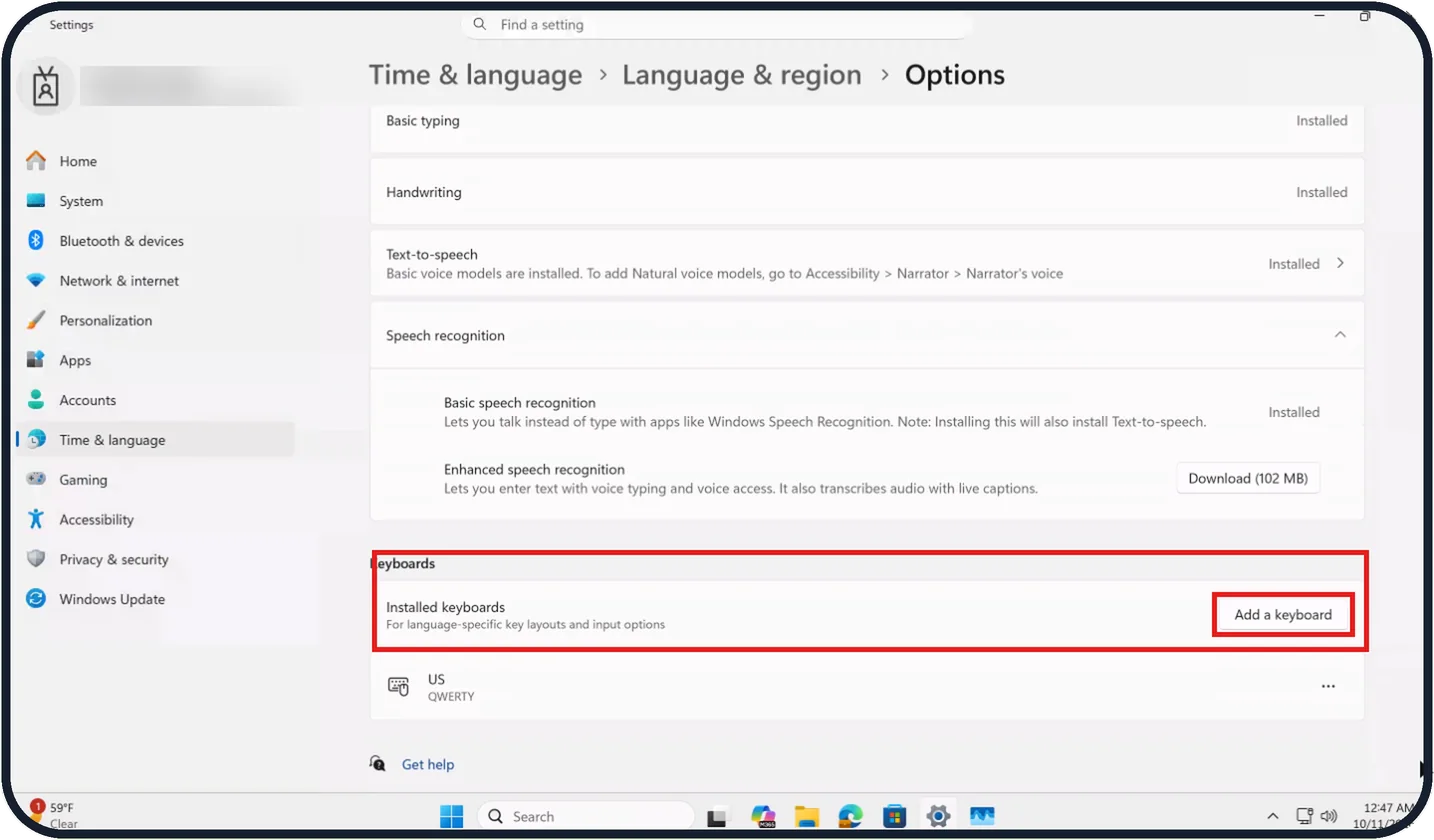
Tap the picture to see it full size Add a keyboard
Scroll down to Keyboards and click Add a keyboard next to Installed keyboards.
According to Microsoft, you then pick the layout from the list and it appears under Installed keyboards. On our Cloud PC only US (QWERTY) was listed there.
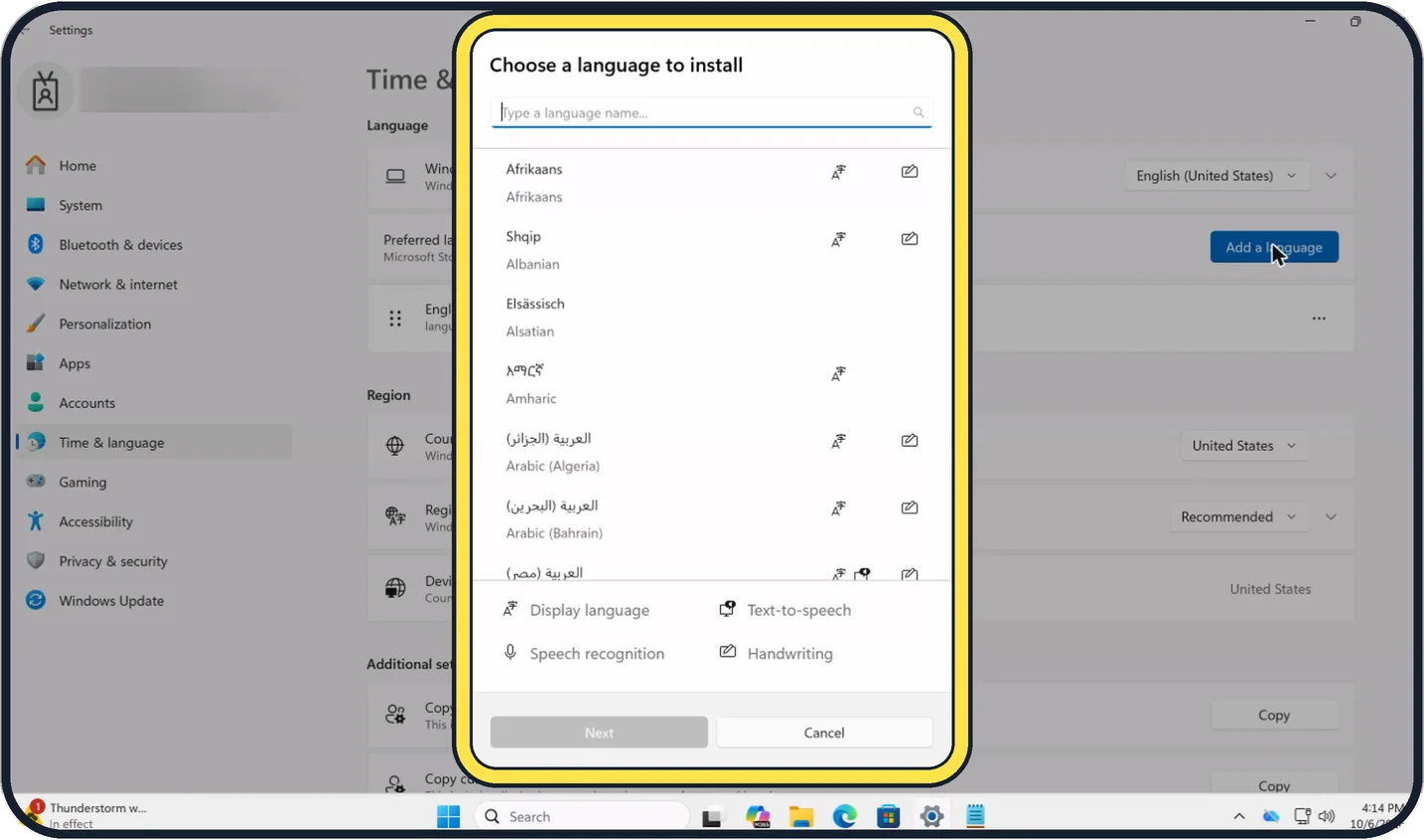
Zoomed in on the setting. Tap to see the whole screenTap the picture to see it full size Choose a whole language
To add a whole language, click Add a language next to Preferred languages.
In Choose a language to install, type the name, select it and click Next. The icons show what each language offers: Display language, Text-to-speech, Speech recognition and Handwriting.
Tap the picture to see it full size Pick the features and install
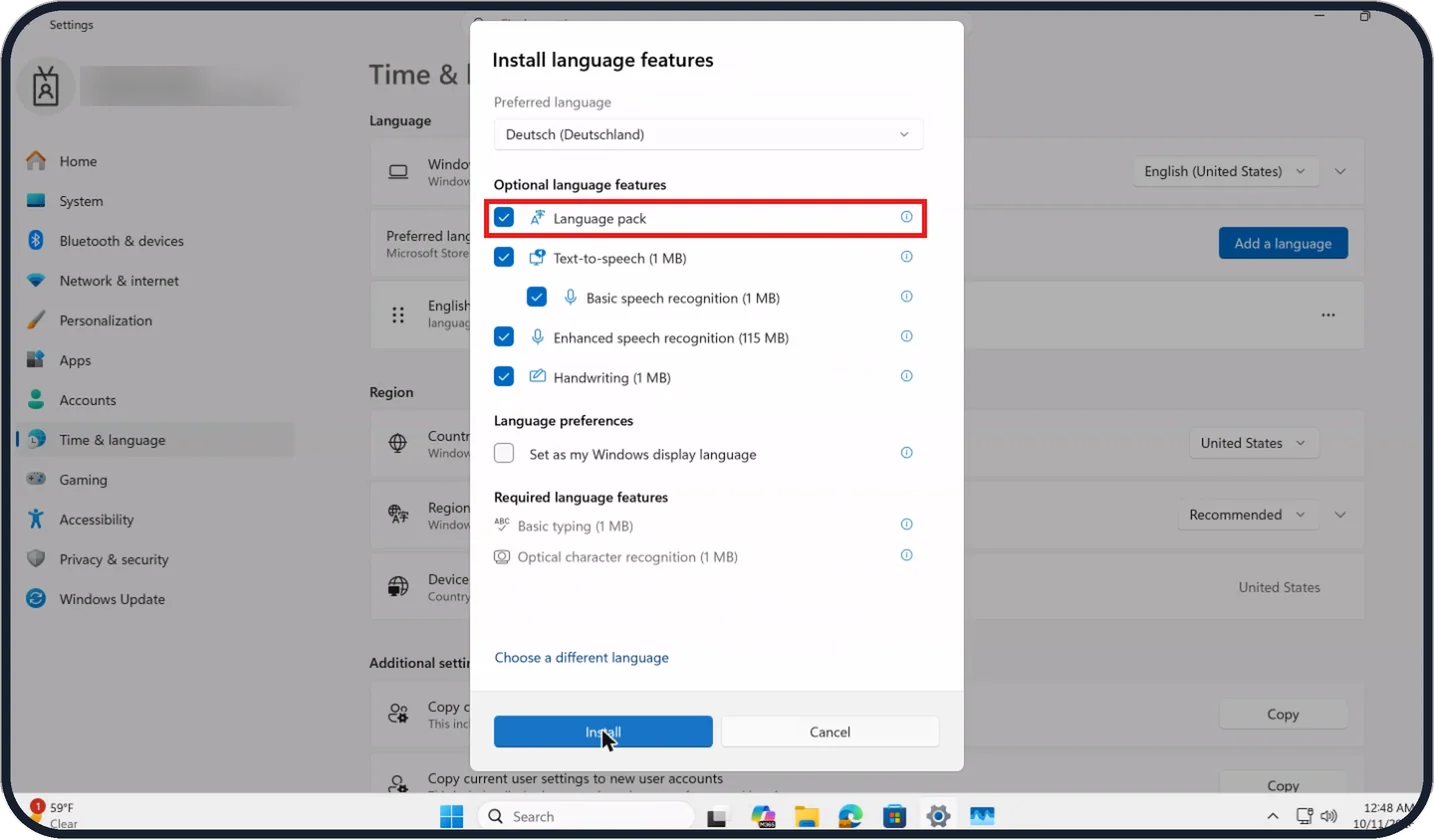
In Install language features, leave Language pack ticked if you may want Windows menus in that language, untick anything you do not need and click Install.
On our Cloud PC, for Deutsch (Deutschland), all five optional features were ticked and Set as my Windows display language was not.
Switch while typing
Hold the Windows key and press the Spacebar to move through your keyboards.
Microsoft says you can also click the language abbreviation, such as ENG or DEU, near the clock on the taskbar.
Tap the picture to see it full size Change the language of the menus
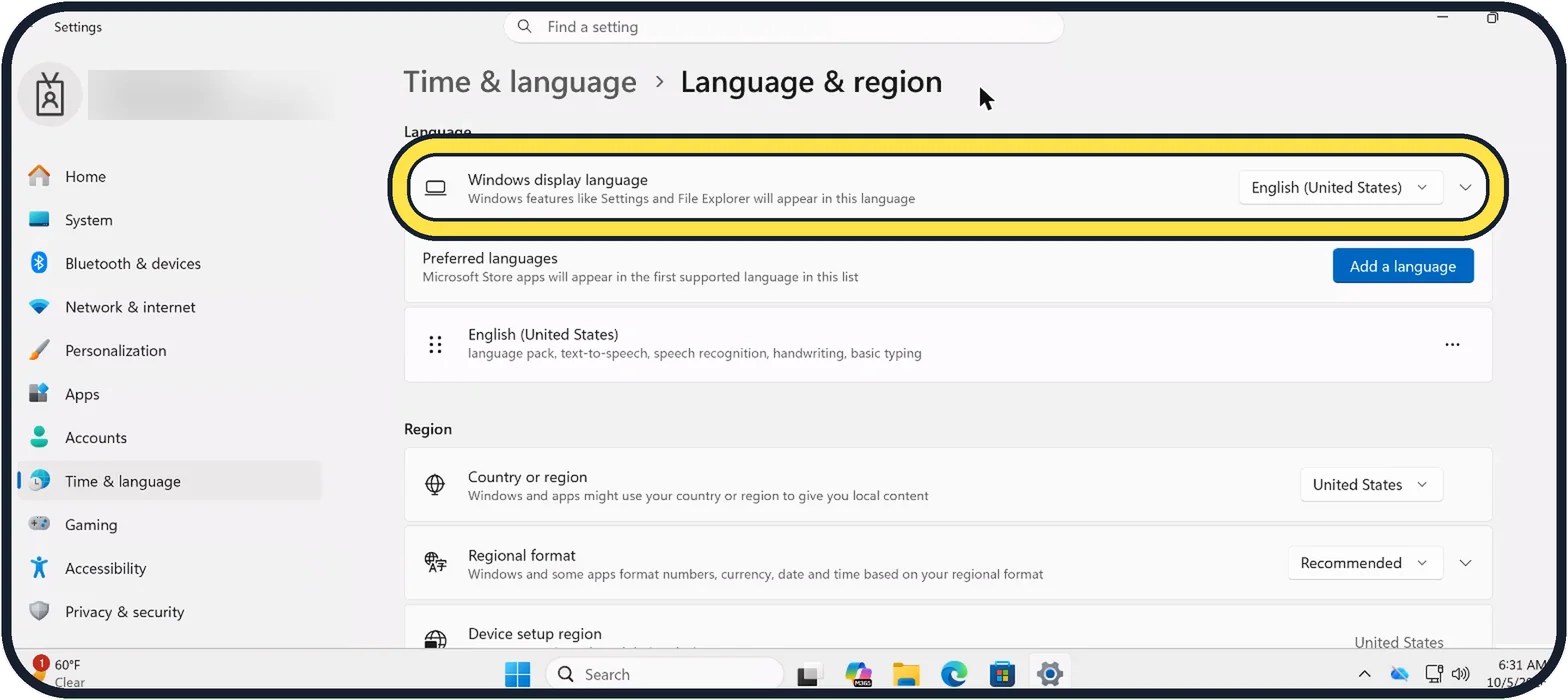
On the Language & region page, choose the language under Windows display language.
According to Microsoft, Windows then asks you to sign out and in again.
Remove what you do not need
To remove a layout, open Language options and click the three dots next to the keyboard; Microsoft says you then choose Remove.
To remove a language, click the three dots next to it and choose Remove. According to Microsoft, the current display language cannot be removed.
If you do not see this option
- No Keyboards section Keyboards sits at the bottom of the Options page. On our Cloud PC it was below Speech recognition, so scroll down.
- The layout you want is not listed Add the whole language first with Add a language.
- No language abbreviation near the clock On our Cloud PC, with only the US keyboard installed, no abbreviation showed on the taskbar. Add a second keyboard first.
If this does not work
- The download is larger than expected Untick features you do not need in Install language features. On our Cloud PC Enhanced speech recognition was listed at 115 MB, while Text-to-speech, Basic speech recognition and Handwriting were 1 MB each. The Options page showed it as Download (102 MB).
- Menus are still in the old language Check the language is chosen under Windows display language. According to Microsoft, you must sign out and in again before it takes effect. Source: Manage the language and keyboard/input layout settings in Windows
- A language cannot be removed Microsoft says the current display language cannot be removed. Choose another language under Windows display language first. Source: Manage the language and keyboard/input layout settings in Windows
About this guide
Windows separates two things: the language, which brings spell-checking and optionally the menus, and the keyboard layout, which decides which letter each key types. You can add a layout alone or a whole language.
The screenshots are our own, taken on Windows 11 Enterprise 25H2 running as a Microsoft Cloud PC, a Windows PC that runs in the cloud.
Good to know
If the keyboard suddenly types the wrong characters, for example z and y swapped, you have probably switched layouts by accident with Windows + Spacebar. Press it again.
Emoji and special characters do not need another keyboard: press Windows + full stop.
On the phone: how to add a keyboard language on iPhone and how to add a keyboard language on Android.
In short: Settings, Time & language, Language & region, three dots, Language options, Add a keyboard. Switch with Windows + Spacebar.
Links checked in October 2026. Menus and features can change after software updates. These steps match the version named at the top.
Did this guide work for you?
Sorry about that. What happened?