
howtosimply.com/guides/how-to-screen-record-on-a-nothing-phone/ · Checked October 2026 · 4a) Pro (A069P, EEA), Nothing OS 4.1, Android 16 (build FroggerPro-B4.1-260424-1447-EEA · Nothing Phone
In this guide
Swipe down twice, go to the second page of tiles and tap Screen record. Choose Record one app or Record this screen, turn on Record audio if you want sound, then tap Record screen. Stop from the red timer chip or the notification.
6 of 6 steps with real screenshots · 3 official sources below
- Device
- Android
- Shown on
- Nothing Phone (4a) Pro (A069P, EEA), Nothing OS 4.1, Android 16 (build FroggerPro-B4.1-260424-1447-EEA)
- App
- Phone
- Real screenshots
- 6 of 6 steps
- Checked
- October 2026
- Sources
- 3 official, linked below
Step by step
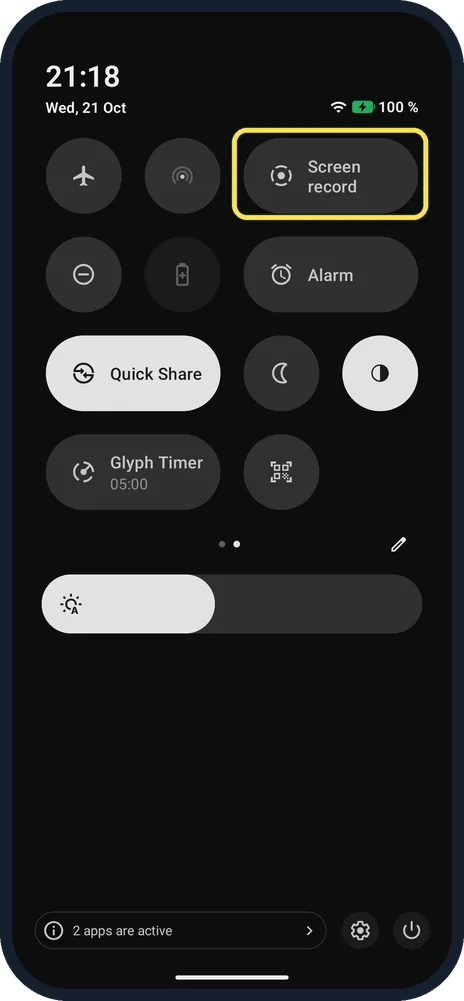
Tap Screen record
Swipe down from the top twice and swipe left to the second page of tiles.
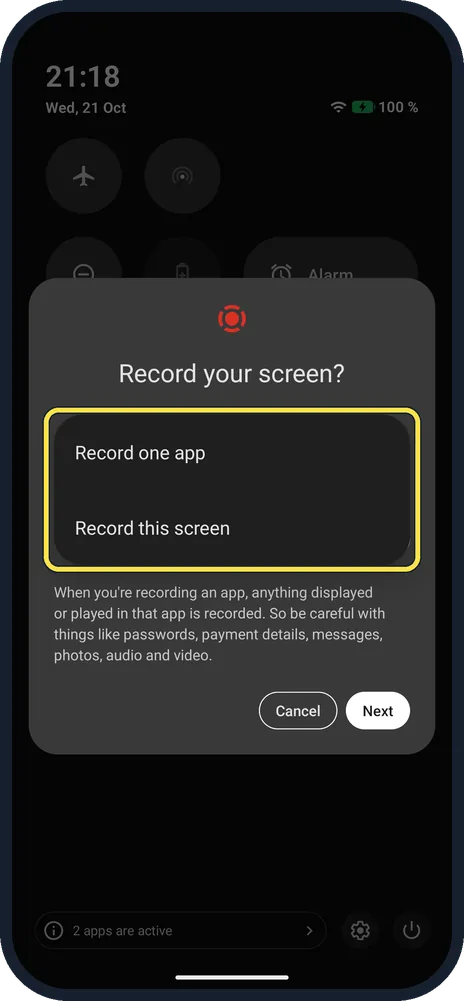
Choose what to record
Record one app records only that app; Record this screen records everything, including notifications.
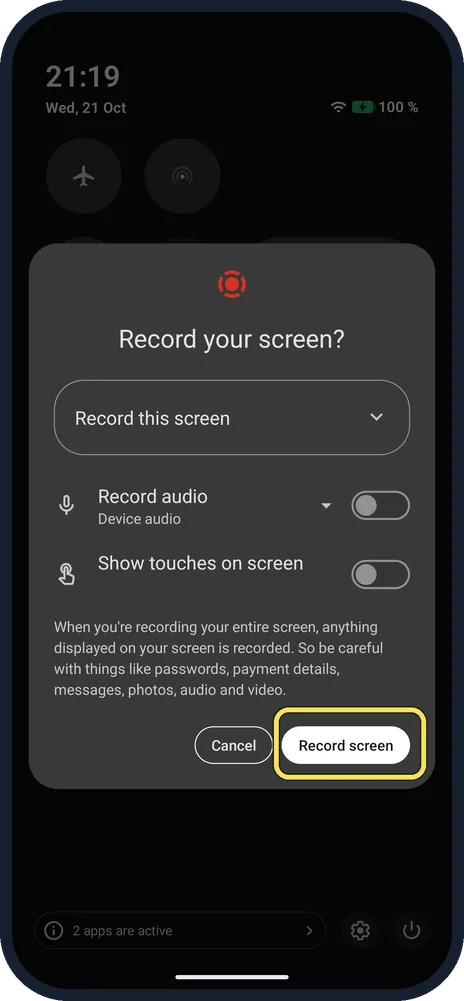
Tap Record screen
Turn on Record audio (Device audio) first for game or video sound, and Show touches on screen for tutorials.
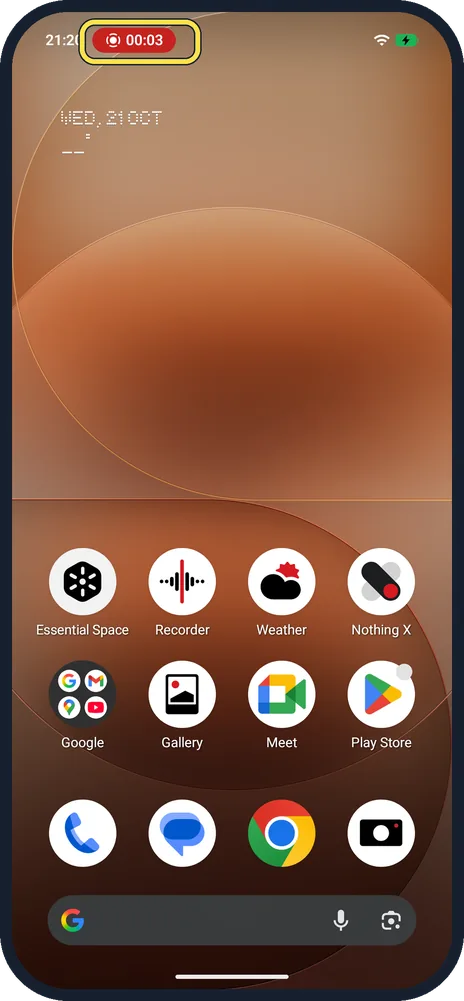
Stop the recording
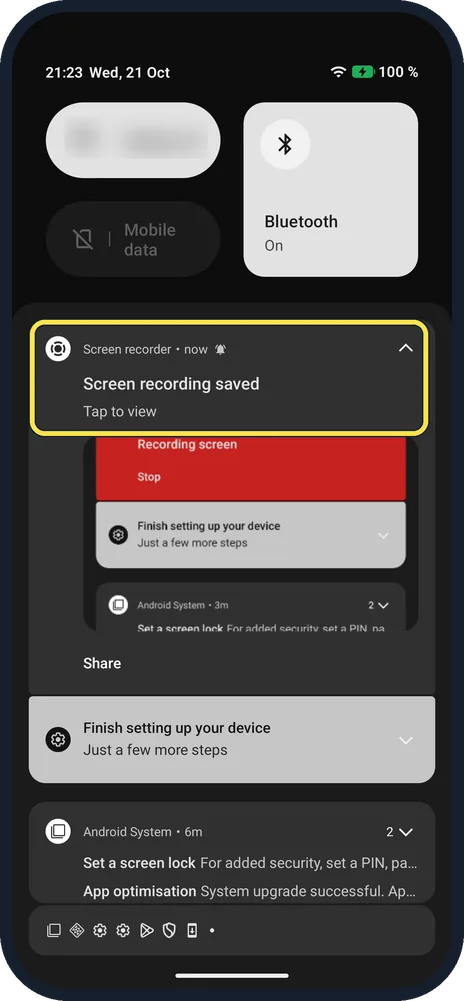
A red chip with a timer sits in the status bar. Tap it, or swipe down and tap Stop on the Screen recorder notification.
Find the video
The notification says Screen recording saved, Tap to view.
Play it in Photos
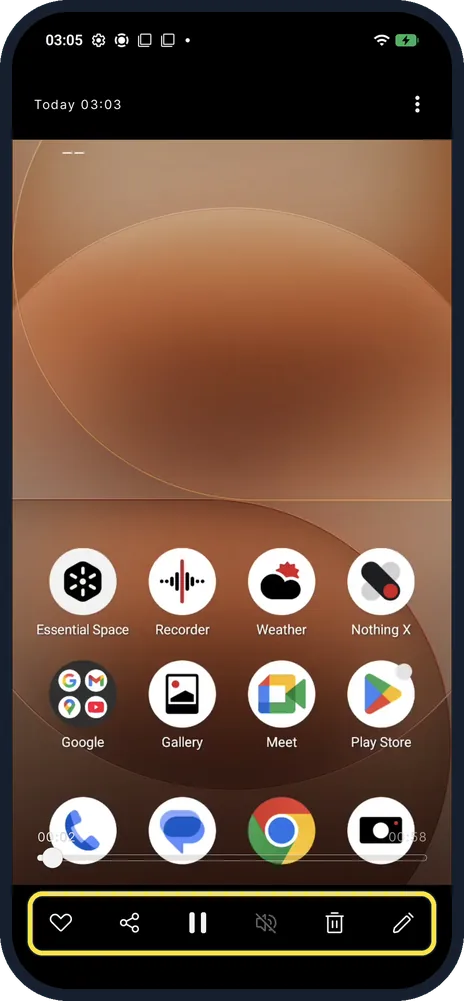
The gallery app is called Photos on ours. The viewer has like, share, play, mute, delete and edit buttons.
If you do not see this option
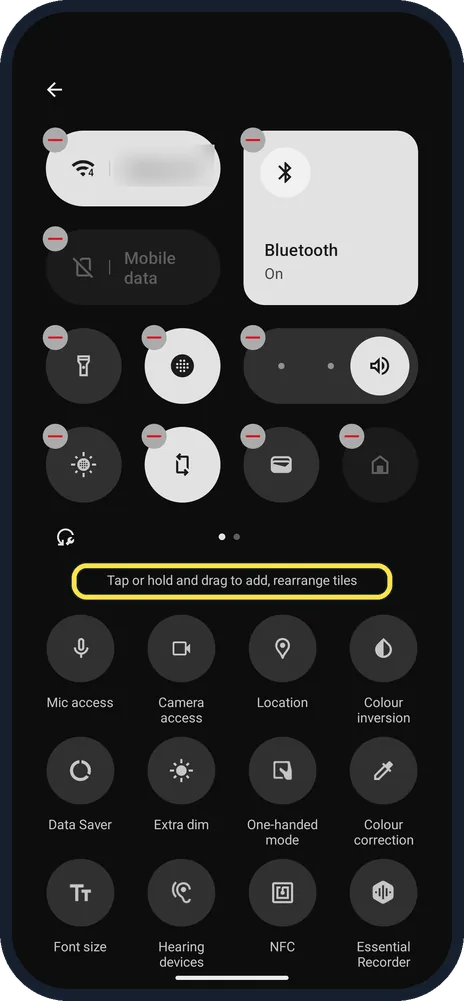
- No Screen record tile? Nothing says it is on the second page of Quick Settings. If it is missing, tap the pencil and drag it up from the hidden tiles; the editor says "Tap or hold and drag to add, rearrange tiles". Source: How do I use screen recording on my Phone? · Source: How do I enable battery saver on my Phone?
- No VIDEO album? Nothing's article says Gallery, Albums, VIDEO. On our (4a) Pro the app was called Photos, and the new recording was not in the Photos tab but under Albums, Movies (and Video). Source: How do I use screen recording on my Phone?
If this does not work
- No sound in the video? Record audio was off on ours. Turn it on in the Record your screen? dialog before you start; Google says the same choice decides whether sound is recorded. Source: Take a screenshot or record your screen on your Android device
- Recording didn't stop? On ours the first Stop tap in the shade didn't register and the clip ran 58 seconds. Tap Stop again, or tap the red chip in the status bar.
- Passwords in the video? The dialog warns that anything displayed is recorded. Use Record one app to keep other apps out.
About this guide
On our (4a) Pro, the Screen record tile was on the second page of Quick Settings, and device audio was off by default.
The screenshots are from our Nothing Phone (4a) Pro, the European model A069P, with Nothing OS 4.1 and Android 16 (build FroggerPro-B4.1-260424-1447-EEA), in Dark theme. We made one recording and deleted it.
Good to know
For a still image, see take a screenshot on a Nothing Phone.
In short: Quick Settings page 2, Screen record, choose app or screen, Record screen; stop at the red chip.
- Google Android Help: Take a screenshot or record your screen on your Android device
- Nothing Support: How do I use screen recording on my Phone?
- Nothing Support: How do I enable battery saver on my Phone?
Links checked in October 2026. Menus and features can change after software updates. These steps match the version named at the top.
Did this guide work for you?
Sorry about that. What happened?