
howtosimply.com/guides/how-to-use-the-glyph-timer-on-a-nothing-phone/ · Checked October 2026 · 4a) Pro (A069P, EEA), Nothing OS 4.1, Android 16 (build FroggerPro-B4.1-260424-1447-EEA · Nothing Phone
In this guide
Swipe down twice to Quick Settings page 2 and tap Glyph Timer, or open Settings, Glyph Interface, Glyph Timer and tap Set Glyph Timer. The back lights count down; turn on Mute alarm sound for a silent timer.
3 of 3 steps with real screenshots · 2 official sources below
- Device
- Android
- Shown on
- Nothing Phone (4a) Pro (A069P, EEA), Nothing OS 4.1, Android 16 (build FroggerPro-B4.1-260424-1447-EEA)
- App
- Settings
- Path
- Settings › Glyph Interface › Glyph Timer
- Real screenshots
- 3 of 3 steps
- Checked
- October 2026
- Sources
- 2 official, linked below
Step by step
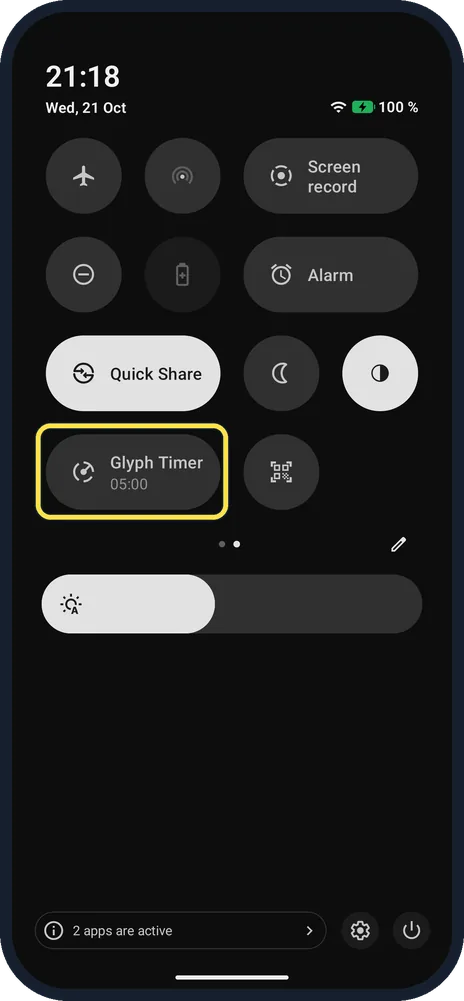
Tap the Glyph Timer tile
Swipe down from the top twice and swipe to the second page of tiles. Ours showed Glyph Timer 05:00.
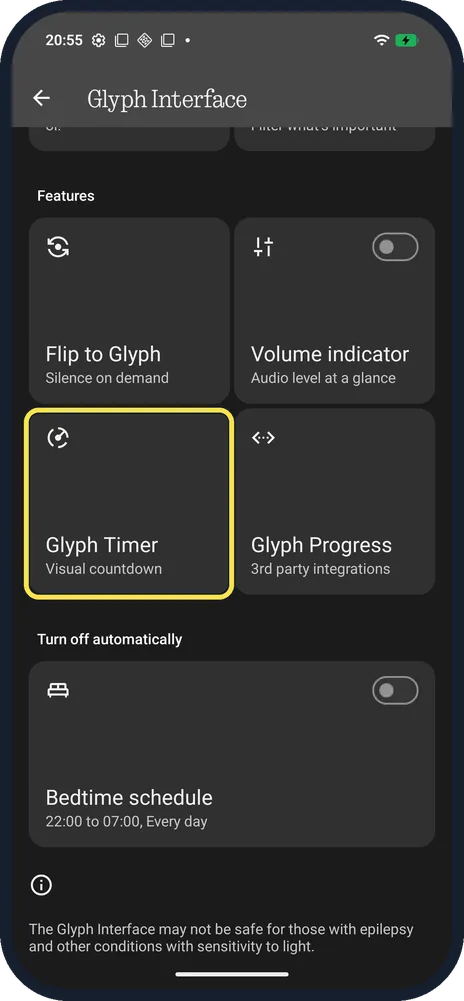
Or open it in Settings
Settings, Glyph Interface, Glyph Timer tile.
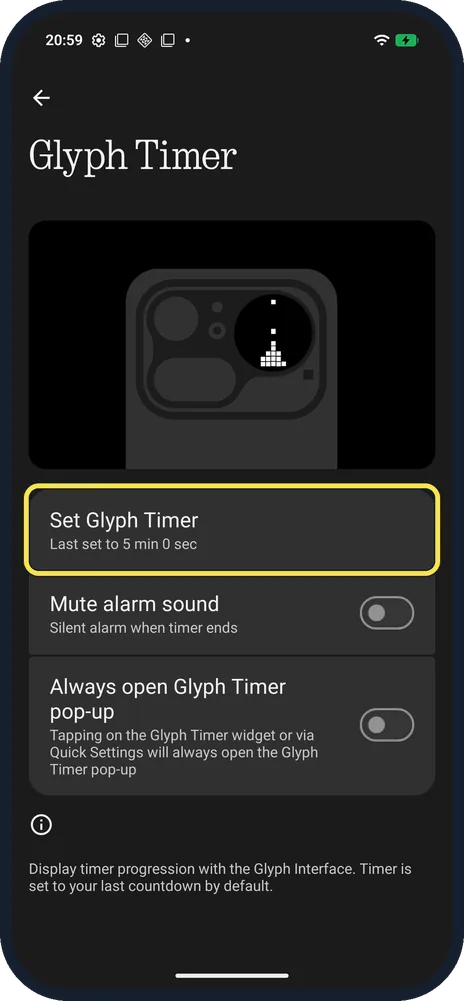
Tap Set Glyph Timer
Set the time and start it.
If you do not see this option
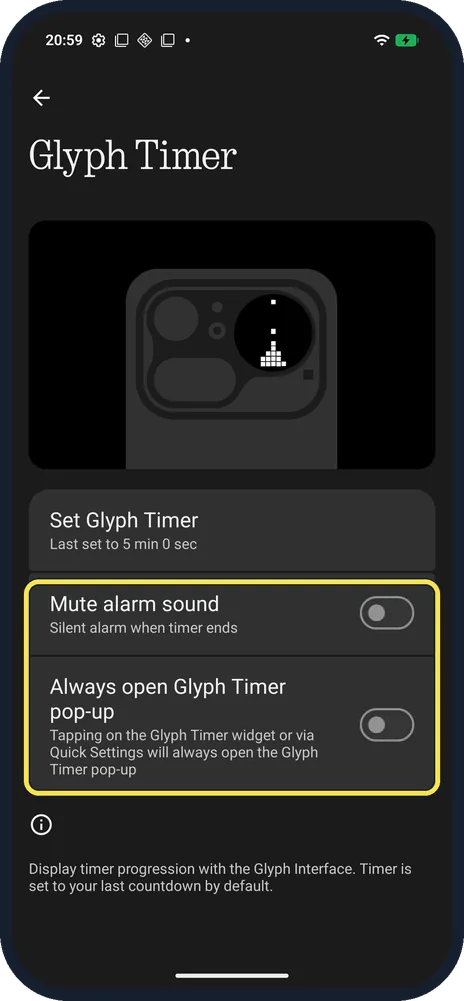
- Want a silent timer? Turn on Mute alarm sound: silent alarm when the timer ends. Always open Glyph Timer pop-up: the widget and Quick Settings tile always open the pop-up.
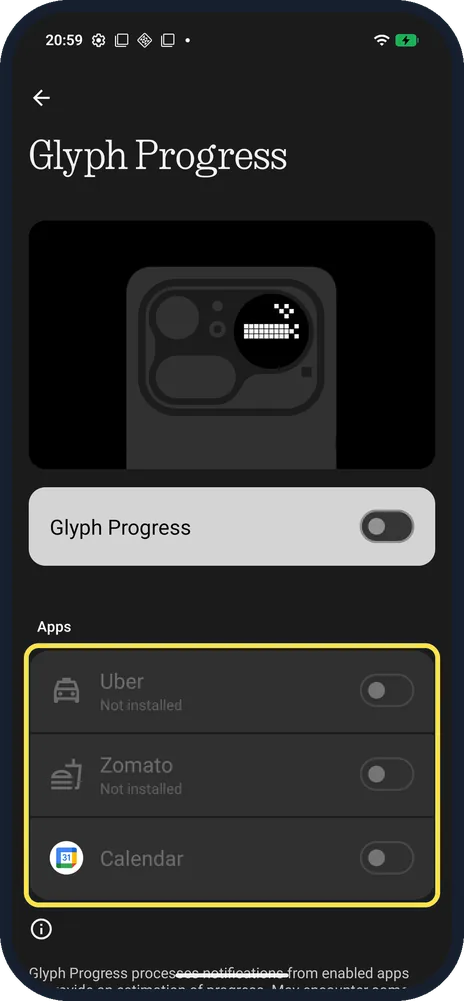
- Delivery or ride progress on the lights? Glyph Progress shows progress from supported apps. Ours listed Uber and Zomato (not installed) and Calendar.
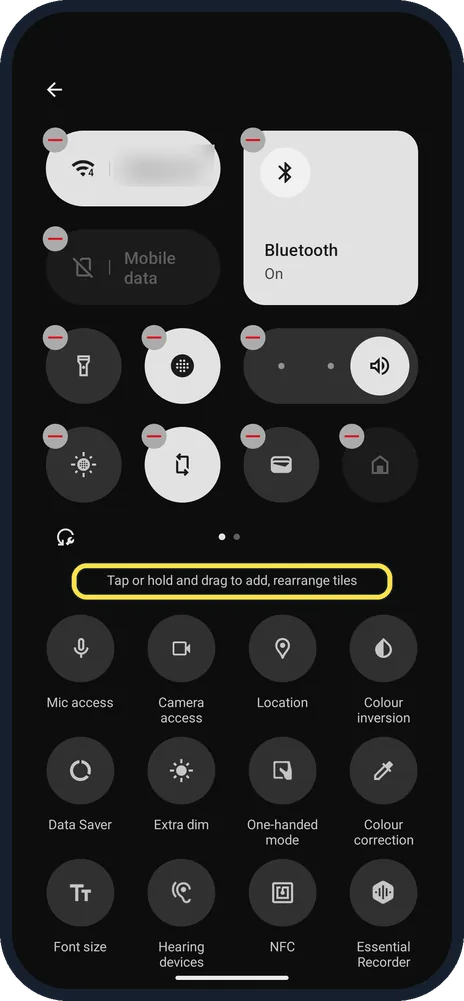
- No Glyph Timer tile? Swipe down twice and tap the pencil. The editor says "Tap or hold and drag to add, rearrange tiles"; drag Glyph Timer up from the hidden tiles. Nothing describes the same pencil route for its Battery Saver tile. Source: How do I enable battery saver on my Phone?
If this does not work
- Lights don't show the countdown? Turn on the Glyph Interface in Settings or with the Glyphs tile. See Glyph Interface. Source: How do I turn the Glyph Interface on/off?
- Timer rings out loud? Turn on Mute alarm sound on the Glyph Timer page; it was off on ours.
About this guide
The Glyph Timer shows a countdown on the back lights, handy face down on a desk. Nothing says it starts at your last countdown by default; ours was 5 min.
The screenshots are from our Nothing Phone (4a) Pro, the European model A069P, with Nothing OS 4.1 and Android 16 (build FroggerPro-B4.1-260424-1447-EEA), in Dark theme.
Good to know
For a clock on the back instead, see Always-on Glyph Toy.
To keep the phone quiet face down, set up Flip to Glyph.
In short: Quick Settings page 2, Glyph Timer; or Settings, Glyph Interface, Glyph Timer.
- Nothing Support: How do I enable battery saver on my Phone?
- Nothing Support: How do I turn the Glyph Interface on/off?
Links checked in October 2026. Menus and features can change after software updates. These steps match the version named at the top.
Did this guide work for you?
Sorry about that. What happened?