
howtosimply.com/guides/how-to-use-the-always-on-glyph-toy-on-a-nothing-phone/ · Checked October 2026 · 4a) Pro (A069P, EEA), Nothing OS 4.1, Android 16 (build FroggerPro-B4.1-260424-1447-EEA · Nothing Phone
In this guide
Open Settings, Glyph Interface, Flip to Glyph and tap Always-on Glyph Toy. Pick Digital Clock, Battery, Solar Path or Moon Phase and turn on the switch. It shows on the back lights when the phone lies face down.
3 of 3 steps with real screenshots · 3 official sources below
- Device
- Android
- Shown on
- Nothing Phone (4a) Pro (A069P, EEA), Nothing OS 4.1, Android 16 (build FroggerPro-B4.1-260424-1447-EEA)
- App
- Settings
- Path
- Settings › Glyph Interface › Flip to Glyph
- Real screenshots
- 3 of 3 steps
- Checked
- October 2026
- Sources
- 3 official, linked below
Step by step
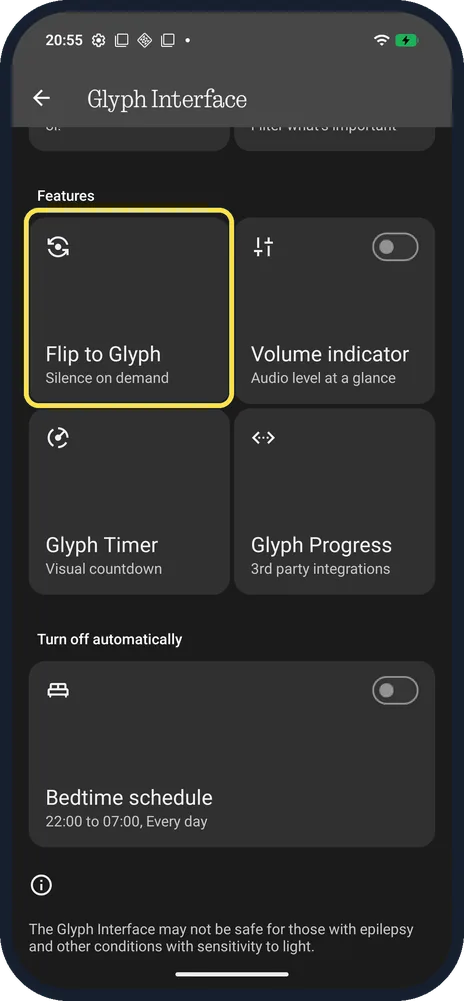
Open Flip to Glyph
Settings, Glyph Interface, then the Flip to Glyph tile.
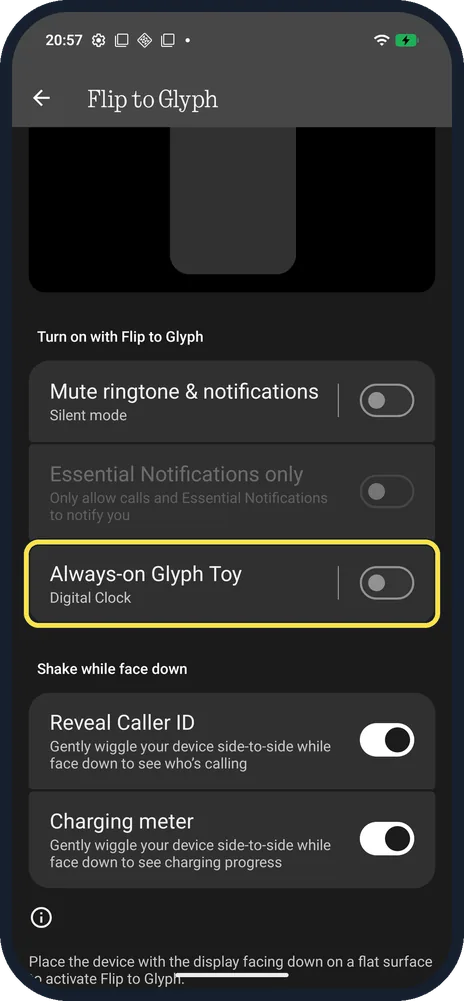
Tap Always-on Glyph Toy
Tap the words, not the switch, to open the list. It shows the current toy, Digital Clock.
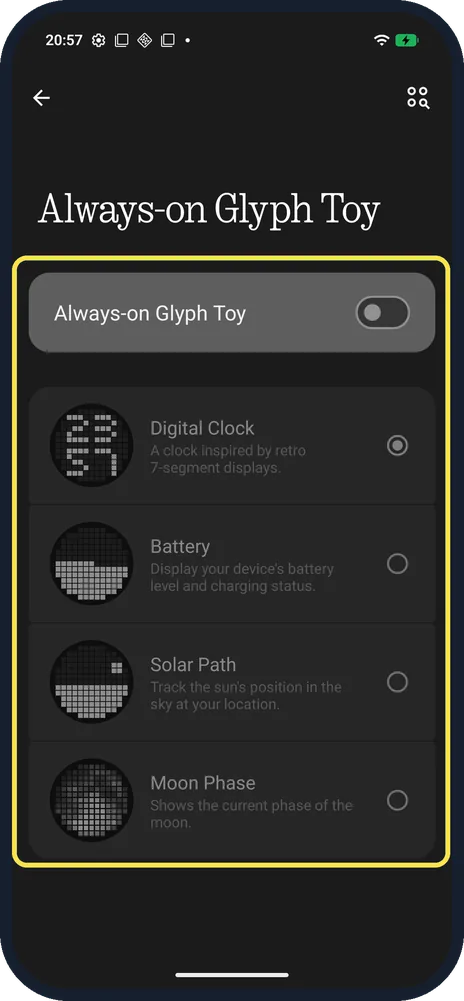
Turn on the switch, then pick a toy
The switch is at the top. Digital Clock: inspired by retro 7-segment displays. Battery: level and charging status. Solar Path: the sun's position in the sky at your location. Moon Phase: the current phase of the moon.
If you do not see this option
- Not sure when it shows? It runs with Flip to Glyph: Nothing says you place the phone with the Glyph side up (screen down) on a flat surface, which also silences it and switches calls and notifications to light-only alerts. Source: What is the Flip to Glyph feature?
- Different menu on another Nothing phone? Nothing's Glyph toys article describes Settings, Glyph Interface, Glyph toys: turn on the Glyph toys switch, pick toys, and start one with the Glyph button on the back. On our (4a) Pro the toy sits under Flip to Glyph instead. Source: How do I set Glyph toys?
If this does not work
- Nothing shows? The toy runs face down, as part of Flip to Glyph. Check that the Glyph Interface is on in Settings or with the Glyphs tile. Source: How do I turn the Glyph Interface on/off?
- Lights on when you don't want them? Turn off the switch at the top of the Always-on Glyph Toy page. We did not measure how much battery it uses.
About this guide
On the (4a) Pro, the Glyph panel can show a small clock or battery level when the phone is face down. It was off on ours, with Digital Clock selected.
The screenshots are from our Nothing Phone (4a) Pro, the European model A069P, with Nothing OS 4.1 and Android 16 (build FroggerPro-B4.1-260424-1447-EEA), in Dark theme. We opened the page without switching it on.
Good to know
To silence the phone face down, set up Flip to Glyph.
For a countdown on the lights, use the Glyph Timer.
In short: Settings, Glyph Interface, Flip to Glyph, Always-on Glyph Toy: pick a toy, switch on.
- Nothing Support: How do I set Glyph toys?
- Nothing Support: How do I turn the Glyph Interface on/off?
- Nothing Support: What is the Flip to Glyph feature?
Links checked in October 2026. Menus and features can change after software updates. These steps match the version named at the top.
Did this guide work for you?
Sorry about that. What happened?