
howtosimply.com/guides/how-to-use-glyph-progress-on-a-nothing-phone/ · Checked October 2026 · 4a) Pro (A069P, EEA), Nothing OS 4.1, Android 16 (build FroggerPro-B4.1-260424-1447-EEA · Nothing Phone
In this guide
Open Settings, Glyph Interface, Glyph Progress and turn it on, then allow notification access. Turn on the apps you want; the Glyph lights show their progress, such as a ride arriving. It needs the app installed and works best with apps set to English.
4 of 4 steps with real screenshots · 1 official source below
- Device
- Android
- Shown on
- Nothing Phone (4a) Pro (A069P, EEA), Nothing OS 4.1, Android 16 (build FroggerPro-B4.1-260424-1447-EEA), Nothing Phone (4a) Pro (A069P, EEA), Nothing OS 4.1, Android 16 (build FroggerPro-B4.1-260907-1153-EEA)
- App
- Settings
- Path
- Settings › Glyph Interface
- Real screenshots
- 4 of 4 steps
- Checked
- October 2026
- Sources
- 1 official, linked below
Step by step
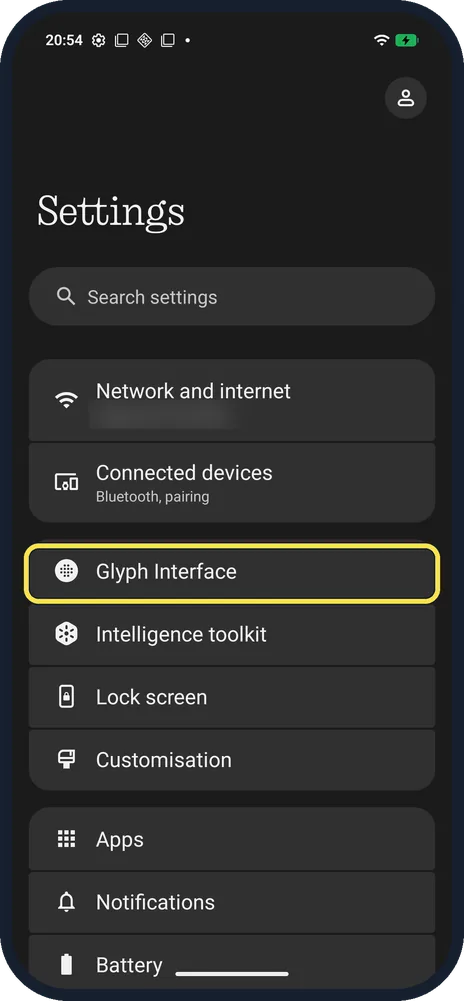
Open Glyph Interface
Open Settings; it is the third row.
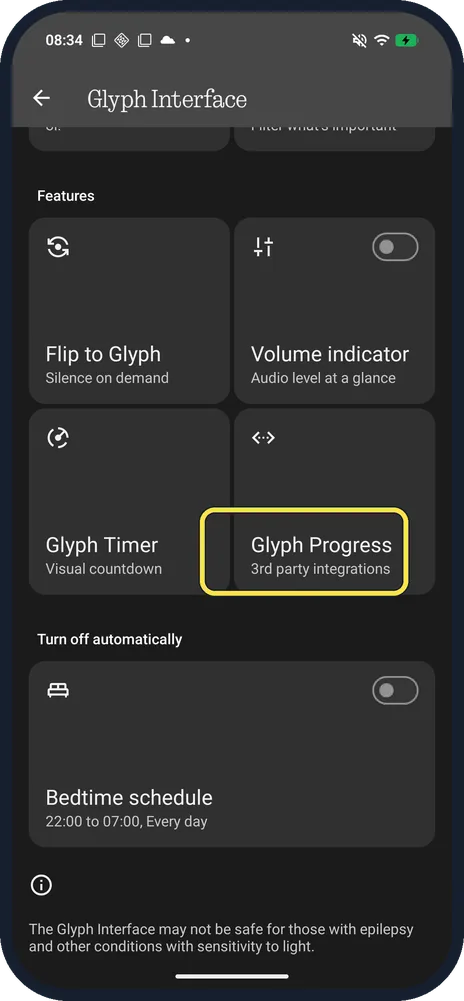
Tap Glyph Progress
Under Features; it says 3rd party integrations.
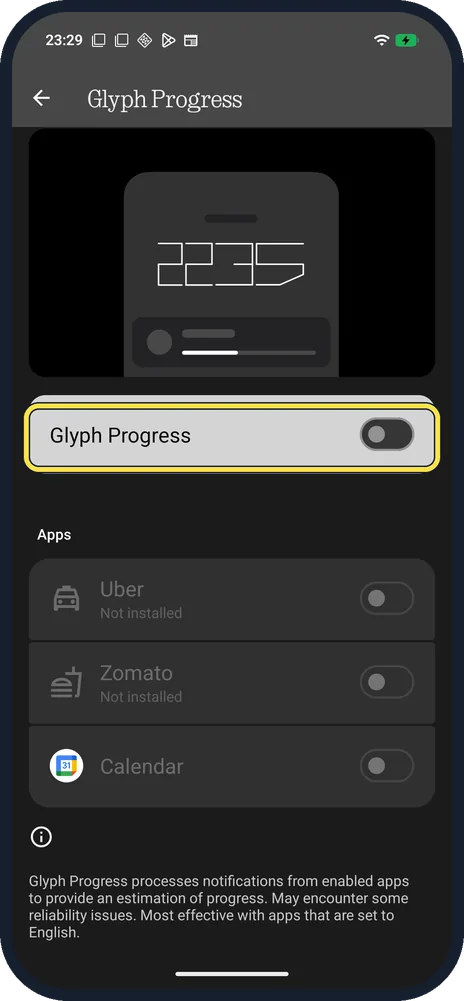
Open Glyph Progress and turn it on
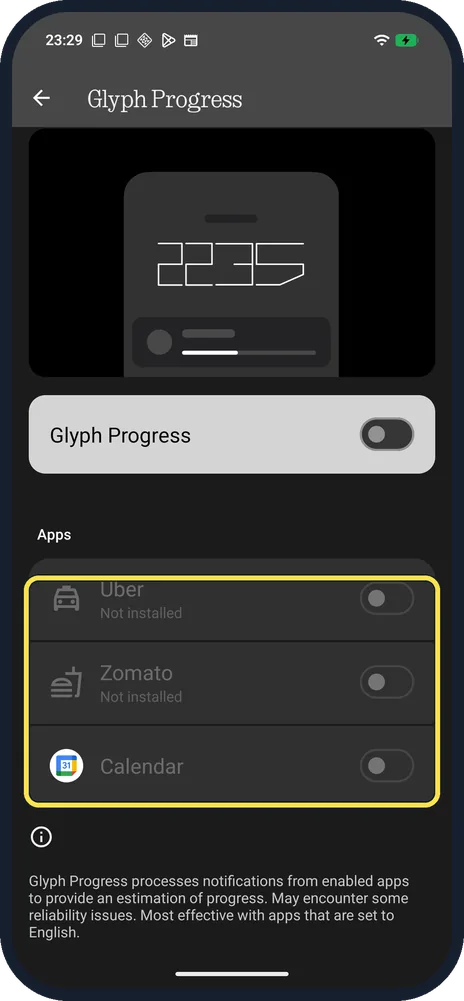
The switch is under the animation; Apps below lists supported apps.
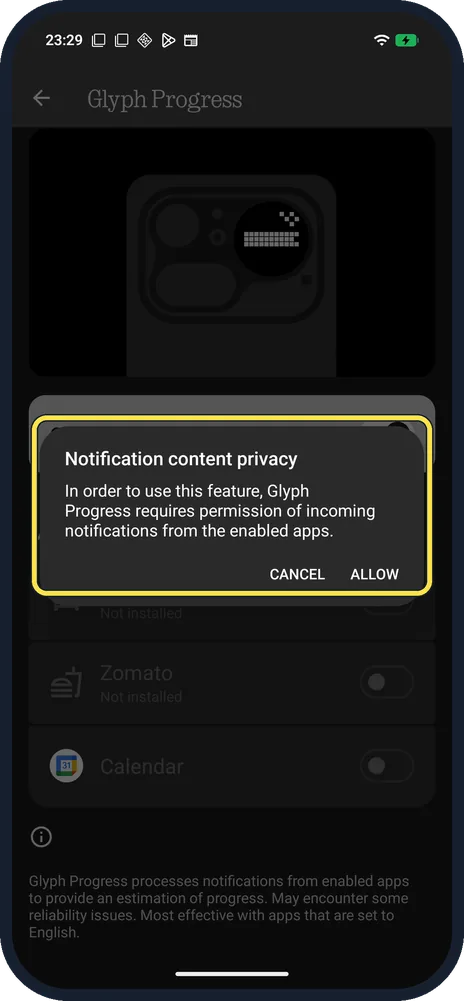
Allow notification access
Notification content privacy: Glyph Progress needs permission to read notifications from the enabled apps. Tap Allow.
If you do not see this option
- App shows Not installed? Ours listed Uber and Zomato as Not installed and Calendar as available. Install the app first.
- Where is Glyph Progress? It is a feature inside Glyph Interface, alongside Glyph Timer and Flip to Glyph. See turn on the Glyph Interface.
If this does not work
- Progress doesn't show or jumps? The page says it estimates progress from notifications, may have reliability issues and works best with apps set to English.
- No lights at all? Turn on the Glyph Interface first. Source: How do I turn the Glyph Interface on/off?
About this guide
The screenshots are from our Nothing Phone (4a) Pro, the European model A069P, with Nothing OS 4.1 and Android 16 (build FroggerPro-B4.1-260907-1153-EEA, security update 1 September 2026), in Dark theme. We opened the page and the permission prompt, then tapped Cancel, so Glyph Progress stayed off.
The step 1 screenshot was taken earlier, on build FroggerPro-B4.1-260424-1447-EEA.
Good to know
For a countdown on the back, use the Glyph Timer.
To light up for important people, set up Essential Notifications.
In short: Settings, Glyph Interface, Glyph Progress on, Allow, pick apps.
Links checked in October 2026. Menus and features can change after software updates. These steps match the version named at the top.
Did this guide work for you?
Sorry about that. What happened?