
howtosimply.com/guides/how-to-use-game-mode-on-a-nothing-phone/ · Checked October 2026 · 4a) Pro (A069P, EEA), Nothing OS 4.1, Android 16 (build FroggerPro-B4.1-260424-1447-EEA · Nothing Phone
In this guide
Open Settings, Special features, Game Mode. Games from the Play Store are added automatically; add others in Game list management. The same page has Game Sidebar, Notification display, Mistouch prevention, Game colour plus and Google's Game Dashboard.
5 of 5 steps with real screenshots · 1 official source below
- Device
- Android
- Shown on
- Nothing Phone (4a) Pro (A069P, EEA), Nothing OS 4.1, Android 16 (build FroggerPro-B4.1-260424-1447-EEA), Nothing Phone (4a) Pro (A069P, EEA), Nothing OS 4.1, Android 16 (build FroggerPro-B4.1-260907-1153-EEA)
- App
- Settings
- Path
- Settings › Special features › Game Mode: game list
- Real screenshots
- 5 of 5 steps
- Checked
- October 2026
- Sources
- 1 official, linked below
Step by step
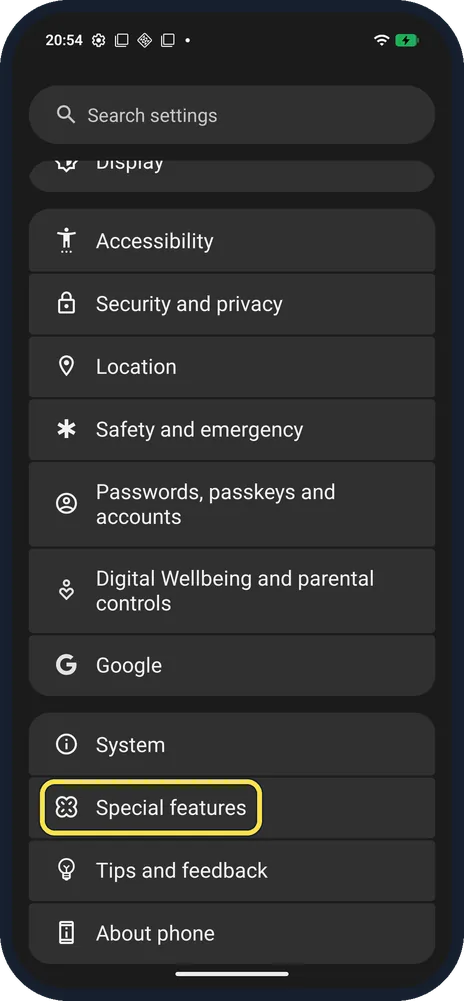
Open Special features
Open Settings, scroll near the bottom and tap Special features.
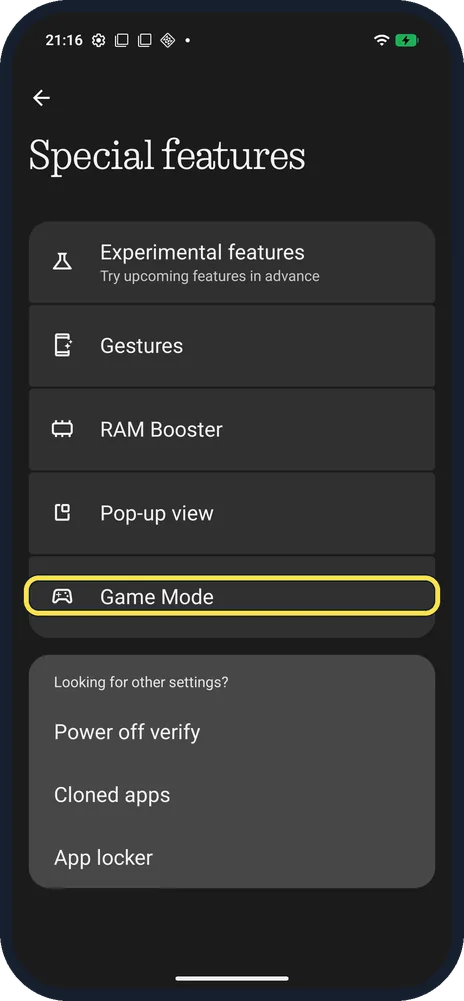
Tap Game Mode
Below Pop-up view.
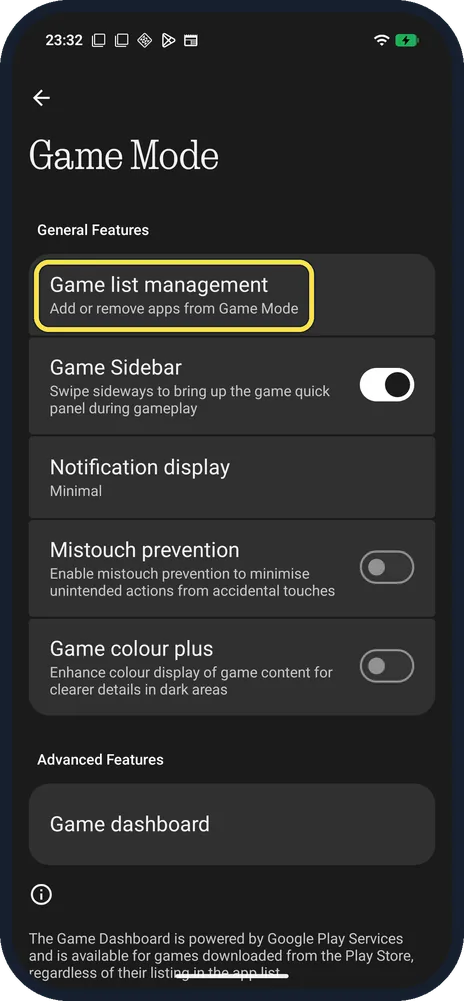
Add games in Game list management
Nothing says Play Store games are added by default; for others, tap See other apps and turn the game on.
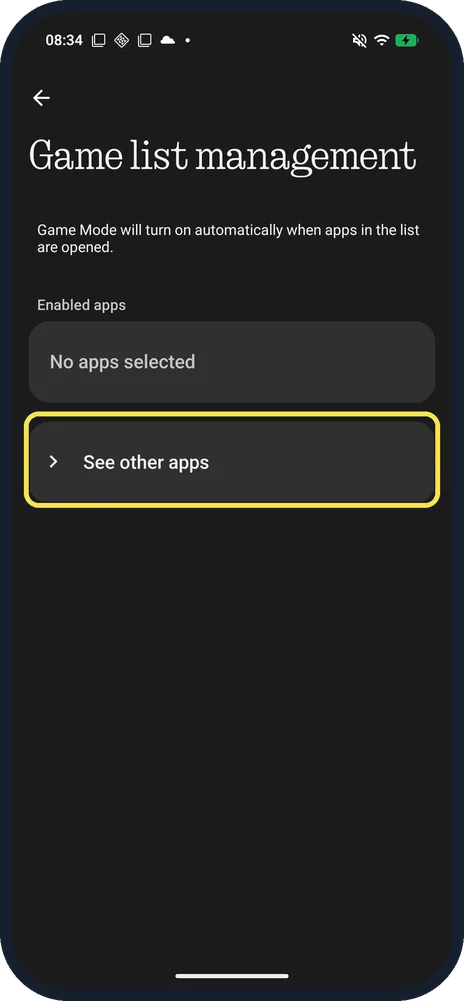
Tap See other apps for missing games
Game list management lists Enabled apps; ours said No apps selected.
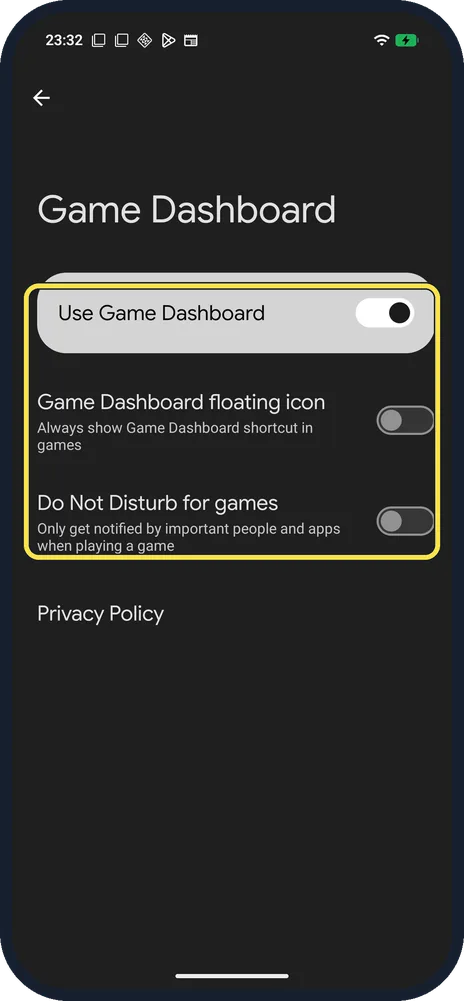
Set up Game Dashboard
Under Advanced Features. Use Game Dashboard was on; the floating icon and Do Not Disturb for games were off.
If you do not see this option
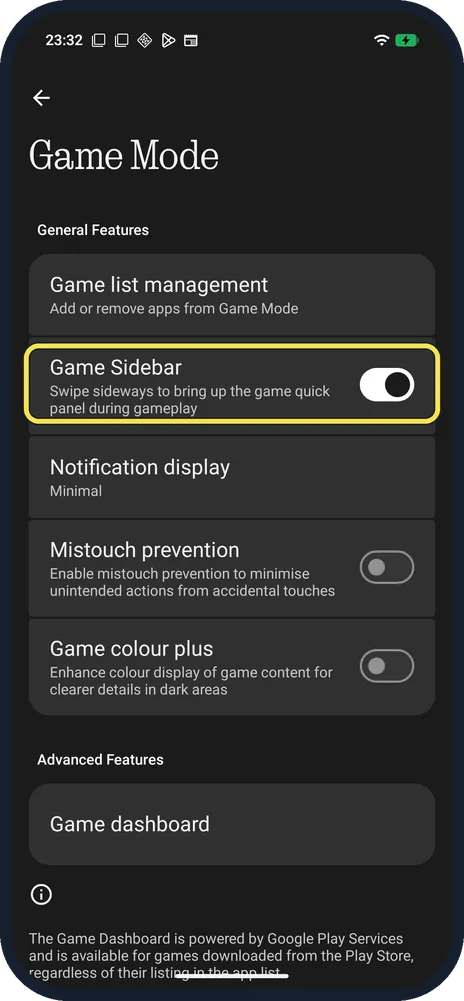
- Quick panel during a game? Game Sidebar: swipe sideways to bring up the game quick panel during gameplay. It was on.
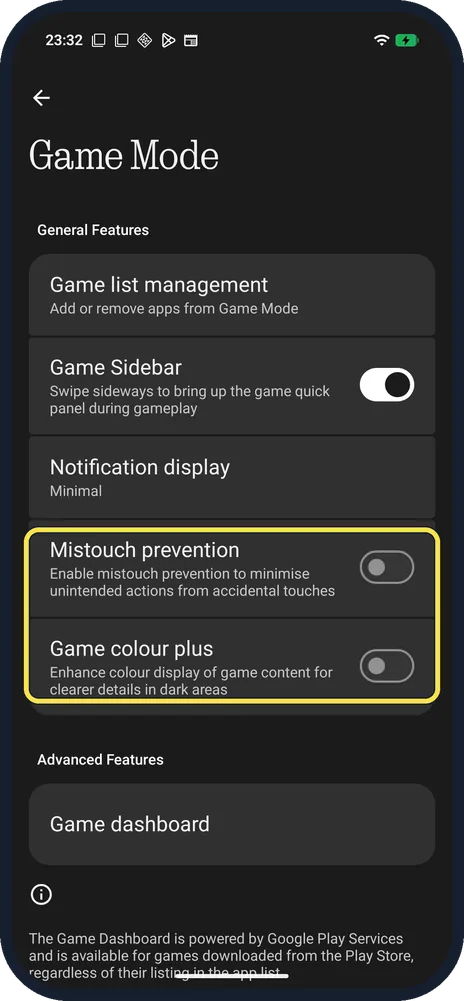
- Accidental touches? Turn on Mistouch prevention; Game colour plus brightens dark areas of the game.
- Game not in the list? Nothing says games from other sources may not be added automatically: Game list management, See other apps, then turn it on. Source: How do I enable Game Mode on the Phone?
If this does not work
- Game Dashboard missing in a game? The page says it is powered by Google Play Services and works for games downloaded from the Play Store.
- Notifications still pop up? Set Notification display, and turn on Do Not Disturb for games in Game Dashboard.
About this guide
The screenshots are from our Nothing Phone (4a) Pro, the European model A069P, with Nothing OS 4.1 and Android 16 (build FroggerPro-B4.1-260907-1153-EEA, security update 1 September 2026), in Dark theme. We looked at the settings; we did not play a game.
The step 1 and 2 screenshots were taken earlier, on build FroggerPro-B4.1-260424-1447-EEA.
Good to know
If long sessions wear the battery, check battery health.
For the back lights, turn on the Glyph Interface.
In short: Settings, Special features, Game Mode: game list, sidebar, dashboard.
Links checked in October 2026. Menus and features can change after software updates. These steps match the version named at the top.
Did this guide work for you?
Sorry about that. What happened?