
howtosimply.com/guides/how-to-use-the-smart-app-drawer-on-a-nothing-phone/ · Checked October 2026 · 4a) Pro (A069P, EEA), Nothing OS 4.1, Android 16 (build FroggerPro-B4.1-260424-1447-EEA · Nothing Phone
In this guide
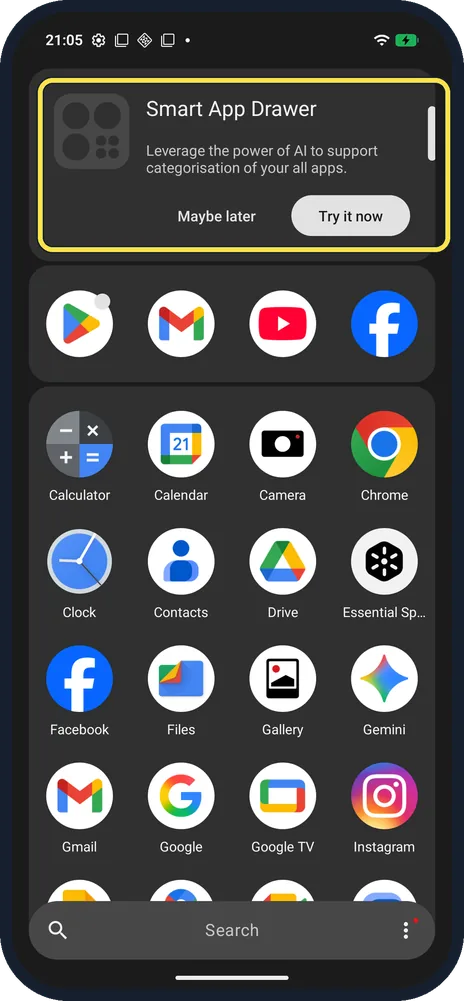
Swipe up to open the app drawer and tap Try it now on the Smart App Drawer card, or open Home settings, App drawer & Search and choose Smart (Beta) under Drawer layout. It sorts apps into categories with AI; Default is the plain grid.
4 of 4 steps with real screenshots · 2 official sources below
- Device
- Android
- Shown on
- Nothing Phone (4a) Pro (A069P, EEA), Nothing OS 4.1, Android 16 (build FroggerPro-B4.1-260424-1447-EEA), Nothing Phone (4a) Pro (A069P, EEA), Nothing OS 4.1, Android 16 (build FroggerPro-B4.1-260907-1153-EEA)
- App
- Phone
- Real screenshots
- 4 of 4 steps
- Checked
- October 2026
- Sources
- 2 official, linked below
Step by step
Open the app drawer
Swipe up from the Home screen. A card offers Smart App Drawer: "Leverage the power of AI to support categorisation of your all apps." Tap Try it now, or Maybe later.
Or choose the layout yourself
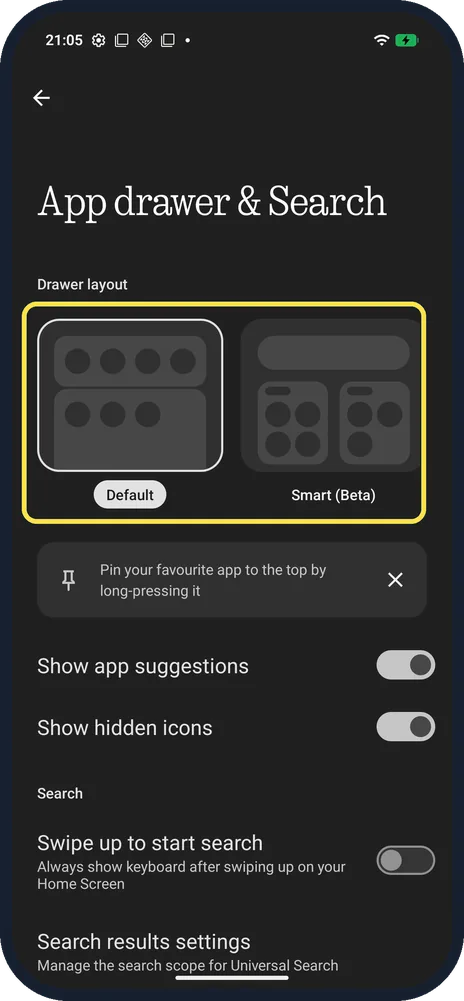
Hold the Home screen, Home settings, App drawer & Search. Pick Default or Smart (Beta).
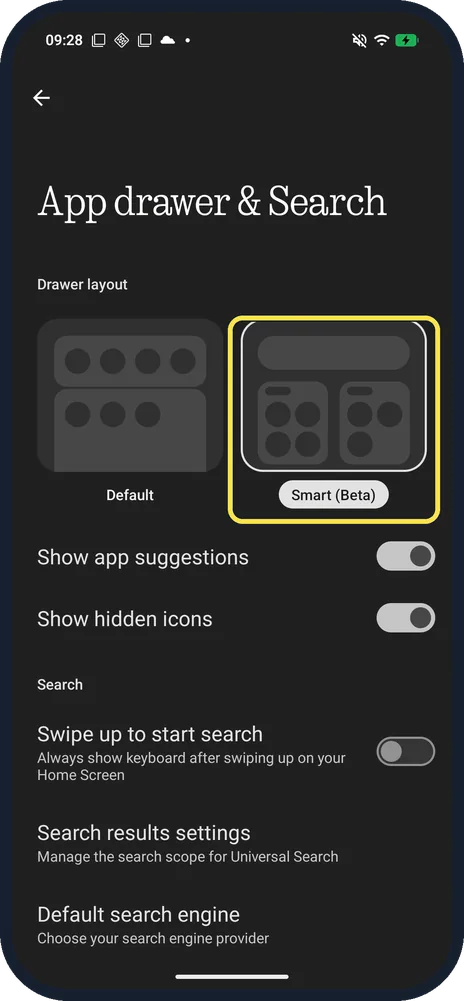
Tap Smart (Beta)
A frame marks the chosen layout.
Open the app drawer again
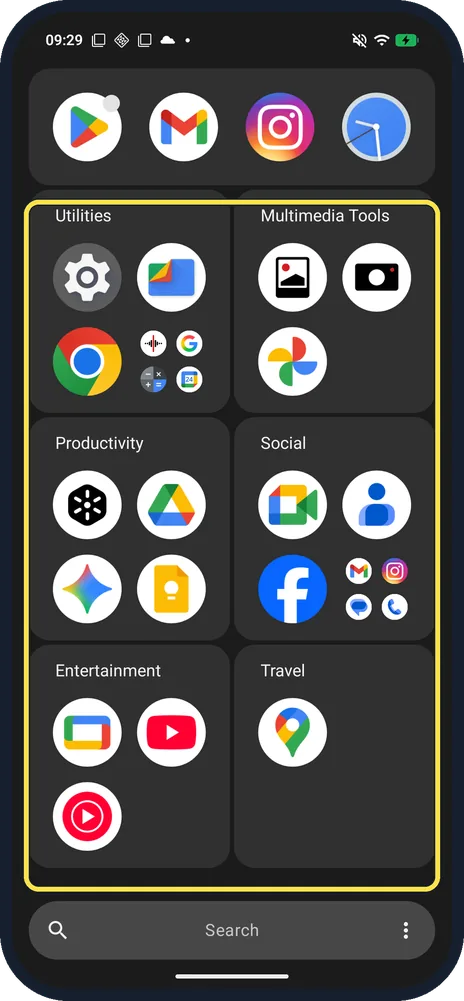
Apps are now grouped. Ours had Utilities, Multimedia Tools, Productivity, Social, Entertainment and Travel, with suggestions on top.
If you do not see this option
- Don't want the suggested apps row? Turn off Show app suggestions on the same page. It was on in ours.
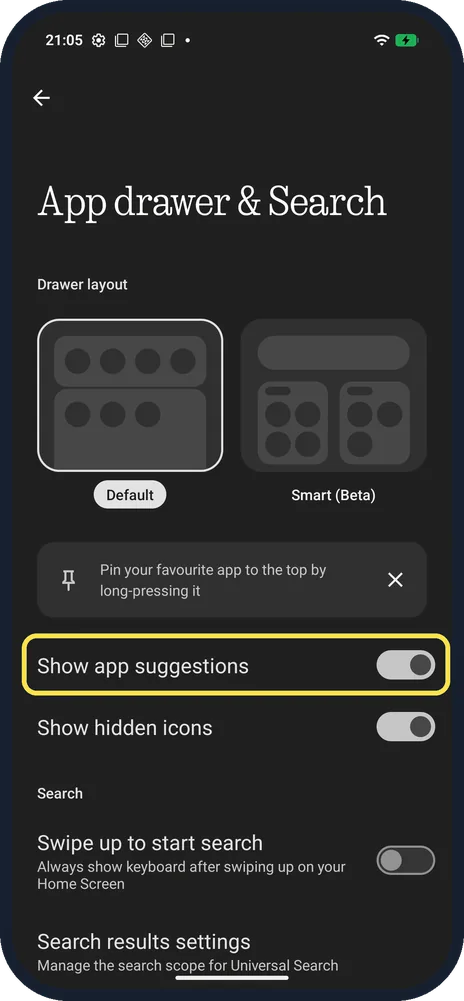
- Pin a favourite app? The tip says: pin your favourite app to the top by long-pressing it.
- Private Space in the drawer? Nothing says swipe right in the app drawer to open Private Space (left in some languages). Source: What is Private Space?
If this does not work
- Keyboard pops up on swipe? That is Swipe up to start search; it was off on ours.
- App missing from the Home screen? Nothing says long-press it in the app drawer and drag it to the Home screen. Source: An app icon has disappeared from the home screen. What can I do?
About this guide
The screenshots are from our Nothing Phone (4a) Pro, the European model A069P, with Nothing OS 4.1 and Android 16 (build FroggerPro-B4.1-260424-1447-EEA), in Dark theme. Ours was on Default. We switched to Smart (Beta) for steps 3 and 4 and back to Default; those screenshots were taken later, on build FroggerPro-B4.1-260907-1153-EEA.
Good to know
To keep apps private, see hide apps.
To add Nothing's widgets, see add a widget.
In short: App drawer, Try it now; or Home settings, App drawer & Search, Smart (Beta).
- Nothing Support: What is Private Space?
- Nothing Support: An app icon has disappeared from the home screen. What can I do?
Links checked in October 2026. Menus and features can change after software updates. These steps match the version named at the top.
Did this guide work for you?
Sorry about that. What happened?