
howtosimply.com/guides/how-to-turn-on-extra-dark-mode-on-a-nothing-phone/ · Checked October 2026 · 4a) Pro (A069P, EEA), Nothing OS 4.1, Android 16 (build FroggerPro-B4.1-260424-1447-EEA · Nothing Phone
In this guide
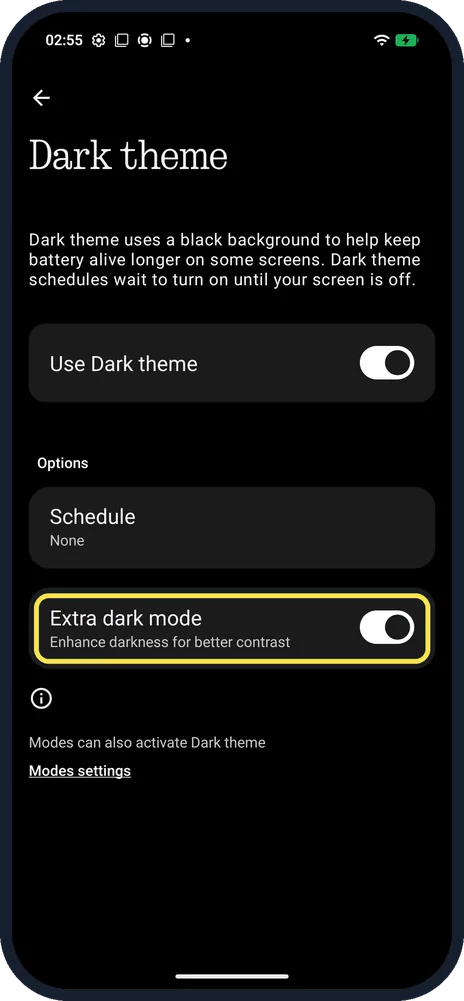
Open Settings, Display, Dark theme and turn on Use Dark theme. For deeper blacks, also turn on Extra dark mode ("Enhance darkness for better contrast"); it was off on ours.
5 of 5 steps with real screenshots · 2 official sources below
- Device
- Android
- Shown on
- Nothing Phone (4a) Pro (A069P, EEA), Nothing OS 4.1, Android 16 (build FroggerPro-B4.1-260424-1447-EEA)
- App
- Settings
- Path
- Settings › Display › Dark theme: Use Dark theme
- Real screenshots
- 5 of 5 steps
- Checked
- October 2026
- Sources
- 2 official, linked below
Step by step
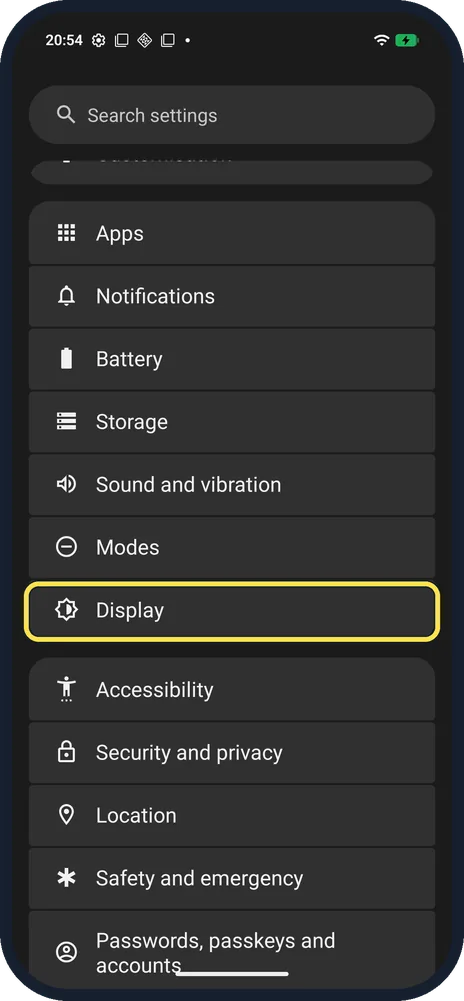
Open Display
Open Settings and tap Display.
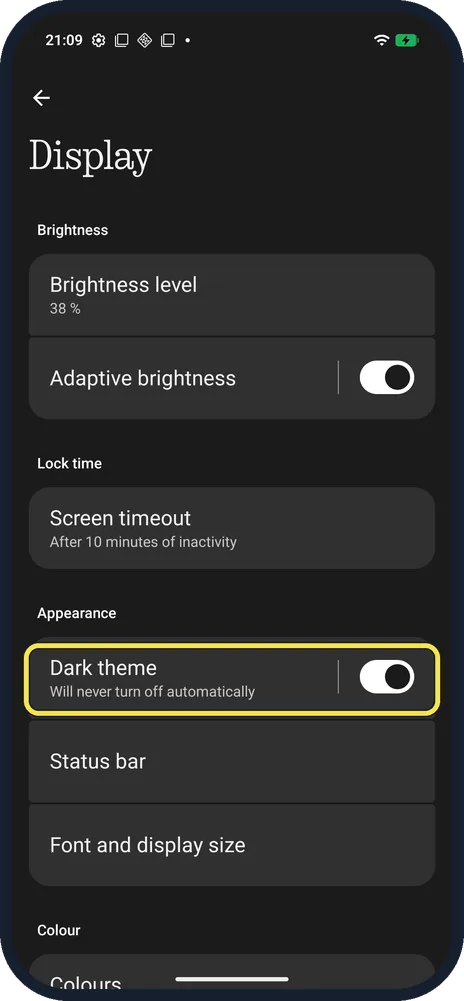
Tap Dark theme
Under Appearance.
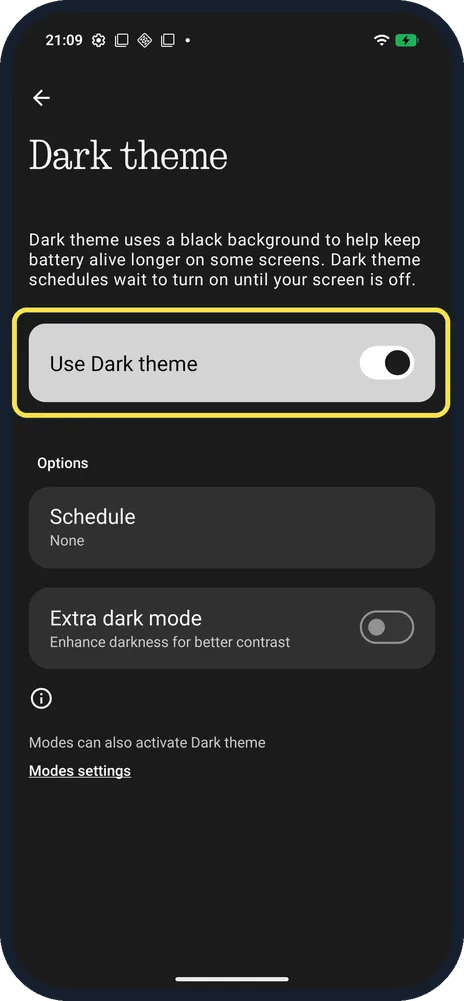
Turn on Use Dark theme
Dark theme uses a black background to help keep battery alive longer on some screens.
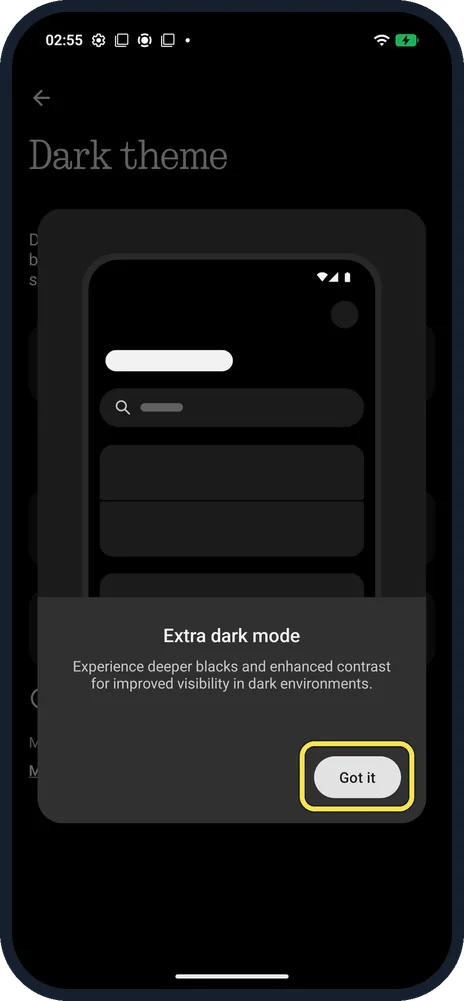
Turn on Extra dark mode, then tap Got it
Tap the Extra dark mode switch (Enhance darkness for better contrast) below Schedule. The first time, an intro says: Experience deeper blacks and enhanced contrast for improved visibility in dark environments. Tap Got it.
Check it is on
The Extra dark mode switch is now on. We turned it back off after the screenshots.
If you do not see this option
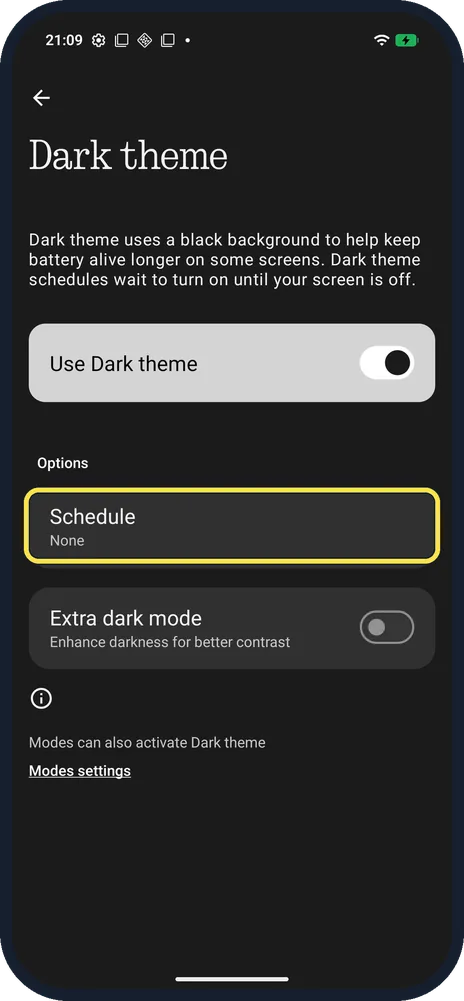
- Only at night? Tap Schedule (None on ours). The page notes that Dark theme schedules wait until your screen is off before switching.
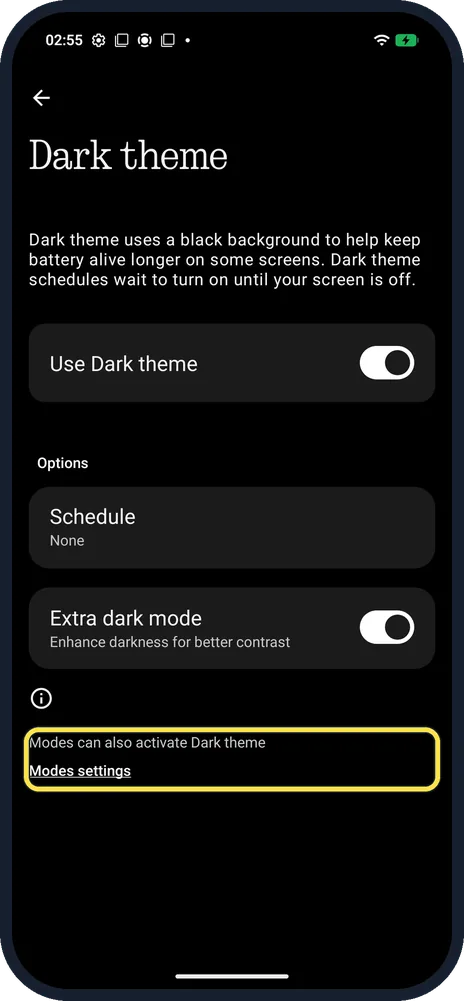
- Turned on by a Mode? The page says Modes can also activate Dark theme; Modes settings is at the bottom.
- Quicker switch? Nothing says you can also swipe down twice to the control centre and tap the Dark theme tile. Source: How do I enable Dark Theme?
If this does not work
- An app stays white? Google says some apps have their own setting: look in that app's settings for a Theme or Display option. Source: Change dark theme and colour settings on Android
- Eyes still tired at night? Night Light, lower on the Display page, warms the colours. It was Off on ours, "Will never turn on automatically".
About this guide
The screenshots are from our Nothing Phone (4a) Pro, the European model A069P, with Nothing OS 4.1 and Android 16 (build FroggerPro-B4.1-260424-1447-EEA), in Dark theme.
Good to know
To change how smooth the screen feels, see refresh rate.
To keep the time on a dark screen, see Always on display.
In short: Settings, Display, Dark theme: Use Dark theme, then Extra dark mode.
- Google Android Help: Change dark theme and colour settings on Android
- Nothing Support: How do I enable Dark Theme?
Links checked in October 2026. Menus and features can change after software updates. These steps match the version named at the top.
Did this guide work for you?
Sorry about that. What happened?