
howtosimply.com/guides/how-to-turn-on-screen-security-in-signal-on-android/ · Checked October 2026 · Google Pixel 10a, Android 17, Signal 8.32.3
In this guide
Tap your profile picture in Signal, then Privacy, and switch on Screen security. Signal then blocks screenshots in the app and hides its preview in the recent apps list. Our screenshot of Signal came out black.
4 of 4 steps with real screenshots · 1 official source below
- Device
- Android
- Shown on
- Google Pixel 10a, Android 17, Signal 8.32.3
- App
- Signal
- Real screenshots
- 4 of 4 steps
- Checked
- October 2026
- Sources
- 1 official, linked below
Step by step
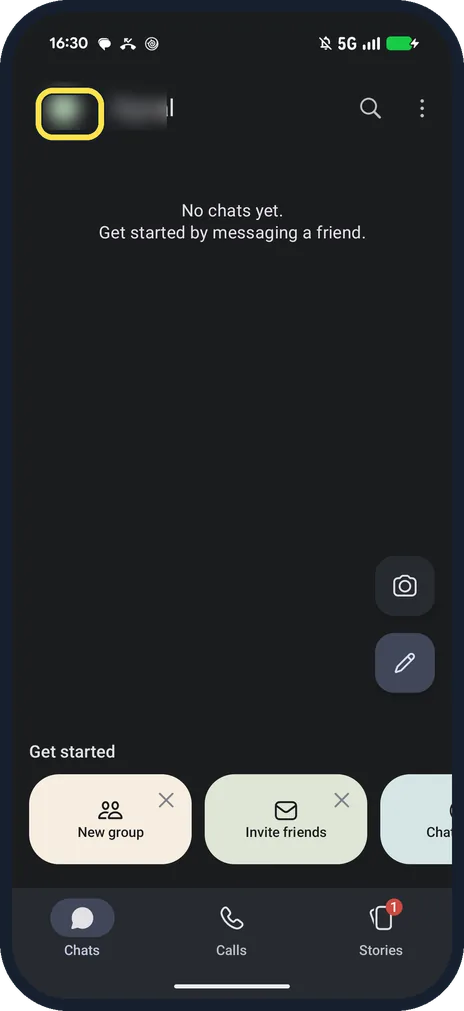
Tap your profile picture
It is at the top left of the Chats screen and opens Signal Settings.
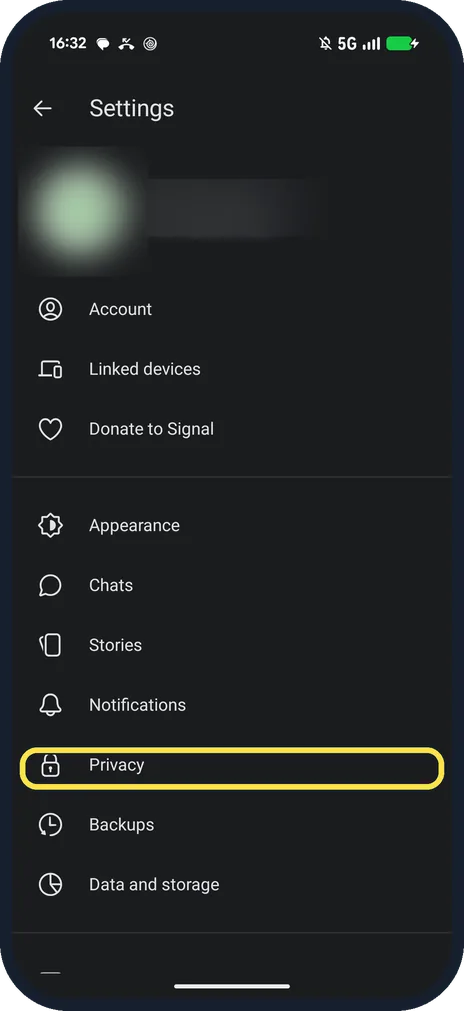
Tap Privacy
It is in Signal Settings, below Notifications.
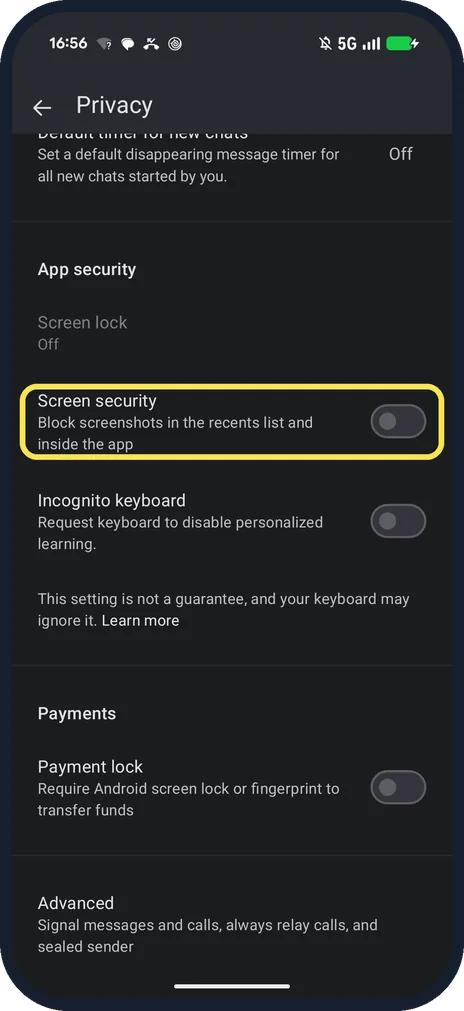
Switch on Screen security
Scroll to App security. Ours said: Block screenshots in the recents list and inside the app.
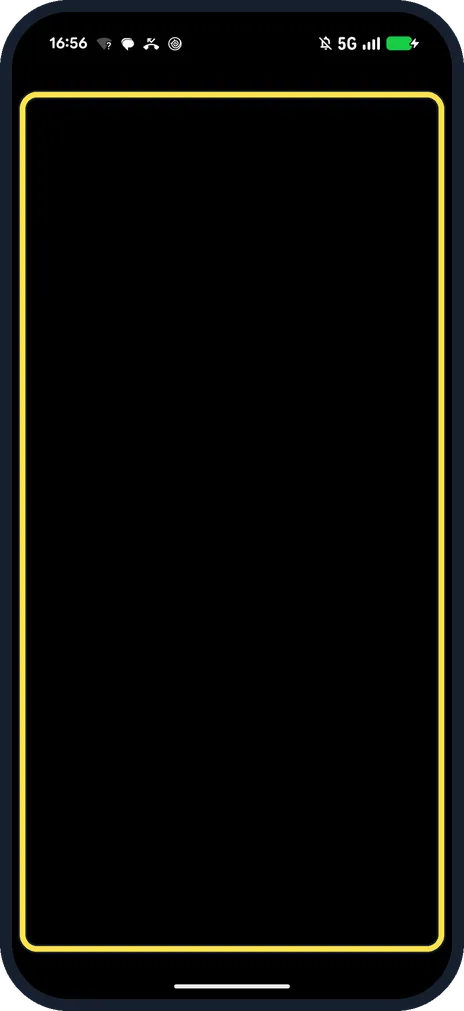
Check it worked
With Screen security on, our screenshot of Signal came out as a black frame. We then switched it off again.
If you do not see this option
- On an iPhone? Signal says the iPhone switch is called Hide Screen in App Switcher, under Settings, Privacy. Source: Screen Security
- On Signal Desktop? Signal says Desktop has its own Screen security under Settings, Privacy, and that on Windows 11 it blocks screenshots by default. Source: Screen Security
If this does not work
- Need a screenshot of Signal? Switch Screen security off first. With it on, ours captured only a black frame.
- Previews still on your computer? Signal says Screen security only covers the phone it is set on. Source: Screen Security
- Screen lock greyed out? Ours was, because the Pixel had no screen lock set. Screen security works without one.
About this guide
Screen security sits under App security on the Privacy page, below Screen lock.
The screenshots are from Signal 8.32.3 on our Google Pixel 10a with Android 17, in Dark mode, taken on 25 October 2026. We switched it on for one screenshot, then off again.
Good to know
To turn off read receipts, see turn off read receipts in Signal.
For disappearing messages, see disappearing messages by default.
In short: Profile picture, Privacy, Screen security on.
Links checked in October 2026. Menus and features can change after software updates. These steps match the version named at the top.
📷 See real photos from the Pixel 10a in our Camera Lab, next to 10 other phones.
Did this guide work for you?
Sorry about that. What happened?