
howtosimply.com/guides/how-to-turn-on-voice-typing-on-android/ · Checked October 2026 · build CP3A.261005.005 · Google Pixel 10a, Android 17
In this guide
Open Gboard settings, tap Voice typing and switch on Use voice typing. Then tap the microphone at the top right of the keyboard, allow Gboard to record audio the first time, and speak when it says "Speak now".
5 of 5 steps with real screenshots · 1 official source below
- Device
- Android
- Shown on
- Google Pixel 10a, Android 17 (build CP3A.261005.005)
- App
- Gboard settings
- Path
- Gboard settings › Voice typing › Use voice typing
- Real screenshots
- 5 of 5 steps
- Checked
- October 2026
- Sources
- 1 official, linked below
Step by step
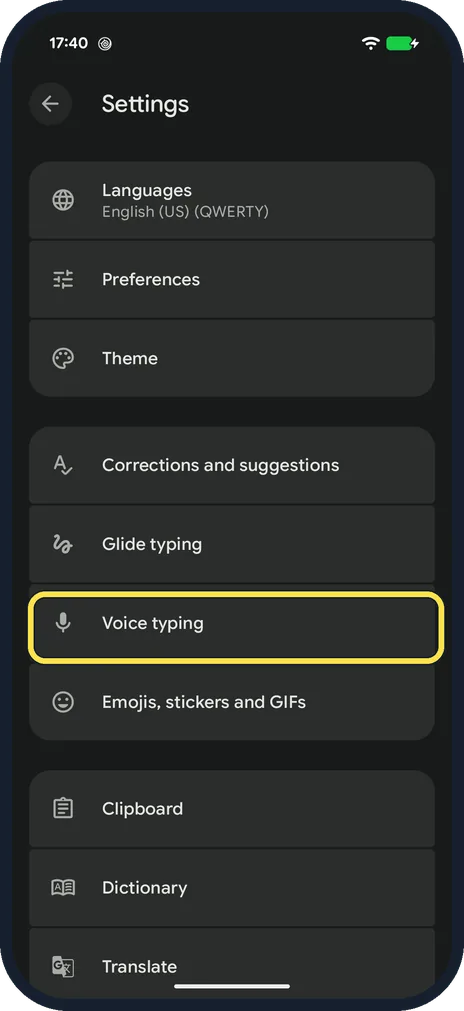
Open Gboard settings
Settings, System, Keyboard, Keyboard apps, Gboard (or search Settings for "Gboard"). Tap Voice typing.
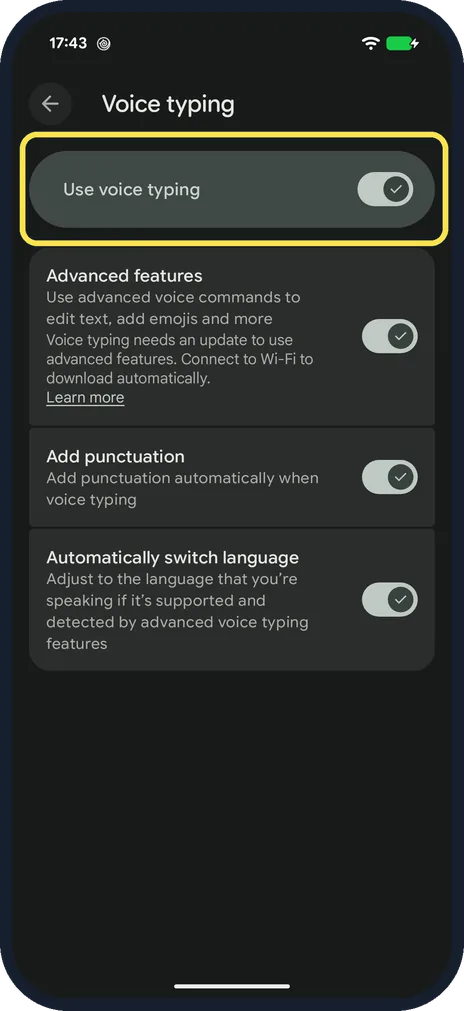
Switch on Use voice typing
Ours was already On, as were Add punctuation and Automatically switch language. Advanced features needed an update over Wi-Fi first. The Redmi had Faster voice typing instead (download dictation, Off).
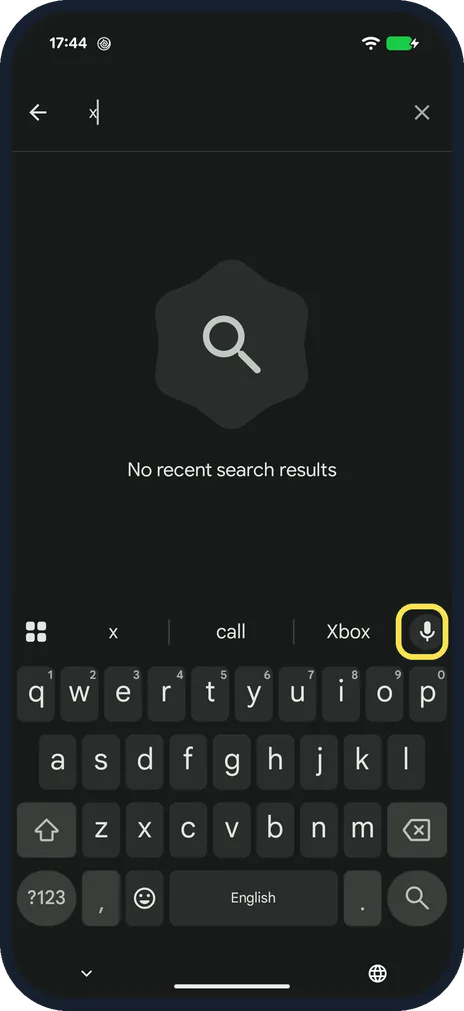
Tap the microphone
Open the keyboard in any text box. The microphone is at the right end of the suggestion strip.
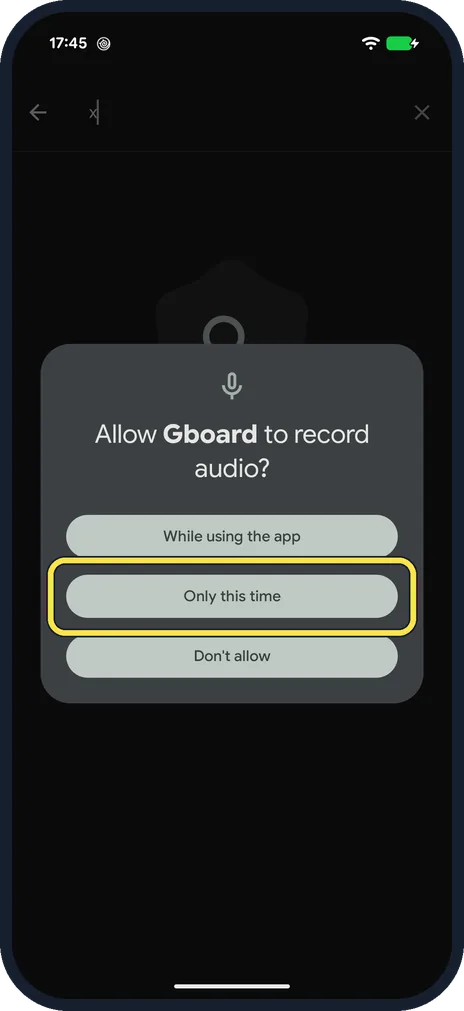
Allow Gboard to record audio
The first time, Android asks. While using the app keeps the permission; Only this time asks again later. Ours then asked for access to contacts and accounts, which we did not allow, and voice typing still started.
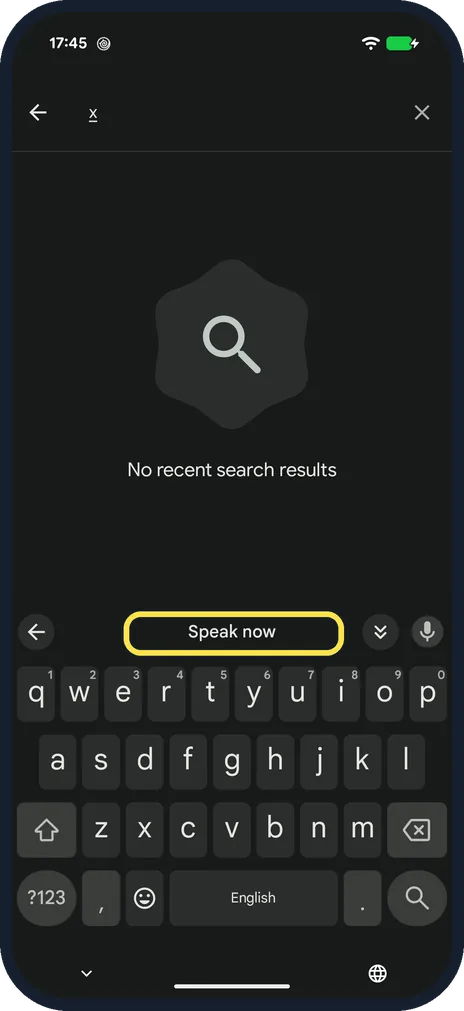
Speak
The suggestion strip says "Speak now". Talk, then tap the microphone again to stop.
What we saw on our device
- Switch on Use voice typing: Ours was already On, as were Add punctuation and Automatically switch language.
- Allow Gboard to record audio: Ours then asked for access to contacts and accounts, which we did not allow, and voice typing still started.
If you do not see this option
- No microphone on the keyboard? Use voice typing is off (step 2), or your phone uses another keyboard. Samsung Keyboard has its own voice input setting. Source: Type with your voice
- Mic greyed out or nothing happens? The microphone permission was refused. Settings, Apps, Gboard, Permissions, Microphone. Source: Type with your voice
If this does not work
- Wrong language? Voice typing uses your keyboard languages. Add the one you speak: add a keyboard language on Android. Source: Type with your voice
- Without internet? Download the language for offline use in the Voice typing settings (Faster voice typing on our Redmi). Source: Type with your voice
About this guide
Gboard types what you say in any text box. Pixels use Gboard, and so does our Redmi Note 15 Pro 5G (HyperOS 3.0.308.0, Android 16).
The screenshots are from our Google Pixel 10a with Android 17 (build CP3A.261005.005), in Dark mode, taken on 18 October 2026. We opened the keyboard in the Settings search box, said nothing and cancelled.
Good to know
More Gboard settings: change Gboard settings on a Google Pixel.
In short: Gboard settings, Voice typing, Use voice typing on. Tap the keyboard microphone, allow audio, speak.
Links checked in October 2026. Menus and features can change after software updates. These steps match the version named at the top.
Did this guide work for you?
Sorry about that. What happened?